UTM Parameters Not Showing in GA4: A Developer's Debug Guide
When UTM parameters don't show up in GA4, the cause is almost always one of five technical problems: a redirect strips the query string, the link points to a domain not configured in your GA4 data stream, URL encoding corrupts the parameter structure, a JavaScript redirect drops the query string silently, or mixed capitalisation causes GA4 to split sessions across multiple rows rather than aggregate them. Each of these is diagnosable before launch — running mlz check against the destination URL catches the three most common technical failures (redirect stripping, SSL errors, and resolution failures) in a single command. MissingLinkz prevents the other two at generation time by normalising all UTM values to lowercase-hyphenated format on every mlz build call.
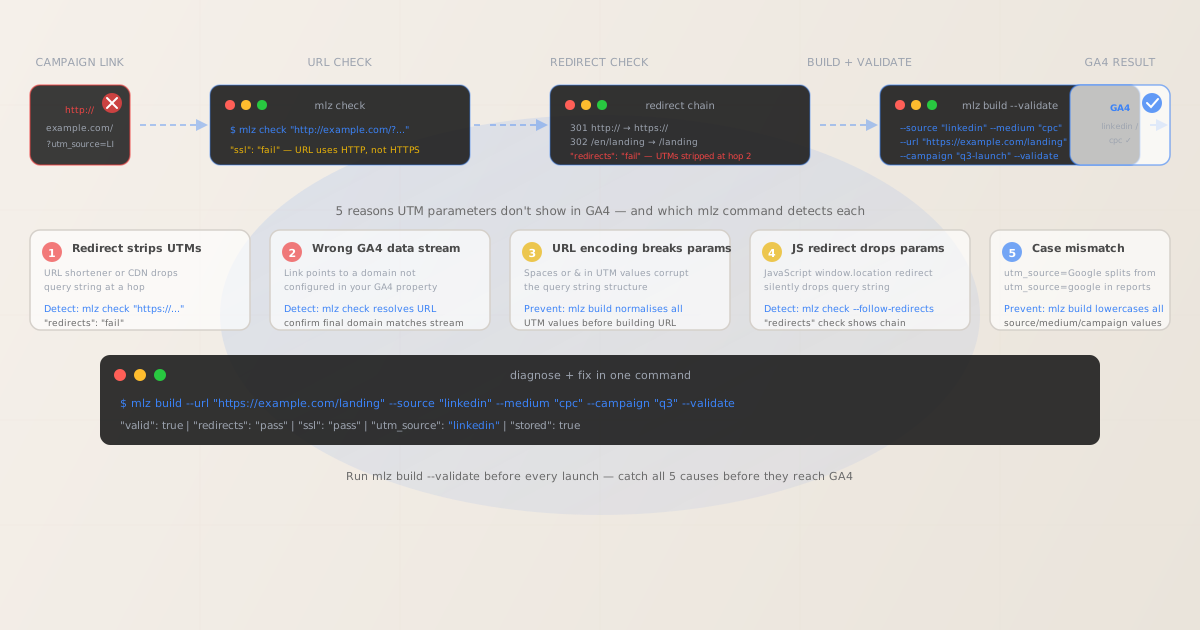
Why UTM parameters don't show in GA4: the 5 technical causes
Most "UTM parameters not working in GA4" reports trace back to one of these five causes. The first three are detectable by running mlz check against the campaign URL before it goes live. The last two are prevented at link generation time by mlz build.
| Cause | What happens | Detection / prevention |
|---|---|---|
| Redirect strips query string | A 301/302 redirect drops ?utm_source=... before GA4 fires |
mlz check — "redirects": "fail" |
| Wrong GA4 data stream domain | Link resolves to a subdomain or path not covered by your GA4 tag | mlz check — confirm final URL domain |
| URL encoding error | Space or & inside a UTM value splits the query string |
mlz build — auto-strips unsafe chars |
| JavaScript redirect drops params | window.location = "/new-path" discards the incoming query string |
mlz check redirects check shows chain |
| Case mismatch / fragmentation | utm_source=LinkedIn and utm_source=linkedin appear as separate rows |
mlz build — lowercase normalization |
Cause 1: A redirect strips your UTM parameters
This is the most common reason UTM parameters disappear in GA4. When your campaign URL passes through a redirect — a URL shortener, a CDN rewrite, an HTTP-to-HTTPS upgrade, a landing page platform's internal routing — the redirect implementation may not forward the query string to the final URL.
The result: the visitor lands on the correct page, but GA4 records the session without UTM data because the parameters were dropped before the page loaded and the GA4 tag fired. There is no error, no broken page, and no warning — the parameters simply vanish silently.
Use mlz check to trace the full redirect chain and verify that the query string survives every hop:
# Test whether the redirect chain preserves the query string
$ mlz check "https://go.example.com/q3-campaign?utm_source=linkedin&utm_medium=cpc&utm_campaign=q3"

{
  "url": "https://go.example.com/q3-campaign?utm_source=linkedin&utm_medium=cpc&utm_campaign=q3",
  "valid": false,
  "checks": [
    { "check": "ssl",        "status": "pass" },
    { "check": "resolution",  "status": "pass", "details": { "status_code": 200 } },
    { "check": "redirects",   "status": "fail",
      "message": "Redirect at hop 2 dropped query string. UTM parameters not present in final URL." }
  ],
  "status_code": 200
}
The fix is to configure the redirect to preserve the query string (typically a 301 to the full destination URL with ?query appended), or to replace the shortener link with a direct tracked URL built by mlz build that doesn't pass through a query-stripping hop. For the full redirect chain analysis pattern, see how to check if a redirect strips UTM parameters.
Cause 2: The link resolves to a domain not in your GA4 data stream
GA4 data streams are configured per domain (or subdomain, in some setups). If your campaign link redirects to a subdomain like app.example.com or store.example.com but your GA4 data stream only covers example.com, the sessions from that subdomain go untracked — no UTM data reaches GA4 because GA4 isn't listening on that domain at all.
Verify the final resolved URL using mlz check and confirm it matches your GA4-configured domain:
$ mlz check "https://example.com/campaign/landing"

{
  "url": "https://example.com/campaign/landing",
  "valid": true,
  "checks": [
    { "check": "resolution", "status": "pass",
      "details": { "status_code": 200, "response_time_ms": 212 } },
    { "check": "redirects",  "status": "pass",
      "message": "No redirects detected." }
  ],
  "status_code": 200
}

# Final URL domain: example.com — verify this is covered by your GA4 data stream
If the final URL is a subdomain not in your GA4 data stream, you have two options: add the subdomain as a separate data stream in GA4 (Admin → Data Streams), or configure cross-domain tracking so the subdomain shares the same data stream as the primary domain.
Cause 3: URL encoding errors corrupt the query string
UTM parameter values must not contain unencoded spaces, ampersands, or special characters. If a UTM value contains a literal & character — for example, utm_campaign=Q3 Sale & Clearance — the ampersand terminates the utm_campaign parameter and starts a new (invalid) parameter called clearance. GA4 parses the utm_campaign value as Q3 Sale (truncated) and the remaining characters as garbage.
This type of encoding error is invisible to visual inspection — the URL looks valid when pasted in a browser, but the parameter structure is broken at the parsing layer.
mlz build prevents encoding errors by sanitising all UTM values at generation time. Spaces are converted to hyphens, ampersands are stripped, and special characters are removed before the URL is constructed:
# Safe UTM generation — mlz sanitises values before building the URL
$ mlz build \
  --url "https://example.com/landing" \
  --source "google" \
  --medium "cpc" \
  --campaign "Q3 Sale & Clearance 2026"

{
  "tracked_url": "https://example.com/landing?utm_source=google&utm_medium=cpc&utm_campaign=q3-sale-clearance-2026",
  "params": {
    "utm_source": "google",
    "utm_medium": "cpc",
    "utm_campaign": "q3-sale-clearance-2026"
  }
}
# The & and spaces in "Q3 Sale & Clearance 2026" were safely normalised
Cause 4: A JavaScript redirect silently drops the query string
HTTP redirects (301, 302, 307) typically forward the full request URL including the query string to the new location. JavaScript redirects — window.location.href = "/new-path" or window.location.replace("/new-path") — do not: they navigate to a new URL that does not include the query string from the incoming URL unless the developer explicitly forwards it.
This is common in single-page applications, checkout flows, and login walls where JavaScript handles navigation. The visitor sees the correct content, the page appears to load successfully, but the UTM parameters in the original campaign URL are gone by the time GA4's measurement code fires.
Detecting JavaScript redirects programmatically requires checking whether the final resolved URL still contains the UTM parameters. The mlz check redirect check reports the hop chain, but it can't execute JavaScript — for JS-redirect detection, the reliable method is to check the page in a real browser with DevTools Network panel open and confirm the UTM parameters are present in the URL when GA4's page_view event fires.
The prevention: if your application redirects logged-in users or post-checkout visitors, ensure the redirect handler forwards the query string explicitly (window.location.href = "/dashboard" + window.location.search).
Cause 5: Case mismatches fragment your data instead of dropping it
Case mismatches don't make UTM parameters disappear from GA4 — they make them appear in the wrong rows. utm_source=LinkedIn and utm_source=linkedin both record successfully in GA4, but as two separate source rows. If you're looking at the linkedin row and it shows fewer sessions than expected, the missing sessions may be in the LinkedIn or linkedin-ads row instead.
This can look like "UTM parameters not working" because the data you expect to see in one place is scattered across several rows. The diagnostic: search your GA4 source/medium report for all variants of the same source name. The fix: use mlz build to generate all campaign links going forward — it normalises every source, medium, and campaign value to lowercase at generation time. For a full guide to fixing fragmentation, see utm_source fragmentation in GA4 and are UTM parameters case sensitive in GA4?
Pre-launch validation: catching all causes before launch
The most reliable way to prevent UTM parameters from going missing in GA4 is to validate every campaign link before it's shared or deployed. MissingLinkz validates and builds in one step:
# Build the UTM link AND validate the destination in one command
$ mlz build \
  --url "https://example.com/landing" \
  --source "linkedin" \
  --medium "cpc" \
  --campaign "q3-launch-2026" \
  --validate

{
  "tracked_url": "https://example.com/landing?utm_source=linkedin&utm_medium=cpc&utm_campaign=q3-launch-2026",
  "params": {
    "utm_source": "linkedin",
    "utm_medium": "cpc",
    "utm_campaign": "q3-launch-2026"
  },
  "stored": true
}
# Values normalised, destination validated, link stored — ready for launch
For the most complete pre-launch check — including OG tag verification, SSL validation, Twitter Card presence, and redirect chain analysis alongside UTM building — use mlz preflight. See the campaign link validation guide for the full walkthrough, or how to validate UTM links before publishing for the step-by-step checklist.
Automating the check: validate in CI/CD before every deploy
Manual pre-launch checks are better than nothing but they don't scale. For teams deploying campaign landing pages as part of a build pipeline, add mlz check as a step in your GitHub Actions workflow to catch redirect and resolution failures automatically:
# .github/workflows/campaign-link-check.yml (excerpt)
- name: Check campaign URLs
  run: |
    npm install -g missinglinkz
    for url in $(cat campaign-urls.txt); do
      mlz check "$url" --format json | jq -e '.valid == true'
    done
For the complete GitHub Actions template including Slack notifications and PR gating, see automate campaign link validation in GitHub Actions. For CI/CD integration with GitLab and Azure DevOps as well, see campaign link validation in CI/CD pipelines.
Recommended posts
FAQ
- Why are UTM parameters not showing in GA4?
- UTM parameters don't appear in GA4 for one of five reasons: a redirect in the campaign URL dropped the query string before the GA4 tag fired, the destination domain isn't configured in your GA4 data stream, a special character in a UTM value corrupted the query string structure, a JavaScript redirect on the landing page stripped the incoming query string, or mixed capitalisation caused GA4 to split the sessions across separate source rows instead of merging them. Run
mlz checkagainst your campaign URL to detect the first three causes before launch. - How do I test whether my UTM parameters are working before launch?
- Run
mlz check "https://your-campaign-url.com?utm_source=..."to validate URL resolution, SSL, redirect chain, and response time. Addmlz build --validateto your link generation step to both normalise the UTM values and validate the destination in one command. For a complete pre-publish check including OG tags and Twitter Card validation, usemlz preflight. - Can a 301 redirect cause UTM parameters to disappear?
- Yes. A 301 redirect is supposed to forward the full URL including query string to the new location, but the implementation matters. Some reverse proxies, CDN configurations, and URL shorteners only forward the path component and drop the query string. A 302 redirect can do the same. The only reliable way to verify is to trace the full redirect chain and confirm the UTM parameters are present in the final URL — which is exactly what
mlz check's redirects check does. - Why do my UTM parameters show in the URL bar but not in GA4?
- If you can see the UTM parameters in your browser's address bar but they don't appear in GA4, the most likely cause is a JavaScript redirect that fires after the initial page load. The browser navigates to the campaign URL (UTMs visible), then JavaScript redirects to a new path (UTMs lost), and GA4's
page_viewevent fires on the post-redirect URL without UTM data. Check the Network tab in DevTools and look for a navigation event that changes the URL after the initial load. - How long does it take for UTM parameters to show up in GA4?
- GA4 standard reports have a processing delay of 24–48 hours for most data. Realtime reports show UTM data within seconds of a session. If you're checking a standard report (Acquisition → Traffic Acquisition) and your campaign launched within the last 24 hours, the data may simply not have processed yet. Check the GA4 Realtime report to confirm UTM parameters are being received at all before assuming a technical problem.
Catch broken UTM parameters before they reach GA4
MissingLinkz validates redirect chains, normalises UTM values, and confirms destination health in one command. Run it before every campaign launch — not after you've lost a week of attribution data.
1,000 links/month free. No credit card.
Your API key
Save this now — it won't be shown again.
npm install -g missinglinkz
Then run mlz check on any existing campaign URLs and mlz build --validate for every new one.