UTM Parameters Not Working in Google Tag Manager: How Developers Debug GA4 Attribution
UTM parameters are present in the campaign URL, the landing page loads correctly, but GA4 reports session_source=(direct) anyway. In a GTM-managed setup, the most common culprit is a GA4 Configuration tag firing on DOM Ready or Window Loaded instead of the earliest possible trigger. GA4 reads UTM parameters from the URL when the gtag('config') call initialises the session — if the Configuration tag fires after other scripts have already manipulated the page or after the browser has had a chance to lose the landing URL context, UTM attribution fails. But before changing anything in GTM, confirm that the network layer isn't the problem first. MissingLinkz's mlz check command follows the full redirect chain from the campaign URL and reports whether UTM parameters survive to the final destination. If UTMs are stripped before the browser loads the page, no GTM configuration will recover them. A clean mlz check result means the problem is definitively in GTM — then the diagnostic steps below apply.
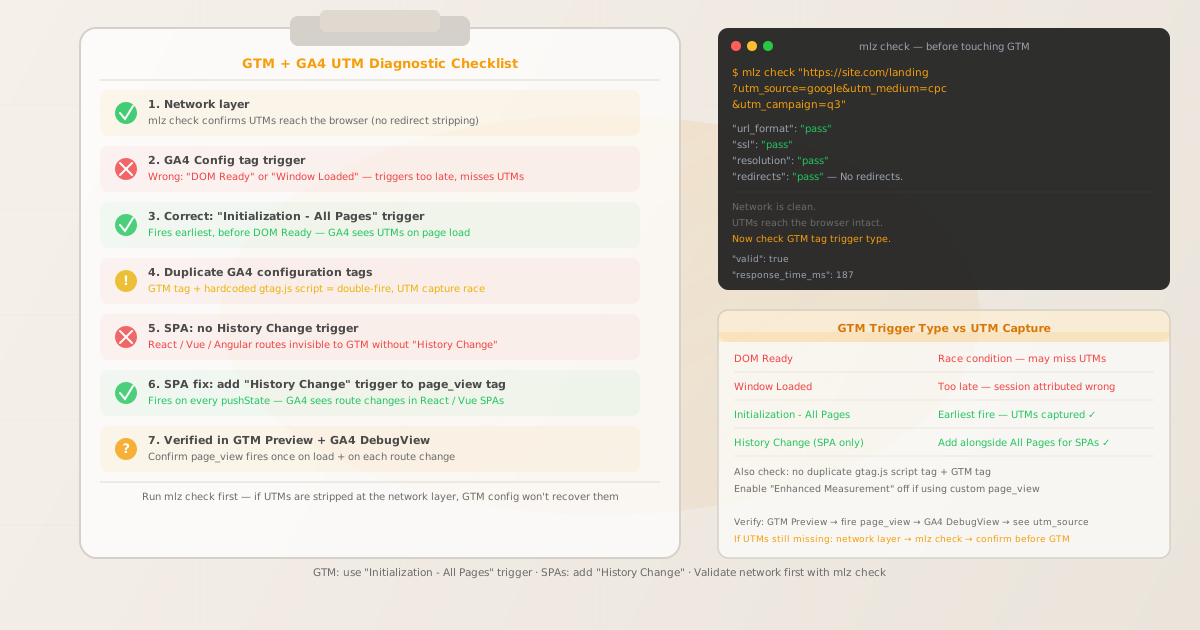
Why GTM breaks UTM parameter capture
GA4's session attribution logic reads UTM parameters at the moment the GA4 library initialises — specifically when gtag('config', 'G-XXXXXXXXXX') runs. In a GTM setup, this call is wrapped in a GTM tag. The tag fires according to its trigger configuration: too early, too late, or at the wrong moment, and the UTM parameters may not be available, may be read from the wrong URL context, or may conflict with another script's first-party data.
The three most common trigger-related failure modes:
- DOM Ready trigger
- The GA4 Configuration tag fires after the DOM is built but before all assets load. In most cases this works, but on pages with aggressive JavaScript that modifies the URL or sets
document.referreronDOMContentLoaded, the Configuration tag can fire after the URL context has been altered. More importantly,DOM Readyis slower thanInitialization - All Pages— creating a window where another script might initialise GA4 from a hardcoded<script>tag first, causing a race condition. - Window Loaded trigger
- Firing the GA4 Configuration tag on
Window Loadedis unambiguously wrong for UTM attribution. This fires after all resources — including third-party scripts, images, and iframes — have loaded. In that window, the browser may have already processed landing page redirects, cookie consent scripts, or SPA frameworks that modify the URL. By the time the Configuration tag fires, the UTM-bearing URL may no longer be the current page location. - All Pages trigger but not first in firing order
- Even with
All Pagesas the trigger, tag firing order matters. If another tag (an ad pixel, a chat widget, a CMP callback) fires and triggers apushStatecall before the GA4 Configuration tag, the URL context can shift. GTM's tag sequencing options can control this, but the simplest solution is to useInitialization - All Pageswhich runs before any other trigger type.
Step zero: confirm UTMs survive the redirect chain
Before changing any GTM configuration, verify that the campaign URL's UTM parameters are not being stripped at the network level. A Cloudflare Worker, nginx proxy rule, or an ad platform's redirect chain can strip query strings before the browser even loads the page. GTM has no visibility into this — no GTM change will fix a network-level stripping problem.
mlz check "https://your-site.com/landing?utm_source=google&utm_medium=cpc&utm_campaign=q3"
When UTM parameters survive the redirect chain intact, mlz check passes all checks:
{
  "url": "https://your-site.com/landing?utm_source=google&utm_medium=cpc&utm_campaign=q3",
  "valid": true,
  "checks": [
    { "check": "url_format",   "status": "pass", "message": "URL format is valid." },
    { "check": "ssl",          "status": "pass", "message": "URL uses HTTPS." },
    { "check": "resolution",   "status": "pass", "message": "Destination responded with 200." },
    { "check": "redirects",    "status": "pass", "message": "No redirects detected." },
    { "check": "response_time", "status": "pass", "message": "Response time: 187ms." }
  ],
  "valid": true
}
All checks passing means UTMs are intact at the network layer and the browser receives the full campaign URL. The attribution problem is definitively in GTM's configuration. If you see "redirects": "fail" with "utm_present_at_final_url": false, the stripping happens before GTM runs — fix the redirect chain first. See How to Check if a Redirect Strips UTM Parameters and UTM Parameters Stripped by Cloudflare Workers.
Fix 1: change the GA4 Configuration tag trigger to "Initialization - All Pages"
The Initialization - All Pages trigger type is the earliest GTM can fire a tag — it runs before DOM Ready, before All Pages, and before any other trigger except a direct tag-sequencing dependency. This is the correct trigger for the GA4 Configuration tag in all standard setups.
To change the trigger in GTM:
- Open your GTM workspace and navigate to Tags.
- Click on your GA4 Configuration tag (typically named "GA4 — Configuration" or similar).
- In the Triggering section, remove any existing trigger.
- Click the + button to add a new trigger.
- Select Initialization from the trigger type list — not "All Pages", not "DOM Ready".
- Leave the default "All Initialization Events" selected and save.
- Submit and publish the container.
With Initialization - All Pages, the GA4 Configuration tag fires as the very first GTM action on every page load. At this point window.location.href has the full original URL with UTM parameters, no scripts have had a chance to modify the URL, and GA4's session initialisation reads the UTMs correctly.
| Trigger type | Fires when | UTM capture reliability |
|---|---|---|
Window Loaded |
After all resources load — last possible moment | ✗ Unreliable — URL may have changed |
DOM Ready |
After HTML parsed, before assets load | ✗ Race condition risk with other scripts |
All Pages |
Just after the first GTM sync point | ✓ Usually works, but not guaranteed first |
Initialization - All Pages |
Earliest possible GTM fire point | ✓ Recommended — runs before all others |
Fix 2: remove duplicate GA4 configuration sources
A common cause of inconsistent UTM capture is running GA4 from both a hardcoded <script> tag in the page HTML and a GTM tag simultaneously. If the hardcoded gtag.js script loads first, it initialises the GA4 session with whatever URL context it encounters — which may or may not include UTMs depending on when the script executes relative to page rendering. When GTM then fires its GA4 Configuration tag, the session is already initialised, and the UTM parameters in GTM's tag may be ignored or cause a double-fire with conflicting data.
Diagnosing this in your browser's Network tab: look for two separate requests to google-analytics.com/g/collect on page load, or two requests to www.googletagmanager.com/gtag/js. One request is from the hardcoded script, one is from GTM's tag.
The fix is straightforward: choose one source of truth. If you are using GTM to manage GA4, remove the hardcoded gtag.js snippet from your HTML entirely and let GTM manage the full lifecycle. If you need a hardcoded snippet for some reason, remove the GA4 Configuration tag from GTM and load GA4 exclusively via the hardcoded script — then set send_page_view: false on the hardcoded config and fire page_view manually for consistency.
Also check GTM's Enhanced Measurement setting on your GA4 data stream. If Enhanced Measurement is enabled and includes "Page changes based on browser history events", it fires page_view events automatically on SPA navigation — which can conflict with a custom History Change trigger you add later. Turn Enhanced Measurement's page view tracking off if you plan to manage page_view events explicitly via GTM.
Fix 3: add History Change trigger for SPAs
If your site uses React, Vue, Angular, or any other SPA framework, client-side route changes via history.pushState are invisible to GTM's standard page view triggers. The All Pages and Initialization - All Pages triggers only fire on full browser navigation events — actual page loads. When a React Router link is clicked and the URL changes without a page reload, GTM does not fire any tag automatically.
GTM provides a built-in trigger type called History Change that fires whenever history.pushState or history.replaceState is called, or when the browser fires a popstate event. To use it for GA4 page view tracking:
- In GTM, create a new GA4 Event tag (not the Configuration tag — you want a discrete event).
- Set the Event Name to
page_view. - In the Event Parameters, add:
page_path— set the value to the GTM built-in variable{{Page Path}}page_location— set to{{Page URL}}
- Under Triggering, create a new trigger with type History Change.
- Set it to fire on "All History Changes" (or restrict by page path if needed).
- Save and publish.
// GTM History Change trigger fires on every pushState call
// Equivalent to what your SPA router does internally:
window.history.pushState({}, '', '/pricing')

// GTM sees this, fires the History Change trigger
// Your GA4 Event tag fires with page_path: '/pricing'
// GA4 records the route change as a page_view

// You can also push to dataLayer directly for explicit control:
window.dataLayer = window.dataLayer || []
window.dataLayer.push({
  event: 'virtual_page_view',
  page_path: window.location.pathname + window.location.search
})
Note that History Change triggers fire on the new URL state — meaning {{Page Path}} will return the post-navigation URL (e.g. /pricing), not the URL that contained UTMs. GA4's session attribution carries the UTMs from the initial page load automatically — you do not need to forward UTMs on each History Change trigger.
If your SPA framework provides a dataLayer.push approach (common in older Angular or React setups using custom GTM integrations), you may already have virtual_page_view events in the dataLayer. Check for them in GTM Preview before adding a History Change trigger — you don't want both firing simultaneously and doubling the page_view count in GA4.
Debugging GTM configuration with Preview mode
GTM's Preview mode is the authoritative debugging tool for verifying tag firing order and timing. Enable it by clicking Preview in your GTM workspace, then open your landing page URL in the same browser. The GTM debug panel shows every event, every tag that fired, and in what order — with exact timing.
For UTM attribution debugging, look for these specific things in the Preview panel:
- Check the "Initialization" event
- In the GTM debug timeline,
Initializationappears as the very first event before any page-specific events. Your GA4 Configuration tag should appear in the "Tags Fired" list under this event — not under "DOM Ready" or "Window Loaded". If it appears only underAll Pagesbut notInitialization, your trigger is set toAll Pagesrather thanInitialization - All Pages. - Check the GA4 Configuration tag's "Measurement ID" parameter
- In the tag details, the Measurement ID field should reference your GA4 data stream ID (format:
G-XXXXXXXXXX). If it shows a variable like{{GA4 Measurement ID}}, verify the variable is correctly populated — an undefined variable here silently prevents the tag from firing. - Check for duplicate GA4 tags
- Under any page event in the debug panel, if you see two GA4 Configuration tags firing, you have a duplicate. One may be the correctly-triggered one and one may be a leftover from an earlier setup. Identify which one is redundant and delete it.
- Check History Change events for SPAs
- After navigating to a new route in your SPA, the GTM debug panel should show a
History Changeevent. If no History Change event appears when you click a navigation link, the framework may be usingreplaceStateinstead ofpushState— GTM's History Change trigger handles both, but verify in the Network tab that the URL change is happening via the History API and not via a different mechanism.
After confirming the GTM configuration in Preview mode, validate in GA4's DebugView. With DebugView active (accessible in GA4 under Configure > DebugView), every page_view event should appear in real time as you navigate. Each event should show session_source, session_medium, and session_campaign attributes populated from the original UTM-bearing landing URL.
Pre-launch validation with mlz preflight
After fixing the GTM configuration, validate the full campaign URL before launch. mlz preflight builds the tracked URL, validates the redirect chain and SSL, and inspects the landing page's Open Graph tags and Twitter Card metadata — the full pre-publish checklist in one command:
mlz preflight --url "https://your-site.com/landing" --source "google" --medium "cpc" --campaign "q3-launch"
{
  "ready": true,
  "tracked_url": "https://your-site.com/landing?utm_source=google&utm_medium=cpc&utm_campaign=q3-launch",
  "checks": [
    { "check": "ssl",          "status": "pass", "message": "URL uses HTTPS." },
    { "check": "resolution",   "status": "pass", "message": "Destination responded with 200." },
    { "check": "redirects",    "status": "pass", "message": "No redirects detected." },
    { "check": "og_tags",     "status": "pass", "message": "All essential Open Graph tags present." },
    { "check": "twitter_card", "status": "pass", "message": "Twitter Card tags configured." }
  ],
  "summary": { "total": 12, "passed": 12, "warnings": 0, "failed": 0 },
  "recommendation": "All checks passed. Campaign link is ready to publish."
}
A clean preflight result confirms the infrastructure is ready. Add mlz preflight to your pre-launch checklist and run it every time you change GTM configuration that might affect landing page delivery — a new redirect rule or a CMP integration can inadvertently break UTM tracking in ways that are invisible until you check.
Frequently asked questions
- Does GTM automatically capture UTM parameters in GA4?
- GTM itself does not capture UTMs — the GA4 library does, when its
gtag('config')call initialises the session. GTM is the delivery mechanism: it fires the tag containing the Configuration call. The trigger type determines when that call happens. If the trigger fires too late or in the wrong sequence relative to other scripts, GA4 may not capture the UTMs from the landing URL. The fix isInitialization - All Pagesas the trigger for the GA4 Configuration tag. - What trigger type should the GA4 Configuration tag use in GTM?
Initialization - All Pagesis the correct trigger for the GA4 Configuration tag. It fires beforeDOM Ready, beforeAll Pages, and before any other page-lifecycle trigger — ensuring GA4 initialises with the full original URL before any other script can modify the page or URL context. Do not useDOM ReadyorWindow Loadedfor the Configuration tag.- Why do UTM parameters show up on some sessions but not others in GA4?
- Intermittent UTM capture often indicates a race condition: the GA4 Configuration tag fires before or after other scripts depending on network speed, browser caching, and tag loading order. The symptom is UTMs appearing correctly on fast page loads (where the Configuration tag wins the race) but appearing as
(direct)on slow loads (where another script wins). Moving the Configuration tag toInitialization - All Pageseliminates the race by ensuring it always runs first. - How do I track UTM parameters in SPAs using GTM?
- Use the
Initialization - All Pagestrigger for the GA4 Configuration tag to capture UTMs on the initial page load. Then add a separate GA4 Event tag with event namepage_viewtriggered by aHistory Changetrigger — this fires whenever the SPA router callshistory.pushStateorhistory.replaceState, giving GA4 visibility into client-side route changes. Disable "Page changes based on browser history events" in GA4's Enhanced Measurement to avoid double-firing with your History Change tag. - Why are UTM parameters visible in the URL but not appearing in GA4 reports?
- If
mlz checkconfirms UTMs reach the browser intact but GA4 still shows(direct), the GTM Configuration tag is either firing too late (wrong trigger) or being overridden by another GA4 initialisation (hardcodedgtag.jsscript). Use GTM Preview mode to verify the GA4 Configuration tag appears under theInitializationevent and check the browser Network tab for duplicate requests togoogle-analytics.com. If there are two requests on first load, you have a duplicate tag configuration.
Validate campaign URLs before debugging GTM configuration
Run mlz check first to confirm UTMs survive the redirect chain — if the network layer is clean, the problem is in GTM's trigger type or tag order, and the fixes above apply.
1,000 links/month free. No credit card.
Your API key
Save this now — it won't be shown again.
npm install -g missinglinkz
Then: mlz check "https://your-site.com/landing?utm_source=google&utm_medium=cpc&utm_campaign=q3"