Why GA4 Shows Campaign Traffic as Direct: A Developer's Prevention Checklist
When GA4 shows campaign traffic as (direct)/(none), it means the UTM parameters that were on your campaign link never reached GA4's tag. The attribution data was lost in transit — most often because a redirect stripped the query string before the landing page loaded. GA4 reads UTM parameters from the URL at the moment the first hit fires. If the parameters are gone by then, the session has no campaign attribution and defaults to direct. The fix is not post-launch debugging in the GA4 interface — by the time you see the problem, the campaign may have run for days with unattributed spend. The infrastructure-grade answer is to run mlz check against every campaign URL before it goes live. MissingLinkz traces the full redirect chain, verifies that query strings survive every hop, and fails the check with a specific message if they don't — so you fix the redirect before a single session is recorded incorrectly.
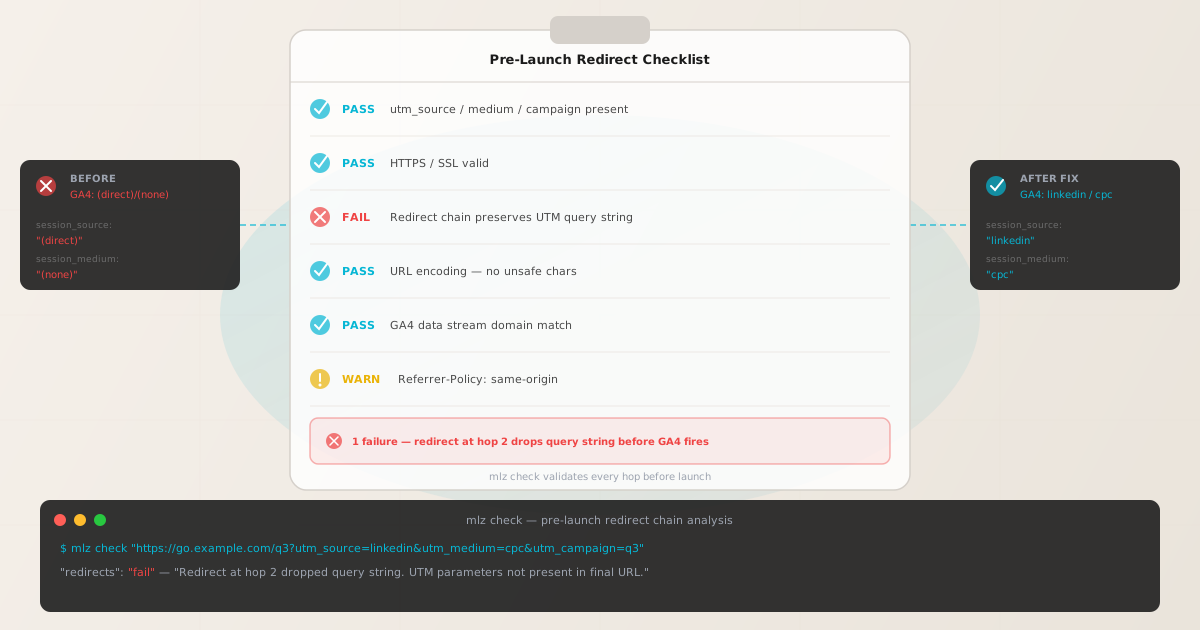
Why GA4 attributes campaign sessions as (direct)/(none)
GA4 uses a last-non-direct-click attribution model for session source. When a session begins, GA4 looks for UTM parameters in the landing page URL and a referrer in the HTTP headers. If it finds neither, the session source defaults to (direct) and the medium to (none).
The four most common developer-side causes of this misattribution are each distinct and each requires a different prevention strategy:
| Cause | What GA4 shows | Detection |
|---|---|---|
| Redirect strips query string at any hop | (direct)/(none) | mlz check → "redirects": "fail" |
| JavaScript redirect discards query string | (direct)/(none) | mlz check sees the redirect chain |
| Cross-domain redirect without GA4 linker | (direct)/(none) on receiving domain | mlz check → confirm final URL domain |
| Link was shared without UTM parameters | (direct)/(none) | mlz build --validate before sharing |
Each of these is detectable or preventable before the campaign launches. Post-launch, your only option is to exclude affected sessions from reports or rerun the campaign — neither is satisfying. Pre-launch validation with mlz check takes seconds per URL and eliminates all four causes.
Cause 1: A redirect strips the query string
This is the most common reason campaign traffic appears as (direct)/(none) in GA4. When a URL shortener, a CDN rewrite rule, an HTTP-to-HTTPS upgrade redirect, or a landing page platform's internal routing forwards a request to its destination, it may not preserve the ?utm_source=... query string. The visitor lands on the correct page, the GA4 tag fires, the page loads normally — but the UTM parameters that were on the original link are gone.
The problem is invisible without tooling. Visiting the URL in a browser follows the redirect and lands on the correct page with no error. You would have to inspect the full redirect chain hop-by-hop and compare query strings at each step to catch it manually. That is exactly what mlz check does automatically:
$ mlz check "https://go.example.com/q3?utm_source=linkedin&utm_medium=cpc&utm_campaign=q3"

{
  "url": "https://go.example.com/q3?utm_source=linkedin&utm_medium=cpc&utm_campaign=q3",
  "valid": false,
  "checks": [
    { "check": "url_format",   "status": "pass", "message": "URL format is valid." },
    { "check": "ssl",          "status": "pass", "message": "URL uses HTTPS." },
    { "check": "resolution",   "status": "pass", "message": "Destination responded with 200.",
      "details": { "status_code": 200, "response_time_ms": 198 } },
    { "check": "redirects",   "status": "fail",
      "message": "Redirect at hop 2 dropped query string. UTM parameters not present in final URL." },
    { "check": "response_time", "status": "pass", "message": "Response time: 198ms." }
  ],
  "status_code": 200,
  "response_time_ms": 198,
  "validated_at": "2026-07-12T09:15:22.314Z"
}
The fix depends on what is doing the redirect. For server-side redirects (Apache, Nginx, Cloudflare Page Rules), configure the redirect to pass the full query string through. For URL shorteners, test whether the platform preserves query strings — many do not by default. If the shortener is causing the problem, replace it with a direct tracked link built by mlz build that goes straight to the destination without an intermediary hop. For a step-by-step guide to diagnosing redirect chains, see how to check if a redirect strips UTM parameters.
Cause 2: A JavaScript redirect discards the query string
A common pattern in single-page applications and legacy marketing sites is a JavaScript redirect that fires on page load. The typical form is:
// WRONG — silently drops the incoming query string
window.location = "/new-landing-path";

// CORRECT — preserves UTM params from the original URL
window.location = "/new-landing-path" + window.location.search;
When window.location = "/new-landing-path" fires, the browser navigates to the new path without the original URL's query string. The GA4 tag that fires on the new page sees no UTM parameters. From GA4's perspective, the user arrived directly at /new-landing-path with no campaign attribution.
This is particularly difficult to catch because the redirect happens in milliseconds in the browser. Server-side checks — including mlz check — trace HTTP-level redirects (301, 302, 307, 308) but cannot execute JavaScript. However, mlz check still provides useful signal: if the redirect chain appears clean at the HTTP level but you are still seeing (direct)/(none) in GA4, a JavaScript redirect on the landing page is the likely culprit. Check the landing page source for window.location, window.location.href, location.replace(), or meta-refresh tags that fire before the GA4 tag.
The fix is one line: append window.location.search to the destination path so the query string is forwarded to the new URL. After making the change, run mlz check again to confirm the HTTP-level redirect chain is also clean — both layers need to pass before the campaign can launch.
Cause 3: A cross-domain redirect without GA4 cross-domain tracking
GA4 treats each domain as a separate context by default. When a campaign link on example.com redirects to app.example.com or store.example.com, GA4 starts a new session on the destination domain. If the UTM parameters are present on the redirect destination URL, GA4 will read them and attribute the session correctly. But if the redirect drops the query string — or if the subdomain is not in your GA4 data stream configuration — the session on the destination domain appears as (direct)/(none).
Use mlz check to verify the final resolved URL and confirm it matches your GA4 stream configuration:
$ mlz check "https://go.example.com/q3?utm_source=linkedin&utm_medium=cpc&utm_campaign=q3"

{
  "url": "https://go.example.com/q3?utm_source=linkedin&utm_medium=cpc&utm_campaign=q3",
  "valid": true,
  "checks": [
    { "check": "ssl",         "status": "pass" },
    { "check": "resolution",  "status": "pass",
      "details": { "status_code": 200, "response_time_ms": 142 } },
    { "check": "redirects",  "status": "pass",
      "message": "Query string preserved across all hops." }
  ],
  "status_code": 200
}

# Inspect the resolved final URL domain and confirm it matches your GA4 data stream
# If the final domain is app.example.com, you need that domain in your GA4 stream config
If the final URL resolves to a subdomain not covered by your GA4 data stream, you have two options: add the subdomain as a separate data stream in GA4 (Admin → Data Streams → Add stream), or configure cross-domain tracking in your GA4 tag so the same session ID is carried across domain boundaries via a _gl parameter. The second option requires configuring the linker domains in your Google Tag configuration. Either way, mlz check gives you the final resolved domain so you can verify the configuration before launch rather than diagnosing from GA4 reports afterward.
Cause 4: The link was shared without UTM parameters
The most operationally simple cause is also the easiest to miss: someone shared the campaign's destination URL directly, without the UTM parameters attached. This happens when a team member copies the landing page URL from the browser address bar instead of using the tracked link, or when a campaign brief specifies the destination but not the tracking URL, and the person scheduling the post uses the wrong URL.
The result in GA4 is the same — (direct)/(none) — but there is nothing technically wrong with the redirect chain or the GA4 configuration. The session simply had no UTM parameters because none were present in the URL that was shared.
Prevention is at the point of generation. Use mlz build with the --validate flag to build and immediately validate the tracked URL before it is shared:
$ mlz build \
  --url "https://example.com/landing" \
  --source "linkedin" \
  --medium "cpc" \
  --campaign "q3-product-launch" \
  --validate

{
  "tracked_url": "https://example.com/landing?utm_source=linkedin&utm_medium=cpc&utm_campaign=q3-product-launch",
  "params": {
    "utm_source":   "linkedin",
    "utm_medium":   "cpc",
    "utm_campaign": "q3-product-launch"
  },
  "destination_url": "https://example.com/landing",
  "created_at": "2026-07-12T09:15:22.314Z",
  "link_id": "lnk_8xqmd2pn",
  "campaign_id": "cmp_n7fcw1qz",
  "stored": true
}
The --validate flag runs mlz check against the built URL immediately after generating it. If the destination URL's redirect chain would strip the UTM parameters, the build command fails before the link is used. The output includes the full tracked_url that the team should share — not the raw destination URL. Integrating mlz build into your campaign launch workflow makes it structurally impossible to share an untracked link.
Run a pre-launch redirect check on every campaign URL
Manual debugging after a campaign has run is expensive — you have already burned budget on sessions that are permanently misattributed in GA4. The data cannot be retroactively corrected once it has been recorded as (direct)/(none). The only reliable answer is to validate campaign URLs before the campaign launches, not after you see the problem in the report.
The workflow is a single command per URL. Run it before sharing, before scheduling, before publishing:
# Step 1: Check the campaign URL before launch
$ mlz check "https://go.example.com/q3?utm_source=linkedin&utm_medium=cpc&utm_campaign=q3"

# Output: "redirects": "fail" — redirect at hop 2 drops query string
# Fix the redirect configuration, then recheck

$ mlz check "https://go.example.com/q3?utm_source=linkedin&utm_medium=cpc&utm_campaign=q3"

{
  "valid": true,
  "checks": [
    { "check": "ssl",         "status": "pass" },
    { "check": "resolution",  "status": "pass" },
    { "check": "redirects",  "status": "pass",
      "message": "Query string preserved across all hops." },
    { "check": "response_time", "status": "pass" }
  ]
}
# All checks pass — campaign URL is safe to launch
For teams with a defined launch checklist, mlz check can be integrated into a CI/CD pipeline or a pre-deployment script so validation is automatic rather than a manual step. This eliminates the category of error entirely — no redirect stripping reaches production because the pipeline gate fails it before merge. For details on integrating mlz check into GitHub Actions, see campaign link validation in GitHub Actions.
For organizations managing dozens of campaign URLs per launch cycle, the MissingLinkz API accepts bulk validation requests via POST, and the UTM Builder interface generates and validates links with a single click. Both approaches ensure that the tracking infrastructure is validated at the same time as the campaign creative — not as an afterthought.
Frequently asked questions
- Why does GA4 show my campaign traffic as (direct)/(none)?
- GA4 attributes a session as (direct)/(none) when no UTM parameters or referrer information is present in the landing page URL at the time the first hit fires. The most common technical cause is a redirect that strips the query string before the page loads — so the GA4 tag fires on a clean URL with no campaign data. Other causes include JavaScript redirects that discard the query string, cross-domain redirects without GA4 linker configuration, and campaign links that were simply shared without UTM parameters attached.
- How do I check if a redirect is causing direct traffic in GA4?
- Run
mlz checkagainst the full campaign URL, including the UTM parameters. MissingLinkz traces the redirect chain hop-by-hop and compares the query string at each step. If the query string is present on the input URL but missing from the final resolved URL, the check returns"redirects": "fail"with a message identifying which hop dropped the parameters. This takes seconds and gives you the information needed to fix the redirect before the campaign launches. - Do JavaScript redirects cause direct traffic in GA4?
- Yes. When JavaScript performs a redirect using
window.location = "/path"without appendingwindow.location.search, the query string from the original URL is not carried to the new location. The GA4 tag that fires on the redirected page sees no UTM parameters. Server-side tooling likemlz checkcannot execute JavaScript, so this cause requires inspecting the landing page source for client-side redirect patterns. The fix is to usewindow.location = "/path" + window.location.searchso UTM parameters are forwarded. - How do I prevent campaign traffic from showing as direct in GA4?
- Prevention requires two steps at the point of launch, not post-launch investigation. First, generate campaign links using
mlz build— this ensures UTM parameters are always present and correctly formatted. Second, validate the generated URL withmlz checkbefore it is shared or published. If the redirect chain strips the query string,mlz checkfails the validation and tells you which hop is the problem. Fix the redirect, recheck, and only launch when all checks pass. For teams with high launch velocity, integrating these commands into a CI/CD pipeline makes validation automatic. - Does mlz check work with URL shorteners?
- Yes.
mlz checkfollows the full redirect chain including shortener hops and verifies that the query string survives every redirect step. If your URL shortener strips the query string — many popular shorteners do not preserve?utm_source=...by default —mlz checkreturns"redirects": "fail"and identifies the hop. The most reliable fix is to use a direct tracked link built bymlz buildthat goes to the destination URL without passing through a shortener, or to confirm that your shortener preserves query strings before including it in the redirect chain.
Recommended posts
Catch redirect stripping before your campaign launches
Run mlz check against every campaign URL before sharing it. If a redirect is going to strip your UTM parameters and send traffic to GA4 as direct, you'll know in seconds — not after the campaign has run.
1,000 links/month free. No credit card.
Your API key
Save this now — it won't be shown again.
npm install -g missinglinkz
Run mlz check — validate the full redirect chain before every campaign goes live.