UTM Parameters in QR Code Campaigns: Validate the Redirect Chain Before Print
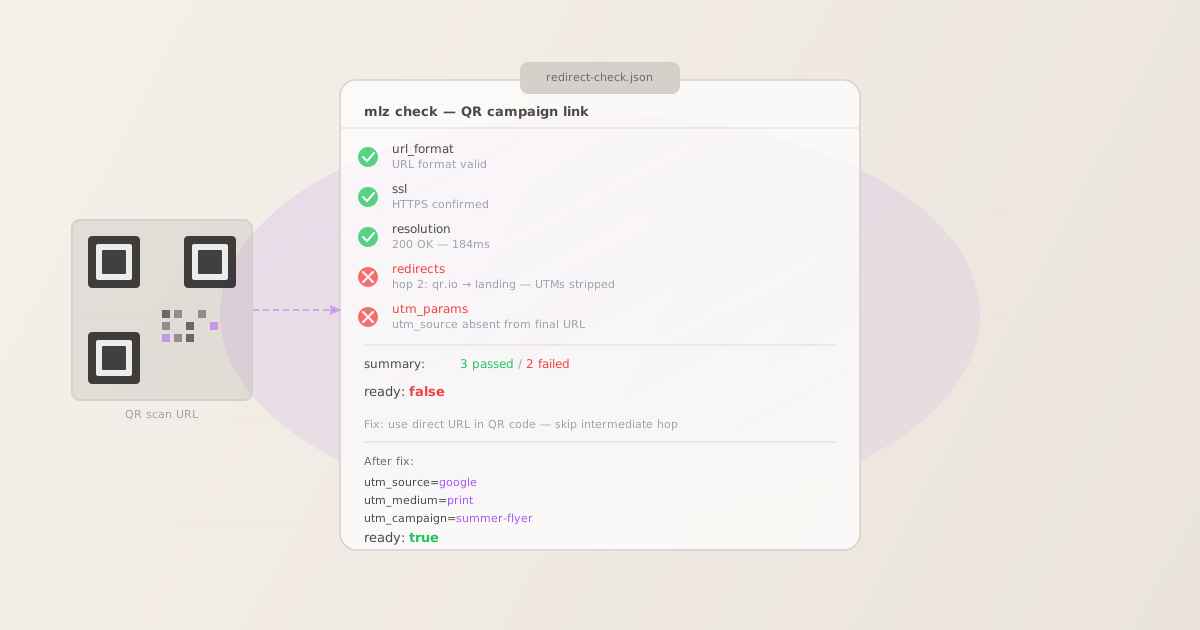
UTM parameters in QR code campaigns break in a way that no UTM builder can prevent: the QR code itself is fine, but the redirect service behind it silently discards the query string before the browser ever reaches your landing page. GA4 records the session as (direct)/(none), and the campaign looks like it generated zero trackable traffic.
The answer is straightforward — add UTM parameters directly to the destination URL you embed in the QR code, and skip intermediary redirect services whenever possible. But "straightforward" is not the same as "safe to send to print." A URL that looks correct in a spreadsheet can still fail at the redirect hop you didn't know existed. The only way to know the UTM parameters survive is to follow the full network chain.
MissingLinkz is campaign link infrastructure that validates that chain from the CLI. Run mlz check against your QR code destination URL before you commit it to print or digital display — it follows every hop and reports exactly where a query string is dropped, so you fix the problem before 50,000 flyers go out.
Why UTM parameters disappear in QR code campaigns
When you create a QR code through a generator service — bit.ly, qr.io, QR Code Generator, or a similar tool — the QR image encodes the generator's own short URL, not your destination URL. When a phone scans the code, the request goes to the generator's server first, which then redirects to your campaign destination.
This two-hop chain has one dangerous property: many QR generators do not preserve the query string across the redirect. If you configure the destination URL in the generator's dashboard as https://example.com/landing, that is exactly what the redirect target is — no query string. Any UTM parameters in the original scan URL (if you added them to the QR service's URL itself) are dropped at the redirect because the generator hardcoded the clean destination URL.
There are three common configurations and only one is safe:
- ✗ UTMs in the QR generator's own URL
- You add UTM parameters to the short URL that the QR code encodes (
https://qr.io/abc?utm_source=google). The generator redirects tohttps://example.com/landingwithout forwarding the query string. UTMs are gone before the page loads. - ✗ UTMs in the destination field of the generator dashboard
- You set the destination in the dashboard to
https://example.com/landing?utm_source=google&utm_medium=print. This works — until you update the campaign and forget to update the destination, or until the generator adds its own query params and creates a collision. - ✓ Direct URL with UTMs embedded — no redirect service
- You encode
https://example.com/landing?utm_source=google&utm_medium=print&utm_campaign=summer-flyerdirectly into the QR code. No redirect hop. UTMs reach the browser exactly as encoded. This is the only configuration that is reliable without any additional validation.
Even the "safe" configuration can fail if your own site has redirect rules that strip query strings — a 301 from /landing to /landing-v2, a CDN rewrite rule, or a consent gate that reconstructs the URL. mlz check catches all of these in one command.
Diagnose with mlz check before printing anything
Install MissingLinkz and run mlz check against the exact URL you plan to embed in the QR code — the destination URL including all UTM parameters:
npm install -g missinglinkz
$ mlz check "https://example.com/landing?utm_source=google&utm_medium=print&utm_campaign=summer-flyer"
When the URL resolves cleanly without stripping the query string, the output shows all checks passing:
{
  "url": "https://example.com/landing?utm_source=google&utm_medium=print&utm_campaign=summer-flyer",
  "valid": true,
  "checks": [
    { "check": "url_format", "status": "pass" },
    { "check": "ssl", "status": "pass", "message": "URL uses HTTPS." },
    { "check": "resolution", "status": "pass", "message": "Destination responded with 200." },
    { "check": "redirects", "status": "pass", "message": "No redirects detected." }
  ],
  "status_code": 200,
  "response_time_ms": 184
}
No redirects, 200 response, all checks pass. This URL is safe to embed in a QR code.
When there is a redirect hop that drops the query string, the output makes it explicit:
{
  "url": "https://example.com/landing?utm_source=google&utm_medium=print&utm_campaign=summer-flyer",
  "valid": false,
  "checks": [
    { "check": "url_format", "status": "pass" },
    { "check": "ssl", "status": "pass" },
    { "check": "resolution", "status": "pass" },
    {
      "check": "redirects",
      "status": "fail",
      "message": "301: /landing → /landing-v2 — query string not forwarded"
    }
  ],
  "status_code": 200,
  "final_url": "https://example.com/landing-v2"
}
The final_url field shows where the campaign URL actually lands after all redirects. Update the QR code destination to this final path — /landing-v2 — and re-run mlz check to confirm the fix before generating the QR image.
Build the UTM-tagged URL with mlz build
Once you know the final URL (no redirect hops), use mlz build to generate the correctly tagged destination URL. This applies lowercase normalisation and consistent formatting:
$ mlz build \
    --url "https://example.com/landing-v2" \
    --source "google" \
    --medium "print" \
    --campaign "summer-flyer"
{
  "tracked_url": "https://example.com/landing-v2?utm_source=google&utm_medium=print&utm_campaign=summer-flyer",
  "params": {
    "utm_source": "google",
    "utm_medium": "print",
    "utm_campaign": "summer-flyer"
  },
  "destination_url": "https://example.com/landing-v2"
}
The tracked_url is what you encode into the QR code. Run mlz check against it one final time to confirm the destination responds with 200 and no redirects fire.
Validate the landing page is also share-ready with mlz preflight
QR codes often appear on printed materials that promote social campaigns — a scan drives a share or a social ad click. Run mlz preflight to validate not just the redirect chain but also the Open Graph and Twitter Card tags, SSL, and UTM construction in one step:
$ mlz preflight \
    --url "https://example.com/landing-v2" \
    --source "google" \
    --medium "print" \
    --campaign "summer-flyer"
A ready: true result means the destination URL is valid, the SSL certificate is active, OG tags are present, and the UTM parameters are correctly structured. Encode the tracked_url into your QR code and ship the campaign.
QR code naming conventions for UTM medium
There is no official GA4 specification for utm_medium on QR code campaigns, but the most common conventions are:
utm_medium=print- Use when the QR code appears on printed material: flyers, posters, packaging, business cards, mailers. GA4 will group this under a custom channel unless you configure channel grouping rules for
print. utm_medium=display- Use when the QR code appears on digital screens or digital-out-of-home (DOOH) placements. Aligns with GA4's default channel grouping for display traffic.
utm_medium=event- Use when the QR code is distributed at a physical event (badge, lanyard, booth signage). Keeps event attribution separate from standard print campaigns.
Whatever medium value you choose, keep it lowercase with hyphens (no spaces) so GA4 groups all sessions from this campaign under one value rather than splitting print, Print, and PRINT into three separate rows. mlz build normalises values to lowercase automatically.
Validating QR campaigns in bulk
If a campaign includes multiple QR codes pointing to different landing pages — different products, different store locations, different offers — validate each destination URL before generating the QR images. A shell loop over a list of URLs is reliable:
#!/bin/bash
urls=(
  "https://example.com/store-ny?utm_source=qr&utm_medium=print&utm_campaign=summer"
  "https://example.com/store-la?utm_source=qr&utm_medium=print&utm_campaign=summer"
  "https://example.com/promo?utm_source=qr&utm_medium=print&utm_campaign=summer"
)

failed=0
for url in "${urls[@]}"; do
  result=$(mlz check "$url" --format json)
  valid=$(echo "$result" | jq -r '.valid')
  if [ "$valid" != "true" ]; then
    echo "FAIL: $url"
    ((failed++))
  fi
done

echo "$failed URLs failed validation"
exit $failed
The script exits with a non-zero code if any URL fails, which integrates cleanly into a CI pre-print step or a pre-approval workflow.
Why redirect services are risky for QR campaigns
Marketing teams use QR redirect services for two reasons: to track scan counts separately from web analytics, and to change the destination URL after the QR code is already printed. Both are legitimate, but both add a redirect hop that is outside your control.
If your organisation requires a QR redirect service, verify that the service preserves query strings by testing with mlz check against a URL that includes UTM parameters. Some services (bit.ly enterprise, short.io, rebrandly) have explicit query string forwarding settings — check that the setting is enabled before going live. Then validate again after the destination URL is updated, because some services reset forwarding behaviour when the destination changes.
For campaigns where attribution is the priority over scan counting, encoding the destination URL directly into the QR code and using GA4's built-in acquisition reports is the more reliable architecture.
Recommended posts
Validate your QR campaign links before print
Run mlz check against every QR destination URL — follow the full redirect chain and confirm UTM parameters reach the final page. One command saves you from sending broken tracking to print.
1,000 links/month free. No credit card.
Your API key
Save this now — it won't be shown again.
npm install -g missinglinkz
Then: mlz check "https://yoursite.com/landing?utm_source=qr&utm_medium=print&utm_campaign=your-campaign"
FAQ
- Can I add UTM parameters to a QR code that already exists?
- Yes, but you need to regenerate the QR image. The QR code itself encodes a static URL — changing the destination URL or adding UTM parameters means creating a new QR code. If you used a redirect service, you may be able to update the destination URL in the service dashboard without reprinting, but you need to verify that the updated URL still forwards query strings correctly using
mlz check. - Does
mlz checktrigger the page's analytics? - No.
mlz checkmakes a direct HTTP request to the URL and follows the redirect chain, but it does not load the page in a browser. JavaScript analytics libraries like GA4'sgtag.jsonly fire in a browser context. Runningmlz checkfrom the CLI does not create a GA4 session or increment any page view counters. - What UTM medium should I use for QR codes on product packaging?
- Use
utm_medium=printandutm_source=packagingorutm_source=in-store. The medium should reflect how the QR code is delivered (printed material); the source should identify where specifically. Keep both values lowercase with hyphens so GA4 groups all scans under a single channel row. - Will UTM parameters work if the QR code redirects through a link shortener?
- Only if the shortener is configured to forward query strings. Many shorteners (bit.ly free tier, standard short URLs) do not forward query strings by default. Test with
mlz checkbefore assuming they do. If the shortener strips UTMs, use the final destination URL directly in the QR code without the shortener. - How do I validate a QR campaign link for an event where I cannot change the printed QR code?
- If the QR code is already printed and you cannot change it, check whether the QR service allows you to update the destination URL in their dashboard. If the service preserves query strings on redirect, update the destination to include UTM parameters. Run
mlz checkagainst the final URL after the update to confirm UTMs survive before the event.