UTM Parameters Lost After JavaScript Redirect: How to Detect and Fix It
UTM parameters are lost after a JavaScript redirect when the redirect code sets window.location to a bare path without appending window.location.search. When a visitor arrives at a tracked URL with ?utm_source=google&utm_medium=cpc&utm_campaign=q3, and that page fires window.location = '/new-path', the browser navigates to the new path with no query string at all. GA4 fires against the clean URL and records the session as (direct)/(none) — no error, no broken page, just silent attribution loss that makes your campaigns look far less effective than they are. Manual browser testing will not catch this unless you know exactly where in the JS execution the redirect fires. MissingLinkz's mlz check traces the full redirect chain and flags every hop that drops the query string, catching this class of tracking failure before the campaign launches. This article explains why it happens, which four development scenarios cause it most often, and how to fix it for plain JavaScript, React Router, and Next.js.
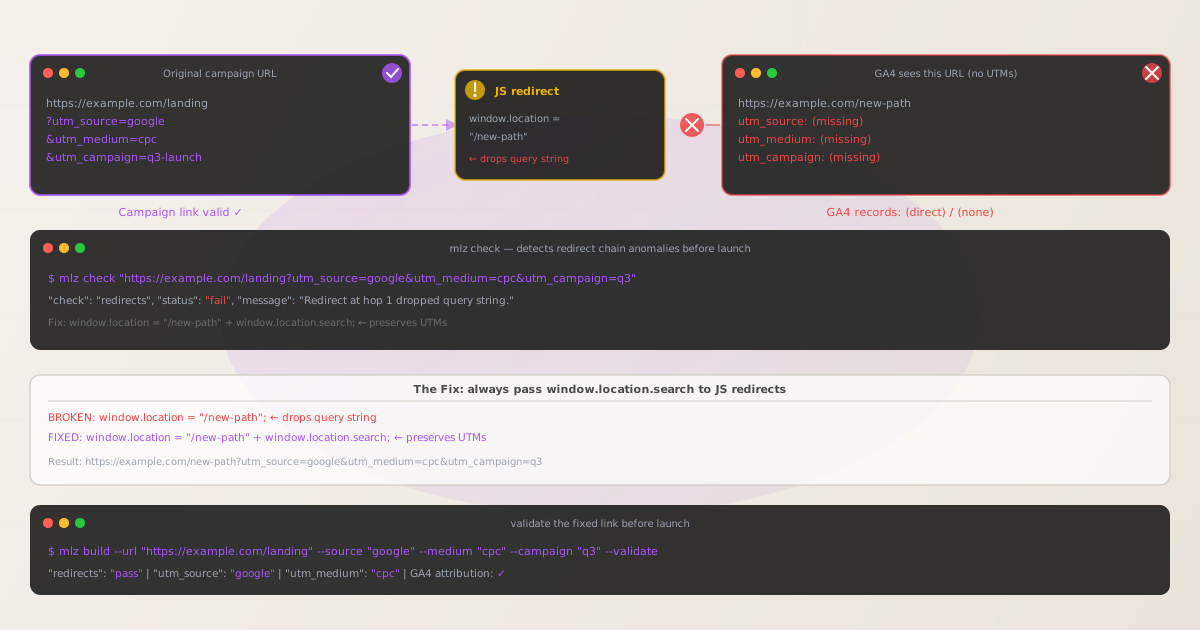
Why JavaScript redirects are different from HTTP redirects
When a server issues an HTTP 301 or 302 redirect, the browser automatically carries the full original URL — including its query string — to the new location. If the redirect response says Location: /new-path, the browser appends whatever was in the original request's query string to the destination. Your UTM parameters survive automatically because the redirect happens at the network level before any JavaScript runs.
A JavaScript redirect is different. When code calls window.location = '/new-path', you are explicitly setting the next URL the browser will navigate to. You wrote '/new-path', so that is exactly what the browser navigates to — no query string, no UTM parameters. The browser does not try to infer that you probably wanted to keep the incoming parameters; it does exactly what you told it to do.
The consequence is that every JavaScript redirect pattern — window.location, window.location.href, location.replace(), location.assign() — will silently drop UTM parameters unless you explicitly append window.location.search to the destination path. The page still loads normally. GA4 still fires. The session is still recorded. But all attribution data is gone.
| Redirect method | Preserves query string automatically? |
|---|---|
| HTTP 301/302 redirect | ✓ Yes — browser handles it automatically |
window.location = "/path" |
✗ No — drops query string |
window.location.href = "/path" |
✗ No — drops query string |
location.replace("/path") |
✗ No — drops query string |
location.assign("/path") |
✗ No — drops query string |
<meta http-equiv="refresh"> |
Depends — URL must be fully specified including query string |
The 4 scenarios where JS redirects break UTM tracking
These four development patterns account for the majority of JavaScript redirect tracking failures in production. All four are detectable with mlz check before launch.
- Scenario 1: Homepage or locale redirect
-
A visitor arrives at
https://example.com/landing?utm_source=google&utm_medium=cpc. The landing page runs JavaScript that redirects to a locale-specific path:window.location = '/en/landing'. The UTM parameters exist on the original URL but are gone from the locale URL. If GA4's pageview tag fires on the destination page, it sees/en/landingwith no parameters. This pattern is common in internationalized sites where the locale detection script runs before any analytics setup. - Scenario 2: Authentication or login gate
-
A visitor clicks a campaign link to a gated resource at
/app/report?utm_source=linkedin&utm_medium=social&utm_campaign=q2. They are not authenticated, so the app fireslocation.replace('/login'). The redirect discards the query string. After the user logs in and the app routes them back to/app/report, the UTM parameters are long gone. GA4 recorded the eventual pageview as direct traffic, and the campaign never gets credit for acquiring that user. Preserving UTMs through auth flows requires storing the incoming search string (e.g., insessionStorage) and restoring it after login — but the first step is recognizing that the redirect itself strips them. - Scenario 3: Single-page app client-side navigation
-
SPA frameworks like React and Vue use JavaScript for all page-to-page navigation. If the initial page load — the first URL the campaign link points to — triggers a JS redirect before GA4 fires its first pageview event, the UTM parameters are lost for that session. This happens when a route guard, a feature flag check, or a redirect-on-mount effect runs synchronously on the entry route and sends the user to a different path. The GA4 tag eventually fires, but against the redirected URL with no query string.
- Scenario 4: A/B testing script redirect
-
A/B testing platforms often redirect users to variant URLs by setting
window.location.hrefor using the History API. A landing page configured to split traffic between/landing-aand/landing-bmay strip UTM parameters if the script builds the destination URL without includingwindow.location.search. The winning variant might look like it performed identically to organic traffic because attribution was stripped on entry.
How to detect JavaScript redirect stripping with mlz check
The redirect stripping check in MissingLinkz traces the full HTTP redirect chain from the campaign URL to the final destination and compares the query string at each hop. When a hop drops the UTM parameters, the redirects check returns "status": "fail" with a message identifying which hop was responsible.
Run mlz check against the full campaign URL — including the UTM parameters — before sharing the link:
$ mlz check "https://example.com/landing?utm_source=google&utm_medium=cpc&utm_campaign=q3"

{
  "url": "https://example.com/landing?utm_source=google&utm_medium=cpc&utm_campaign=q3",
  "valid": false,
  "checks": [
    { "check": "url_format", "status": "pass", "message": "URL format is valid." },
    { "check": "ssl", "status": "pass", "message": "URL uses HTTPS." },
    { "check": "resolution", "status": "pass", "message": "Destination responded with 200.",
      "details": { "status_code": 200, "response_time_ms": 156 } },
    { "check": "redirects", "status": "fail",
      "message": "Redirect at hop 1 dropped query string. UTM parameters not present in final URL." },
    { "check": "response_time", "status": "pass", "message": "Response time: 156ms.",
      "details": { "response_time_ms": 156 } }
  ],
  "status_code": 200,
  "response_time_ms": 156,
  "validated_at": "2026-07-12T10:22:14.508Z"
}
The destination returned HTTP 200, so the page itself is not broken — mlz check follows the actual redirect chain and compares query strings at each hop to catch the failure that a simple curl -I or browser load would miss. The "valid": false result means this URL should not be used in a campaign until the redirect is fixed.
Note that mlz check follows HTTP-level redirects. For JavaScript redirects that fire after the page loads, you can see the behavior by examining the redirect chain in the output. If "redirects": "pass" but your GA4 data still shows (direct)/(none), the redirect is firing client-side after the initial HTTP response — see the scenarios in Section 2 and apply the JS fixes below.
Fixing the JavaScript redirect
The fix is the same pattern regardless of which JavaScript redirect method you are using: append window.location.search to the destination path. window.location.search returns the full query string of the current page, including the leading ? — so concatenating it with a bare path produces a correctly formed URL.
Plain JavaScript — applies to any window.location, location.replace(), or location.assign() call:
// BROKEN — drops query string, UTM parameters lost
window.location = "/new-path";
window.location.href = "/new-path";
location.replace("/new-path");
location.assign("/new-path");

// FIXED — preserves UTM parameters from incoming URL
window.location = "/new-path" + window.location.search;
window.location.href = "/new-path" + window.location.search;
location.replace("/new-path" + window.location.search);
location.assign("/new-path" + window.location.search);
If the destination URL already has its own query parameters, use URLSearchParams to merge them instead of concatenating blindly. But for the common case of redirecting to a clean path while preserving the incoming UTM parameters, appending window.location.search directly is correct and idiomatic.
React Router — if you are using navigate() from react-router-dom and the redirect fires on an entry route:
// BROKEN — navigate() discards query string
navigate("/new-path");

// FIXED — string form: append the incoming search
navigate("/new-path" + window.location.search);

// FIXED — object form: pass the search explicitly
navigate({ pathname: "/new-path", search: window.location.search });
The object form is preferable in React Router v6+ because it keeps pathname and search cleanly separated and avoids string concatenation edge cases.
Next.js — if you are using the useRouter hook or the App Router's redirect() in a server component:
// BROKEN — router.push() drops the current query string
router.push("/new-path");

// FIXED — pass the current query object to preserve UTMs
router.push({ pathname: "/new-path", query: router.query });

// FIXED — string form using window.location.search
router.push("/new-path" + window.location.search);
In the Next.js App Router, server-side redirect() calls in route handlers or middleware do not have access to query parameters by default — you must explicitly read them from the incoming Request URL and include them in the redirect destination. If the redirect decision is made server-side, the query string must be forwarded: redirect(`/new-path?${searchParams.toString()}`).
Validate the fix with mlz build
After fixing the JavaScript redirect, generate the campaign link with mlz build --validate to confirm the destination URL passes all checks — including the redirect chain check — before the campaign goes live. The --validate flag runs mlz check internally and surfaces any failures as part of the build response.
$ mlz build \
  --url "https://example.com/landing" \
  --source "google" \
  --medium "cpc" \
  --campaign "q3-product-launch" \
  --validate

{
  "tracked_url": "https://example.com/landing?utm_source=google&utm_medium=cpc&utm_campaign=q3-product-launch",
  "params": {
    "utm_source": "google",
    "utm_medium": "cpc",
    "utm_campaign": "q3-product-launch"
  },
  "destination_url": "https://example.com/landing",
  "stored": true,
  "validation": {
    "valid": true,
    "checks": [
      { "check": "url_format", "status": "pass" },
      { "check": "ssl", "status": "pass" },
      { "check": "resolution", "status": "pass", "details": { "status_code": 200, "response_time_ms": 148 } },
      { "check": "redirects", "status": "pass", "message": "No redirects detected." },
      { "check": "response_time", "status": "pass", "message": "Response time: 148ms." }
    ],
    "validated_at": "2026-07-12T10:30:00.112Z"
  }
}
"valid": true and "redirects": "pass" confirm that the destination URL resolves without dropping the query string. The tracked_url is the ready-to-use campaign link. You can also use mlz build as part of a programmatic campaign link workflow — the CLI exits non-zero on any validation failure, so it integrates cleanly into CI pipelines and pre-publish scripts.
Adding redirect validation to your pre-launch checklist
JavaScript redirect tracking failures are among the hardest bugs to detect post-launch because GA4 shows normal-looking sessions — just with (direct)/(none) attribution. By the time you notice that a campaign is underperforming, weeks of tracking data may already be corrupt. The only reliable way to catch this class of failure is to run mlz check against every campaign destination URL before the link is distributed.
A practical pre-launch workflow:
- Build the campaign link with
mlz build --validate. If validation passes, the link is ready. If it fails onredirects, investigate and fix before proceeding. - For SPAs and auth-gated destinations where the JS redirect fires client-side: manually test the redirect flow in a browser with DevTools Network panel open, and confirm that the UTM parameters survive to the final URL shown in the address bar after all redirects complete.
- Rerun
mlz checkafter any change to landing page routing logic, middleware, or A/B testing configuration.
For teams running multiple campaigns across multiple destinations, see the full GA4 UTM debug guide for a systematic approach to diagnosing all five common causes of missing attribution data.
Frequently asked questions
- Do JavaScript redirects always strip UTM parameters?
- Yes, unless you explicitly append
window.location.searchto the destination path. Unlike HTTP 301/302 redirects — where the browser automatically carries the full query string to the new location — JavaScript redirects navigate to exactly the URL you specify. If you writewindow.location = '/new-path', the browser navigates to/new-pathwith no query string. The only way to preserve UTM parameters is to concatenatewindow.location.search:window.location = '/new-path' + window.location.search. - How do I fix a JavaScript redirect that is dropping UTM parameters?
- Append
window.location.searchto every redirect destination.window.location.searchcontains the current page's full query string, including the leading?. Forwindow.locationandwindow.location.href, concatenate it directly:window.location = '/destination' + window.location.search. Forlocation.replace()andlocation.assign(), the same pattern applies. In React Router, use the object form:navigate({ pathname: '/destination', search: window.location.search }). In Next.js Pages Router, userouter.push({ pathname: '/destination', query: router.query }). - Will React Router or Next.js navigation lose UTM parameters?
- Yes, if the navigation call only specifies a pathname without including the current search string.
navigate('/new-path')in React Router androuter.push('/new-path')in Next.js both discard the incoming query string. The fix is to includewindow.location.search(React Router:navigate('/new-path' + window.location.search)) or passsearch: window.location.search/query: router.queryin the object form. The issue is most critical on entry routes — if the redirect fires before GA4 has had a chance to fire its initial pageview event, the UTM parameters are lost for the entire session. - How does mlz check detect JavaScript redirect stripping?
mlz checkfollows the full HTTP redirect chain from the campaign URL to the final destination, comparing the query string at each hop. When a hop drops the UTM parameters — whether through an HTTP redirect that strips query strings or through an HTTP response that does not include them in theLocationheader — theredirectscheck returns"status": "fail"with a message identifying the hop. Note that client-side JavaScript redirects that fire after the initial HTTP response complete are not visible at the HTTP level; those must be caught by inspecting the application's routing logic or by manual browser testing with DevTools.- Is there a difference between window.location and location.href for UTM parameter handling?
- No practical difference.
window.location = '/path'andwindow.location.href = '/path'are functionally equivalent — both set the browser's current location to the specified URL and both drop the query string if the URL does not include it. Similarly,location.replace('/path')andlocation.assign('/path')behave identically with respect to query string handling. The only meaningful distinction is thatlocation.replace()does not add an entry to the browser history (so the user cannot press Back), whereas the others do. For UTM parameter preservation, appendwindow.location.searchregardless of which redirect method you are using.
Recommended posts
Catch redirect stripping before your campaign launches
Run mlz check against every destination URL before sharing campaign links. JavaScript redirects that silently drop UTM parameters are undetectable in a browser — but take 2 seconds to catch with MissingLinkz.
1,000 links/month free. No credit card.
Your API key
Save this now — it won't be shown again.
npm install -g missinglinkz
Run mlz check against every campaign destination before launch — catch redirect stripping before it silently kills your attribution.