UTM Tracking for Ortto (Autopilot): How to Build and Validate Campaign Links
UTM tracking for Ortto starts with utm_source=ortto — lowercase, current brand name, not the legacy autopilot value that older documentation and integrations may still reference. Ortto (formerly Autopilot HQ, rebranded in 2021) is a customer journey and marketing automation platform that builds automated workflows through a visual Journey builder: a drag-and-drop canvas of steps that send emails, add delays, evaluate conditions, and branch on contact attributes or behaviour. Ortto also supports Broadcasts — one-off email sends dispatched directly to an audience segment without a Journey workflow. The UTM challenge in Ortto is the same one shared by every Journey-based platform: the Journey name, which serves as the primary label for navigating the Journey canvas, becomes the utm_campaign value if Ortto's automatic UTM tagging is left enabled. Journey names are workspace identifiers written for internal readability — they include spaces, version numbers, date suffixes, and mixed case that produce URL-encoded, unreadable dimension values in GA4 and create separate attribution rows for every minor variation in how a Journey is named. Building tracked URLs externally with mlz build before configuring any Journey step or Broadcast send is the only way to guarantee GA4-readable UTM values regardless of what internal Ortto object names look like.
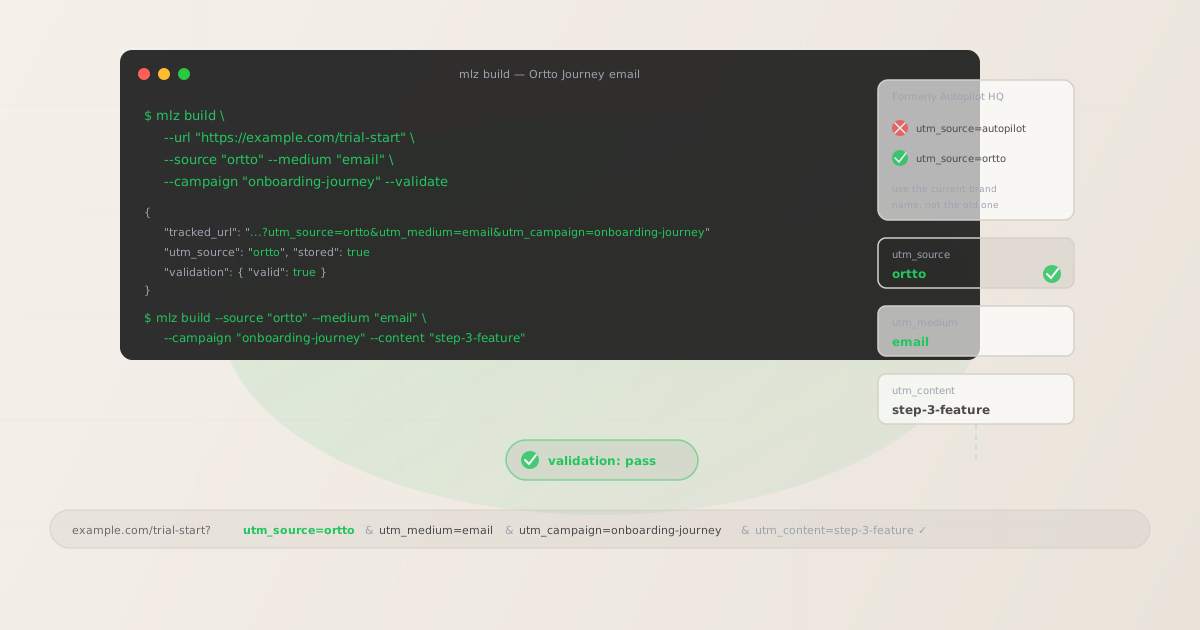
The correct utm_source and utm_medium for Ortto
Use utm_source=ortto — lowercase, single word — for all email sends that originate from Ortto, whether you are on the standard Ortto plan or using the Ortto API for event-triggered sends. The brand name changed from Autopilot HQ to Ortto in 2021. If your organisation has legacy campaign data where Ortto email sends were tagged with utm_source=autopilot — from before the rebrand, or from an integration that still uses the old name — you have two options: continue using utm_source=autopilot to maintain historical continuity, or migrate to utm_source=ortto and apply a GA4 channel group rule or data transformation to combine both values into a single source dimension. Picking one approach and using it consistently across every Ortto send going forward matters more than which value you choose.
The medium for Ortto email sends is utm_medium=email. For Ortto SMS sends (where SMS functionality is available on your plan), use utm_medium=sms. For in-app messages sent from Ortto's in-app messaging feature, use utm_medium=in-app.
| Source value | Origin | Use this? |
|---|---|---|
autopilot |
Legacy brand name (pre-2021) | ✗ No — use ortto for new sends |
Ortto |
Mixed case — common manual entry | ✗ No — separate GA4 row from ortto |
ortto-email |
Channel-qualified label | ✗ No — channel belongs in utm_medium |
ortto |
mlz build output | ✓ Yes — lowercase, current brand, aggregates cleanly |
If your organisation runs Ortto alongside another email platform — HubSpot for outbound, Ortto for lifecycle — use a distinct utm_source for each: hubspot and ortto respectively. Never use utm_source=email for either, which would collapse all email platform sends into a single undifferentiated source dimension in GA4.
Ortto's automatic UTM tagging and why to override it
Ortto includes an automatic UTM tagging option that can append UTM parameters to links in email sends. When enabled, Ortto uses the Journey name as utm_campaign, the email template name or step identifier as utm_content, and sets utm_source and utm_medium to configured or default values. The core problem is the same one that affects every platform that derives UTM values from internal object names: Ortto Journey names are written for internal navigation and contain spaces, parentheses, version numbers, date suffixes, and mixed case that become URL-encoded noise in GA4.
A Journey named "Trial Onboarding (v3) — 2026-Q2" produces utm_campaign=Trial+Onboarding+%28v3%29+%E2%80%94+2026-Q2 in the destination URL — URL-encoded, mixed case, with every version bump creating a new GA4 dimension row. After three versions of the same Journey have run, GA4 shows three separate utm_campaign rows that all represent the same programme, with no way to compare their performance in a single filtered view.
Disable Ortto's automatic UTM tagging in the Ortto account settings and build all tracked URLs externally with mlz build before configuring any Journey step or Broadcast send. The tracked URL is then pasted into the email template's link destination field — not into any UTM or tracking field within Ortto.
Ortto Journeys — per-step UTM tracking for automated sequences
Ortto Journeys are the core automation mechanism: a visual canvas of steps that executes a sequence of actions (send email, add to list, update field, notify a team member), delays (wait X days, wait until a date), and conditions (did the contact click a link? does the contact match a segment filter?). A typical lifecycle Journey for a SaaS trial might have four to eight email steps spread over fourteen days, each linking to a different landing page, feature documentation page, or pricing page.
Each email step in a Journey that links to a destination URL needs a tracked URL with a unique utm_content value to make step-level attribution visible in GA4. Without distinct content values, GA4 shows all sessions from all Journey email steps under the same campaign row — you can see that the Journey is driving sessions and conversions, but not which step in the sequence is responsible for the outcome.
# Journey step 1 — welcome email with getting-started CTA
$ mlz build \
  --url "https://example.com/getting-started" \
  --source "ortto" \
  --medium "email" \
  --campaign "trial-onboarding" \
  --content "step-1-welcome" \
  --validate

{
  "tracked_url": "https://example.com/getting-started?utm_source=ortto&utm_medium=email&utm_campaign=trial-onboarding&utm_content=step-1-welcome",
  "validation": { "valid": true }
}

# Journey step 3 — feature highlight email
$ mlz build \
  --url "https://example.com/feature-overview" \
  --source "ortto" \
  --medium "email" \
  --campaign "trial-onboarding" \
  --content "step-3-feature" \
  --validate

{
  "tracked_url": "https://example.com/feature-overview?utm_source=ortto&utm_medium=email&utm_campaign=trial-onboarding&utm_content=step-3-feature",
  "validation": { "valid": true }
}
Build all tracked URLs for a Journey before configuring any email template in Ortto. Use mlz links list --campaign "trial-onboarding" to retrieve a JSON list of all stored links for this campaign and confirm every Journey step has a validated tracked URL before activating the Journey. The convention for step identifiers — step-1-welcome, step-3-feature, step-7-conversion — makes it immediately clear in GA4 which step in the sequence drove the session or conversion, without requiring a lookup table to decode abstract identifiers.
Ortto Broadcasts — one-off sends to audience segments
Ortto Broadcasts are one-time email sends dispatched to a defined audience segment — not part of a Journey workflow. Broadcasts correspond to newsletters, product announcements, promotional emails, and event invitations. For Broadcasts, the campaign slug identifies the initiative and the content identifier distinguishes individual sends within a recurring series.
For recurring Broadcasts — a weekly product newsletter, a monthly digest — include the series identifier and year in the campaign slug: newsletter-weekly-2026. Use utm_content to distinguish individual issues within the series when granular per-send attribution matters: issue-2026-06-02, issue-2026-06-09. This approach aggregates all newsletter sessions under a single campaign dimension in GA4, enabling year-over-year comparison, while still allowing per-send drill-down through the content dimension.
For one-off Broadcasts tied to a specific initiative — a product launch announcement, a feature release email — use the initiative slug as the campaign: product-launch-june-2026. If the Broadcast contains multiple CTAs linking to different destinations, give each CTA a distinct utm_content value: hero-cta, secondary-cta, footer-cta. This lets GA4 show which CTA within the Broadcast is most effective at driving clicks and downstream conversions.
Ortto UTM tracking gotchas
- The Autopilot-to-Ortto rebrand creates a utm_source split in historical data
- Any Ortto email sends that were tagged with
utm_source=autopilotbefore the rebrand — or from an integration, third-party connector, or documentation that still references the Autopilot brand — create a separate source dimension row in GA4 from sends tagged withutm_source=ortto. If your GA4 data shows both values, decide on the canonical source name going forward and apply a channel group rule in GA4's Admin > Data Settings > Channel Groups to combine both under a single channel definition for reporting purposes. Do not try to retroactively reprocess historical data — just ensure all new sends use the consistent value built withmlz build --source "ortto". - Ortto Journey names as utm_campaign produce unreadable GA4 dimension values
- Ortto's automatic UTM tagging uses the Journey display name as
utm_campaign. Journey names in Ortto are workspace navigation labels — they are written to be readable by the team managing the Journey canvas, not to serve as GA4 dimension values. Names like "Trial Onboarding (v3) — 2026 Q2 Refresh" produce URL-encoded values with parentheses, em-dashes, version numbers, and spaces that appear garbled in GA4 dimension reports. Every time a Journey is duplicated, versioned, or renamed, a new utm_campaign row appears in GA4 that is entirely separate from the rows created by prior versions of the same sequence. Disable Ortto's auto-UTM and usemlz build --campaign "trial-onboarding"with a stable, lowercase-hyphenated slug that does not change between Journey versions. - Ortto's click-tracking redirect wraps all email links
- Ortto wraps email links in a click-tracking redirect that routes through Ortto's tracking infrastructure before forwarding to the destination. This redirect records click events for Ortto's analytics and is separate from any UTM tracking in GA4. In most configurations, the redirect preserves UTM query parameters through to the final destination. However, if you are using a custom domain for Ortto's click-tracking URLs (configurable in Ortto's account settings for branded link shortening), verify that the custom domain's DNS and redirect configuration forwards query strings correctly. Run
mlz checkagainst a test Ortto click-tracking URL to confirm UTM parameters survive the redirect chain before activating any Journey or Broadcast. - Journey condition branching requires matched tracked URLs per branch
- Ortto Journeys support condition steps that split contacts into different branches based on attributes or behaviour — for example, "Has the contact visited the pricing page? Yes / No." Each branch can lead to a different email step with a different CTA and destination. When a Journey branches, each branch's email step needs its own tracked URL with a distinct
utm_contentvalue that identifies both the step and the branch:step-5-yes-upgrade,step-5-no-nurture. Without distinct content values per branch, GA4 cannot distinguish whether the conversion-driving email was sent to the engaged segment or the unengaged segment — losing the exact attribution signal the branch condition was designed to capture. - Ortto's A/B test feature and UTM tracking
- Ortto supports A/B testing of email variants within a Journey step — typically testing subject lines, but in some cases testing different email body content with different CTAs and destination links. When the A and B variants link to different destinations or the same destination with different content angles, use distinct
utm_contentvalues per variant:subject-a,subject-b, orvariant-cta-pricing,variant-cta-demo. Build separate tracked URLs for each variant withmlz buildbefore configuring the A/B test in the Journey canvas. This lets GA4 show downstream conversion rates per variant independently — the same signal Ortto's A/B test report provides for open and click rates, extended to on-site conversion events.
Ortto UTM naming conventions
Recommended UTM parameter values for Ortto, aligned with GA4 default channel groupings and a lowercase-hyphenated taxonomy:
- utm_source:
ortto— always, for all email and SMS sends from Ortto. Never useautopilotfor new sends (legacy brand name),Ortto(mixed case), oremail(channel, not source). If historical data usesautopilot, apply a GA4 channel group rule to combine both values rather than continuing to use the legacy value going forward. - utm_medium:
emailfor all Ortto email sends — Journey steps and Broadcasts. Usesmsfor Ortto SMS sends. Usein-appfor Ortto in-app message sends. - utm_campaign: Lowercase, hyphenated, initiative-level slug — set by the campaign manager before building any tracked links, and stable across Journey versions and Broadcast iterations. Journey programmes:
trial-onboarding,onboarding-free-to-paid,win-back-90d. Broadcast initiatives:product-launch-june-2026,newsletter-weekly-2026,event-invite-q3-2026. Never use Ortto's Journey display name as the campaign slug. - utm_content: Per Journey step:
step-1-welcome,step-3-feature,step-7-conversion. Per branch within a step:step-5-yes-upgrade,step-5-no-nurture. Per Broadcast send within a series:issue-2026-06-02. Per CTA within a single email:hero-cta,secondary-cta. Per A/B variant:subject-a,subject-b. - utm_term: Optional. Use to pass audience segment membership or lead score tier into GA4 for segment-level attribution:
high-intent,segment-trial-day-7,segment-enterprise-icp. Useful when the same Journey runs against multiple audience definitions and you need segment-level performance visibility without creating separate Journey objects in Ortto.
See the UTM naming conventions guide for the full cross-platform reference and the UTM tracking for developers guide for programmatic generation and validation at scale.
FAQ
- Should I use utm_source=autopilot or utm_source=ortto?
- Use
utm_source=orttofor all new sends. Ortto rebranded from Autopilot HQ in 2021, and using the current brand name is correct for all sends from that point forward. If your GA4 data contains historicalutm_source=autopilotrows from before the rebrand or from integrations that haven't been updated, do not try to change the historical data — apply a GA4 channel group rule in Admin > Data Settings > Channel Groups that maps bothautopilotandorttoto the same channel definition for reporting. For all new sends built withmlz build --source "ortto", the current brand name is the correct value. - Can I use Ortto merge tags inside UTM parameter values?
- Ortto supports merge tags (personalization tokens) in email body content —
{{ contact.first_name }},{{ contact.company_name }}. If you embed an Ortto merge tag inside a UTM parameter value, it resolves to the contact's field value at send time, creating a unique UTM value per recipient. For example,utm_content=segment-{{ contact.lead_score_tier }}would produce a separate content dimension row for each unique lead score tier value across all contacts in the send. This fragments attribution data in GA4 and can create high-cardinality dimension issues. For UTM parameter values, use fixed identifiers that aggregate attribution data across recipients — reserve personalization tokens for email body text, subject lines, and non-UTM link destinations. - How do I track individual Journey steps separately in GA4?
- Use a unique
utm_contentvalue for each Journey step that sends an email. Before building any email template in Ortto, define the step-content identifier for each step in the Journey:step-1-welcome,step-3-feature,step-7-conversion. Build the tracked URL withmlz build --campaign "trial-onboarding" --content "step-1-welcome" --validateand paste the returnedtracked_urlinto the email template's CTA link for that step. Repeat for each step in the Journey. GA4 then attributes sessions and conversions to individual Journey steps through the content dimension — each step is independently measurable without creating separate Journey objects or campaign dimensions in Ortto. - Does Ortto preserve UTM parameters through its click-tracking redirect?
- Ortto's built-in click-tracking redirect should preserve UTM query parameters through to the final destination — it encodes the destination URL including query parameters within the redirect URL. If you have configured a custom domain for Ortto's branded link shortening (to show your domain rather than Ortto's tracking domain in email links), verify that the custom domain's redirect configuration passes query strings through correctly. Use
mlz checkagainst a real Ortto-tracked link from a test send — the command follows the redirect chain and confirms whether UTM parameters arrive intact at the final destination. Parameter stripping through a redirect would cause GA4 to attribute the session as direct rather than to the Ortto email send. - How do I handle UTM tracking when a Journey has condition branches?
- Build a separate tracked URL for each email step in each branch of the condition, with a distinct
utm_contentvalue per step-branch combination. If a Journey has a condition step at step 5 that splits contacts into "engaged" and "unengaged" branches, and each branch sends a different email, you need two tracked URLs: one with--content "step-5-engaged-cta"and one with--content "step-5-unengaged-nurture". This lets GA4 show whether the follow-up email sent to engaged contacts or the nurture email sent to unengaged contacts drives more downstream conversions — which is exactly the information you need to decide whether the branching condition is worth the added Journey complexity.
Recommended posts
Build Ortto campaign links from the terminal
Disable Ortto's automatic UTM tagging in your account settings, then pass --source "ortto" and --medium "email" to mlz build to get a normalised, validated tracked URL ready to paste into any Ortto email template. Build all tracked URLs before opening Ortto's email editor — one per Journey step with a distinct --content value, and one per CTA for Broadcasts. Run --validate to confirm that destination URLs resolve correctly before activating any Journey or dispatching any Broadcast. If you are using Ortto's custom-domain click tracking, also run mlz check against a test-send click-tracking URL to verify UTM parameters survive the redirect chain configured on your custom domain.
1,000 links/month free. No credit card.
Your API key
Save this now — it won't be shown again.
npm install -g missinglinkz
Free plan: 1,000 links/month. No credit card. See the UTM tracking for developers guide for the full programmatic workflow including API and MCP integration.