UTM Tracking for Email Marketing: Build and Validate Links Before Every Send
Without UTM tracking on email campaigns, every click from your newsletter lands in GA4 as "direct" traffic — invisible, unattributed, and useless for measuring ROI. This guide shows how to build UTM-tracked links for email campaigns using the MissingLinkz CLI, automate bulk generation from a CSV, and validate destination URLs before the send so you never ship a broken link to your list.
Why email campaigns need UTM tracking
Email is one of the highest-volume UTM use cases — every link in every newsletter, promotional email, and drip sequence should carry UTM parameters. Without them, Google Analytics 4 cannot tell where the traffic came from. Email clients do not send a referrer header the way browsers do when clicking a link on a website. The result: clicks from your entire email list are bucketed into "direct / none" in GA4, mixed in with bookmarks, dark social, and typed URLs. You lose all attribution for one of your most direct owned channels.
The fix is straightforward. Every email link needs three parameters at minimum:
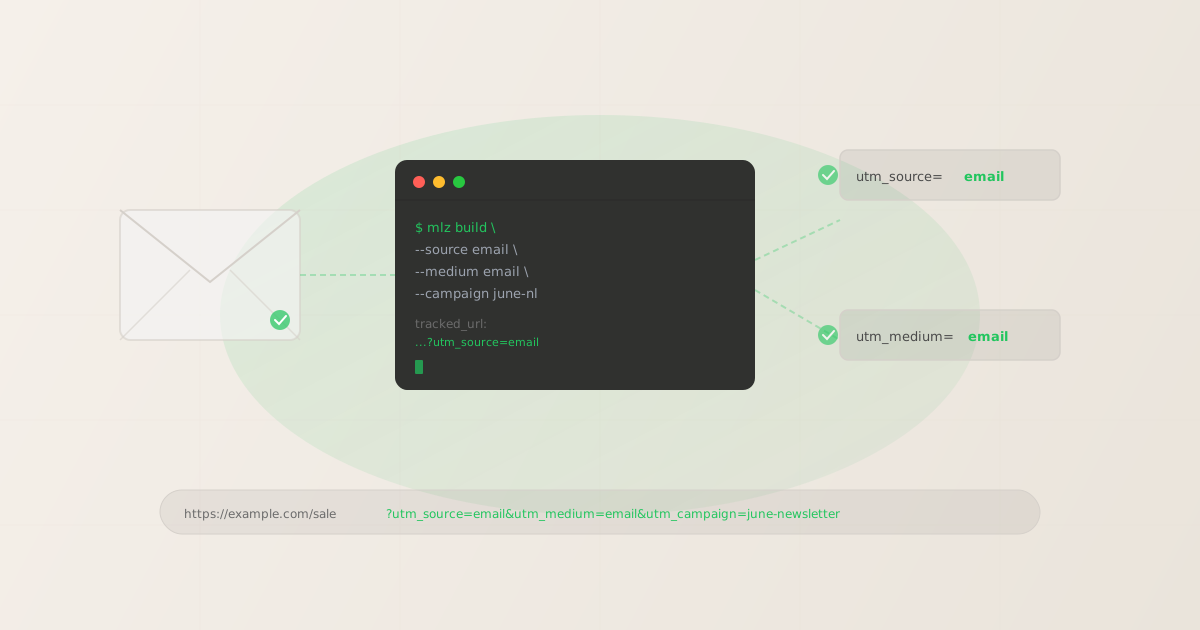
utm_source=email— identifies the traffic source as emailutm_medium=email— identifies the marketing channel typeutm_campaign=[campaign-name]— identifies the specific campaign or newsletter
With those three parameters in place, GA4 correctly attributes sessions to your email channel and you can measure opens-to-revenue, campaign-level performance, and link-level conversion rates. For naming conventions — including when to use hyphens, lowercase rules, and how to structure campaign names — see the UTM naming convention guide.
Standard UTM parameters for email campaigns
Here is what each parameter means in an email context and the conventions that keep your GA4 data clean.
- utm_source
- Always
email. This is the traffic source — where the visitor came from. Using a consistent value likeemail(lowercase, no spaces) means all email traffic aggregates cleanly in GA4's source report. Some teams use the ESP name (e.g.,mailchimporklaviyo) as the source to differentiate by platform, but this fragments your email channel data. Stick withemailunless you have a specific reason to segment by ESP. - utm_medium
- Always
email. The medium is the marketing channel type. In GA4's default channel groupings,emailmedium maps to the Email channel. Variants likenewsletterore-mailwill not match the default channel grouping and may fall into "Unassigned." Useemailunless you have a custom channel grouping configured in GA4 that handles other values. - utm_campaign
- Use the specific campaign or newsletter name — for example,
june-newsletter,summer-sale-2026, orwelcome-series-day-3. Use lowercase and hyphens (no spaces, no underscores). Keep it descriptive enough that you can identify the send at a glance in GA4 six months from now. For more on campaign naming conventions, see UTM Tracking for Developers & Automation. - utm_content (optional)
- Use this to differentiate between multiple links inside the same email. For example, a newsletter might have a header CTA, a mid-body link, and a footer link all pointing to the same URL. Without
utm_content, they all report as the same click. Values likeheader-cta,body-link-1, andfooter-linklet you see which placement drives the most clicks.
Building a single email campaign link
Install the MissingLinkz CLI once, then build a tracked email link in a single command:
npm install -g missinglinkz
mlz build --url "https://example.com/summer-sale" --campaign "summer-sale-2026" --source "email" --medium "email"
The CLI returns structured JSON you can parse in any downstream script:
{
  "tracked_url": "https://example.com/summer-sale?utm_source=email&utm_medium=email&utm_campaign=summer-sale-2026",
  "params": {
    "utm_source": "email",
    "utm_medium": "email",
    "utm_campaign": "summer-sale-2026"
  },
  "destination_url": "https://example.com/summer-sale",
  "created_at": "2026-04-22T09:15:00.000Z",
  "link_id": "lnk_4q2mxr8t",
  "stored": true
}
The tracked_url field is the link you paste into your ESP. The link_id gives you a stable identifier for the link in your campaign history. Add --format json explicitly if you are piping the output to jq or another JSON processor to guarantee machine-readable output.
Automating bulk link generation from a CSV
A typical promotional email has 5–15 links across header CTAs, product features, and footer navigation. Building each one manually is error-prone and slow. A shell loop reads from a CSV and generates all links in one pass.
Create a campaigns.csv with two columns — destination URL and campaign name:
https://example.com/summer-sale,summer-sale-2026
https://example.com/new-arrivals,summer-sale-2026
https://example.com/about,summer-sale-2026
Then run the loop:
while IFS=, read -r url campaign; do mlz build --url "$url" --campaign "$campaign" --source "email" --medium "email"; done < campaigns.csv
Each row in the CSV produces one JSON output block with the complete tracked URL. You can pipe the output to jq -r '.tracked_url' to extract just the URLs, or redirect the full JSON to a file for an audit trail of every link generated for the send. For more automation patterns — including Node.js and REST API approaches — see how to build UTM links programmatically.
Validating links before the send
One broken link in a newsletter can cost the campaign. A destination that returns a 404, a redirect chain that strips UTM parameters before GA4 records the session, or an expired landing page — these fail silently unless you check before you send. The --validate flag on mlz build gates link generation on destination health. If the destination fails the check, the command returns a non-zero exit code and no tracked URL is emitted.
mlz build --url "https://example.com/summer-sale" --campaign "summer-sale-2026" --source "email" --medium "email" --validate
When the destination is healthy, the output is identical to a standard mlz build call. When the destination is broken, the CLI reports the failure:
{
  "error": "destination_check_failed",
  "message": "Destination returned 404. Link not created.",
  "destination_url": "https://example.com/summer-sale",
  "checks": [
    { "check": "ssl", "status": "pass" },
    { "check": "resolution", "status": "fail", "message": "404 Not Found" }
  ]
}
The validation step checks SSL configuration, DNS resolution, HTTP status code, and redirect chain integrity. Because the exit code is non-zero on failure, you can add --validate to the shell loop and the loop will stop on the first broken link — or redirect failures to a log file for review before the send. You can also run mlz check <url> independently on any URL to get the same destination health report without building a link.
FAQ
- What utm_medium should I use for email?
- Use
email(lowercase). This value maps to GA4's default Email channel grouping. Some teams usenewsletterfor newsletter sends andemailfor transactional messages to distinguish the two in reporting. If you do this, configure a custom channel grouping in GA4 so both values are attributed correctly — otherwisenewslettermay fall into "Unassigned." Whatever you choose, be consistent. Inconsistency fragments your email data in GA4. For full naming convention guidance, see the UTM naming convention guide. - Should utm_source and utm_medium both be "email"?
- Yes. This is the standard convention.
utm_sourceidentifies where the traffic came from (the email send), andutm_mediumidentifies the marketing channel type (also email). Having both set toemailis intentional and correct — they serve different semantic roles in the GA4 attribution model. The source-medium combinationemail / emailis well-understood by analytics teams and maps cleanly to the Email channel in GA4's default grouping. - How do I track different links in the same email?
- Use
utm_contentwith descriptive values that identify the link placement. For example:header-cta,body-link-1,sidebar-banner,footer-link. Add a--contentflag to themlz buildcommand for each link variant. This lets you see in GA4 which link placement in the email drives the most clicks and conversions, without needing to build separate campaigns for each link. - Can I automate this for my ESP?
- Yes. Use the MissingLinkz CLI in a pre-send script or build step that runs before links are inserted into your email template. For programmatic integration — for example, calling from a Node.js function that generates email content — see the programmatic UTM link building guide for REST API and Node.js patterns. The API returns the same JSON structure as the CLI, making it straightforward to extract
tracked_urland inject it into your template system.
Recommended posts
Build your email campaign links in 30 seconds
Install MissingLinkz and generate validated UTM-tracked links for your next send — from the terminal, a shell script, or a CI job. No browser required.
1,000 links/month free. No credit card.
Your API key
Save this now — it won't be shown again.
npm install -g missinglinkz
Free plan: 1,000 links/month. No credit card. See all commands in the SKILL.md reference.