UTM Tracking for Keap (Infusionsoft): How to Build and Validate Campaign Links
UTM tracking for Keap requires settling one question before your first campaign: use utm_source=keap for all sends from the platform — and if your account was previously running as Infusionsoft before the 2019 rebrand, address the historical split between utm_source=infusionsoft and utm_source=keap before it compounds across another year of campaigns. Keap (formerly Infusionsoft) is a CRM and marketing automation platform built for small businesses: it combines contact management, email Broadcasts, automated Campaign Builder sequences, pipeline stages, and invoicing in a single platform. Unlike email-only platforms, Keap doesn't expose a native UTM auto-generation UI — UTM parameters must be set manually in link destinations or, better, built outside Keap with mlz build and pasted as the tracked URL in Broadcast or Campaign Builder email templates. That absence of auto-UTM is an advantage: there is no Keap-generated utm_campaign derived from your campaign display name that will produce mixed-case, space-encoded GA4 rows. You control the UTM values from the start — which means the main risk is inconsistency rather than auto-generation noise.
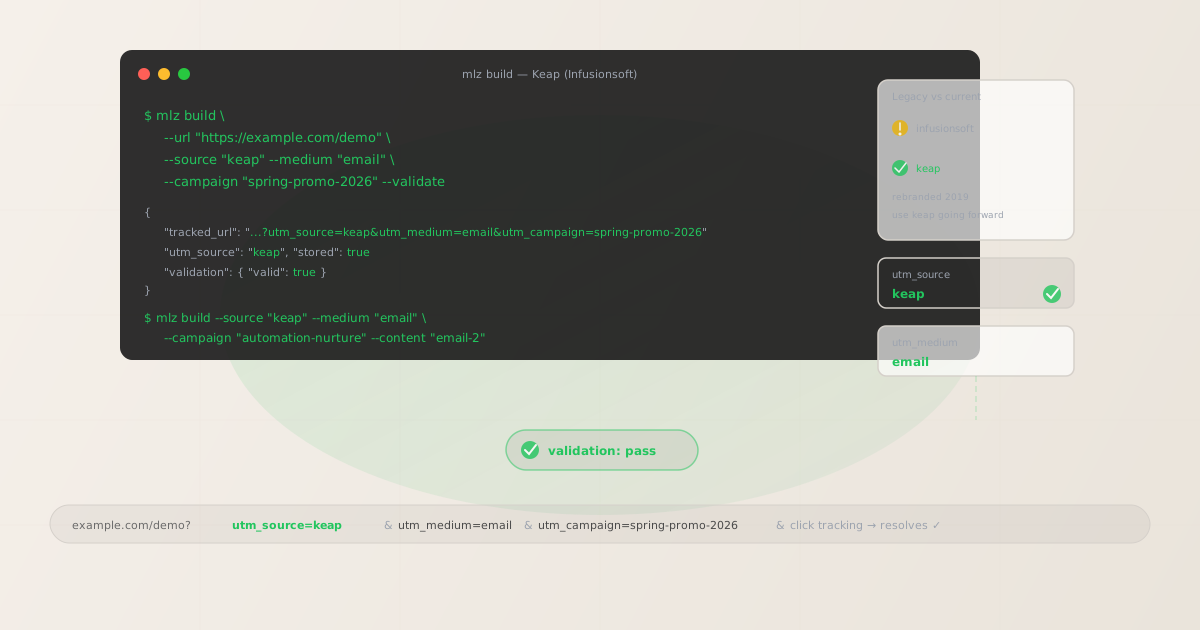
The correct utm_source and utm_medium for Keap
Use utm_source=keap — lowercase, no suffix — for all sends from the Keap platform. This applies regardless of which Keap product tier you use (Keap Pro, Keap Max, or the legacy Max Classic interface). The medium for all email sends from Keap is utm_medium=email.
Avoid utm_source=infusionsoft for current sends — even if your account originated as an Infusionsoft account, Keap is the current platform name and keap is the correct GA4 source value going forward. Also avoid utm_source=Keap (mixed case), utm_source=keap-crm, or any other variant that introduces noise into your GA4 traffic source filter dropdowns.
| Source value | Origin | Use this? |
|---|---|---|
infusionsoft |
Legacy brand name (pre-2019) | ✗ No — old brand, creates split |
Keap |
Manually entered (mixed case) | ✗ No — mixed case, separate GA4 row |
keap-crm |
Manually entered (with suffix) | ✗ No — unnecessary suffix, non-standard |
keap |
mlz build output | ✓ Yes — normalised, current brand |
GA4 treats keap and infusionsoft as entirely separate traffic sources. If your team has historical sessions attributed to infusionsoft (from campaigns sent before the rebrand or before UTM conventions were standardised), those sessions will continue to appear under a separate source row. For historical consolidation, create a GA4 custom channel group that matches both keap and infusionsoft under a single "Keap" grouping — but prevent any new splits going forward by enforcing utm_source=keap via mlz build.
The Infusionsoft legacy split and how to consolidate it
Keap rebranded from Infusionsoft in 2019. Any team that was sending email under Infusionsoft before that date — or that manually entered utm_source=infusionsoft in links after the rebrand — will have split attribution in GA4. The split compounds silently: sessions from 2018 through early 2019 appear under infusionsoft; sessions from 2019 onwards appear under keap (assuming the team updated the source value). Comparing year-over-year email performance in GA4 requires filtering for both source values or aggregating them.
The practical steps for consolidation:
- Audit your GA4 Source/Medium report for any sessions under
infusionsoftorinfusionsoft / email. If the volume is significant (more than a few percent of your email traffic), create a custom channel group. - In GA4 Admin > Channel Groups, create a rule that matches
utm_source exactly matches infusionsoft OR utm_source exactly matches keapand assigns both to an "Email — Keap" channel. This does not alter raw event data — it only changes how GA4 groups sessions in the Channels report. - From this point forward, build all tracked links with
mlz build --source "keap". Every link is stored with the correct source at build time, and the JSON output confirms the value before it is pasted into any template.
This is not a permanent problem for most accounts — as old campaign traffic ages out of your analysis window, the infusionsoft row becomes irrelevant. The priority is ensuring no new sends use the legacy source value.
Setting UTM parameters in Keap Broadcasts
Keap Broadcasts are one-time email sends to a segment of your contact list — newsletters, promotions, announcements, re-engagement sends. Keap does not auto-append UTM parameters to Broadcast links. UTM parameters are embedded in the destination URL itself, which means you must build the tracked URL before opening Keap's Broadcast editor and paste the tracked_url output as the link destination in each CTA.
Build the tracked URL for each unique CTA in the Broadcast before creating the email:
$ mlz build \
  --url "https://example.com/spring-sale" \
  --source "keap" \
  --medium "email" \
  --campaign "spring-sale-2026" \
  --validate

{
  "tracked_url": "https://example.com/spring-sale?utm_source=keap&utm_medium=email&utm_campaign=spring-sale-2026",
  "params": {
    "utm_source": "keap",
    "utm_medium": "email",
    "utm_campaign": "spring-sale-2026"
  },
  "validation": {
    "valid": true,
    "checks": [
      { "check": "ssl", "status": "pass" },
      { "check": "resolution", "status": "pass", "details": { "response_time_ms": 148 } },
      { "check": "redirects", "status": "pass" }
    ]
  },
  "link_id": "lnk_kp4r7m2x",
  "stored": true
}
Paste the tracked_url value as the link destination in Keap's Broadcast email builder. Keap's click tracking wraps the destination URL in a redirect to record click events; the UTM parameters in the query string are preserved through this redirect and arrive at your landing page intact, where GA4 captures them as session parameters.
If a Broadcast has multiple CTAs pointing to different landing pages — for example, a hero CTA to a product page and a secondary CTA to a blog post — build a separate tracked URL for each destination. Use distinct utm_campaign slugs if the sends are part of different campaigns, or use the same utm_campaign with different utm_content values if they are CTAs within a single Broadcast: --content "hero-cta" and --content "secondary-cta".
Campaign Builder sequences — per-step UTM tracking
Keap's Campaign Builder (the visual automation canvas) lets you create multi-step sequences: welcome series, lead nurture tracks, post-purchase follow-ups, re-engagement campaigns. Each email step in a Campaign Builder sequence that links to a landing page needs a tracked URL with a unique utm_content value to make sequence step-level attribution visible in GA4.
Without per-step utm_content differentiation, GA4 shows all sessions from a Campaign Builder sequence under a single campaign row. You can see that the automation drove sessions — but not which step. If a five-email welcome series has most of its conversions driven by step three, that information is invisible in GA4 unless each step uses a distinct tracked URL.
Use a utm_campaign slug that identifies the sequence, and a utm_content value that identifies the step number or email type within the sequence:
# Welcome series — step 1 (sent immediately on tag applied)
$ mlz build \
  --url "https://example.com/getting-started" \
  --source "keap" \
  --medium "email" \
  --campaign "automation-welcome" \
  --content "email-1" \
  --validate

{ "tracked_url": "https://example.com/getting-started?utm_source=keap&utm_medium=email&utm_campaign=automation-welcome&utm_content=email-1", "validation": { "valid": true } }

# Welcome series — step 2 (sent 3 days later)
$ mlz build \
  --url "https://example.com/features" \
  --source "keap" \
  --medium "email" \
  --campaign "automation-welcome" \
  --content "email-2" \
  --validate

{ "tracked_url": "https://example.com/features?utm_source=keap&utm_medium=email&utm_campaign=automation-welcome&utm_content=email-2", "validation": { "valid": true } }
Build the tracked URL for each step before configuring the email template in Campaign Builder. After building all tracked URLs for a sequence, run mlz links list --campaign "automation-welcome" to retrieve every stored tracked URL for the workflow. The JSON output confirms that every step has a validated tracked URL before the Campaign Builder sequence is activated.
Keap click tracking and UTM preservation
Keap tracks link clicks at the email delivery level using a redirect wrapper. When a recipient clicks a link in a Keap Broadcast or Campaign Builder email, Keap records the click event and forwards the browser to the destination URL. UTM parameters embedded in the destination URL are preserved through this redirect — the query string passes through the Keap click-tracking redirect intact.
Keap records the click at the redirect, not at the destination. This creates the familiar gap between Keap's reported click count and GA4's session count: a broken destination — a 404 page, a landing page with an expired SSL certificate, a redirect that strips the query string — shows as a click in Keap's campaign analytics but generates no session in GA4. The discrepancy is not visible from inside Keap's reporting without cross-referencing GA4. Run mlz build --validate before embedding any destination URL in a Broadcast or Campaign Builder step to confirm the destination resolves correctly before the send goes out.
One additional consideration for Keap: Keap uses a custom domain for click tracking (the redirect domain is configured per-account). If your Keap account uses a branded click-tracking domain (e.g., click.yourbusiness.com), confirm that the redirect domain preserves query strings as expected. Use mlz build --validate to test the full chain from the Keap click-tracking redirect to the final destination and confirm UTM parameters arrive at the landing page intact.
Keap UTM tracking gotchas
- infusionsoft vs keap — the rebrand split
- Keap rebranded from Infusionsoft in 2019. GA4 treats
utm_source=infusionsoftandutm_source=keapas separate traffic sources. Any campaigns that used the old brand name as the source value appear in a separate GA4 row that does not aggregate with current Keap sends. If your GA4 account has significant historical data underinfusionsoft, create a custom channel group that matches both values under a single grouping. From this point forward, build all links withmlz build --source "keap"— the correct current brand name. - No auto-UTM means inconsistency is the main risk
- Unlike many email platforms, Keap does not auto-generate UTM parameters for links in your emails. This is an advantage — there are no auto-generated values to override. The risk instead is team inconsistency: different people entering different source values (
Keap,keap,infusionsoft,keap-crm) in link destinations across Broadcasts and Campaign Builder steps. Enforce consistency by always building tracked URLs withmlz build --source "keap" --medium "email"before opening any template editor. Thetracked_urloutput is the value that goes into the link destination field — not whatever the team member would have typed manually. - Campaign Builder steps without utm_content collapse automation attribution
- Keap's Campaign Builder can include many email steps in a single automation: welcome series, lead nurture sequences, post-purchase flows, re-engagement campaigns. If every email in a sequence uses the same tracked URL — the same
utm_campaignand noutm_contentdifferentiation — GA4 aggregates all sessions from the entire sequence under one row. You can see total attributed sessions; you cannot identify which step drove them. Build one tracked URL per step with a distinct--contentvalue:--content "email-1",--content "email-2", and so on. This makes step-level attribution visible in GA4's campaign and content reports. - Tags as audience segments don't map to GA4 automatically
- Keap's tag system is powerful for segmenting contacts — you can send a Broadcast to contacts with specific tags (e.g., "customers-90d", "leads-webinar-2026-q1"). Keap's analytics shows clicks and opens by segment, but GA4 has no way to attribute sessions to a specific tag segment unless the tag is encoded in the tracked URL. Use
utm_termto pass the list segment or tag group into GA4 when the same campaign sends to multiple audience segments:mlz build --term "customers-90d"andmlz build --term "leads-webinar". This is optional but useful when comparing segment performance within a single send. - Keap Max Classic vs Keap Pro — same UTM logic, different editor UI
- Keap offers multiple product tiers: Keap Max Classic (the legacy Infusionsoft interface), Keap Pro, and Keap Max. The UTM tracking approach is identical across all tiers — UTM parameters are embedded in the destination URL in the link editor, and Keap's click-tracking redirect preserves them. The difference is only in where the link editor is found in each UI. In Max Classic, links are set in the Campaign Builder email step editor or the Broadcast editor. In Keap Pro and Max, links are set in the drag-and-drop email builder. The
mlz buildworkflow is the same regardless of which interface your account uses.
Keap UTM naming conventions
Recommended UTM parameter values for Keap, aligned with GA4 default channel groupings and a lowercase-hyphenated taxonomy:
- utm_source:
keap— always, for all sends from the Keap platform regardless of product tier. Never useinfusionsoftfor current sends,Keap(mixed case), orkeap-crm(unnecessary suffix). - utm_medium:
emailfor all Keap email sends — Broadcasts, Campaign Builder sequences, and one-time sends. Keap is a CRM platform that also sends SMS in some configurations; for SMS sends from Keap, useutm_medium=smsto distinguish from email attribution. - utm_campaign: Lowercase, hyphenated, specific to the campaign or automation. Broadcasts:
spring-sale-2026,june-newsletter-2026,product-launch-july-2026. Campaign Builder sequences: prefix withautomation-:automation-welcome,automation-lead-nurture,automation-re-engagement. - utm_content: Per CTA in a Broadcast:
hero-cta,body-link-1. Per Campaign Builder step:email-1,email-2,email-3. Use distinctutm_contentvalues whenever the same campaign sends multiple different links to the same destination or sends the same message as part of a multi-step sequence. - utm_term: Optional. Use to pass Keap tag-based audience segments into GA4:
customers-90d,leads-webinar-q1,subscribers-new. Useful for comparing segment performance within a single Broadcast send.
See the UTM naming conventions guide for the full cross-platform reference and the UTM tracking for developers guide for programmatic generation and validation at scale.
FAQ
- Should I use utm_source=keap or utm_source=infusionsoft?
- Use
keapfor all current sends. Keap rebranded from Infusionsoft in 2019 —infusionsoftis the legacy brand name and should only appear in historical GA4 data from pre-rebrand campaigns. GA4 treats the two values as separate traffic sources, so usinginfusionsoftfor current sends splits your Keap attribution across two rows. If you have significant historical data underinfusionsoft, create a GA4 custom channel group that matches both values under a single grouping, then enforcekeapgoing forward withmlz build --source "keap". - Does Keap auto-generate UTM parameters for email links?
- No — unlike some email platforms (Mailchimp, HubSpot), Keap does not have a native UTM auto-generation feature that appends parameters to all links in a Broadcast or Campaign Builder email. UTM parameters must be embedded in the destination URL manually — or, better, built with
mlz buildbefore the email template is created. The absence of auto-UTM means there are no platform-generated values to override, but it also means inconsistency is the primary risk if the team is setting values manually without a defined convention. - Does Keap's click tracking preserve UTM parameters?
- Yes — Keap wraps email links in a click-tracking redirect that encodes the full destination URL, including UTM query parameters. When a recipient clicks, Keap records the click and forwards the browser to the destination with UTM parameters intact. The caveat: Keap records clicks at the redirect, not at the destination. A broken destination URL (404, SSL error, redirect chain that strips the query string) shows as a click in Keap's analytics but produces no session in GA4. Run
mlz build --validateto confirm destination URLs resolve correctly before embedding them in any Keap email template. - How do I track Campaign Builder automation steps in GA4?
- Build a separate tracked URL for each step with a unique
utm_contentvalue:mlz build --campaign "automation-welcome" --content "email-1"for step one,--content "email-2"for step two, and so on. Paste each tracked URL into the corresponding step's email template in Campaign Builder. GA4 can then report on which step in the sequence drives sessions and conversions at the content level. Without per-step differentiation, GA4 aggregates all sessions from the entire sequence under one campaign row — you see the automation is driving activity, but not which step is responsible. - Can I use utm_term to track Keap tag-based audience segments?
- Yes —
utm_termis the appropriate parameter for passing audience segment information into GA4 when the same campaign sends to contacts with different Keap tags. Build separate tracked URLs per segment:mlz build --term "customers-90d"for customers active in the last 90 days andmlz build --term "leads-new"for recently acquired leads. GA4's term dimension then shows conversion rates and engagement metrics per segment within the same campaign. This is optional — only useful if comparing segment performance is a reporting requirement.
Recommended posts
Build Keap links from the terminal
Pass --source "keap" and --medium "email" to mlz build to get a normalised, validated tracked URL ready to paste into any Keap Broadcast template or Campaign Builder step. Build all tracked URLs before opening any template editor — UTM parameter values are fixed at build time, never typed manually or derived from contact names or campaign display names that vary across team members. Run --validate to confirm destination URLs resolve correctly before the send activates, and use --content to give each Campaign Builder step its own GA4-distinguishable tracked URL.
1,000 links/month free. No credit card.
Your API key
Save this now — it won't be shown again.
npm install -g missinglinkz
Free plan: 1,000 links/month. No credit card. See the UTM tracking for developers guide for the full programmatic workflow including API and MCP integration.