UTM Tracking for HubSpot Campaigns: How to Build and Validate Campaign Links
HubSpot email campaigns have a well-known UTM problem: HubSpot's default email tracking appends utm_source=hs_email to links — a non-standard source value that is specific to HubSpot's internal tracking system and does not match any canonical utm_source naming convention. In GA4, HubSpot's auto-tagged links appear as hs_email / email in the source/medium report rather than hubspot / email. This creates a second attribution row that does not consolidate with any other channel, makes cross-channel comparison harder, and signals to anyone reading your GA4 data that your UTM taxonomy is not standardised. Beyond the hs_email issue, HubSpot also appends its own hsa_* tracking parameters and its own utm_id values derived from HubSpot campaign IDs. The recommended approach is to override HubSpot's auto-UTM with custom parameters that match your taxonomy. This article covers the correct values, how to override HubSpot's auto-tagging, how to build consistent UTM links with mlz build, and how to validate destination URLs before each send.
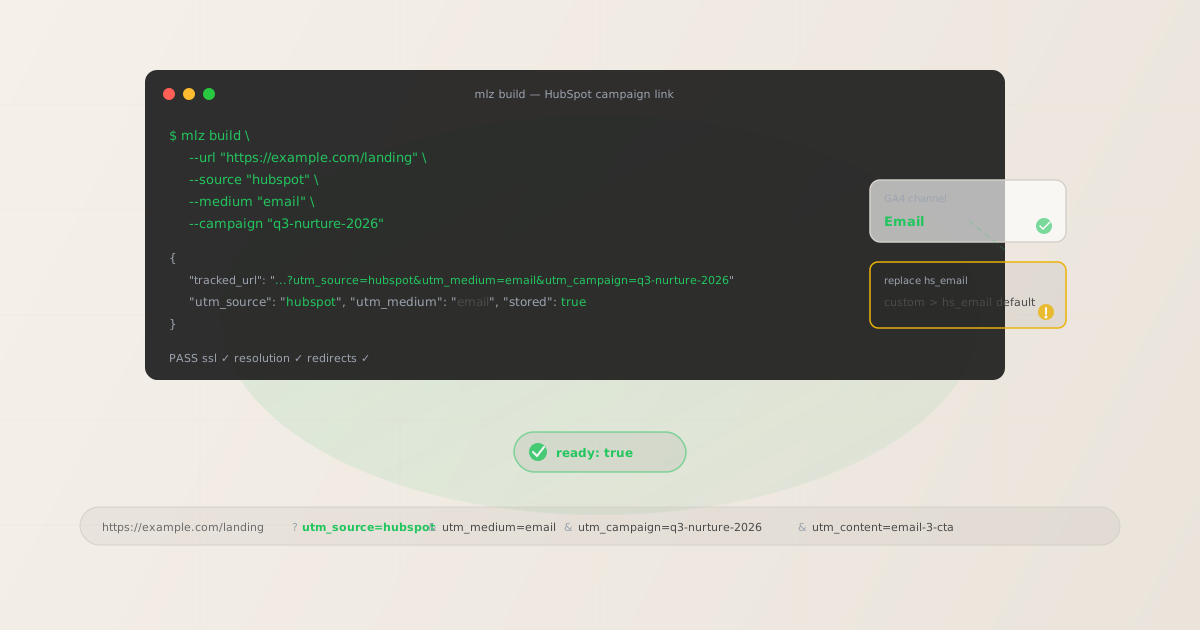
The HubSpot hs_email auto-UTM problem
HubSpot's email marketing module automatically appends a set of tracking parameters to every link in your marketing emails. When HubSpot's built-in UTM tracking is enabled, the result looks like this:
# What HubSpot auto-appends to email links
https://example.com/landing
  ?utm_source=hs_email
  &utm_medium=email
  &utm_campaign=123456789
  &_hsenc=p2ANqtz--abc123
  &_hsmi=456789
The problems with HubSpot's auto-UTM output:
utm_source=hs_email: HubSpot's internal source identifier, not the platform name. In GA4, this creates ahs_email / emailrow rather thanhubspot / email. If your team also has any direct HubSpot URLs or manually-tagged HubSpot links usingutm_source=hubspot, they appear as a separate row — the same platform creates two different attribution sources in GA4.- Numeric
utm_campaign: HubSpot uses its internal campaign ID (a numeric identifier) as theutm_campaignvalue. In GA4, your campaign reports show numbers like123456789rather than descriptive campaign names. You have to cross-reference HubSpot's campaign list to know what each number means. _hsencand_hsmiparameters: These are HubSpot's proprietary email tracking parameters for individual email opens and click attribution within HubSpot's own reporting dashboard. They are not UTM parameters and are not read by GA4. They appear in the URL and can make it harder to read the UTM parameters in browser address bars and analytics exports.- No
utm_content: HubSpot's auto-UTM does not add autm_contentvalue, so you cannot distinguish between different CTAs or links within the same email.
The solution is to disable HubSpot's automatic UTM tagging for each email or workflow and provide your own custom UTM parameters in the link URLs before entering them in HubSpot's email editor.
The correct utm_source and utm_medium for HubSpot
For HubSpot email campaigns, use utm_source=hubspot and utm_medium=email. This is distinct from HubSpot's default utm_source=hs_email — the hubspot value identifies the platform clearly, matches your naming convention for other platforms, and produces a clean hubspot / email row in GA4's source/medium report.
| HubSpot send type | utm_source | utm_medium | GA4 default channel |
|---|---|---|---|
| Marketing email (newsletter) | hubspot |
email |
|
| Workflow automation email | hubspot |
email |
|
| Lead nurture sequence | hubspot |
email |
|
| Transactional email | hubspot |
email |
|
| A/B test email | hubspot |
email |
Some teams prefer utm_source=hs_email to maintain continuity with existing historical data already attributed that way in GA4. If your organisation has months or years of GA4 data using hs_email as the source and switching would create a discontinuity in trend reports, that is a valid reason to keep it — but the naming is still non-standard, and you should document the convention explicitly in your UTM taxonomy so future team members don't create a third source value by accident. The migration path is to note a date in your GA4 annotations when the source value changed.
For utm_campaign, use your own lowercase hyphen-separated campaign name — not HubSpot's numeric campaign ID. For example, q3-nurture-2026 instead of 123456789. This is the value visible in GA4 reports, so it should be human-readable and consistent with the naming convention you use for paid channels.
Building HubSpot campaign links with mlz build
mlz build generates the tracked URL, enforces lowercase normalisation, and stores the link for auditing. For a standard HubSpot marketing email with multiple CTAs:
# Primary CTA in a HubSpot marketing email
$ mlz build \
  --url "https://example.com/landing" \
  --source "hubspot" \
  --medium "email" \
  --campaign "q3-newsletter-2026" \
  --content "primary-cta"

{
  "tracked_url": "https://example.com/landing?utm_source=hubspot&utm_medium=email&utm_campaign=q3-newsletter-2026&utm_content=primary-cta",
  "params": {
    "utm_source": "hubspot",
    "utm_medium": "email",
    "utm_campaign": "q3-newsletter-2026",
    "utm_content": "primary-cta"
  },
  "link_id": "lnk_hs5m2k9r",
  "stored": true
}
Use utm_content to differentiate CTAs within the same email — primary-cta, secondary-cta, footer-link. For lead nurture sequences, the most common HubSpot email automation pattern, use a utm_content value that identifies the email number in the sequence:
# Email 3 in a 5-email HubSpot lead nurture workflow
$ mlz build \
  --url "https://example.com/case-study" \
  --source "hubspot" \
  --medium "email" \
  --campaign "q3-nurture-2026" \
  --content "email-3-cta"

{
  "tracked_url": "https://example.com/case-study?utm_source=hubspot&utm_medium=email&utm_campaign=q3-nurture-2026&utm_content=email-3-cta",
  "params": {
    "utm_source": "hubspot",
    "utm_medium": "email",
    "utm_campaign": "q3-nurture-2026",
    "utm_content": "email-3-cta"
  },
  "link_id": "lnk_hs7n4w2p",
  "stored": true
}
For HubSpot workflow automation emails, build all tracked URLs for the full sequence before entering them into the workflow editor. This lets you validate all destination URLs at once, store the full campaign's link set in MissingLinkz's link management, and paste the tracked_url values directly into HubSpot's email template editor with auto-UTM disabled. The MissingLinkz link list gives you an audit trail of every URL in the sequence — useful when a workflow has been running for months and you need to verify what UTM values were used for each step.
HubSpot for paid advertising: social and search campaign links
HubSpot is not only an email platform — many teams also use HubSpot to track paid social and search campaigns. HubSpot's Ads tool can auto-tag LinkedIn, Google Ads, and Facebook campaigns with HubSpot's own tracking parameters alongside (or instead of) UTM parameters. For paid channels, the approach differs from email:
| HubSpot campaign type | Recommended utm_source | utm_medium | Notes |
|---|---|---|---|
| Email (marketing, nurture) | hubspot |
email |
Override HubSpot's auto-UTM |
| LinkedIn Ads (via HubSpot) | linkedin |
cpc or social |
Use the platform as source, not hubspot |
| Google Ads (via HubSpot) | google |
cpc |
Use the platform as source, not hubspot |
| Facebook Ads (via HubSpot) | facebook |
cpc or social |
Use the platform as source, not hubspot |
For paid channels managed through HubSpot's Ads tool, the traffic source should reflect the ad platform — not HubSpot. Using utm_source=hubspot for a LinkedIn campaign would merge paid LinkedIn clicks with HubSpot email clicks in the same GA4 source row, which destroys channel-level attribution. Only use utm_source=hubspot for emails sent from HubSpot's email marketing module.
HubSpot's Ads tool may also add its own tracking parameters alongside your UTM parameters. These are typically hsa_acc, hsa_cam, hsa_grp, and similar. These parameters are for HubSpot's internal paid attribution reporting and do not interfere with GA4 UTM attribution. You can leave them in place alongside your UTM parameters.
How to disable HubSpot's automatic UTM tagging
HubSpot's automatic UTM tracking is controlled in two places: the email settings at the account level and the individual campaign settings. To use custom UTM parameters:
- Account-level default (HubSpot Marketing Hub): Go to Settings › Marketing › Email › Tracking. Under "Google Analytics tracking," you can toggle the default behaviour for new emails. Setting this to off means new campaigns start with auto-UTM disabled, but you must still add custom UTM parameters to your links manually.
- Per-email campaign: In the email campaign editor, open the Settings tab and look for the "Tracking" or "Google Analytics" section. Disable the auto-UTM option for that specific email. This overrides the account-level default for a single email.
- Workflow emails: In HubSpot's workflow editor, each email step that sends a marketing email uses the same email campaign editor. Open the email template for each step and disable auto-UTM in the template settings.
After disabling auto-UTM, paste the tracked_url values from mlz build directly into the link fields in HubSpot's email editor. HubSpot will still wrap the links in its own click-tracking redirect (using HubSpot's hs-email.com or similar domain), but the query string — including your UTM parameters — is preserved through that redirect. The UTM parameters reach your landing page intact, and GA4 reads them correctly.
To confirm everything is working, send yourself a test email from HubSpot, click the link, and check the URL in the browser address bar after the HubSpot redirect resolves. You should see your custom UTM parameters and no utm_source=hs_email or numeric utm_campaign values.
Validating destination URLs before sending
Like all email platforms, HubSpot sends cannot be recalled after delivery — a broken destination URL cannot be fixed for recipients who received the email. Run mlz build --validate before finalising each HubSpot campaign to confirm every destination URL resolves correctly, uses HTTPS, and returns a 200 status:
$ mlz build \
  --url "https://example.com/landing" \
  --source "hubspot" \
  --medium "email" \
  --campaign "q3-newsletter-2026" \
  --content "primary-cta" \
  --validate

{
  "tracked_url": "https://example.com/landing?utm_source=hubspot&utm_medium=email&utm_campaign=q3-newsletter-2026&utm_content=primary-cta",
  "validation": {
    "valid": true,
    "checks": [
      { "check": "url_format", "status": "pass", "message": "URL format is valid." },
      { "check": "ssl", "status": "pass", "message": "URL uses HTTPS." },
      { "check": "resolution", "status": "pass", "message": "Destination responded with 200.", "details": { "response_time_ms": 211 } },
      { "check": "redirects", "status": "pass", "message": "No redirects detected." }
    ]
  },
  "link_id": "lnk_hs5m2k9r",
  "stored": true
}
For HubSpot workflow automation sequences that run continuously (welcome series, onboarding flows, re-engagement workflows), it is worth re-validating destination URLs periodically — especially if the URLs point to landing pages that are updated, replaced, or temporarily taken offline during redesigns or A/B tests. An automation email that was correctly configured at workflow creation can silently send to a 404 page months later if the destination URL changed. Build a periodic audit step into your workflow maintenance process using mlz build --validate for each active workflow email.
HubSpot UTM tracking gotchas
- hs_email in GA4 is not the same as hubspot
- HubSpot's default
utm_source=hs_emailand a customutm_source=hubspotcreate two separate rows in GA4's Traffic Acquisition source/medium report. If your team has previously used HubSpot's auto-UTM (creatinghs_email / emailrows) and you switch to custom parameters (creatinghubspot / emailrows), both rows will appear in GA4 for historical periods. This is expected — add a GA4 annotation for the date of the switch so future analysts can account for the source name change when comparing across time periods. - HubSpot's click tracking adds its own redirect hop
- HubSpot wraps all links in marketing emails with its own click-tracking redirect. When a recipient clicks a link, the request goes first to HubSpot's tracking domain (which records the click for HubSpot's email analytics), then to your destination URL. HubSpot's redirect preserves the full query string including UTM parameters, so this hop is transparent to GA4. However, if your destination URL itself redirects — through a link shortener, a campaign landing page builder, or a CMS redirect rule — you may have a two or three-hop redirect chain. Check the full chain with
mlz build --validateto confirm UTM parameters survive to the final destination. - HubSpot's numeric campaign IDs create unreadable GA4 reports
- If you use HubSpot's default auto-UTM, the
utm_campaignvalue in GA4 is a numeric HubSpot campaign ID like123456789. This is technically valid but unreadable without cross-referencing HubSpot's campaign list. Anyone looking at your GA4 Traffic Acquisition report sees a list of numbers instead of campaign names. Using customutm_campaignvalues with descriptive lowercase-hyphenated names (q3-newsletter-2026) makes GA4 reports directly readable without having to look up HubSpot campaign IDs. - hsa_* parameters from HubSpot Ads coexist with UTM parameters
- When HubSpot's Ads tool is connected to LinkedIn, Google, or Facebook, it appends proprietary
hsa_acc,hsa_cam,hsa_grpparameters alongside UTM parameters. These are for HubSpot's paid attribution dashboard and do not affect GA4 UTM attribution. GA4 reads only the five standard UTM parameters (utm_source,utm_medium,utm_campaign,utm_content,utm_term) and ignores unknown parameters likehsa_*. Do not remove thehsa_*parameters where HubSpot has appended them, as they are used by HubSpot's own reporting. - HubSpot and GA4 measure different events — both are correct
- HubSpot's email analytics report opens, clicks, and contact-level engagement within HubSpot. GA4 reports sessions, conversions, and revenue attributable to clicks from HubSpot emails. These are complementary data points — a high HubSpot click rate with low GA4 sessions indicates a technical issue in the link chain (redirect stripping UTM parameters, GA4 tag not firing on the landing page, or HubSpot's click-tracking URL being blocked by certain email clients). Use both dashboards together for a complete picture, and validate the technical chain with
mlz build --validateto confirm GA4 is receiving attribution data from HubSpot clicks.
HubSpot UTM naming conventions
Consistent naming across HubSpot and your other marketing channels is essential for clean GA4 attribution. Recommended conventions for HubSpot UTM parameters:
- utm_source:
hubspot— lowercase, for all emails sent from HubSpot's email marketing module - utm_medium:
email— maps to GA4's default Email channel; use for marketing emails, automation emails, and transactional emails - utm_campaign: lowercase hyphen-separated descriptive name, e.g.
q3-newsletter-2026,onboarding-series-2026,product-launch-may-2026 - utm_content: CTA or email step identifier, e.g.
primary-cta,secondary-cta,email-3-cta,footer-link,variant-a - utm_term: audience segment or list identifier if relevant, e.g.
enterprise-prospectsortrial-users
If you use multiple email and marketing automation platforms alongside HubSpot (e.g., Mailchimp for newsletters, HubSpot for nurture sequences, a transactional provider for receipts), keep utm_source as the platform identifier for each (hubspot, mailchimp, etc.) and use the same utm_campaign naming convention across all platforms. This lets you compare email channel performance across platforms in GA4 by filtering on utm_medium=email and grouping by source. See the UTM naming conventions guide for the cross-channel naming reference and the UTM tracking best practices guide for team-level governance recommendations.
FAQ
- What is utm_source=hs_email and should I use it?
utm_source=hs_emailis HubSpot's default auto-generated source value for emails sent through HubSpot's marketing email module. It is a proprietary HubSpot identifier, not a standard platform name. In GA4, it creates ahs_email / emailrow rather thanhubspot / email. If your team is already usinghs_emailconsistently across all HubSpot campaigns and want to maintain continuity with historical GA4 data, you can keep it — but document it explicitly in your UTM taxonomy so the convention is clear. For new implementations or teams migrating to better taxonomy, switch toutm_source=hubspotand note the changeover date in GA4 annotations.- How do I override HubSpot's automatic UTM tagging?
- Disable HubSpot's "Google Analytics tracking" option in the email campaign's Settings tab. Once disabled, HubSpot sends your links exactly as entered — including any UTM parameters you added to the URL. Build your tracked URLs with
mlz buildand paste thetracked_urlvalues directly into HubSpot's email editor link fields. Confirm the override is working by sending a test email, clicking a link, and checking that the URL in the browser address bar shows your custom UTM values — noths_emailor a numeric campaign ID. - Why does my HubSpot email traffic show differently in GA4 vs. HubSpot?
- HubSpot and GA4 measure fundamentally different events. HubSpot counts email clicks as recorded by HubSpot's own click-tracking redirect. GA4 counts website sessions that arrive with UTM parameters. The two numbers are rarely identical: email clients sometimes prefetch links (inflating HubSpot click counts), some recipients click through on mobile with JavaScript disabled (so GA4 doesn't record the session), and UTM parameter stripping in a redirect chain can cause clicks to arrive without attribution. If the discrepancy is large, run
mlz build --validateon your destination URLs to check the redirect chain. - Can I use mlz build for HubSpot workflow automation emails?
- Yes. For HubSpot workflow automation sequences — welcome series, lead nurture flows, re-engagement campaigns — build all tracked URLs for the sequence upfront with
mlz build, using consistentutm_campaignand sequentialutm_contentvalues per email step. Disable auto-UTM in each email template within the workflow. Paste thetracked_urlvalues into the link fields of each email template in the workflow editor. Because automation emails run continuously over time, use stable campaign slugs that don't include time-sensitive dates — for example,welcome-seriesrather thanwelcome-series-q3-2026, since the same workflow may run through multiple quarters. - Do HubSpot's hsa_* parameters conflict with my UTM parameters?
- No. HubSpot's
hsa_acc,hsa_cam,hsa_grp, and similar parameters are HubSpot-proprietary tracking identifiers for its Ads attribution dashboard. GA4 reads only the five standard UTM parameters and ignores unknown parameters. You can have bothutm_source=hubspot&utm_medium=emailandhsa_acc=123in the same URL — GA4 attributes the session based on the UTM parameters and ignores thehsa_*values entirely. Do not remove thehsa_*parameters where HubSpot has appended them, as they are needed for HubSpot's own paid attribution reporting.
Recommended posts
Build HubSpot campaign links from the terminal
Pass --source "hubspot" --medium "email" to mlz build and get a normalised, validated URL ready to paste into HubSpot's email editor — no more hs_email or numeric campaign IDs in GA4. Add --content to distinguish CTAs within the same email, and --validate to confirm the destination resolves cleanly before your campaign goes live.
1,000 links/month free. No credit card.
Your API key
Save this now — it won't be shown again.
npm install -g missinglinkz
Free plan: 1,000 links/month. No credit card. See the UTM tracking for developers guide for the full programmatic workflow.