UTM Tracking for Mailchimp Campaigns: How to Build and Validate Email Campaign Links
UTM tracking for Mailchimp campaigns has a wrinkle that catches most teams off guard: Mailchimp automatically appends UTM parameters to every link in your campaigns by default. That sounds helpful, but Mailchimp's auto-generated values — typically utm_source=hs_email or utm_source=mailchimp with campaign-name-derived values — rarely match the taxonomy your team uses for other channels. The result is GA4 data that mixes auto-generated Mailchimp values with hand-crafted values from your other channels, making cross-channel comparison messy. The correct approach is to disable Mailchimp's automatic UTM tagging per campaign and use custom UTM parameters you build and validate yourself. This article covers the correct utm_source and utm_medium values for Mailchimp, how to override Mailchimp's auto-tagging, how to build consistent email campaign links with mlz build, and how to validate destination URLs before each send.
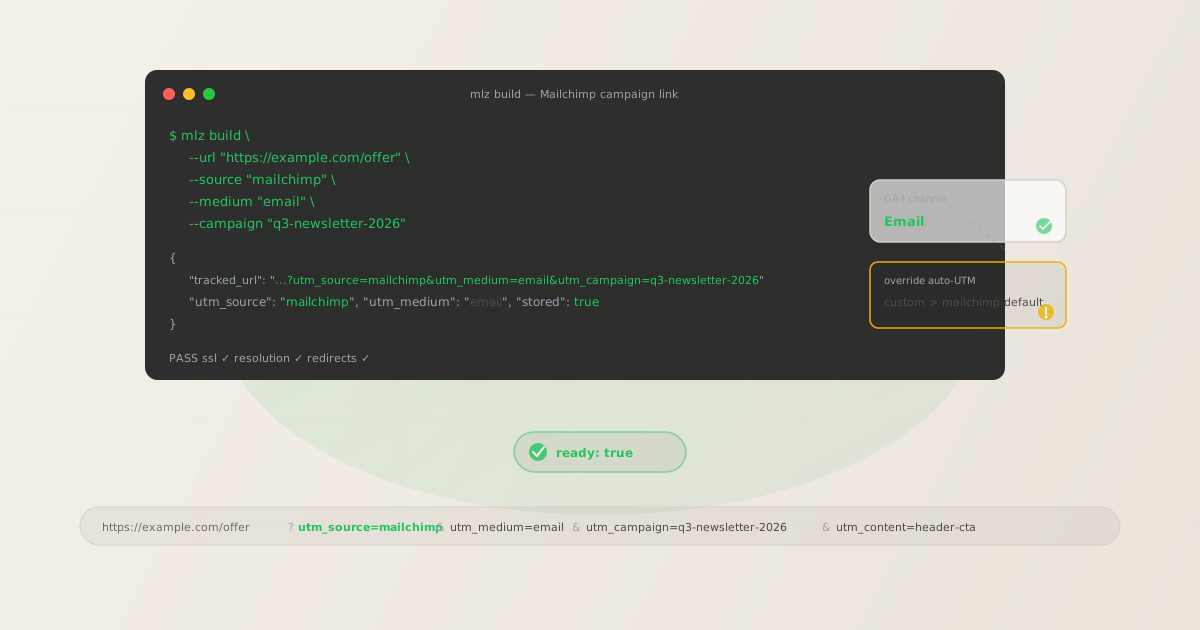
The Mailchimp auto-UTM problem
When you create a Mailchimp campaign, Mailchimp's email tracking settings include an option to "Add Google Analytics link tracking" (or similar phrasing depending on your Mailchimp plan and version). When this is enabled, Mailchimp appends UTM parameters to every link in the campaign automatically. Mailchimp derives the values from the campaign name you set in Mailchimp's interface — not from your GA4 taxonomy.
The values Mailchimp auto-generates look roughly like this:
# What Mailchimp auto-appends (varies by campaign name)
https://example.com/offer
  ?utm_source=mailchimp
  &utm_medium=email
  &utm_campaign=My+Q3+Newsletter+%E2%80%94+June+2026
  &utm_id=abc123def456
The issues with Mailchimp's auto-UTM output:
- Campaign name encoding: Mailchimp URL-encodes your campaign name, producing values like
My+Q3+Newsletter+%E2%80%94+June+2026. In GA4, this appears as a verbose, inconsistently formatted string that doesn't match the lowercase-hyphenated taxonomy your other channels use (e.g.,q3-newsletter-june-2026). - Spaces and special characters: If your Mailchimp campaign name contains spaces, em dashes, ampersands, or apostrophes, these appear percent-encoded in the UTM value. GA4 displays the decoded form, which may still differ from your naming convention.
- No
utm_content: Mailchimp's auto-tagging does not add autm_contentvalue, so you cannot distinguish between different CTAs or links within the same email. - Taxonomy drift: Over time, auto-generated values from different campaigns accumulate into a GA4 Source/Medium report that is hard to filter and compare consistently.
The solution is straightforward: disable Mailchimp's automatic UTM tagging for each campaign and provide your own UTM-tagged links. You retain full control over the parameter values, they match your taxonomy, and you can add utm_content to differentiate CTAs within the same email.
The correct utm_source and utm_medium for Mailchimp
For Mailchimp email campaigns, use utm_source=mailchimp and utm_medium=email. This combination maps to GA4's default Email channel grouping, which matches utm_medium exactly equal to email — no custom channel group rules required.
| Mailchimp send type | utm_source | utm_medium | GA4 default channel |
|---|---|---|---|
| Regular campaign | mailchimp |
email |
|
| Automated welcome email | mailchimp |
email |
|
| Transactional email (Mandrill) | mailchimp |
email |
|
| A/B test campaign | mailchimp |
email |
|
| RSS-driven campaign | mailchimp |
email |
Do not use utm_source=hs_email (that is HubSpot's auto-tag value, not Mailchimp's), utm_source=mailchimp.com, or utm_source=mc. Non-canonical source values create separate, unrecognised rows in GA4. The canonical value is mailchimp — matching what Mailchimp itself uses in its own auto-tagging and what GA4's source/medium filter recognises as the Mailchimp sender.
For utm_campaign, use your own lowercase hyphen-separated campaign name — not the Mailchimp campaign title. For example, if your Mailchimp campaign is named "June Newsletter — Q3 2026", your utm_campaign value should be june-newsletter-q3-2026. This is the value that appears in GA4, so it should match the naming convention you use for other channels.
Building Mailchimp campaign links with mlz build
mlz build generates the tracked URL, enforces lowercase normalisation, and stores the link for auditing. For a standard Mailchimp newsletter campaign with multiple CTAs:
# Header CTA link in the email
$ mlz build \
  --url "https://example.com/offer" \
  --source "mailchimp" \
  --medium "email" \
  --campaign "june-newsletter-q3-2026" \
  --content "header-cta"

{
  "tracked_url": "https://example.com/offer?utm_source=mailchimp&utm_medium=email&utm_campaign=june-newsletter-q3-2026&utm_content=header-cta",
  "params": {
    "utm_source": "mailchimp",
    "utm_medium": "email",
    "utm_campaign": "june-newsletter-q3-2026",
    "utm_content": "header-cta"
  },
  "link_id": "lnk_mc3h7p2n",
  "stored": true
}
Use utm_content to differentiate CTAs within the same email — for example, header-cta, body-link-1, footer-cta. Mailchimp's auto-tagging does not include utm_content, so this is one of the key advantages of using custom links over Mailchimp's built-in tagging. In GA4's Traffic Acquisition report, you can filter by utm_campaign=june-newsletter-q3-2026 and group by utm_content to see which link position inside the email drives the most clicks and conversions.
For automated email sequences (welcome series, drip campaigns), use a consistent campaign slug that identifies the sequence and a utm_content value that identifies the email position in the sequence:
# Email 2 of 5 in a welcome series automation
$ mlz build \
  --url "https://example.com/getting-started" \
  --source "mailchimp" \
  --medium "email" \
  --campaign "welcome-series-2026" \
  --content "email-2-main-cta"

{
  "tracked_url": "https://example.com/getting-started?utm_source=mailchimp&utm_medium=email&utm_campaign=welcome-series-2026&utm_content=email-2-main-cta",
  "params": {
    "utm_source": "mailchimp",
    "utm_medium": "email",
    "utm_campaign": "welcome-series-2026",
    "utm_content": "email-2-main-cta"
  },
  "link_id": "lnk_mc9w4r6k",
  "stored": true
}
For Mailchimp A/B test campaigns, assign a different utm_content to each subject line or content variant. GA4 will then let you compare the downstream conversion rate for each variant — beyond what Mailchimp's own open and click rate statistics show.
How to disable Mailchimp's automatic UTM tagging
To use custom UTM parameters instead of Mailchimp's auto-tagging, you need to disable Mailchimp's "Add Google Analytics link tracking" setting for each campaign. The location of this setting varies slightly by Mailchimp plan and campaign type:
- Regular campaign: In the campaign creation flow, go to Design › Settings › Tracking (or the equivalent tracking settings step). Uncheck "Add Google Analytics link tracking" or "Enable Google Analytics E-commerce" if present.
- Automated email: In the automation editor, open the email step settings and locate the tracking section. Disable the Google Analytics link tracking option for that specific email step.
- Account-level default: Mailchimp does not have a global "disable auto-UTM" setting that applies to all future campaigns — you must disable it per campaign. Some third-party Mailchimp integrations (e.g., Zapier automations) may re-enable it.
Once disabled, Mailchimp sends your links exactly as you entered them in the campaign editor — including any UTM parameters you added manually to each URL. Paste the tracked_url from mlz build directly into each link field in Mailchimp's campaign builder.
If you are unsure whether auto-tagging was disabled, send yourself a test email, click a link, and check the URL in your browser's address bar. If you see utm_campaign= followed by your Mailchimp campaign title (with spaces or percent-encoding), auto-tagging is still active. If you see your custom lowercase-hyphenated campaign name, it is working correctly.
Validating destination URLs before sending
Email is the one channel where you truly cannot fix a broken link after the fact — once an email is sent, you cannot update the destination URL for recipients who haven't opened it yet. Run mlz build --validate before finalising each campaign to confirm every destination URL resolves correctly, uses HTTPS, and returns a 200 status:
$ mlz build \
  --url "https://example.com/offer" \
  --source "mailchimp" \
  --medium "email" \
  --campaign "june-newsletter-q3-2026" \
  --content "header-cta" \
  --validate

{
  "tracked_url": "https://example.com/offer?utm_source=mailchimp&utm_medium=email&utm_campaign=june-newsletter-q3-2026&utm_content=header-cta",
  "validation": {
    "valid": true,
    "checks": [
      { "check": "url_format", "status": "pass", "message": "URL format is valid." },
      { "check": "ssl", "status": "pass", "message": "URL uses HTTPS." },
      { "check": "resolution", "status": "pass", "message": "Destination responded with 200.", "details": { "response_time_ms": 183 } },
      { "check": "redirects", "status": "pass", "message": "No redirects detected." }
    ]
  },
  "link_id": "lnk_mc3h7p2n",
  "stored": true
}
Common pre-send issues that --validate catches: landing pages taken offline between campaign creation and send date, redirect chains that drop UTM parameters before GA4 records the session, HTTPS certificate expiry on a landing page that was previously working, and typos in the destination URL that result in a 404. See the guide to checking if redirects strip UTM parameters for detail on the redirect-stripping problem, which is common when destination URLs pass through link shorteners or platform-level redirect proxies.
Mailchimp UTM tracking gotchas
- Mailchimp's click tracking wraps every link in a redirect
- Mailchimp's own click tracking works by rewriting every link in your email to a Mailchimp-hosted redirect URL (typically
mailchi.mporlist-manage.com). When a recipient clicks the link, they pass through Mailchimp's redirect server (which records the click for Mailchimp's reporting) and are then sent to your destination URL. This redirect chain is largely transparent to GA4 — Mailchimp's redirect preserves the query string, so your UTM parameters survive the Mailchimp click-tracking hop. However, if you also use a link shortener as an intermediate step, you may have a two-hop redirect chain. Check the full chain withmlz build --validatebefore sending. - Disable Mailchimp's auto-UTM per campaign, not globally
- Mailchimp does not offer a global "never auto-tag" setting. Each new campaign you create has the Google Analytics tracking option defaulting to whatever your last setting was. Teams that use Mailchimp heavily can accidentally re-enable auto-tagging on campaigns they intended to manage manually. Build a pre-send checklist item: open the campaign's tracking settings, confirm auto-UTM is disabled, and verify that your custom UTM-tagged links are in place before scheduling.
- Mailchimp reports and GA4 reports measure different things
- Mailchimp's campaign reports show opens, clicks, and unsubscribes — events that happen within the email client. GA4 reports show what happens on your website after the click. These are complementary data sources, not duplicates. A high Mailchimp click rate with a low GA4 session count usually indicates a tracking problem: UTM parameters being stripped, Mailchimp's redirect chain being blocked, or the GA4 tag not firing on the landing page. Use
mlz build --validateto confirm the full journey from tracked URL to landing page is clean before sending. - utm_source=mailchimp is correct — not utm_source=newsletter
- Some teams use
utm_source=newsletterto describe email campaigns. While this is not wrong, it loses the source identity — in GA4, you cannot tell "which email platform sent this traffic" without the source value. Use the platform as source (mailchimp) andutm_campaignto identify the specific send. If you send from multiple email platforms (Mailchimp for newsletters, a transactional email service for receipts), distinct source values let you separate them in GA4 without additional filtering. - Mailchimp A/B tests need separate tracked URLs per variant
- Mailchimp's built-in A/B testing splits your list into cohorts that receive different subject lines, content, or send times. If variant A and variant B both contain the same UTM-tagged link, GA4 cannot tell which variant drove the click — you only see combined traffic from
mailchimp / email / june-newsletter-q3-2026. To measure variants in GA4, useutm_content=variant-aandutm_content=variant-bin the respective email templates. This requires building two versions of each link and inserting them manually into the two Mailchimp content variants.
Mailchimp UTM naming conventions
Consistent naming across Mailchimp and your other email and marketing channels is essential for clean GA4 attribution. Recommended conventions for Mailchimp UTM parameters:
- utm_source:
mailchimp— always lowercase, always this exact value for all Mailchimp sends - utm_medium:
email— maps to GA4's default Email channel; use for all email types (newsletters, automation, transactional) - utm_campaign: lowercase hyphen-separated name matching your campaign taxonomy, e.g.
june-newsletter-q3-2026,welcome-series-2026,product-launch-may-2026 - utm_content: CTA identifier within the email, e.g.
header-cta,body-link-1,footer-cta,email-2-main-cta,variant-a— always include this for multi-link emails - utm_term: audience segment if you send the same campaign to multiple lists with different targeting, e.g.
enterprise-segmentortrial-users
If you run Mailchimp campaigns alongside a second email platform (e.g., Klaviyo for ecommerce automations, or a transactional email service for receipts), keep utm_source as the platform identifier (mailchimp vs klaviyo vs your transactional provider) and use the same utm_campaign naming convention across platforms. This lets you compare email channel performance across platforms in GA4 by filtering on utm_medium=email and grouping by source. See the UTM naming conventions guide for the full cross-channel naming reference.
FAQ
- Does Mailchimp automatically add UTM parameters to my links?
- Yes, by default. When you enable "Add Google Analytics link tracking" in Mailchimp's campaign tracking settings, Mailchimp appends UTM parameters to every link automatically. The values are derived from your Mailchimp campaign name and are often inconsistently formatted relative to your own naming taxonomy. The recommended approach is to disable Mailchimp's auto-UTM for each campaign and add custom UTM parameters to your destination URLs using
mlz buildbefore pasting them into Mailchimp's campaign editor. - What utm_source and utm_medium should I use for Mailchimp?
- Use
utm_source=mailchimp(lowercase) andutm_medium=email. Theutm_medium=emailvalue maps directly to GA4's default Email channel grouping — no custom channel group rules required. Avoid variations likeutm_source=mailchimp.com,utm_source=newsletter, orutm_medium=e-mail, as these do not match GA4's default channel definitions and will land in Unassigned or Other. - How do I track different CTAs in the same Mailchimp email?
- Add a unique
utm_contentvalue to each link in the email — for example,header-cta,body-link-1,footer-cta. Build each URL withmlz build --content "header-cta", then paste thetracked_urlinto the corresponding link in Mailchimp's editor. In GA4, filter byutm_campaignand group byutm_contentto see which link position drives the most clicks and conversions. - Why does my Mailchimp traffic show as Direct in GA4?
- This usually means one of three things: Mailchimp's auto-UTM is disabled but you haven't added custom UTM parameters to your links; the UTM parameters are being stripped by a redirect chain between Mailchimp's click-tracking URL and your landing page; or the GA4 tag is not firing on the landing page. Run
mlz build --validateagainst your tracked URL to check that the destination resolves cleanly and doesn't drop query parameters through a redirect. Also verify the GA4 tag is present on the landing page HTML. - Can I use mlz build for Mailchimp automation emails?
- Yes. For automated email sequences (welcome series, drip campaigns, re-engagement flows), build a tracked URL per email step with a distinct
utm_contentidentifying the step — for example,email-1-welcome-cta,email-2-getting-started-cta. Paste the tracked URLs into the corresponding email steps in Mailchimp's automation editor with auto-UTM disabled. Since automation emails are sent repeatedly to new subscribers over time, you want the UTM parameters in the email content to be stable — they don't need to change per subscriber, only per email step in the sequence.
Recommended posts
Build Mailchimp campaign links from the terminal
Pass --source "mailchimp" --medium "email" to mlz build and get a normalised, validated URL ready to paste into Mailchimp's campaign editor. Add --content to distinguish CTAs within the same email, and --validate to confirm the destination resolves cleanly before your send goes out.
1,000 links/month free. No credit card.
Your API key
Save this now — it won't be shown again.
npm install -g missinglinkz
Free plan: 1,000 links/month. No credit card. See the UTM tracking for developers guide for the full programmatic workflow.