UTM Tracking for Iterable: How to Build and Validate Campaign Links
UTM tracking for Iterable has a multi-channel complexity that single-channel email platforms don't face: Iterable sends email, push notifications, SMS, and in-app messages from the same Journey — and each channel requires a different utm_medium. A Journey step that sends an email and a follow-up push notification to the same user is one Journey with two distinct channel touches, and they need separate tracked links with utm_medium=email and utm_medium=push respectively. Get this wrong and GA4 merges email and push channel performance into a single row under whatever medium you used for both, making cross-channel attribution meaningless. Iterable doesn't have a built-in UTM auto-appending feature equivalent to Eloqua's Campaign Canvas or SFMC's auto-UTM — but teams working from Handlebars templates often hardcode UTM strings directly in email HTML, bypassing any naming governance. The result is the same fragmentation problem: utm_campaign=Trial Onboarding from a template literal, utm_campaign=trial-onboarding from a manually built link, and utm_campaign=TrialOnboarding from a copy-paste from a previous campaign — three rows in GA4 for one campaign. Use mlz build outside the template, paste the complete tracked URL as the link destination, and Iterable's click-tracking handles the rest.
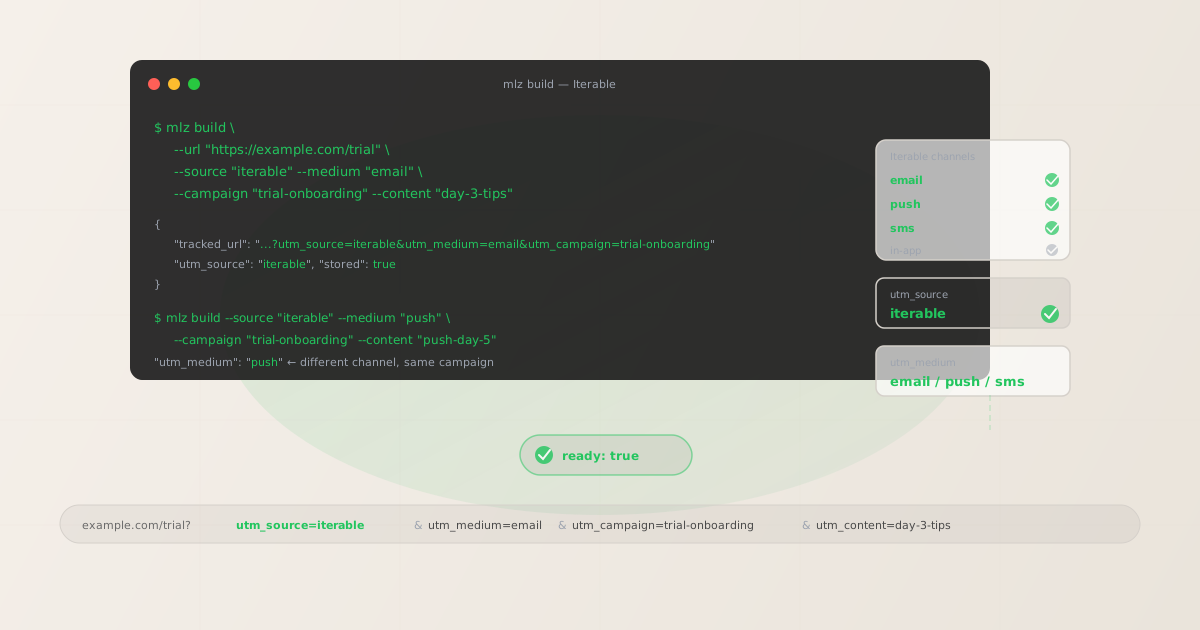
The correct utm_source and utm_medium for Iterable
Use utm_source=iterable — lowercase, no hyphens needed — for all sends from Iterable regardless of channel. The source identifies the sending platform, not the channel. Iterable as a source value is unambiguous in GA4 filter dropdowns, maps cleanly to all Iterable message types, and doesn't conflict with other sources in your UTM taxonomy. Avoid Iterable with a capital I (GA4 is case-sensitive — Iterable and iterable create two separate source rows), and avoid over-specifying the source per channel type such as iterable-email or iterable-push (the channel is captured in utm_medium, not utm_source).
The utm_medium for Iterable varies by the channel the message is delivered through:
| Iterable channel | utm_source | utm_medium | GA4 default channel |
|---|---|---|---|
| Email (Campaign or Journey step) | iterable |
email |
|
| Push notification (mobile or web) | iterable |
push |
Other |
| SMS | iterable |
sms |
SMS |
| In-app message | iterable |
in-app |
Other |
GA4 maps utm_medium=email to the Email default channel group and utm_medium=sms to SMS automatically. Push and in-app land in Other unless you create a custom channel group in GA4's Admin settings to capture them. This is worth doing — Iterable's push and in-app performance is invisible in the default GA4 acquisition reports without it.
utm_campaign naming for Campaigns and Journeys
Iterable organises message delivery into two primary automation patterns, each with a different attribution lifecycle and corresponding utm_campaign naming strategy.
Iterable Campaigns are the direct message delivery mechanism — one-time or recurring sends to a defined segment. A Campaign is the equivalent of a traditional email blast or broadcast: you define the audience, schedule the send, and it fires. Campaigns are typically tied to a specific initiative with a defined timeframe (a product launch, a promotional offer, a seasonal push). Use campaign slugs that describe the initiative and include a date stamp for time-bounded sends: product-launch-q3-2026, black-friday-2026, webinar-june-2026. For recurring Campaigns (weekly digests, monthly newsletters) that run continuously, use a stable evergreen slug: weekly-product-digest, monthly-changelog.
Iterable Journeys are multi-step, multi-channel automation workflows triggered by user events or segment membership changes. A Journey defines the full sequence of messages — Day 1 welcome email, Day 3 feature tip, Day 5 push notification, Day 7 SMS — and fires them based on user behavior and wait steps. Because Journeys run continuously with new users entering at the top, utm_campaign slugs for Journey steps must be stable and evergreen. Never date-stamp a Journey slug. Use utm_content per step to distinguish individual messages within the Journey.
# Campaign — time-bounded product launch, date-stamped slug
$ mlz build --url "https://example.com/launch" \
  --source "iterable" --medium "email" \
  --campaign "product-launch-q3-2026" --content "announcement-email"

{
  "tracked_url": "https://example.com/launch?utm_source=iterable&utm_medium=email&utm_campaign=product-launch-q3-2026&utm_content=announcement-email",
  "params": {
    "utm_source": "iterable",
    "utm_medium": "email",
    "utm_campaign": "product-launch-q3-2026",
    "utm_content": "announcement-email"
  },
  "link_id": "lnk_it2k9r4m",
  "stored": true
}

# Journey — always-on trial onboarding, stable evergreen slug
$ mlz build --url "https://example.com/trial" \
  --source "iterable" --medium "email" \
  --campaign "trial-onboarding" --content "day-3-tips"
Copy the tracked_url from the JSON output and paste it as the destination URL for the link or button in the Iterable email template editor or SMS message body. Iterable wraps your destination URL in its own click-tracking redirect to record clicks in Iterable's analytics — your UTM query string is preserved through that redirect and arrives at the destination URL intact.
Building multi-channel Journey links with mlz build
A Journey that sends an email on Day 1 and a push notification on Day 5 to the same campaign requires two separate tracked links — one per channel — with the same utm_campaign slug but different utm_medium values. This lets GA4 separate email and push performance for the same campaign without creating separate campaign rows.
# Day 1 — welcome email
$ mlz build \
  --url "https://example.com/getting-started" \
  --source "iterable" \
  --medium "email" \
  --campaign "trial-onboarding" \
  --content "welcome-email" \
  --validate

{
  "tracked_url": "https://example.com/getting-started?utm_source=iterable&utm_medium=email&utm_campaign=trial-onboarding&utm_content=welcome-email",
  "validation": {
    "valid": true,
    "checks": [
      { "check": "ssl", "status": "pass" },
      { "check": "resolution", "status": "pass", "details": { "response_time_ms": 142 } },
      { "check": "redirects", "status": "pass" }
    ]
  },
  "stored": true
}

# Day 3 — tip email
$ mlz build \
  --url "https://example.com/features" \
  --source "iterable" --medium "email" \
  --campaign "trial-onboarding" --content "day-3-tips"

# Day 5 — push notification (different utm_medium)
$ mlz build \
  --url "https://example.com/features" \
  --source "iterable" --medium "push" \
  --campaign "trial-onboarding" --content "push-day-5"
In GA4's Traffic Acquisition report, filtering by utm_campaign=trial-onboarding now shows email and push as separate rows — you can compare conversion rates across channels within the same Journey without needing separate campaign slugs or manual data studio cross-referencing.
Validating Iterable destination URLs before activating Journeys
Iterable Journeys run continuously for months, with new users entering the sequence at the first step. A SaaS trial onboarding Journey may process hundreds of new trial signups per week, all being sent to the same destination URLs embedded in each Journey step's message template. A landing page that gets archived or redirected in the next product release cycle continues to receive traffic from the Journey until someone manually edits each affected Journey step. Iterable does not alert you when a linked destination stops resolving.
Use mlz build --validate to confirm destination URLs resolve before activating a Journey or Campaign. For active Journeys with many steps, use mlz links list to retrieve all stored tracked URLs and run mlz check spot-checks after major web infrastructure changes:
$ mlz check "https://example.com/getting-started?utm_source=iterable&utm_medium=email&utm_campaign=trial-onboarding&utm_content=welcome-email"

{
  "url": "https://example.com/getting-started?utm_source=iterable&utm_medium=email&utm_campaign=trial-onboarding&utm_content=welcome-email",
  "valid": true,
  "checks": [
    { "check": "ssl", "status": "pass" },
    { "check": "resolution", "status": "pass", "details": { "response_time_ms": 119 } },
    { "check": "redirects", "status": "pass", "message": "No redirects detected." }
  ]
}
For Journeys with five or more message steps across multiple channels, the total number of distinct destination URLs can grow quickly — a 7-step Journey with email, push, and SMS channels for each step can have up to 21 separate tracked URLs. Use mlz links list --campaign "trial-onboarding" to pull all stored links for a specific campaign slug and systematically verify them after any website restructure or product launch cycle.
Iterable UTM tracking gotchas
- Hardcoded UTM strings in Handlebars templates bypass naming governance
- Iterable's email template editor supports Handlebars syntax for personalization. Teams that embed UTM parameters directly in template HTML —
href="https://example.com?utm_campaign=Trial Onboarding"— bypass any external naming governance entirely. The result is spaces URL-encoded as+or%20, mixed casing from whoever typed the string, and no validation of the destination URL. The fix is to build tracked URLs withmlz buildbefore editing the template, then paste the complete tracked URL as the link destination. The template editor handles the full URL as a static value — no Handlebars interpolation required for the UTM parameters themselves. - utm_medium must match the delivery channel — not the Journey name
- It is tempting to use the same tracked URL across all steps of a Journey, setting
utm_medium=emailonce and reusing it for push and SMS steps. This puts all Journey conversions under the Email channel in GA4 regardless of which channel actually drove the conversion. Setutm_mediumto match the delivery channel for every step:email,push,sms, orin-app. Build a separate tracked URL for each channel variant of a given step withmlz build. The extra build time is trivial; the attribution clarity in GA4 is permanent. - Iterable's click-tracking redirect preserves UTM parameters — but test it
- Iterable wraps destination URLs in a click-tracking redirect (typically a subdomain of your Iterable account or a custom tracking domain) to record clicks in Iterable's analytics. The redirect preserves your UTM query string and forwards users to the full destination URL. However, some custom tracking domain configurations — particularly when using a vanity domain with aggressive redirect rules — can inadvertently strip or truncate query strings. Before activating a Journey or Campaign, use
mlz checkon the unwrapped destination URL to verify the destination resolves with the full UTM query string intact. If you have concerns about your tracking domain's redirect behavior, contact Iterable support to confirm query string preservation is enabled in your account's click-tracking configuration. - Don't use utm_source=iterable-email — the channel belongs in utm_medium
- Some teams create compound source values to capture both platform and channel in a single parameter:
utm_source=iterable-email,utm_source=iterable-push. This makesutm_mediumredundant and breaks GA4's default channel grouping, which mapsutm_medium=emailto the Email channel regardless of source. Useutm_source=iterablefor all Iterable sends, and useutm_mediumto distinguish channels. The result is a clean two-dimensional breakdown in GA4: source tells you the platform, medium tells you the channel.
Iterable UTM naming conventions
Recommended UTM parameter values for Iterable, aligned with GA4 default channel groupings and multi-channel attribution requirements:
- utm_source:
iterable— lowercase, for all Iterable sends regardless of channel. Consistent across email, push, SMS, and in-app. - utm_medium:
emailfor email steps;pushfor mobile and web push notifications;smsfor SMS messages;in-appfor in-app messages. Each channel gets its own tracked URL with the matching medium value. - utm_campaign: For Campaigns (time-bounded sends):
product-launch-q3-2026,black-friday-2026,webinar-june-2026. For Journeys (always-on automation):trial-onboarding,churn-prevention,new-user-activation. Never date-stamp a Journey slug — use stable evergreen slugs andutm_contentper step. - utm_content: Use to distinguish individual messages within a Journey or multi-message Campaign:
welcome-email,day-3-tips,push-day-5,sms-day-7. Build one tracked URL per distinct link per step per channel. - utm_term: Use for audience or segment labeling when the segment is meaningful for conversion attribution:
trial-user,power-user,at-risk. Particularly valuable in SaaS lifecycle marketing where the same Journey runs across users at different lifecycle stages.
See the UTM naming conventions guide for the full cross-platform reference and the UTM tracking for developers guide for programmatic generation and validation at scale.
FAQ
- Should I use utm_source=iterable or utm_source=iterable-email?
- Use
utm_source=iterablefor all sends from Iterable, regardless of channel. The channel — email, push, SMS, in-app — belongs inutm_medium, notutm_source. Compound source values likeiterable-emailbreak GA4's default channel grouping (which mapsutm_medium=emailto the Email channel) and makeutm_mediummeaningless. Keep source and medium in their correct roles: source = platform, medium = channel. - How do I track a Journey that sends both email and push notifications?
- Build separate tracked links for each channel step with the matching
utm_medium. For the email step, runmlz build --source "iterable" --medium "email" --campaign "trial-onboarding" --content "welcome-email". For the push step, runmlz build --source "iterable" --medium "push" --campaign "trial-onboarding" --content "push-day-5". Paste each tracked URL into the corresponding Iterable Journey step. In GA4, both sessions are attributed toutm_campaign=trial-onboardingbut appear as separate rows for Email and Other channels, giving you cross-channel performance data within the same Journey. - What utm_campaign slug format should I use for Iterable Journeys?
- Use lowercase-hyphenated evergreen slugs that describe the Journey's purpose:
trial-onboarding,new-user-activation,churn-prevention,re-engagement. Do not date-stamp Journey campaign slugs — Journeys run continuously with new users entering over weeks or months, and you want all Journey attribution to accumulate under a single stable slug for the full reporting period. Useutm_contentper step to distinguish individual messages:day-1-welcome,day-3-tips,day-7-push. Theutm_campaignstays constant; onlyutm_contentvaries per step. - Does Iterable's click-tracking redirect strip UTM parameters?
- Iterable's click-tracking redirect preserves your UTM query string by default and forwards users to the full destination URL. The redirect records the click in Iterable's analytics and appends Iterable-internal tracking identifiers, but does not modify your UTM parameters. Run
mlz check <tracked-url>on your destination URL before activating a Campaign or Journey to confirm the destination resolves with the full UTM query string intact — particularly important for accounts using custom tracking domains with non-standard redirect configurations. - How do I validate all links in an Iterable Journey before going live?
- Build all Journey step links with
mlz build --validateto run SSL, resolution, and redirect checks on each destination URL at build time. The--validateflag catches broken pages before the Journey fires. Usemlz links list --campaign "<campaign-slug>"to retrieve all stored tracked URLs for the Journey. For active Journeys, runmlz check <url>spot-checks on Journey destinations after any website restructure or product release cycle — Journey emails fire months after the Journey was built, and destination pages change.
Recommended posts
Build Iterable links from the terminal
Pass --source "iterable" --medium "email" (or push, sms, in-app) to mlz build and get a normalised, validated tracked URL ready to paste into Iterable's Campaign editor or Journey step template — all lowercase, consistent slugs, the right medium per channel. Add --validate to confirm destination URLs resolve before activating a Journey, and run mlz check periodically on Journey destinations to catch broken links before they affect months of multi-channel attribution data.
1,000 links/month free. No credit card.
Your API key
Save this now — it won't be shown again.
npm install -g missinglinkz
Free plan: 1,000 links/month. No credit card. See the UTM tracking for developers guide for the full programmatic workflow.