UTM Tracking for Intercom: How to Build and Validate Campaign Links
UTM tracking for Intercom uses utm_source=intercom for all email sends from the platform — whether from Series (automated multi-step email sequences) or one-off Outbound Messages — with utm_medium=email for all email message types. Intercom is a customer messaging and engagement platform used primarily by SaaS and product-led growth companies to send onboarding sequences, re-engagement campaigns, feature announcements, trial conversion nudges, and lifecycle email programs. Intercom does not include a built-in UTM parameter builder: all tracked URLs must be constructed externally and pasted into message templates before activation. A naming consideration unique to Intercom: the platform name is also a common English word in customer support contexts ("an intercom system"), and Intercom's own internal link tracking wraps outbound email links through a redirect domain — both of which create UTM-specific pitfalls that require deliberate conventions to avoid GA4 attribution fragmentation.
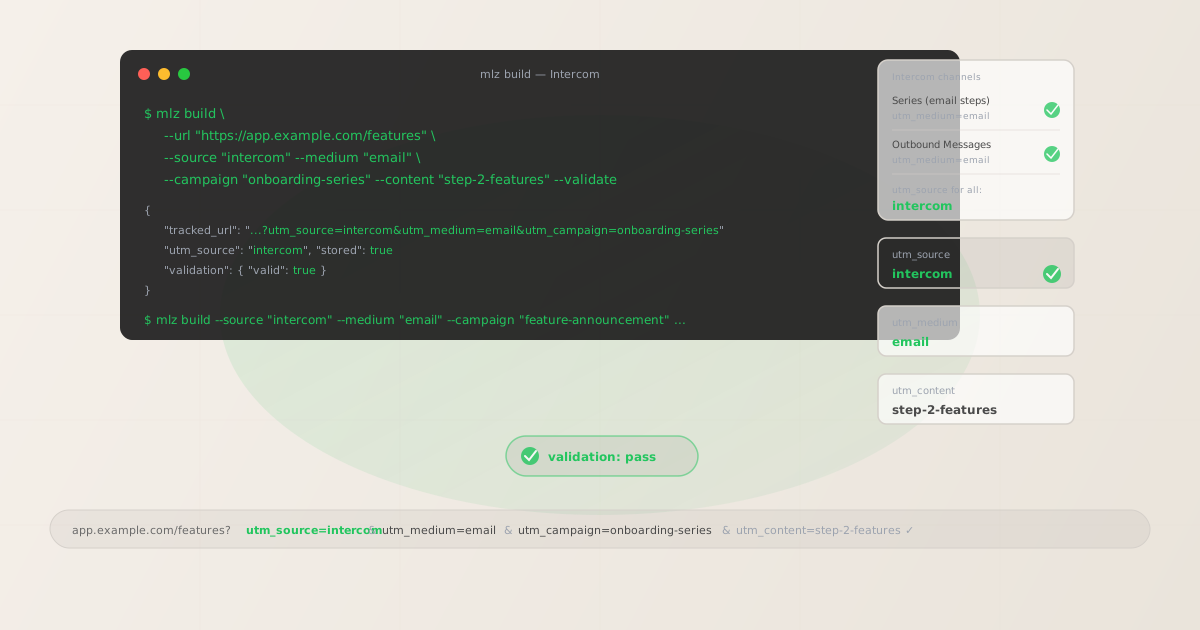
The correct utm_source and utm_medium for Intercom
Use utm_source=intercom — lowercase, the platform name — for all email sends from Intercom, whether from an automated Series or a manually triggered Outbound Message. The source value identifies the platform that delivered the message, not the message type or audience. Channel assignment in GA4 is handled by utm_medium: use utm_medium=email for all Intercom email message types.
Intercom supports multiple message types beyond email — in-app messages (Chat or Tooltip), push notifications, SMS, and banners — but these channels typically route users to in-product destinations rather than external landing pages with campaign tracking requirements. The UTM conventions below apply specifically to Intercom's email channel: Series email steps and Outbound email Messages. For in-app messages that link to an external page, apply the same utm_source=intercom and utm_medium=email convention — do not invent a separate medium value like utm_medium=in-app, which does not map to any GA4 default channel grouping and will route sessions to Unassigned.
| Message type | utm_source | utm_medium | Correct? |
|---|---|---|---|
| Series email step | intercom |
email |
✓ Yes |
| Outbound Message (email) | intercom |
email |
✓ Yes |
| Any send | intercom.com |
email |
✗ No — creates a different source row in GA4 |
| Any send | intercom |
in-app |
✗ No — routes to Unassigned in GA4 |
| Any send | intercom |
intercom |
✗ No — routes to Unassigned in GA4 |
GA4's default channel grouping assigns sessions to the Email channel when utm_medium=email is present regardless of the source value. All Intercom email sends — Series steps and Outbound Messages — appear under the Email channel in GA4's channel reports, with intercom as the source dimension for filtering Intercom-specific traffic from other email platforms your organisation uses.
Intercom Series — UTM tracking for automated email sequences
Intercom Series are visual workflow builders that sequence email messages (and optionally in-app messages, banners, and webhooks) across a time-based or event-based schedule. Series are used for onboarding flows, trial-to-paid conversion sequences, feature adoption campaigns, churn-prevention drips, and post-signup education programs. A Series is composed of individual message steps connected by time delays and conditional branches — a new user might receive a welcome email on day 0, a feature introduction on day 3, a use-case spotlight on day 7, and a trial conversion nudge on day 12 if they have not upgraded.
Each Series email step that links to an external page requires a tracked URL with a utm_content value that identifies the specific step. Without per-step content identifiers, GA4 attributes all sessions from an entire Series to a single campaign dimension row — it is impossible to determine which step drove a trial conversion, which feature spotlight resonated, or which re-engagement message brought a churned user back. Build all tracked URLs before configuring the Series in Intercom, defining the campaign slug and content identifiers for all steps upfront.
# Onboarding Series — step 1: welcome and quick-start CTA
$ mlz build \
  --url "https://app.example.com/quickstart" \
  --source "intercom" \
  --medium "email" \
  --campaign "onboarding-series" \
  --content "step-1-welcome" \
  --validate

{
  "tracked_url": "https://app.example.com/quickstart?utm_source=intercom&utm_medium=email&utm_campaign=onboarding-series&utm_content=step-1-welcome",
  "validation": { "valid": true }
}

# Onboarding Series — step 3: feature spotlight CTA
$ mlz build \
  --url "https://app.example.com/features/collaboration" \
  --source "intercom" \
  --medium "email" \
  --campaign "onboarding-series" \
  --content "step-3-collab-feature" \
  --validate

{
  "tracked_url": "https://app.example.com/features/collaboration?utm_source=intercom&utm_medium=email&utm_campaign=onboarding-series&utm_content=step-3-collab-feature",
  "validation": { "valid": true }
}
Paste each tracked URL into the button or link destination in the corresponding Series email step in Intercom's visual editor. Intercom's Series editor supports conditional branches — different email paths for users who did or did not complete a specific action (such as completing an in-app setup step or clicking a previous email). For branched paths, append the branch condition to the content slug: step-4-converted and step-4-notconverted-nudge to distinguish the messaging for users on different paths through the Series.
Intercom Series emails can include multiple links in the message body — a primary CTA button, a secondary text link, and a footer link to documentation or a help article. Build a separate tracked URL for each link with a distinct utm_content value: step-2-primary-cta, step-2-docs-link. This allows GA4 to attribute sessions to the specific link clicked within the step, not just the step itself — useful for understanding whether users are following the primary path or seeking supplementary documentation at each stage of the onboarding flow.
Intercom Outbound Messages — UTM tracking for one-off email sends
Intercom Outbound Messages are one-off email sends dispatched to a user segment at a scheduled time or immediately. Outbound Messages are used for feature announcements, product updates, blog newsletters, webinar invitations, release notes, and any communication that is not part of a recurring Series lifecycle program. An Outbound Message is typically a single email with one primary CTA — a link to a changelog, a new feature page, a blog post, or a registration form — sent to a filtered audience of users who meet specific criteria such as plan tier, account age, or product usage signals.
For Outbound Messages with a single primary CTA, build one tracked URL with a campaign slug that identifies the specific message initiative: utm_campaign=feature-announcement-june, utm_campaign=release-notes-v3, utm_campaign=webinar-q3-registration. For Outbound Messages with multiple CTAs pointing to different destination pages, build a separate tracked URL for each CTA with a distinct utm_content value.
# Feature announcement Outbound Message — primary CTA
$ mlz build \
  --url "https://example.com/changelog/ai-assistant" \
  --source "intercom" \
  --medium "email" \
  --campaign "feature-ai-assistant-june" \
  --content "primary-cta" \
  --validate

{
  "tracked_url": "https://example.com/changelog/ai-assistant?utm_source=intercom&utm_medium=email&utm_campaign=feature-ai-assistant-june&utm_content=primary-cta",
  "validation": { "valid": true }
}

# Same announcement — docs link for secondary CTA
$ mlz build \
  --url "https://example.com/docs/ai-assistant" \
  --source "intercom" \
  --medium "email" \
  --campaign "feature-ai-assistant-june" \
  --content "docs-link" \
  --validate

{
  "tracked_url": "https://example.com/docs/ai-assistant?utm_source=intercom&utm_medium=email&utm_campaign=feature-ai-assistant-june&utm_content=docs-link",
  "validation": { "valid": true }
}
Intercom allows audience targeting for Outbound Messages using user attributes and event data — you can send different Outbound Messages to users on the Free plan versus the Pro plan, or to users who have not used a specific feature. When the same campaign initiative sends different message variants to different audience segments, use the same utm_campaign slug for all variants and distinguish segments in utm_content: free-plan-upgrade-cta versus pro-plan-feature-deep-dive. This preserves cross-segment comparison under a unified campaign dimension in GA4 without requiring separate campaign slugs per audience.
Intercom's link tracking and UTM parameter preservation
Intercom wraps outbound email links with its own click-tracking redirect to record open and click events in Intercom's analytics and conversation dashboards. This redirect is separate from the UTM tracking that routes to GA4 — Intercom's link wrapping passes through the destination URL including UTM query parameters in standard configurations. However, whether UTM parameters survive Intercom's redirect chain depends on Intercom's click-tracking settings and whether a custom email domain or sending configuration is in use.
Verify UTM parameter preservation before relying on any Intercom email campaign for GA4 attribution. Send a test Intercom email to an internal address, click the link in the received email to obtain the Intercom click-tracking-wrapped URL, then run mlz check against it. The command follows the complete redirect chain from Intercom's tracking URL through to the final destination and reports whether UTM query parameters survive each hop.
$ mlz check "https://intercom-links.example.com/click?utm_source=intercom&utm_medium=email..."

{
  "valid": true,
  "checks": [
    { "check": "ssl", "status": "pass", "message": "URL uses HTTPS." },
    { "check": "resolution", "status": "pass", "message": "Destination responded with 200." },
    { "check": "redirects", "status": "pass", "message": "Redirect followed. UTM params preserved through chain." }
  ]
}
If Intercom's click-tracking redirect strips UTM parameters, sessions from Intercom email clicks appear in GA4 as direct or organic traffic regardless of the UTM values embedded in the original destination URL. Perform this validation once when first configuring UTM tracking for Intercom emails — if the redirect strips parameters, you will need to work with Intercom's link tracking settings or use a custom domain configuration that preserves query strings through the redirect chain.
Intercom UTM tracking gotchas
- Intercom has no built-in UTM parameter builder — all tracked links must be built externally
- Intercom does not include a UTM settings panel, link-level parameter interface, or automatic UTM application feature in its email editor. Every tracked URL must be built outside Intercom using
mlz buildand pasted into the link destination fields in each Series step and Outbound Message template. There is no retroactive option to add UTM parameters to links in already-sent messages. Build all tracked URLs before opening Intercom's message editor. - Intercom's link-click tracking wraps URLs — verify UTM parameter preservation before launch
- Intercom's internal click tracking redirects all email links through Intercom's tracking infrastructure before forwarding to the final destination. In most configurations, UTM parameters in the destination URL are preserved through this redirect. However, certain Intercom configurations — custom email domains, specific ESP integrations, or older account settings — can cause the redirect to strip query parameters. Run
mlz checkon a click-tracking-wrapped link from a test send to confirm UTM parameters reach GA4 before activating any Series or sending any Outbound Message that relies on GA4 attribution. - Distinguish Intercom email attribution from Intercom's own conversation-sourced traffic
- Intercom's Messenger widget on your product or marketing site generates direct user sessions — users click "Send us a message," initiate a chat, and navigate within the product. This in-product traffic from the Messenger widget is not sent via email and does not carry UTM parameters from an Intercom email send. In GA4, sessions from Intercom email links appear as Email channel traffic with
utm_source=intercom. Sessions originating from the Intercom Messenger widget appear as direct or referral traffic depending on browser referrer behaviour — they should not be confused with email campaign sessions. - Intercom Series can include email and in-app message steps in the same flow — only email steps need external UTM links
- Intercom Series can interleave email message steps, in-app message steps, push notification steps, and webhook steps within the same automated workflow. Only email steps that link to external destination pages require externally built UTM tracked URLs. In-app message steps that appear within the product interface typically link to in-product locations (specific features, pages within the product) rather than external landing pages — these do not require GA4 UTM tracking. When building a Series, identify which steps include external destination links, build tracked URLs for those steps only, and leave in-app steps without UTM parameters.
- Use utm_content to distinguish audience segments receiving the same campaign
- Intercom's audience targeting allows the same Series or Outbound Message to send different content to different user segments — Pro users versus Free users, or users in different onboarding stages. When the same campaign initiative targets multiple segments with distinct message variants, use
utm_contentto identify the variant:utm_content=free-users-upgrade-ctaversusutm_content=pro-users-feature-cta. This preserves a unified campaign dimension in GA4 while allowing segment-level analysis through the content dimension — without requiring separateutm_campaignslugs for each audience variant.
Intercom UTM naming conventions
Recommended UTM parameter values for Intercom, aligned with GA4 default channel groupings and a lowercase-hyphenated taxonomy:
- utm_source:
intercom— always, for all email sends from the Intercom platform. Never useintercom.com,intercom-io, or any domain-based variant. Document this explicitly in your team's UTM naming convention guide. - utm_medium:
emailfor all Intercom email message types — Series email steps and Outbound email Messages. Do not useutm_medium=in-app,utm_medium=intercom, orutm_medium=push— none of these map to a GA4 default channel grouping and will route sessions to Unassigned. - utm_campaign: Lowercase, hyphenated, initiative-level slug. For Series: the sequence name and lifecycle stage —
onboarding-series,trial-conversion,churn-prevention-30d,feature-adoption-collaboration. For Outbound Messages: the specific send initiative —feature-ai-assistant-june,release-notes-v3,webinar-q3-registration. - utm_content: Per Series step with an external destination link:
step-1-welcome,step-3-collab-feature,step-5-upgrade-nudge. Per message CTA if multiple external links in one email:primary-cta,docs-link,secondary-cta. For audience segment variants:free-users-upgrade-cta,pro-users-feature-cta. - utm_term: Optional for Intercom. Consider using utm_term to distinguish campaigns by product area or feature category when multiple Series or Outbound Messages target the same lifecycle stage for different product surfaces:
feature-collaboration,feature-reporting,feature-integrations.
See the UTM naming conventions guide for the full cross-platform reference and the UTM tracking for developers guide for programmatic generation and validation at scale.
FAQ
- Should I use utm_source=intercom or utm_source=intercom.com?
- Use
utm_source=intercom. The platform name is Intercom, not intercom.com — the UTM source value should reflect the platform name, not the domain. Using the domain creates a separate GA4 source row from the platform-name convention. If some team members use the domain-based variant and others use the platform name, attribution is split between two source rows that cannot be merged without custom GA4 channel groupings. Standardise onutm_source=intercomacross your entire team and document it explicitly. - How do I track individual Intercom Series steps in GA4?
- Use a unique
utm_contentvalue for each Series email step that links to an external page. Before configuring any Series in Intercom, define content identifiers for all steps:step-1-welcome,step-3-feature-spotlight,step-5-upgrade-nudge. Build each tracked URL withmlz build --medium email --content "step-X-identifier" --validate, then paste the returnedtracked_urlinto the link destination for the corresponding Series step. GA4 attributes sessions and conversions to individual Series steps through the utm_content dimension. - Does Intercom have a built-in UTM builder?
- No. Intercom does not include a UTM parameter builder, UTM settings panel, or automatic UTM application feature in its email message editor. Every tracked URL must be built externally and pasted into Series step and Outbound Message templates manually. Use
mlz build --source intercom --medium email --campaign "your-campaign"to build a tracked URL from the terminal with optional--contentfor per-step tracking and--validatefor destination URL verification. - How do I validate that Intercom's click tracking preserves UTM parameters?
- Send a test Intercom email to an internal address using Intercom's test send feature, click the tracked link in the received email to obtain the Intercom click-tracking-wrapped URL, then run
mlz check "https://intercom-tracking-url..."against it. The command follows the complete redirect chain and reports whether UTM parameters survive each hop. Perform this validation before activating any Series or scheduling any Outbound Message — if the redirect strips parameters, GA4 will show Intercom email sessions as direct traffic regardless of the UTM values in the original destination URL. - What utm_medium should I use for Intercom push notifications or in-app messages?
- If an Intercom push notification or in-app message links to an external page that you want to track in GA4, apply
utm_medium=emailas the closest standard GA4 channel grouping for Intercom product messages. Avoid inventing custom medium values likeutm_medium=pushorutm_medium=in-app— these do not map to any GA4 default channel grouping and will route sessions to the Unassigned channel, making them invisible in standard reports. Most push and in-app Intercom messages link to in-product destinations rather than external pages, so this scenario is uncommon in practice.
Recommended posts
Build Intercom campaign links from the terminal
Pass --source "intercom" and --medium "email" to mlz build to get a normalised, validated tracked URL ready to paste into any Intercom Series step or Outbound Message template. Use a unique --content value per Series step to enable step-level attribution in GA4 — the campaign dimension alone is too coarse for a multi-step onboarding Series where different steps drive different user actions. Run mlz check on a click-tracking-wrapped test link before activating any Series to confirm Intercom's redirect preserves UTM parameters through to the final destination.
1,000 links/month free. No credit card.
Your API key
Save this now — it won't be shown again.
npm install -g missinglinkz
Free plan: 1,000 links/month. No credit card. See the UTM tracking for developers guide for the full programmatic workflow including API and MCP integration.