UTM Tracking for Encharge: How to Build and Validate Campaign Links
UTM tracking for Encharge uses utm_source=encharge for all email sends from the Encharge platform, with utm_medium=email for all Flow and Broadcast sends. Encharge is a behavior-based marketing automation platform designed for SaaS and subscription products — it triggers email sequences based on user actions (visited a feature page, completed an onboarding step, reached a usage threshold, integrated via Segment or Intercom events) rather than time-based schedules alone. Encharge has no built-in UTM parameter builder: every tracked URL must be constructed outside Encharge's interface and pasted into the email link fields in each Flow step and Broadcast template. A common misconfiguration for SaaS teams using Encharge: Encharge's Stripe and Chargebee integrations can attribute MRR and revenue to specific email sequences within Encharge's own analytics — a system that is entirely separate from GA4 UTM attribution. Teams that see revenue attributed to Encharge Flows in Encharge's dashboard sometimes assume that GA4 is receiving those attribution signals. GA4 receives nothing unless UTM parameters are explicitly applied to every email link. Both attribution systems require independent configuration and serve different analytical purposes.
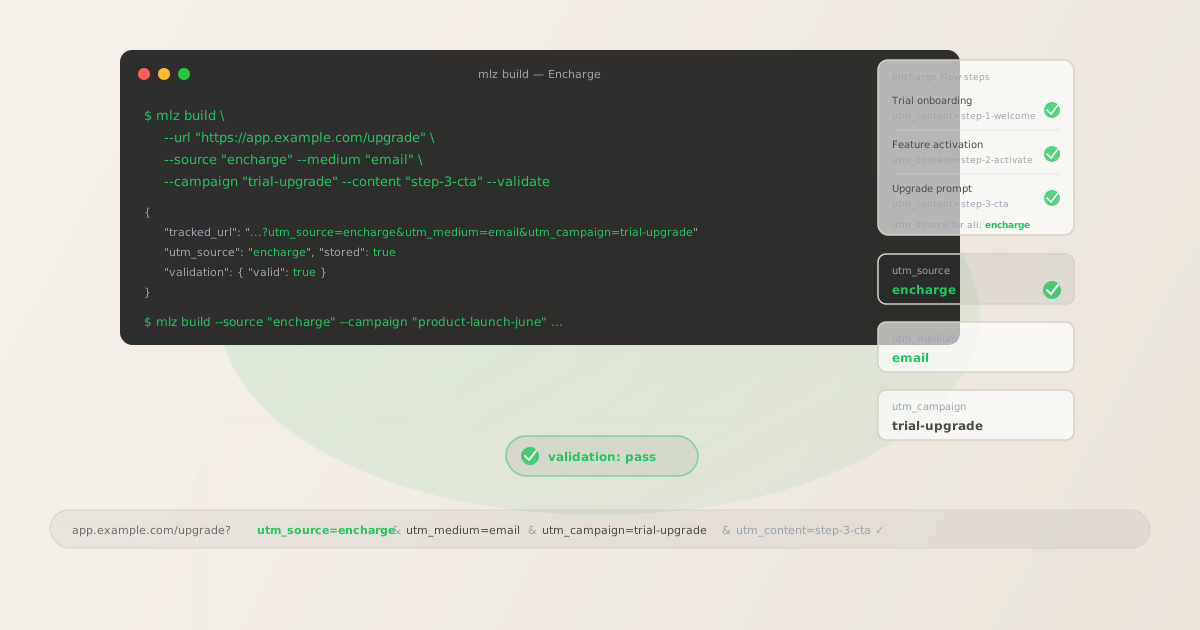
The correct utm_source and utm_medium for Encharge
Use utm_source=encharge — lowercase, the platform name — for all email sends from Encharge, whether triggered by a Flow step or dispatched as a Broadcast. The source value identifies the sending platform, not the trigger mechanism or user segment. All Encharge emails use utm_medium=email: Encharge is an email-only marketing platform (no SMS or push channels), so the medium value is always email.
Do not use utm_source=encharge-flow or utm_source=encharge-broadcast to distinguish send type at the source level — that fragmentation creates multiple source rows in GA4 that cannot be aggregated without custom channel groupings. Distinguish send type through the campaign slug: utm_campaign=trial-upgrade for a trial-to-paid Flow, utm_campaign=product-launch-june for a Broadcast. If you need Flow vs. Broadcast distinction in GA4 reports, add a consistent prefix to campaign slugs — flow-trial-upgrade, broadcast-product-launch-june — keeping utm_source=encharge consistent across both.
| Send type | utm_source | utm_medium | Correct? |
|---|---|---|---|
| Flow step email | encharge |
email |
✓ Yes |
| Broadcast email | encharge |
email |
✓ Yes |
| Any send | encharge |
encharge |
✗ No — routes to Unassigned in GA4 |
| Flow step email | encharge-flow |
email |
✗ No — fragments source attribution |
GA4's default channel grouping assigns sessions to the Email channel when utm_medium=email is present, regardless of the source value. All Encharge sends appear under the Email channel in GA4's channel reports, with encharge as the source dimension for filtering and segmenting Encharge-specific traffic within that channel.
Encharge Flows — UTM tracking for automated behavioral email sequences
Encharge Flows are multi-step automated email sequences triggered by user behavior events. Flows are Encharge's core product: they activate when a contact meets a defined trigger condition — visited a specific page, performed an event tracked via Segment, Intercom, or Mixpanel, was added to a tag, reached a usage threshold, connected an integration, or hit a custom event fired via Encharge's API. Flows are used for SaaS onboarding sequences, trial-to-paid upgrade nudges, feature adoption drips, re-engagement campaigns, and churn-prevention sequences. Each Flow is a visual workflow of email steps, time delays, conditional splits, and actions.
Because Flows are behavior-triggered and contain multiple email steps, each step that includes a link needs a tracked URL with a unique utm_content value identifying the specific step. Without per-step content identifiers, GA4 aggregates all sessions from an entire Flow into a single campaign dimension row, making it impossible to identify which step drove a trial conversion or which re-engagement email led to a return visit. For Flows with conditional splits — different email paths for users who took an action vs. users who did not — add the branch to the content slug: step-3-activated, step-3-notactivated-nudge.
# Trial upgrade Flow — step 1: welcome email
$ mlz build \
  --url "https://app.example.com/onboarding" \
  --source "encharge" \
  --medium "email" \
  --campaign "trial-upgrade" \
  --content "step-1-welcome" \
  --validate

{
  "tracked_url": "https://app.example.com/onboarding?utm_source=encharge&utm_medium=email&utm_campaign=trial-upgrade&utm_content=step-1-welcome",
  "validation": { "valid": true }
}

# Trial upgrade Flow — step 3: upgrade CTA email
$ mlz build \
  --url "https://app.example.com/upgrade" \
  --source "encharge" \
  --medium "email" \
  --campaign "trial-upgrade" \
  --content "step-3-upgrade-cta" \
  --validate

{
  "tracked_url": "https://app.example.com/upgrade?utm_source=encharge&utm_medium=email&utm_campaign=trial-upgrade&utm_content=step-3-upgrade-cta",
  "validation": { "valid": true }
}
Paste each tracked URL into the link destination field in the corresponding Encharge Flow step email template. Build all tracked URLs before configuring any Flow in Encharge — define the full set of campaign and content slugs for the entire Flow sequence first, then build each URL in a single mlz build session to maintain naming consistency. For Flows with a large number of steps, run mlz build from a shell loop reading step definitions from a CSV or JSON file to generate all tracked URLs programmatically.
Encharge Flows support A/B split testing at the step level: the same Flow step can deliver email variant A to one segment and email variant B to another. For A/B test steps, append the variant identifier to the content slug: step-2-feature-cta-a, step-2-feature-cta-b. This allows GA4 to attribute sessions and conversions to individual A/B variants through the utm_content dimension, enabling in-GA4 variant comparison without relying solely on Encharge's internal A/B reporting.
Encharge Broadcasts — UTM tracking for one-off email sends
Encharge Broadcasts are one-off email sends dispatched to a segment or tag at a scheduled time. Broadcasts are used for product announcements, newsletter sends, promotional campaigns, feature release emails, and any send that does not require the trigger-based multi-step structure of a Flow. Broadcasts reach all contacts in a selected segment or tag at the time of send — they are not triggered by individual user behavior events.
For Broadcasts with a single primary CTA, build one tracked URL with the campaign slug identifying the specific Broadcast send: utm_campaign=product-launch-june, utm_campaign=q2-newsletter, utm_campaign=feature-release-saml-sso. For Broadcasts with multiple CTAs pointing to different destination pages — a primary product feature CTA and a secondary documentation link, for example — build a separate tracked URL for each destination with a distinct utm_content value: primary-cta, docs-cta. Without per-CTA content values, GA4 cannot distinguish which CTA in the Broadcast drove the click.
# Product launch Broadcast — primary CTA
$ mlz build \
  --url "https://app.example.com/new-feature" \
  --source "encharge" \
  --medium "email" \
  --campaign "feature-release-saml-sso" \
  --content "primary-cta" \
  --validate

{
  "tracked_url": "https://app.example.com/new-feature?utm_source=encharge&utm_medium=email&utm_campaign=feature-release-saml-sso&utm_content=primary-cta",
  "validation": { "valid": true }
}

# Product launch Broadcast — documentation CTA
$ mlz build \
  --url "https://docs.example.com/saml-sso-setup" \
  --source "encharge" \
  --medium "email" \
  --campaign "feature-release-saml-sso" \
  --content "docs-cta" \
  --validate

{
  "tracked_url": "https://docs.example.com/saml-sso-setup?utm_source=encharge&utm_medium=email&utm_campaign=feature-release-saml-sso&utm_content=docs-cta",
  "validation": { "valid": true }
}
Encharge Broadcasts support audience segmentation: the same Broadcast can target multiple tags or segments with different email content per segment. If you send the same Broadcast campaign to significantly different audience segments — active users and churned users, for instance — consider using utm_term or adjusting the campaign slug to include the segment identifier: utm_campaign=win-back-q2-churned vs. utm_campaign=q2-newsletter-active. For smaller audience splits within a single promotional campaign, a shared campaign slug with per-segment content values is typically sufficient.
Encharge revenue attribution vs GA4 UTM tracking
Encharge integrates with Stripe and Chargebee to attribute MRR and subscription revenue to specific email Flows and Broadcasts within Encharge's own analytics. When a contact clicks a link in an Encharge email, upgrades their subscription in Stripe, and Encharge's Stripe webhook detects the new subscription or plan change, Encharge attributes the revenue event to the email send that drove the click — recording which Flow or Broadcast contributed to the conversion within Encharge's revenue tracking dashboard.
This internal revenue attribution is entirely separate from GA4 UTM tracking. Encharge's revenue attribution uses Stripe or Chargebee webhook data — it does not instrument the web session that completed the upgrade. GA4, by contrast, tracks the web session: it records that a visitor arrived at the upgrade page, completed the purchase flow, and should be attributed to the referring source. GA4 attributes that session to the correct Encharge email only if the link that drove the click carried UTM parameters. Without UTM parameters on Encharge email links, GA4 shows upgrade conversions as direct or organic traffic — Encharge's revenue attribution may correctly record the Stripe event, but GA4 has no corresponding email session to attribute.
SaaS teams often discover this gap when comparing their Encharge revenue dashboard (which shows email-attributed MRR) to their GA4 Acquisition reports (which show the same upgrades as direct or organic). Both systems are reporting correctly — but they are measuring different things. Encharge measures the Stripe revenue event. GA4 measures the web session. To get email attribution in GA4, you need UTM parameters on every Encharge email link.
Encharge UTM tracking gotchas
- Encharge has no built-in UTM parameter builder — all tracked links must be built externally
- Unlike some email platforms that offer a UTM settings panel or link-level parameter fields, Encharge does not provide any interface for applying UTM parameters to email links. Every tracked URL must be built outside Encharge — using
mlz build, a spreadsheet UTM builder, or Google's Campaign URL Builder — and pasted into the link destination fields in each Flow step email and Broadcast template. This means UTM tracking in Encharge is entirely a pre-send process: there is no in-platform option to enable UTM tracking retroactively on existing sent emails. Build all tracked URLs before configuring any email template in Encharge. - Encharge click tracking wraps links — verify UTM parameter preservation
- Encharge wraps email links with its own click-tracking redirect for internal open and click analytics. In standard Encharge configurations, this click-tracking redirect preserves UTM query parameters through to the final destination URL. To verify this, obtain a click-tracking-wrapped URL from an Encharge test send and run
mlz check "https://e.encharge.io/..."against it — the command follows the complete redirect chain and reports whether UTM parameters arrive at the final destination. If the Encharge click-tracking redirect strips parameters, GA4 attributes sessions from those emails as direct traffic regardless of the UTM parameters you applied before the link was wrapped. - Encharge's Segment and Intercom integration does not add UTM parameters to emails
- Encharge's integrations with Segment, Intercom, Mixpanel, and other event platforms are used to trigger Flows based on user behavior events sent from those systems — they do not alter the email links or apply UTM parameters automatically. The integration delivers behavioral data to Encharge to power smarter send triggers, but the tracked URLs inside each email step must still be manually configured with UTM parameters. Do not assume that a Segment event trigger or Intercom user attribute carries UTM tracking into the resulting email send.
- Behavior triggers should not be encoded into utm_source
- Encharge Flows can be triggered by a wide variety of behavioral events: page visit, Segment event, Intercom tag, Stripe payment, Typeform submission, custom API event. Some teams create source values that encode the trigger:
utm_source=encharge-stripe,utm_source=encharge-intercom. This fragments platform-level attribution across multiple source rows in GA4 that cannot be aggregated. Useutm_source=enchargeconsistently for all Encharge sends, and encode the trigger context or sequence type in the campaign slug:utm_campaign=stripe-trial-upgrade,utm_campaign=intercom-reengagement. - Encharge's unsubscribe link and preference center links should not carry UTM parameters
- Encharge automatically appends unsubscribe links to outbound emails. These system-generated links are handled by Encharge's own infrastructure and should not have UTM parameters applied. If your email template includes a "manage preferences" link pointing to an Encharge preference center page, omit UTM parameters from those links — they are compliance infrastructure, not marketing destinations. Apply UTM parameters only to the campaign destination links in the email body: the primary CTA, secondary CTAs, and any product or content links that drive trackable sessions in GA4.
Encharge UTM naming conventions
Recommended UTM parameter values for Encharge, aligned with GA4 default channel groupings and a lowercase-hyphenated taxonomy:
- utm_source:
encharge— always, for all Flow and Broadcast sends from the Encharge platform. Never encode trigger type or integration name into the source value. - utm_medium:
email— always. Encharge is an email-only platform; there is no SMS or push channel to distinguish. - utm_campaign: Lowercase, hyphenated, initiative-level slug. For Flows: the sequence name and purpose —
trial-upgrade,onboarding-saas,churn-prevention-90d,feature-adoption-reporting. For Broadcasts: the specific send initiative —product-launch-june,q2-newsletter,feature-release-saml-sso. Optionally prefix with send type:flow-trial-upgrade,broadcast-q2-newsletter. - utm_content: Per Flow step with a CTA link:
step-1-welcome,step-2-activate,step-3-upgrade-cta. For A/B test steps:step-2-cta-a,step-2-cta-b. For Broadcasts with multiple CTAs:primary-cta,docs-cta,secondary-cta. For Broadcasts with a single CTA, utm_content may be omitted or set to a generic identifier:main-cta. - utm_term: Optional for Encharge. Consider using utm_term to distinguish sends to different subscription-tier segments when the campaign initiative is shared:
segment-trial,segment-paid-starter,segment-paid-growth. Preferable to encoding the segment in utm_campaign when the campaign initiative is the same for all segments.
See the UTM naming conventions guide for the full cross-platform reference and the UTM tracking for developers guide for programmatic generation and validation at scale.
FAQ
- If Encharge's Stripe integration shows revenue attributed to my Flows, do I still need UTM parameters?
- Yes. Encharge's Stripe integration attributes MRR and subscription revenue within Encharge's own analytics by detecting which email send preceded a Stripe payment event — this data is visible in Encharge's dashboard but not in GA4. Without UTM parameters on your Encharge email links, GA4 has no way to attribute the web session that completed the upgrade to any specific email. The Encharge revenue dashboard and GA4 Acquisition reports measure different things: Encharge tracks the Stripe payment event, GA4 tracks the web session. Both attribution systems require independent configuration. Run
mlz build --source encharge --medium emailfor all Encharge email links to ensure GA4 receives attribution data from Encharge sends. - Does Encharge add UTM parameters automatically through its integrations?
- No. Encharge's integrations with Segment, Intercom, Stripe, Chargebee, Typeform, and other platforms are used to trigger Flows and import contact properties — they do not automatically apply UTM parameters to email links. UTM parameters in Encharge must be applied manually by building tracked URLs and pasting them into each email template. There is no setting or toggle in Encharge that enables automatic UTM application across all outbound emails.
- How do I track individual Flow steps in GA4?
- Use a unique
utm_contentvalue for each Flow step email that contains a link. Before configuring any Flow in Encharge, define the content identifiers for all steps:step-1-welcome,step-2-activate,step-3-upgrade-cta. Build each tracked URL withmlz build --medium email --content "step-X-identifier" --validate, then paste the returnedtracked_urlinto the link destination for the corresponding Flow step email. GA4 attributes sessions and conversions to individual Flow steps through the utm_content dimension — each step is measurable independently without requiring separate campaigns or separate Flows per step. - Should I use different utm_campaign values for Flow steps vs. Broadcast sends?
- It depends on your reporting needs. Using the same campaign slug across all steps of a Flow (e.g.,
utm_campaign=trial-upgradefor all steps) lets you aggregate all Flow traffic under a single campaign dimension in GA4. Adding a Flow-vs-Broadcast prefix to campaign slugs (e.g.,flow-trial-upgradevs.broadcast-product-launch) allows you to filter and compare send types in GA4 without needing custom segments. Either approach works — choose based on how your team queries GA4. The utm_content dimension is the primary differentiator between individual steps within a Flow. - How do I validate that Encharge's click-tracking redirect preserves UTM parameters?
- Send a test email through Encharge's test send feature, click the link in the test email to get the Encharge click-tracking-wrapped URL, then run
mlz check "https://e.encharge.io/..."against it. The command follows the complete redirect chain from the Encharge click-tracking URL through to the final destination and reports each hop. Look for a pass result on the redirect check — if the redirect chain preserves query parameters, the tracked URL is working correctly. If the redirect strips parameters, sessions from Encharge email clicks will appear as direct or organic traffic in GA4 regardless of the UTM parameters applied to the original link.
Recommended posts
Build Encharge campaign links from the terminal
Pass --source "encharge" and --medium "email" to mlz build to get a normalised, validated tracked URL ready to paste into any Encharge Flow step or Broadcast template as a static link destination. Build all tracked URLs before opening Encharge's template editor — one per Flow step with a distinct --content value, one per Broadcast CTA. Run --validate to confirm that destination URLs resolve correctly before activating any Flow or dispatching any Broadcast. The key rule for Encharge specifically: Encharge's Stripe and Chargebee revenue attribution is not a substitute for GA4 UTM tracking — both systems measure different things and both require independent configuration. Build UTM-tracked links for every Encharge email that contains a destination link that you want tracked in GA4.
1,000 links/month free. No credit card.
Your API key
Save this now — it won't be shown again.
npm install -g missinglinkz
Free plan: 1,000 links/month. No credit card. See the UTM tracking for developers guide for the full programmatic workflow including API and MCP integration.