UTM Tracking for Beehiiv: How to Build and Validate Campaign Links
UTM tracking for Beehiiv uses utm_source=beehiiv for all sends from the platform — newsletters, Welcome Emails, and Upgrade Flow messages — with utm_medium=email for GA4 channel compatibility. Beehiiv is one of the fastest-growing newsletter platforms, used by independent creators, media companies, and brands building owned-audience relationships. It includes a built-in auto-UTM feature that appends tracking parameters to all outbound links automatically. However, Beehiiv's auto-UTM appends utm_medium=newsletter by default — and this creates a specific GA4 attribution problem: GA4's default channel grouping does not recognize "newsletter" as the Email channel. Sessions from Beehiiv with utm_medium=newsletter appear under "Unassigned" or "Other channels" in GA4's default channel report, not the Email channel your team monitors. The programmatic fix is to disable Beehiiv's auto-UTM entirely and build all tracked URLs using mlz build --medium "email", giving you both proper GA4 channel attribution and human-readable campaign slugs you control — rather than Beehiiv's auto-generated campaign values.
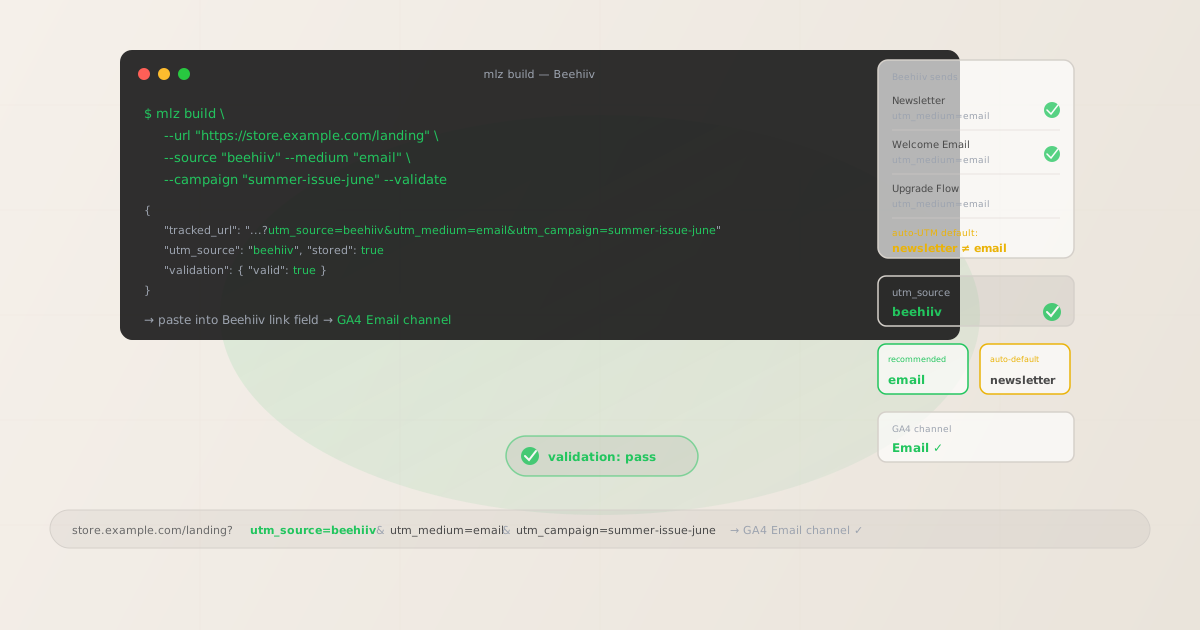
The correct utm_source and utm_medium for Beehiiv
Use utm_source=beehiiv — lowercase, no suffix — for all sends from the Beehiiv platform, across all send types: Newsletter issues, Welcome Emails, Upgrade Flow emails, and any automated messages. The source value identifies the sending platform, not the content type or individual issue. For utm_medium, use email rather than newsletter — see the section below on why this matters for GA4 channel grouping.
Some Beehiiv publishers use utm_source=newsletter, reasoning that Beehiiv sends a newsletter, not a generic email. Others use the newsletter's own brand name as the source value. Both approaches create separate GA4 source rows that make it impossible to aggregate all Beehiiv-driven sessions — you cannot segment by "Beehiiv" in GA4 source reports if some sessions are tagged beehiiv and others are tagged with your newsletter name or newsletter. Standardise on utm_source=beehiiv across every link in every issue before your publication grows to a scale where fixing fragmented attribution is painful.
| Send type | utm_source | utm_medium | Correct? |
|---|---|---|---|
| Newsletter issue | beehiiv |
email |
✓ Yes — routes to GA4 Email channel |
| Welcome Email | beehiiv |
email |
✓ Yes |
| Upgrade Flow email | beehiiv |
email |
✓ Yes |
| Newsletter issue | beehiiv |
newsletter |
✗ No — routes to Other/Unassigned in GA4 |
| Newsletter issue | newsletter |
email |
✗ No — wrong source, splits attribution |
| Any send | your brand name | email |
✗ No — cannot aggregate by platform |
GA4's default channel grouping places sessions into the Email channel when utm_medium matches "email" or variants including "e-mail" and "e_mail". Sessions with utm_medium=newsletter do not match this rule and are routed to "Other channels" or "Unassigned" depending on GA4's processing. All Beehiiv email sessions appear in the Email channel in GA4's channel reports when tagged with utm_medium=email, with beehiiv as the source dimension for isolating Beehiiv-driven traffic from other email platforms.
Beehiiv's auto-UTM feature — and the GA4 channel grouping gotcha
Beehiiv includes an automatic UTM tracking feature accessible in Settings under the General tab. When enabled, Beehiiv appends utm_source=beehiiv, utm_medium=newsletter, and a utm_campaign value to all outbound links in every newsletter issue automatically. The utm_campaign value Beehiiv auto-generates is typically a slug derived from the post's title or internal name — more human-readable than a numeric ID, but still controlled by Beehiiv's generation logic rather than your taxonomy.
The critical issue is the medium value. Beehiiv's auto-UTM hardcodes utm_medium=newsletter. GA4's default channel grouping — the one that determines whether a session appears under "Email" or "Other channels" in your channel performance reports — uses a specific regex to classify traffic as Email. That regex requires the medium to match "email", "e-mail", "e_mail", or "e mail". The string "newsletter" does not match. Every session Beehiiv sends with auto-UTM enabled and utm_medium=newsletter will appear in your GA4 channel report under "Unassigned" or "Other channels", not the Email channel where your marketing team looks for newsletter performance data.
There are two ways to resolve this:
- Option A (recommended): Disable Beehiiv's auto-UTM in Settings and build all tracked URLs manually using
mlz build --medium "email". You get GA4 channel compatibility and full control over campaign slug naming. - Option B: Leave auto-UTM enabled and add a custom channel grouping rule in GA4 (Admin > Data Display > Channel Groups) that classifies
utm_medium exactly matches newsletter AND utm_source exactly matches beehiivas the Email channel. This works but requires ongoing maintenance if you add other newsletter sources later.
Option A is cleaner at scale. Once auto-UTM is disabled, Beehiiv will not append any UTM parameters to links that do not already have them — so links you have not manually tagged will appear as direct traffic. The discipline of building tracked URLs before inserting them into Beehiiv issues is the cost; the benefit is attribution you trust.
Building tracked Beehiiv links with mlz build
With auto-UTM disabled in Beehiiv, build every external link you plan to include in a newsletter issue before opening the Beehiiv editor. Use mlz build with --source beehiiv, --medium email, the campaign name for this issue, and the --validate flag to confirm the destination URL resolves correctly before you commit to including it.
# Build a tracked URL for a link in the June issue
$ mlz build \
  --url "https://store.example.com/summer-collection" \
  --source "beehiiv" \
  --medium "email" \
  --campaign "june-issue-2026" \
  --validate

{
  "tracked_url": "https://store.example.com/summer-collection?utm_source=beehiiv&utm_medium=email&utm_campaign=june-issue-2026",
  "params": {
    "utm_source": "beehiiv",
    "utm_medium": "email",
    "utm_campaign": "june-issue-2026"
  },
  "destination_url": "https://store.example.com/summer-collection",
  "created_at": "2026-06-05T09:00:00.000Z",
  "link_id": "lnk_bh12345a",
  "stored": true
}

# Paste the tracked_url value into Beehiiv's link insertion field
The tracked_url returned by mlz build is the URL you paste into Beehiiv's link field when inserting or editing a link in the editor. Beehiiv does not wrap or shorten external links in newsletter emails — the recipient clicks the URL directly and lands on your destination with UTM parameters intact. Run mlz check against the full tracked URL if you want to verify that no redirect at the destination strips the query string before GA4 records the session.
For issues that contain multiple external links to different destinations, build a separate tracked URL for each destination. Use the same utm_campaign value for all links in a single issue — the campaign dimension in GA4 represents the issue, not the individual CTA. Use utm_content to distinguish specific CTAs within the same issue when you need per-link attribution.
Per-issue and per-CTA tracking with utm_campaign and utm_content
For newsletters that include multiple external links — a primary featured article CTA, product mentions, sponsor links, or footer resources — use utm_content to differentiate each link within the same issue. Without per-link utm_content identifiers, GA4 aggregates all click-through sessions from a single issue into one campaign dimension row. You cannot determine whether the primary CTA or a secondary product mention drove the conversion — all sessions appear under the same campaign slug.
# Primary featured CTA for the June issue
$ mlz build \
  --url "https://store.example.com/summer-collection" \
  --source "beehiiv" \
  --medium "email" \
  --campaign "june-issue-2026" \
  --content "hero-cta" \
  --validate

{
  "tracked_url": "https://store.example.com/summer-collection?utm_source=beehiiv&utm_medium=email&utm_campaign=june-issue-2026&utm_content=hero-cta",
  "stored": true
}

# Secondary product mention in the same issue
$ mlz build \
  --url "https://store.example.com/new-arrivals" \
  --source "beehiiv" \
  --medium "email" \
  --campaign "june-issue-2026" \
  --content "product-mention" \
  --validate

{
  "tracked_url": "https://store.example.com/new-arrivals?utm_source=beehiiv&utm_medium=email&utm_campaign=june-issue-2026&utm_content=product-mention",
  "stored": true
}

# Sponsor link in the same issue
$ mlz build \
  --url "https://sponsor.example.com/offer" \
  --source "beehiiv" \
  --medium "email" \
  --campaign "june-issue-2026" \
  --content "sponsor-banner" \
  --validate

{
  "tracked_url": "https://sponsor.example.com/offer?utm_source=beehiiv&utm_medium=email&utm_campaign=june-issue-2026&utm_content=sponsor-banner",
  "stored": true
}
Build all tracked URLs for an issue before opening the Beehiiv editor. Keep a local list of the tracked URLs mapped to their utm_content identifiers so you paste the correct tracked URL into the corresponding link field. For Welcome Emails and Upgrade Flow steps, use a separate utm_campaign slug from the newsletter issues — for example, utm_campaign=welcome-email or utm_campaign=upgrade-flow-step-1 — so automated email traffic does not mix with newsletter issue traffic in GA4 campaign reports.
Beehiiv UTM tracking gotchas
- Beehiiv auto-UTM uses utm_medium=newsletter, which routes to Other/Unassigned in GA4
- This is the most consequential Beehiiv UTM issue for teams relying on GA4 channel reports. Beehiiv's auto-UTM appends
utm_medium=newsletterto all outbound links. GA4's default channel grouping Email classification requires the medium to match "email" (or e-mail, e_mail, e mail). The word "newsletter" does not match, and sessions land in "Other channels" or "Unassigned" — not the Email channel. The fix is to disable Beehiiv's auto-UTM in Settings and build all tracked URLs manually usingmlz build --medium "email". If you must keep auto-UTM enabled, add a custom channel grouping rule in GA4 that classifiesutm_medium=newsletterfromutm_source=beehiivas Email. - If auto-UTM is on and you also manually tag a URL, Beehiiv may append additional parameters
- When Beehiiv's auto-UTM is enabled and a link already carries UTM parameters, Beehiiv may still append its auto-generated parameters alongside the existing ones. The behavior depends on whether Beehiiv detects pre-existing UTM parameters and skips auto-append, or appends regardless. To avoid any ambiguity or parameter conflicts, the cleanest approach is to disable auto-UTM entirely and manage all tracked URLs manually with
mlz build. Never rely on a combination of auto-UTM and manual tagging without verifying the final URL Beehiiv sends actually resolves with your intended parameter values. - Beehiiv does not shorten external links — UTM parameters are not at risk from a link shortener
- Unlike SMS platforms such as Attentive or Postscript that wrap every link in a short URL at configuration time, Beehiiv does not create short links for external URLs included in newsletter issues. The recipient receives the full tracked URL in the email and clicks it directly. This means there is no "window" constraint — you can update a tracked URL in a draft before sending without worrying about a pre-generated short link. However, Beehiiv does use click-tracking for its own internal analytics, routing clicks through a Beehiiv tracking redirect before forwarding the reader to the destination. Run
mlz checkagainst your tracked URLs to confirm this redirect preserves the UTM query string. - Beehiiv's Boosts feature has separate attribution — do not mix with newsletter send UTMs
- Beehiiv Boosts is a paid subscriber acquisition tool where your newsletter is promoted to readers of other Beehiiv publications. When a reader subscribes to your newsletter through a Boost, that acquisition event is tracked separately by Beehiiv's Boost attribution system. The UTM parameters on outbound links in your newsletter issues describe sessions from subscribers clicking links in your sends — not the acquisition event. Do not conflate the two attribution systems. The
utm_source=beehiivconvention on newsletter links describes Beehiiv as the sending platform for that session, regardless of how the subscriber was originally acquired. - Welcome Email and Upgrade Flow links need dedicated campaign slugs, not issue slugs
- Beehiiv's Welcome Email (sent automatically when a new subscriber confirms) and Upgrade Flow (automated emails prompting free subscribers to become paid members) use the same link insertion mechanism as newsletter issues. But these automated emails have a different attribution meaning: a click from a Welcome Email is not a newsletter issue click, and mixing them into the same
utm_campaignvalue inflates issue performance data. Use distinct campaign slugs:welcome-emailfor Welcome Email links andupgrade-flow-step-Nfor each Upgrade Flow step. Build these tracked URLs once when configuring the automated emails, not per issue.
Beehiiv UTM naming conventions
Recommended UTM parameter values for Beehiiv, aligned with GA4 default channel groupings and a lowercase-hyphenated taxonomy:
- utm_source:
beehiiv— always, for all sends from the Beehiiv platform: newsletter issues, Welcome Emails, and Upgrade Flow steps. Never usenewsletter, your publication name, or any variant as the source value. - utm_medium:
email— use this for all Beehiiv sends to ensure sessions route to the Email channel in GA4's default channel grouping. Beehiiv's auto-UTM usesnewsletterby default — override this by disabling auto-UTM and building tracked URLs manually with--medium email. - utm_campaign: Lowercase, hyphenated, issue-level or sequence-level slug. For newsletter issues: the date or edition identifier —
june-issue-2026,issue-47,weekly-roundup-jun-5. For automated emails: the sequence name —welcome-email,upgrade-flow-step-1,upgrade-flow-step-2. Never reuse the sameutm_campaignvalue across multiple issues or Beehiiv sends combined with other platforms. - utm_content: Per-link identifier when an issue contains multiple CTAs to different destinations. Use descriptive identifiers:
hero-cta,product-mention,sponsor-banner,footer-cta. Omitutm_contentwhen an issue has only one external CTA, to keep campaign report dimensions clean. - utm_term: Rarely needed for newsletter sends. Consider using
utm_termif segmenting sends by subscriber list or subscriber type — for example,utm_term=paid-subscribersvs.utm_term=free-subscriberswhen sending the same issue to different lists with distinct CTAs.
See the UTM naming conventions guide for the full cross-platform reference and the UTM tracking for developers guide for programmatic generation and validation at scale.
FAQ
- Should I use utm_medium=email or utm_medium=newsletter for Beehiiv?
- Use
utm_medium=email. Beehiiv's auto-UTM appendsutm_medium=newsletterby default, but "newsletter" does not match GA4's default channel grouping rule for the Email channel. Sessions tagged withutm_medium=newsletterappear under "Other channels" or "Unassigned" in GA4's default channel reports, not the Email channel. To route Beehiiv sessions to the Email channel without adding custom GA4 channel grouping rules, disable Beehiiv's auto-UTM and build all tracked URLs withmlz build --medium "email". If you want to keep both concepts — Email channel attribution in GA4 and a queryable "newsletter" label — useutm_medium=emailand encode the "newsletter" concept inutm_campaignorutm_contentinstead. - Does disabling Beehiiv's auto-UTM mean some links will go untracked?
- Yes — with auto-UTM disabled, any external link you insert into a Beehiiv issue without a pre-built tracked URL will reach the destination without UTM parameters, appearing as direct traffic in GA4. This is the trade-off of fully manual tracking: you must build a tracked URL for every external link before inserting it. The workflow is: run
mlz build --source beehiiv --medium email --campaign [issue-slug] --validatefor each destination, copy the returnedtracked_url, and paste it into Beehiiv. Teams that find this workflow too demanding can keep auto-UTM enabled and acceptutm_medium=newsletterrouting to "Other channels" — or add the GA4 custom channel grouping rule to classify it as Email. - Does Beehiiv's click-tracking redirect strip UTM parameters?
- Beehiiv routes newsletter clicks through its own click-tracking infrastructure before forwarding the reader to the destination URL. In normal operation, Beehiiv's redirect preserves the full query string — including UTM parameters — because the destination URL is passed as a parameter to Beehiiv's tracking redirect, not as a redirect target that processes the URL independently. However, if your destination URL itself uses a redirect that strips query strings, UTM parameters will be lost at that stage. Run
mlz check "https://your-destination.com/page?utm_source=beehiiv&utm_medium=email&utm_campaign=june-issue"to confirm the full tracked URL resolves correctly before inserting it into Beehiiv. - How do I track Beehiiv Welcome Email and Upgrade Flow links?
- Treat Welcome Emails and Upgrade Flow steps as separate campaigns from newsletter issues. Build tracked URLs with campaign slugs that identify the sequence and step:
--campaign "welcome-email"for the Welcome Email,--campaign "upgrade-flow-step-1"for the first Upgrade Flow message, and so on. Insert these tracked URLs into the Welcome Email and Upgrade Flow step templates when you configure them in Beehiiv — not per issue. Because these are automated sends triggered by subscriber actions rather than scheduled broadcasts, the tracked URLs are configured once at setup rather than per send. Runmlz checkagainst each tracked URL after configuration to confirm the destination resolves correctly. - Can I use mlz build in a script to generate all tracked URLs for a newsletter issue at once?
- Yes. If you maintain a list of external links for each issue in a CSV or JSON file, you can run
mlz buildin a shell loop or script to generate all tracked URLs in a single pass. For example:while IFS=, read url content; do mlz build --url "$url" --source beehiiv --medium email --campaign "june-issue-2026" --content "$content" --validate --format json; done < issue-links.csv. The--format jsonflag makes the output machine-readable so you can extracttracked_urlvalues from each response and write them to a lookup file. This is the automation-grade approach to newsletter UTM tracking — no manual URL construction, no copy-paste errors, every link validated before it goes into the Beehiiv editor.
Recommended posts
Build Beehiiv campaign links from the terminal
Pass --source "beehiiv" and --medium "email" to mlz build to get a normalised, validated tracked URL that routes sessions to GA4's Email channel. Disable Beehiiv's auto-UTM in Settings so you have full control over utm_campaign slugs and per-CTA utm_content values. For Welcome Email and Upgrade Flow steps, build tracked URLs once at setup with sequence-specific campaign slugs. Run mlz check against any tracked URL where you are unsure whether Beehiiv's click-tracking redirect or an intermediate destination redirect preserves the query string before GA4 records the session.
1,000 links/month free. No credit card.
Your API key
Save this now — it won't be shown again.
npm install -g missinglinkz
Free plan: 1,000 links/month. No credit card. See the UTM tracking for developers guide for the full programmatic workflow including API and MCP integration.