How to Validate OG Tags Before Publishing a Campaign
A campaign landing page can load perfectly and still fail silently — when og:image is missing, LinkedIn and X render a plain text link instead of a rich preview card, and click-through rates drop without any obvious error. Validating OG tags before publishing means running a quick inspection of the actual HTML that social platforms read, not just loading the page in a browser. This guide explains which OG tags matter for campaign links, what breaks when they're missing, and how to validate them in a single command with mlz inspect before any campaign link goes live.
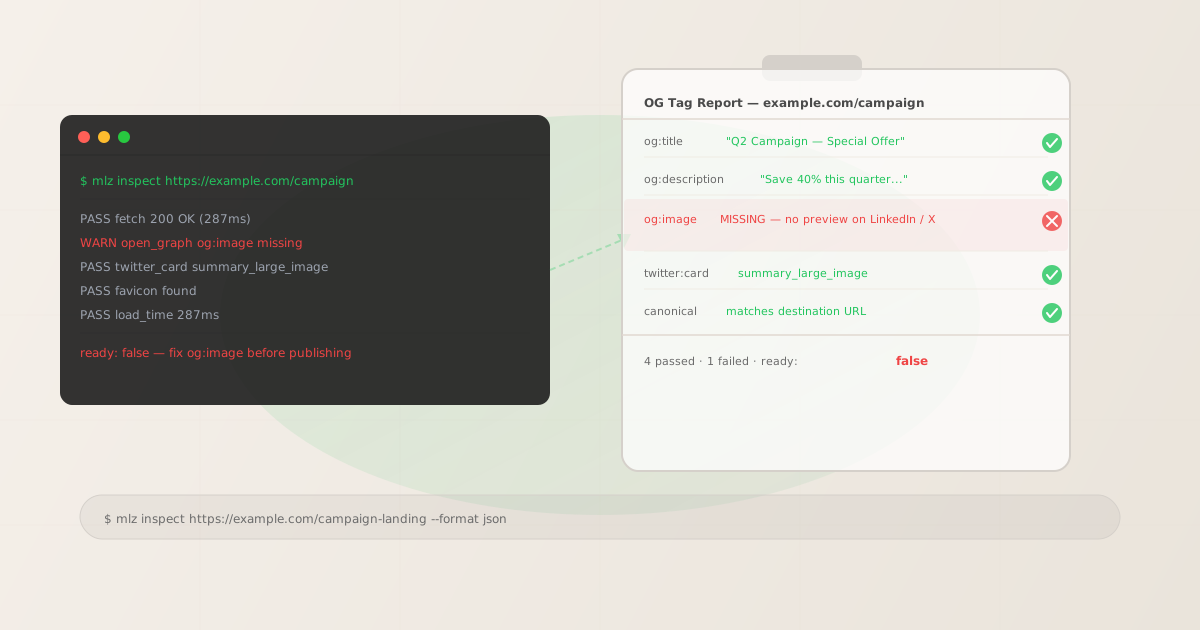
Why broken OG tags silently kill campaign engagement
Open Graph tags are HTML meta tags in the <head> of your landing page that tell social platforms what to show in a link preview. When a user shares your campaign link on LinkedIn, X, or Facebook, the platform fetches the destination URL and reads these tags to build the preview card. If the tags are missing or malformed, the platform either shows a blank preview, a tiny thumbnail, or falls back to plain text.
The damage is invisible in your analytics until you look at channel-level engagement. Your campaign link generated 2,000 impressions, but click-through rate was 0.4% — about a third of what a properly configured rich preview card typically achieves. The link was shared, the page loaded, UTM parameters were tracked. Nothing looked broken. But every share rendered as a text URL, not a card, because og:image was missing.
OG tag failures are particularly common with:
- Landing page builders — many require you to manually enter OG metadata in a settings panel separate from the page editor. It's easy to miss this step, especially when duplicating an existing page as a template.
- CMS-generated pages — default OG tags may be set at the template level and not overridden for campaign-specific pages, resulting in incorrect or generic title/description/image values.
- New landing pages — pages created quickly for a campaign launch often have placeholder content or incomplete metadata until the page is "finalized," which may happen after the campaign assets are already in distribution.
- Cached previews — social platforms cache OG data aggressively. If you publish a page with missing tags, some platforms will serve the empty preview for hours or days even after you add the tags, unless you use the platform's cache-clearing tool.
The 6 essential OG tags every campaign landing page needs
For campaign links shared on social platforms, these six tags determine how the preview renders. All six should be present before any campaign link is published:
og:title- The headline shown in the preview card. Use a descriptive title specific to this campaign page, not the generic site name. Most platforms truncate at around 70 characters. If this tag is missing, the platform uses the page's
<title>element as a fallback — but the fallback behavior varies by platform and is not reliable. og:description- The body text below the title in the preview card. Should complete the action described in the title — typically the value proposition or offer. Platforms truncate at roughly 200 characters. Missing
og:descriptionresults in blank preview body text or a fallback to the meta description, which may not be optimized for social context. og:image- The image displayed in the preview card. This is the highest-impact OG tag: a missing or broken
og:imagedegrades the preview from a rich card to a text snippet. Image dimensions matter — 1200×630 is the standard for LinkedIn, X, and Facebook. See the Open Graph tags guide for platform-specific requirements. og:url- The canonical URL of the page. Set this to the clean destination URL without UTM parameters. Some platforms use
og:urlas the canonical version for deduplication — if multiple URLs with different UTM parameters point to the same page, setting a consistentog:urlprevents each variation from being treated as a separate piece of content. og:type- For campaign landing pages, use
articleorwebsite. The type affects how some platforms categorize the content in their indexes. Most campaign pages should usewebsiteunless the page is genuinely editorial content. twitter:card- Technically a Twitter-specific meta tag, not an OG tag, but essential for X (Twitter) previews. Use
summary_large_imagefor campaign pages with a prominent image. Missing this tag means X renders only a small thumbnail or no image at all, regardless of whatog:imageis set to.
How to validate OG tags automatically with mlz inspect
The mlz inspect command fetches the destination URL and checks its OG tags, Twitter Card tags, canonical URL, favicon, and page load time — returning structured JSON. Pass the landing page URL as the argument:
mlz inspect https://example.com/campaign-landing
The full JSON response includes the raw OG values alongside the check results, so you can see exactly what tags are present and what's missing:
{
  "url": "https://example.com/campaign-landing",
  "success": true,
  "checks": [
    { "check": "fetch", "status": "pass",
      "message": "Page fetched successfully (287ms)." },
    { "check": "open_graph", "status": "warn",
      "message": "Open Graph tags incomplete: og:image missing.",
      "details": { "missing": ["og:image"] } },
    { "check": "twitter_card", "status": "pass",
      "message": "Twitter Card present (type: summary_large_image)." },
    { "check": "favicon", "status": "pass",
      "message": "Favicon found." },
    { "check": "load_time", "status": "pass",
      "message": "Page load time: 287ms." }
  ],
  "open_graph": {
    "title": "Q2 Campaign — Special Offer",
    "description": "Save 40% on all plans this quarter. Limited time only.",
    "image": null,
    "type": "website",
    "url": "https://example.com/campaign-landing"
  },
  "twitter_card": {
    "card": "summary_large_image",
    "title": "Q2 Campaign — Special Offer",
    "image": null
  }
}
The open_graph.image field is null — the tag is missing from the page. The check reports "status": "warn" with a details.missing array naming exactly which tags are absent. This is the information you need to take back to whoever controls the landing page's HTML and request the addition before the campaign goes out. For a full breakdown of how to check OG tags on any page, see How to Check if Your Landing Page Has OG Tags.
Walkthrough: catching a missing og:image before launch
Here is how a practical pre-launch OG check works. The campaign landing page has been built and the UTM link has been generated. Before the link goes into any email or social post, run:
mlz inspect https://example.com/q2-campaign --format json
Parse the result for the open_graph.image field. If it is null or the open_graph check has "status": "warn", the page is not ready. The fix:
- For landing page builder platforms (Unbounce, Instapage, Webflow)
- Look for the page's SEO or sharing settings panel. There is usually a dedicated field for the social preview image separate from the hero image on the page. Add an image at 1200×630 pixels. Save and republish the page. Then run
mlz inspectagain to confirm the tag now appears in the response. - For CMS-generated pages (WordPress, HubSpot)
- Check whether an SEO plugin (Yoast, Rank Math) or the CMS's built-in social settings are configured for this page. The
og:imagemay be inheriting from a site-level default that was never set. Edit the page and set a campaign-specific social image. Confirm withmlz inspectafter publishing. - For custom-built pages
- Add the tag directly to the page's
<head>:<meta property="og:image" content="https://example.com/images/q2-campaign-og.png">. The image must be publicly accessible — a path that requires authentication or is behind a CDN with access controls will return a 401 or 403 when social platforms try to fetch it, effectively making it a missing image even if the tag is present. Check withmlz inspectafter deploying. - For both og:image and twitter:image
- Some platforms do not inherit
og:imagefor Twitter Card previews — X specifically looks fortwitter:imagein addition to (or instead of)og:image. If yourtwitter_card.imagefield is alsonullin the inspect output, add<meta name="twitter:image" content="...">alongside your OG image tag.
After fixing the issue, re-run mlz inspect to confirm the tag is present before publishing. Do not rely on social platform debugger tools alone — they show cached results and may not reflect the current page state for 24-48 hours.
Adding OG tag validation to your campaign launch process
OG tag validation is most effective when it is a non-skippable step in the campaign launch workflow, not an optional check done after the link is already in distribution. The two practical integration points:
- As part of the pre-publish checklist
- Add
mlz inspect [destination-url]as a required step before any campaign link is shared with the distribution team. For teams using a shared checklist document, the inspector output — with its explicit pass/fail for each OG tag — gives whoever owns the check a clear, verifiable result rather than a subjective "I looked at it in a browser." The landing page validation guide covers the full 8-point pre-publish checklist that OG tags are part of. - As part of a CI/CD pre-deploy pipeline
- For teams that build landing pages in a repository and deploy them through a pipeline, running
mlz inspectin the deploy step catches OG tag issues before they reach production. Parse the JSON for"status": "warn"or"status": "fail"on theopen_graphcheck and fail the deploy if either condition is true. See Automating Social Preview Checks for a complete GitHub Actions workflow that does this.
The goal is to catch OG tag issues before campaign assets are distributed — email templates are loaded, social posts are scheduled, ad copy is drafted. Once a campaign is in motion, fixing an OG tag issue means manually purging caches on every platform that has already fetched and stored the broken preview data. For OG tag validation for campaign links specifically, see OG Tag Validation for Campaign Links for the complete pre-launch walkthrough.
FAQ
- Does mlz inspect check og:image dimensions?
- The inspect output reports whether
og:imageis present and provides the image URL. It does not fetch and measure the image dimensions directly in the current version — that check is part of the fullmlz preflightworkflow which calls the inspect and URL validation steps together. For image dimension requirements by platform, see the Open Graph tags guide. If you need to validate dimensions specifically, check the image URL thatmlz inspectreturns using your preferred image inspector. - Can I validate OG tags on a staging URL before pushing to production?
- Yes — pass the staging URL directly to
mlz inspect. The command fetches the URL from wherever it's running, so any publicly accessible URL (staging, preview, even localhost with a tunnel like ngrok) works the same as a production URL. Validating on staging is better practice than waiting for production, since it catches issues before they can be cached by social platforms. - My page loads correctly in a browser but og:image shows as null. Why?
- The most common cause is that the
og:imagetag is added dynamically via JavaScript after the page loads. Social platforms andmlz inspectfetch the raw HTML without executing JavaScript — they read only what is in the initial server-rendered HTML. If your OG tags are injected by a JavaScript framework on the client side, they will not be visible to social crawlers or tomlz inspect. The solution is to ensure OG meta tags are rendered server-side in the initial HTML response. - How often should I run mlz inspect on my campaign landing pages?
- Run it once before the campaign link is first distributed, and run it again after any changes to the landing page during an active campaign. Landing page builders and CMS systems sometimes reset OG metadata when a page is edited, duplicated, or migrated. A page that had correct OG tags on launch can lose them silently after an update. Treat OG tag validation as part of any landing page edit, not just the initial launch.
- What is the difference between mlz inspect and mlz preflight for OG tag validation?
mlz inspectchecks the destination URL's metadata — OG tags, Twitter Card, favicon, load time — and returns a detailed JSON report.mlz preflightdoes everythingmlz inspectdoes plus builds the UTM-tagged link, validates SSL and HTTP resolution, and checks the redirect chain, returning a single"ready"verdict. For OG-only validation of an existing URL,mlz inspectis the direct command. For a full pre-publish check that also generates and validates your campaign link, usemlz preflight.
Recommended posts
Inspect your next campaign landing page in 30 seconds
Install MissingLinkz and run mlz inspect to check OG tags, Twitter Card, favicon, and load time before your campaign link goes out.
1,000 links/month free. No credit card.
Your API key
Save this now — it won't be shown again.
npm install -g missinglinkz
Free plan: 1,000 links/month. No credit card. See all commands in the SKILL.md reference.