OG Tag Validation for Campaign Links: How to Check Before Launch
OG tag validation for campaign links is the check that stands between a well-crafted LinkedIn post and a blank, thumbnail-less preview that nobody clicks. Open Graph tags control the title, description, and image that social platforms render when someone shares a link — and they can be silently absent or broken on pages that look completely normal in a browser. This guide covers the six essential OG tags, what each one controls, what breaks without it, and how to validate them with a single command before any campaign link goes live.
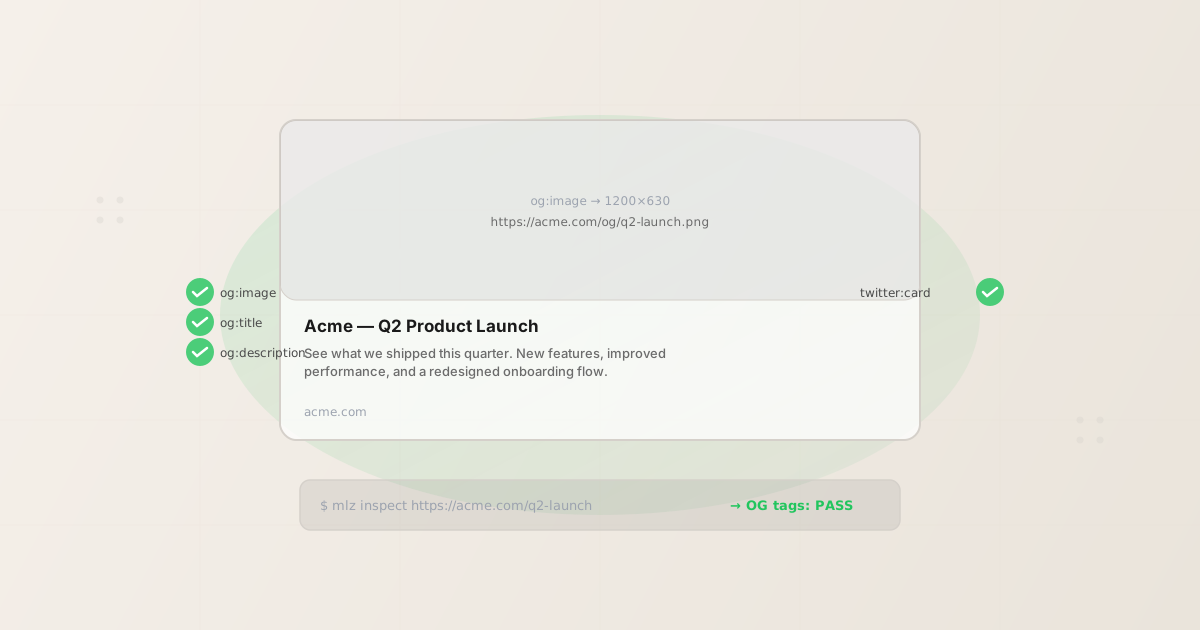
Why broken OG tags silently kill campaigns
When you share a campaign link on LinkedIn, Facebook, X, or Slack, the platform makes a server-side request to your landing page and reads the Open Graph meta tags in the HTML <head>. If those tags are missing, the platform falls back to: guessing a title from the <title> element, omitting the description, and displaying no image at all. The link renders as plain text — no preview card, no visual, no reason to click.
The damage is hard to see before launch because:
- Loading the page in a browser shows nothing wrong — OG tags are invisible to site visitors
- Staging environments often have OG tags configured differently than production
- CMS exports, CDN layers, and template changes can strip meta tags silently
- Social platform scrapers cache preview data — a fix after launch may not appear for 24–72 hours
By the time a broken preview is discovered — usually by seeing unusually low click-through rates on a paid campaign — the budget is already spent. For more context on what the full social preview validation covers, see landing page validation for social sharing.
The 6 essential OG tags for campaign links
The Open Graph protocol defines a large set of properties. For campaign landing pages, six of them are required. The first three are the non-negotiable minimum; the second three are standard practice for paid campaigns.
og:title— required- The title of the page as it should appear in the social preview card. This is not the same as the HTML
<title>element — you control them independently. For campaign landing pages, theog:titleshould match the campaign promise and be specific to the destination, not a generic site title. Maximum 60–90 characters for reliable display across platforms. Without it: platforms use the<title>element as a fallback, which may include site-level text irrelevant to the campaign. og:description— required- The one-to-two sentence description shown below the title in the preview card. On LinkedIn, this is the most read element after the image. On Facebook, it appears below the title with a character cutoff around 200 characters. On Slack, it provides context before someone decides to open the link. Without it: platforms attempt to extract a description from the page body, often pulling a navigation label, a footer element, or the first repeated phrase they find — which is typically useless as a description.
og:image— required- The URL of the image to display in the preview card. This is the highest-impact OG tag for click-through rate. A well-designed campaign image that matches the ad creative creates visual continuity between the ad and the destination link share. The image should be hosted on HTTPS, ideally 1200×630 pixels (the standard Open Graph image size), and under 5MB. Without it: the preview card renders with no image — a text-only card that LinkedIn, Facebook, and Slack display at significantly reduced size with far lower click rates. See the Open Graph tags guide for the full image dimension spec.
og:type— recommended- Declares the content type. For campaign landing pages, use
website. For blog articles, usearticle. The type affects how some platforms categorize and display the content. It does not change what the preview card looks like for most use cases, but omitting it causes some platforms to use their own defaults, which can produce unexpected categorizations in platform analytics. og:url— recommended- The canonical URL of the page — the clean URL without UTM parameters. This tells the platform which URL to use as the canonical identifier for de-duplicating shares and aggregating engagement metrics. If you share the same landing page with 10 different UTM parameter variations, setting
og:urlto the clean destination URL means all 10 links are recognized as pointing to the same page. Without this, each UTM variant is treated as a different URL and engagement data is fragmented. og:image:widthandog:image:height— recommended- Explicit image dimensions (e.g.,
1200and630) tell the platform the image size without fetching the image first. This speeds up preview rendering and prevents the card from displaying a placeholder while the image dimensions are being determined. Without them, some platforms display a blank card for the first few seconds after a link is shared, before switching to the image once it is fetched.
How to validate OG tags automatically
The mlz inspect command checks all OG tags on a destination URL and returns structured JSON. Run it before every campaign link launch:
mlz inspect https://your-landing-page.com --format json
The response includes a top-level open_graph object with the actual tag values found on the page, and a checks array with a pass/fail verdict for the OG tag set:
{
  "url": "https://acme.com/q2-launch",
  "success": true,
  "checks": [
    {
      "check": "open_graph",
      "status": "pass",
      "message": "Open Graph tags present: title, description, and image."
    },
    {
      "check": "twitter_card",
      "status": "pass",
      "message": "Twitter Card present (type: summary_large_image)."
    }
  ],
  "open_graph": {
    "title":       "Acme — Q2 Product Launch",
    "description": "See what we shipped this quarter.",
    "image":       "https://acme.com/og/q2-launch.png",
    "type":        "website",
    "url":         "https://acme.com/q2-launch"
  },
  "twitter_card": {
    "card":  "summary_large_image",
    "title": "Acme — Q2 Product Launch",
    "image": "https://acme.com/og/q2-launch.png"
  }
}
The open_graph object shows you the exact tag values found — not just pass/fail. This lets you verify the title and description copy match the campaign, the image URL is correct (not pointing to a staging environment), and the canonical URL is set to the clean destination without UTM parameters.
Walkthrough: catching a missing og:image before launch
The most common OG tag failure on campaign landing pages is a missing or broken og:image. Here is what the mlz inspect output looks like when it catches this failure before the campaign goes live:
{
  "url": "https://acme.com/q2-launch",
  "success": false,
  "checks": [
    {
      "check": "open_graph",
      "status": "fail",
      "message": "Open Graph tags incomplete: og:image is missing."
    }
  ],
  "open_graph": {
    "title":       "Acme — Q2 Product Launch",
    "description": "See what we shipped this quarter.",
    "image":       null
  }
}
success: false and the fail status on the open_graph check make it immediately clear what is wrong. The "image": null in the open_graph object confirms the tag is absent — not just pointing to a wrong URL.
Common reasons og:image is missing on a page that looks correct in a browser:
- The image URL is hardcoded to a staging domain that does not exist in production
- The image path is relative rather than absolute — some platforms require an absolute URL starting with
https:// - The CMS template includes the OG image only when a specific field is filled in, and the campaign page was created from a template where that field was left blank
- A recent deploy updated the HTML template and accidentally removed the
<meta property="og:image">line
All of these are invisible to browser-based QA. The page renders correctly. Only a tool that fetches the raw HTML and parses the meta tags — exactly what social platforms do — will catch the missing tag.
Adding OG tag validation to your launch process
The right moment to run mlz inspect is immediately before sharing the campaign link — the same moment you would otherwise manually open the Facebook Sharing Debugger. Running it at this stage catches failures with enough time to fix them before paid traffic arrives.
For teams with a CI/CD pipeline, adding the check as a pre-deploy step catches failures even earlier. See automating social preview checks for the complete GitHub Actions workflow.
For teams using MissingLinkz as a campaign link validator, the mlz publish-check command runs OG tag validation alongside UTM link building and destination URL checks in a single command:
mlz publish-check --url "https://acme.com/launch" --campaign "q2-launch" --source "linkedin" --medium "social" --platform linkedin
This builds the tracked UTM link, validates SSL and redirect chains, inspects OG tags and Twitter Cards, and checks post copy character counts — all in one step. The output is a single ready: true/false verdict with a full breakdown of every check. See the full guide to checking OG tags on landing pages for step-by-step browser and CLI methods.
FAQ
- Do OG tags affect SEO?
- OG tags do not directly affect search engine rankings — they are not read by Google's indexing crawler for ranking purposes. They affect social sharing behavior, click-through rates from social platforms, and how links appear in Slack, Teams, and messaging apps. Indirectly, a well-configured OG image and title can significantly increase the social click-through rate on campaign links, which generates more qualified traffic and signals engagement to the platforms running your ads.
- Do OG tags need to be identical to Twitter Card tags?
- No, but they are often set to the same values.
og:titleandtwitter:titlecan differ if you want a different headline for X versus other platforms. In practice, most teams set them identically to reduce the number of fields to maintain. Iftwitter:titleis absent, X falls back toog:title, so you can often configure only the OG tags and let X use the fallback. - Why does my OG image look correct in the Facebook Sharing Debugger but broken when the link is shared?
- The most common cause is caching. Facebook aggressively caches OG metadata. If you fixed the
og:imageafter the URL was already scraped, Facebook may still be serving the old (broken) preview for 24–72 hours. Use the Facebook Sharing Debugger's "Scrape Again" button to force a cache refresh. For new campaign links that have never been shared, there is no cache issue — the preview reflects the current state of the tags. - Can I validate OG tags on a page that requires a login?
mlz inspectmakes an unauthenticated HTTP GET request — the same request that social platforms make. If the page requires authentication, the inspector will see the login redirect page rather than the landing page content, and will report missing OG tags (because the login page is not the campaign page). For gated landing pages, ensure that social preview bots can access the page without authentication — most campaign landing pages should be publicly accessible by design.- How do I check OG tags for multiple campaign URLs at once?
- Run
mlz inspectin a shell loop:for URL in "${URLS[@]}"; do mlz inspect "$URL" --format json; done. For CI integration, see the GitHub Actions workflow in automating social preview checks. For a CLI-focused walkthrough, see how to check OG tags from the command line.
Recommended posts
Try it on your live landing page
Install MissingLinkz and run mlz inspect to check OG tags, Twitter Cards, and social preview readiness in under 30 seconds. Catches the failures that browser checks miss.
1,000 links/month free. No credit card.
Your API key
Save this now — it won't be shown again.
npm install -g missinglinkz
mlz inspect https://your-landing-page.com --format json
See the SKILL.md reference for all inspect flags and the full JSON response schema.