UTM Tracking for Spotify Ads: How to Build and Validate Campaign Links
Spotify Ads runs through Spotify Ad Studio, the self-serve platform for audio, video, and podcast placements. When a listener hears your audio ad, a companion banner appears on their screen — and tapping it sends them to your website. That click is the moment UTM parameters capture. Spotify has no auto-tagging equivalent: no click ID parameter appended to destination URLs the way Google Ads appends gclid or Microsoft Ads appends msclkid. UTM parameters are the only mechanism for GA4 to attribute website sessions from Spotify Ads. Use utm_source=spotify with utm_medium=audio for audio ads, utm_medium=video for video ads, and utm_medium=podcast for podcast sponsorship link placements. This article covers the correct UTM values for each Spotify ad format, how to build them with the MissingLinkz CLI, and how to validate the companion banner destination URL before launch.
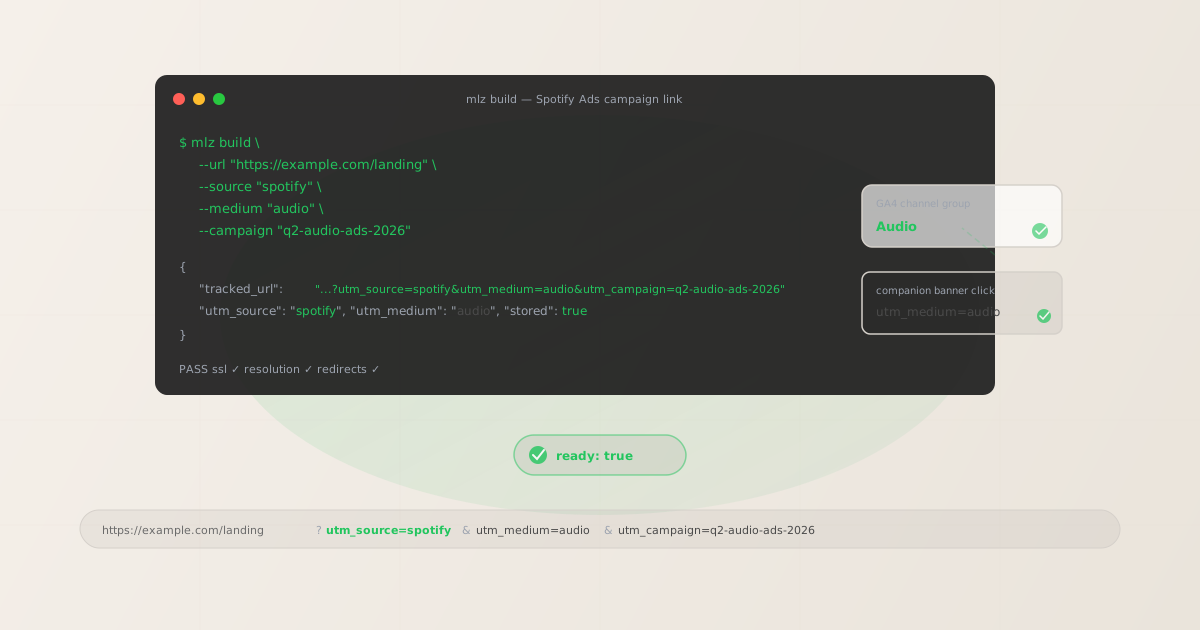
Spotify ad formats and when UTM parameters apply
Spotify Ad Studio offers three primary ad format categories. Each drives website traffic differently, and the correct utm_medium value differs accordingly:
| Spotify ad format | How users reach your site | Recommended utm_medium |
|---|---|---|
| Audio Ads (with companion banner) | Tap/click on companion banner image | audio |
| Video Ads (Sponsored Session) | Click on call-to-action in video | video |
| Podcast Sponsorships (show notes / episode descriptions) | Click on URL in show notes | podcast |
| Display Ads (Spotify app banners) | Click on banner in app | display |
The companion banner on audio ads is the primary click surface for most Spotify audio campaigns. The URL you enter in Spotify Ad Studio's "Learn More" field is where UTM parameters must be appended. This destination URL is the one your listeners land on when they tap the banner — it is where your GA4 tag fires and reads the UTM parameters. Validate this URL before submitting your campaign.
Podcast sponsorships work differently from audio and video ads. Podcast sponsors typically provide a vanity URL or promo code in the audio, with a trackable link in the show notes or episode description. If you control the destination URL in the episode description (either directly or via the podcast platform), you can append UTM parameters to it. Use utm_medium=podcast to route this traffic to GA4's Audio channel group, keeping podcast-sourced sessions separate from audio ad banner clicks in your reports.
The correct utm_source and utm_medium for Spotify Ads
Use utm_source=spotify for all Spotify Ads placements. GA4's default channel group definitions map this value correctly when paired with the appropriate utm_medium:
| Spotify ad format | utm_source | utm_medium | GA4 channel group |
|---|---|---|---|
| Audio Ads | spotify |
audio |
Audio |
| Video Ads (Sponsored Session) | spotify |
video |
Video |
| Podcast Sponsorships | spotify |
podcast |
Audio |
| Display / Banner Ads | spotify |
display |
Display |
GA4 introduced a dedicated Audio default channel group that matches utm_medium=audio or utm_medium=podcast. This keeps Spotify audio ad traffic out of the Unassigned bucket and separate from your paid social or paid search channels. Verify your GA4 property has channel group definitions enabled — older GA4 properties created before the Audio channel was added may need a custom channel group rule to route utm_medium=audio correctly.
Do not use utm_source=spotify-ads or utm_source=spotifyadstudio. Non-standard source values create unmatched rows in GA4's Traffic Acquisition report and require custom channel group rules to route correctly. The canonical value is simply spotify — use utm_medium to distinguish between audio, video, and display format types.
Building Spotify Ads UTM links with mlz build
mlz build generates the tracked URL, normalises all parameter values to lowercase, and stores the link for later auditing. For Spotify audio ads with companion banners:
# Audio Ad — companion banner click destination
$ mlz build \
  --url "https://example.com/landing" \
  --source "spotify" \
  --medium "audio" \
  --campaign "q2-brand-awareness-2026" \
  --content "30s-voiceover-variant-a"

{
  "tracked_url": "https://example.com/landing?utm_source=spotify&utm_medium=audio&utm_campaign=q2-brand-awareness-2026&utm_content=30s-voiceover-variant-a",
  "params": {
    "utm_source": "spotify",
    "utm_medium": "audio",
    "utm_campaign": "q2-brand-awareness-2026",
    "utm_content": "30s-voiceover-variant-a"
  },
  "link_id": "lnk_sp7x4m2r",
  "stored": true
}
Use utm_content to distinguish between ad creatives in the same campaign — for example, different audio durations (15-second vs 30-second spots) or different voiceover scripts. This keeps A/B test results separable in GA4's Acquisition reports without creating separate campaigns for each variant.
For Spotify Sponsored Session video ads, swap --medium "audio" for --medium "video":
# Sponsored Session video ad
$ mlz build \
  --url "https://example.com/landing" \
  --source "spotify" \
  --medium "video" \
  --campaign "q2-brand-awareness-2026" \
  --content "sponsored-session-15s"

{
  "tracked_url": "https://example.com/landing?utm_source=spotify&utm_medium=video&utm_campaign=q2-brand-awareness-2026&utm_content=sponsored-session-15s",
  "params": {
    "utm_source": "spotify",
    "utm_medium": "video",
    "utm_campaign": "q2-brand-awareness-2026",
    "utm_content": "sponsored-session-15s"
  },
  "link_id": "lnk_sp3v9n8k",
  "stored": true
}
The CLI normalises all parameter values to lowercase automatically. Passing --source "Spotify" or --medium "Audio" results in the lowercase canonical form in the output URL. This prevents GA4 attribution fragmentation where the same source appears as both spotify and Spotify as separate rows in Traffic Acquisition reports. See the UTM naming conventions guide for the full cross-channel naming reference.
Validating the companion banner destination URL before launch
Spotify Ad Studio validates the destination URL you provide when you submit an audio ad. A URL that returns a non-200 status, redirects to a different domain, or resolves too slowly can cause your ad to be flagged in review. Run mlz build --validate to confirm the destination resolves cleanly before entering the Ad Studio submission flow:
$ mlz build \
  --url "https://example.com/landing" \
  --source "spotify" \
  --medium "audio" \
  --campaign "q2-brand-awareness-2026" \
  --validate

{
  "tracked_url": "https://example.com/landing?utm_source=spotify&utm_medium=audio&utm_campaign=q2-brand-awareness-2026",
  "validation": {
    "valid": true,
    "checks": [
      { "check": "url_format", "status": "pass", "message": "URL format is valid." },
      { "check": "ssl", "status": "pass", "message": "URL uses HTTPS." },
      { "check": "resolution", "status": "pass", "message": "Destination responded with 200.", "details": { "response_time_ms": 189 } },
      { "check": "redirects", "status": "pass", "message": "No redirects detected." }
    ]
  },
  "link_id": "lnk_sp7x4m2r",
  "stored": true
}
The validation step is particularly important for Spotify campaigns because Spotify's ad review process checks that the destination URL is reachable and HTTPS-secured. An audio ad with a broken or HTTP-only companion banner URL will fail Ad Studio's automated review and require resubmission — adding days to your launch timeline. Catching this before submission with mlz build --validate is significantly cheaper than waiting for Spotify's review rejection. For a full pre-launch check including OG tag and metadata inspection, see mlz publish-check.
Spotify Ads UTM tracking gotchas
- No auto-tagging — UTM parameters are the only GA4 attribution mechanism
- Unlike Google Ads (which appends
gclid) or Microsoft Ads (which appendsmsclkid), Spotify Ad Studio does not append any click ID parameter to your destination URL. If you launch a Spotify campaign without UTM parameters on the companion banner URL, GA4 records the resulting sessions as Direct traffic — the source and medium are both blank, and the campaign is invisible in your acquisition reports. There is no retroactive way to recover this attribution. UTM parameters must be on the destination URL before your ad goes live. - Companion banner clicks in the Spotify app open your URL in an in-app browser
- When a mobile listener taps a companion banner, Spotify opens the destination URL in its in-app browser (WebView) rather than the device's default browser. Most in-app browsers preserve query string parameters including UTM tags, so your GA4 attribution should be intact. However, some aggressive cookie-blocking configurations or WebView implementations strip query strings. Validate that your landing page is loading the URL correctly with parameters present by checking GA4 real-time reports immediately after your campaign goes live — look for the
spotify / audiosource/medium pair in Traffic Acquisition. - utm_medium=audio routes to GA4's Audio channel group — verify your property supports it
- GA4 added a default Audio channel group that recognises
utm_medium=audioandutm_medium=podcast. However, GA4 properties created before this channel group was introduced may not have it in their default channel group definitions. If your GA4 Traffic Acquisition report shows Spotify traffic landing in Unassigned despite correctly formatted UTM tags, check your property's channel group settings under Admin → Data Display → Channel Groups and add an Audio rule matchingmediumexactly equal toaudio. - Podcast show notes links need UTM parameters on the URL, not the audio
- For podcast sponsorships on Spotify, the trackable URL is in the episode's show notes or description, not embedded in the audio itself (you cannot append query parameters to a spoken promo code). If you have access to the show notes URL — either because you're the advertiser providing the link to the podcast host, or because you have a branded short URL — append UTM parameters to the full destination URL. Use
utm_source=spotify&utm_medium=podcast&utm_campaign=your-campaign. If you're using a vanity URL that redirects, validate the full redirect chain preserves the UTM parameters withmlz build --validate. - Frequency capping affects click volume but not attribution accuracy
- Spotify Ad Studio allows frequency capping — limiting how many times a single user hears your ad in a given period. This affects the volume of companion banner clicks, but does not affect UTM attribution. Each click on the companion banner sends a separate GA4 session event with the full UTM parameter set, regardless of whether the same user has seen the ad before. This is consistent with how UTM attribution works across all platforms: UTM parameters describe the session source, not the user identity.
Spotify Ads UTM naming conventions
Consistent naming across Spotify Ads, social campaigns, and other paid channels is essential for cross-channel reporting in GA4. Recommended conventions for Spotify Ads UTM parameters:
- utm_source:
spotify— always lowercase, always this exact value for all Spotify Ads placements - utm_medium:
audiofor Audio Ads with companion banners;videofor Sponsored Session video ads;podcastfor podcast sponsorship show notes links;displayfor in-app banner display ads - utm_campaign: lowercase hyphen-separated name matching the Spotify Ad Studio campaign, e.g.
q2-brand-awareness-2026 - utm_content: creative variant identifier, e.g.
30s-voiceover-variant-aorsponsored-session-15s— useful for A/B testing different ad scripts or lengths - utm_term: audience segment identifier if relevant, e.g.
genre-indieorage-25-34— use sparingly to avoid bloating the dimension
If you run simultaneous campaigns on Spotify Ads and other audio platforms (iHeart, Pandora, podcast networks), keeping utm_source as the platform identifier and utm_medium=audio consistently across all of them groups your audio channel spend cleanly in GA4's Acquisition reports. You can then filter by utm_source within the Audio channel to compare performance by platform. See the UTM tracking best practices guide for the full cross-channel naming system.
FAQ
- Do UTM parameters work with Spotify Ads?
- Yes, when applied to the companion banner destination URL. Spotify Audio Ads display a companion banner that users can tap to visit your website. The URL you enter in Spotify Ad Studio's "Learn More" field is the companion banner destination — append UTM parameters to this URL before submitting your campaign. Spotify does not auto-tag destination URLs with a click ID the way Google Ads or Microsoft Ads do, so UTM parameters are the only mechanism for GA4 to attribute website sessions from Spotify campaigns.
- What utm_source and utm_medium should I use for Spotify Ads?
- Use
utm_source=spotifyfor all Spotify Ads placements. For the medium: useutm_medium=audiofor Audio Ads (companion banner clicks),utm_medium=videofor Sponsored Session video ads,utm_medium=podcastfor podcast sponsorship show notes links, andutm_medium=displayfor in-app display banner ads. GA4's default Audio channel group recognisesutm_medium=audioandutm_medium=podcast. The Video channel group recognisesutm_medium=video. - Does Spotify Ad Studio validate my destination URL?
- Spotify Ad Studio performs basic URL validation when you submit an audio ad — checking that the destination URL is reachable and HTTPS-secured. A broken, HTTP-only, or excessively slow URL can fail this automated review and delay your campaign launch. Run
mlz build --validatebefore submitting to Spotify to confirm the URL resolves cleanly, uses HTTPS, and returns a 200 status with no unexpected redirects. This catches validation failures before they delay your campaign's approval. - How do I track podcast sponsorships on Spotify with UTM parameters?
- Podcast sponsorship UTM tracking applies to the URL in the episode's show notes or description — not to a spoken promo code in the audio itself. If you are the advertiser providing a link to a podcast host for inclusion in show notes, append UTM parameters to the full destination URL before sharing it. Use
utm_source=spotify&utm_medium=podcast&utm_campaign=your-campaign. If you are using a vanity URL redirect, validate that the redirect preserves UTM parameters through to the final destination usingmlz build --validate. - Why does my Spotify ad traffic appear as Direct in GA4?
- This usually means UTM parameters are missing from the companion banner destination URL. When a user clicks a companion banner with no UTM parameters, GA4 has no source/medium information and records the session as Direct. To fix this going forward, rebuild the campaign destination URL with UTM parameters using
mlz buildand update the URL in Spotify Ad Studio. You cannot retroactively change attribution for sessions that have already been recorded as Direct.
Recommended posts
Build Spotify Ads UTM links from the terminal
Pass --source "spotify" --medium "audio" to mlz build and get a normalised, validated URL ready to paste into Spotify Ad Studio's "Learn More" field. Add --validate to confirm the destination resolves cleanly with HTTPS before your ad enters Spotify's review queue — catching URL issues before they delay your campaign launch.
1,000 links/month free. No credit card.
Your API key
Save this now — it won't be shown again.
npm install -g missinglinkz
Free plan: 1,000 links/month. No credit card. See the UTM tracking for developers guide for the full programmatic workflow.