UTM Tracking for Snapchat Ads: How to Build and Validate Campaign Links
For Snapchat Ads, UTM tracking works differently from Google or Microsoft — and the difference matters for GA4 attribution. Snap does not append a URL-based click ID to destination URLs the way Google appends gclid or Microsoft appends msclkid. Snap relies on the Snap Pixel and the Conversions API for its own Ads Manager attribution, both of which operate independently of URL parameters. The practical result: utm_source=snapchat and utm_medium=paid-social are your only mechanism for attributing Snapchat Ads sessions in GA4. Get them wrong, and Snap traffic lands in Direct or Unassigned — not the Paid Social channel group where it belongs.
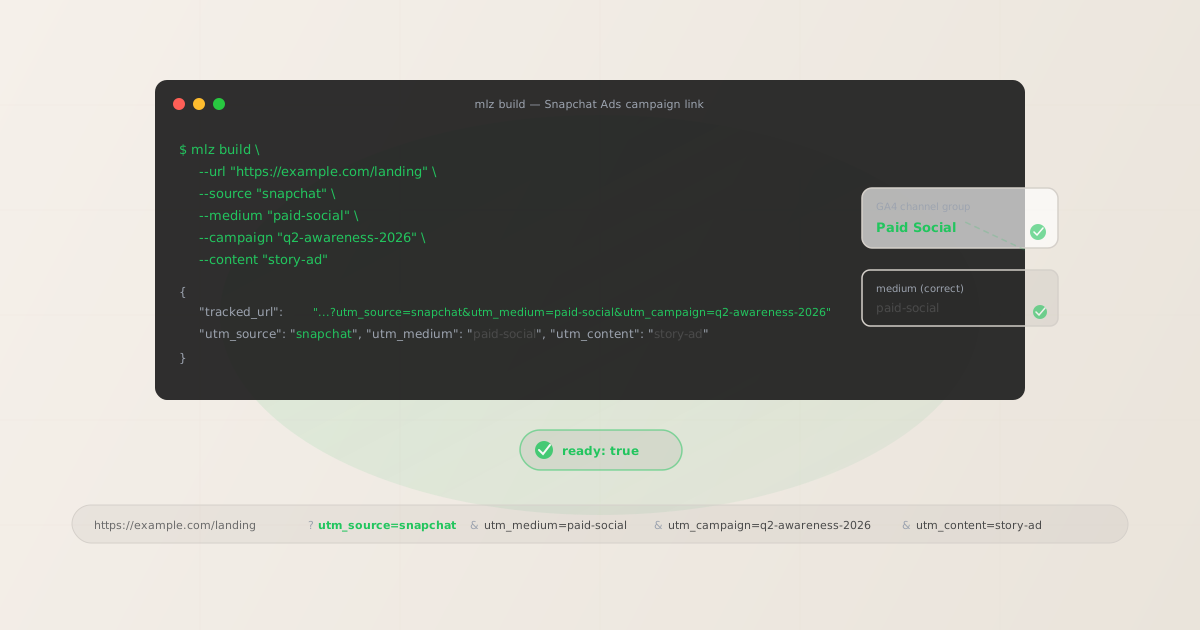
The correct utm_source and utm_medium for Snapchat Ads
Snap Ads covers several campaign formats — Story Ads, Collection Ads, Spotlight Ads, Dynamic Product Ads — but the source and medium follow a consistent pattern across all of them. The key decision is utm_medium: it must be paid-social, not cpc.
| Snap Ads format | utm_source | utm_medium |
|---|---|---|
| Story Ads | snapchat |
paid-social |
| Collection Ads | snapchat |
paid-social |
| Spotlight Ads | snapchat |
paid-social |
| Dynamic Product Ads | snapchat |
paid-social |
Use utm_content to differentiate between formats — for example, utm_content=story-ad, utm_content=collection-ad, or utm_content=spotlight. This keeps all Snap traffic grouped under a single source and medium in GA4 while still giving you per-format breakdown in the content dimension.
For A/B testing creative variants within the same format, extend the utm_content value: story-ad-v1 vs. story-ad-v2. GA4's Traffic Acquisition report will show conversion rates for each variant in the same source/medium row, making it straightforward to compare creative performance.
Why utm_medium=paid-social (not cpc) matters for GA4 channel routing
Some Snap Ads campaigns are billed on a cost-per-click basis, which leads teams to use utm_medium=cpc on Snapchat destination URLs. This is technically correct about the billing model, but it causes a GA4 attribution problem.
GA4's default channel group definitions route sessions as follows:
| utm_source + utm_medium | GA4 Channel Group | Is this correct? |
|---|---|---|
snapchat + paid-social |
Paid Social | ✓ Yes — correct |
snapchat + cpc |
Paid Search | ✗ No — misrouted |
snapchat + social |
Organic Social | ✗ No — misrouted |
snapchat + (none) |
Direct or Unassigned | ✗ No — attribution lost |
GA4's Paid Social channel group condition matches sessions where the source is a recognised social network and the medium contains paid or matches the paid social regex pattern. The string paid-social satisfies this condition. The string cpc matches the Paid Search pattern instead, because cpc is the canonical paid search medium.
Unlike Google or Microsoft Ads, Snapchat has no search inventory — it is always a social platform. There is no scenario where utm_medium=cpc is the right choice for Snap Ads. Use paid-social consistently across all Snap campaigns.
Using utm_content to track Snap Ad formats and creative variants
Because all Snap Ads share the same utm_source=snapchat and utm_medium=paid-social, utm_content carries the load for format-level and creative-level differentiation. A clear utm_content taxonomy for Snap Ads:
| Ad format / use case | Recommended utm_content value |
|---|---|
| Story Ad (single image/video) | story-ad |
| Collection Ad (product grid) | collection-ad |
| Spotlight Ad | spotlight |
| Dynamic Product Ad | dynamic-product-ad |
| Story Ad, creative variant A | story-ad-v1 |
| Story Ad, creative variant B | story-ad-v2 |
This approach keeps your GA4 Paid Social traffic unified under one source/medium row while giving you the per-format and per-variant breakdown you need for creative performance reporting. You can then filter by utm_source=snapchat and pivot on utm_content in GA4's Explorations to compare Story Ad conversions against Collection Ad conversions side by side.
Building Snapchat campaign links with mlz build
mlz build generates the tracked URL and normalises all parameter values to lowercase — critical for GA4, which treats Snapchat and snapchat as different sources. Pass all five parameters for full campaign tracking:
$ mlz build \
  --url "https://example.com/landing" \
  --source "snapchat" \
  --medium "paid-social" \
  --campaign "q2-awareness-2026" \
  --content "story-ad"

{
  "tracked_url": "https://example.com/landing?utm_source=snapchat&utm_medium=paid-social&utm_campaign=q2-awareness-2026&utm_content=story-ad",
  "params": {
    "utm_source": "snapchat",
    "utm_medium": "paid-social",
    "utm_campaign": "q2-awareness-2026",
    "utm_content": "story-ad"
  },
  "link_id": "lnk_s7kpq2vx",
  "stored": true
}
The CLI stores each built link under its link_id, so you can retrieve the full link inventory later with mlz list and confirm which Snap Ad variants were deployed to which campaigns. This is useful for post-campaign audits and for handing off to agencies — everyone works from the same stored record rather than a shared spreadsheet that can drift out of sync.
To generate links for multiple creative variants in one pass, you can loop over content values in a shell script:
# Build links for all three Snap ad format variants
$ for content in story-ad collection-ad spotlight; do
  mlz build \
    --url "https://example.com/landing" \
    --source "snapchat" \
    --medium "paid-social" \
    --campaign "q2-awareness-2026" \
    --content "$content"
done
This produces three separate tracked URLs — one per Snap format — in a single terminal operation. Paste them directly into Snap Ads Manager as each ad's destination URL.
Validating Snap campaign links before launch
Snapchat Ads uses an in-app browser when users swipe up on Story Ads or tap a Snap Call To Action. This browser context can behave differently from desktop Chrome — in particular, some link configurations that work on desktop fail to preserve query parameters through the Snap in-app browser's navigation. Running mlz build --validate confirms the destination URL resolves correctly with HTTPS and returns a 200 status, which is the baseline check before trusting a link in production:
$ mlz build \
  --url "https://example.com/landing" \
  --source "snapchat" \
  --medium "paid-social" \
  --campaign "q2-awareness-2026" \
  --content "story-ad" \
  --validate

{
  "tracked_url": "https://example.com/landing?utm_source=snapchat&utm_medium=paid-social&utm_campaign=q2-awareness-2026&utm_content=story-ad",
  "validation": {
    "valid": true,
    "checks": [
      { "check": "url_format", "status": "pass", "message": "URL format is valid." },
      { "check": "ssl", "status": "pass", "message": "URL uses HTTPS." },
      { "check": "resolution", "status": "pass", "message": "Destination responded with 200.", "details": { "response_time_ms": 204 } },
      { "check": "redirects", "status": "pass", "message": "No redirects detected." }
    ]
  }
}
The redirect check matters specifically for Snap Ads because any domain hop in the redirect chain can cause the Snap in-app browser to drop query string parameters. A clean result here means no unexpected redirect hops between the destination URL and the final landing page. For a complete pre-launch validation workflow, see the mlz publish-check guide.
Snapchat tracking gotchas
- Snap's in-app browser may drop query parameters on redirect chains
- When a user taps a Snap Call To Action, the destination URL opens in Snapchat's built-in browser, not the device's default browser. Some redirect configurations — particularly link shorteners that use 301 redirects, or landing page builders that issue temporary redirects — can cause this browser to strip query string parameters before the final page loads. If UTM parameters are dropped during the redirect, GA4 sees the session arrive at the final URL with no attribution data and attributes it as Direct. Always validate Snap destination URLs with a clean redirect chain. If you must use a redirect, confirm that the UTM parameters survive the full chain end-to-end before the campaign goes live.
- Snap does not append a URL click ID — UTM parameters are your only GA4 signal
- Google Ads appends
gclid, Microsoft Ads appendsmsclkid, and both systems use these click IDs as fallback attribution when UTM parameters are absent or stripped. Snapchat uses the Snap Pixel and Conversions API for attribution inside Ads Manager — neither of these involves a URL-based click ID. If your UTM parameters are missing or malformed, there is no fallback mechanism to recover GA4 attribution for Snap traffic. Every Snap Ads campaign requires correct UTM parameters on every destination URL, every time. - Using utm_medium=cpc misroutes Snap sessions to Paid Search in GA4
- Because some Snap Ads campaigns are billed on a cost-per-click basis, it is tempting to use
utm_medium=cpc. This is a mistake. GA4's default channel group definitions treatutm_medium=cpcas a Paid Search signal — sessions arrive in the Paid Search channel group rather than Paid Social. This inflates Paid Search metrics and makes Snap Ads traffic invisible in Paid Social reports. The correct value is alwaysutm_medium=paid-socialfor all Snap Ads formats, regardless of the campaign's billing model. - The Snap Pixel and Conversions API operate separately from UTM parameters
- Some teams assume that because the Snap Pixel is installed, GA4 will automatically attribute Snapchat Ads traffic correctly. It will not. The Snap Pixel sends conversion event data back to Snap's Ads Manager for Snap's own reporting — it does not inject source and medium data into GA4. GA4's session attribution is driven entirely by URL parameters (UTM) and HTTP referrer headers. UTM parameters and the Snap Pixel serve different systems and are not interchangeable.
- utm_source=snap vs. utm_source=snapchat — choose one
- GA4 treats source values as case-sensitive exact strings. If some campaigns use
utm_source=snapand others useutm_source=snapchat, GA4 creates two separate source rows — your Snap traffic is split and neither row captures the full picture. Chooseutm_source=snapchat(the full platform name, not the abbreviation) and enforce it consistently. On the Team plan,mlz taxonomylets you lockutm_sourceto an allowed dictionary so an off-standard value likeutm_source=snapis rejected at build time instead of silently fragmenting your data.
Snapchat Ads UTM naming conventions
Consistent naming across all paid social platforms is what makes cross-channel comparisons reliable in GA4. The recommended conventions for Snapchat Ads:
- utm_source:
snapchat(always lowercase — never "Snap", "SnapChat", or "snap") - utm_medium:
paid-social(always — never "cpc", "social", or "paid_social" with an underscore) - utm_campaign: lowercase hyphen-separated matching the campaign name, e.g.
q2-awareness-2026 - utm_content: ad format identifier, e.g.
story-ad,collection-ad,spotlight; append a variant suffix for A/B tests:story-ad-v1 - utm_term: not commonly used for Snap Ads (there is no keyword targeting). Omit or use for audience segment labels if your team tracks audience-level performance.
If you run Snap Ads alongside TikTok Ads, Meta Ads, or Reddit Ads, standardise the utm_medium=paid-social value across all platforms. This makes it straightforward to compare total Paid Social performance across sources in GA4 by filtering on medium and breaking down by source.
For the full cross-channel naming reference, see the UTM naming conventions guide. For the complete paid social UTM workflow including Meta and TikTok, see the UTM tracking best practices guide.
FAQ
- Does Snapchat Ads have auto-tagging like Google Ads?
- No. Google Ads has the
gclidauto-tagging system that appends a click identifier to destination URLs. Microsoft Ads hasmsclkid. Snapchat has neither. Snap uses the Snap Pixel and Conversions API for its internal Ads Manager attribution, but these systems do not interact with GA4. There is no auto-tagging fallback for Snapchat Ads — UTM parameters on the destination URL are the only way to get Snap traffic attributed correctly in GA4. - Why are my Snapchat Ads sessions showing as Direct in GA4?
- This is the most common Snap tracking problem and almost always caused by missing UTM parameters, a redirect chain that strips query string parameters, or the Snap in-app browser dropping the query string before the landing page loads. Start by confirming your destination URLs have the correct UTM parameters attached. Then validate the full URL with
mlz build --validateto confirm no redirect hops are stripping the query string. If parameters are present and the redirect chain is clean, check whether your landing page framework rewrites URLs on load — some single-page applications do this and remove query parameters from the URL before GA4 fires its page_view event. - Should I use utm_medium=paid-social or utm_medium=cpc for Snapchat?
- Use
utm_medium=paid-social. Although some Snap Ads campaigns use a cost-per-click pricing model, the billing model does not determine the correct UTM medium. GA4's channel group routing usescpcas a Paid Search signal — sessions tagged withutm_medium=cpcroute to the Paid Search channel group, not Paid Social. Snap is a social platform with no search inventory. Usepaid-socialconsistently for all Snap Ads campaigns. - How do I track which Snap ad format drove the most conversions?
- Use
utm_contentto tag each format:story-ad,collection-ad,spotlight,dynamic-product-ad. All formats share the sameutm_source=snapchatandutm_medium=paid-social, so in GA4 you can filter to the Paid Social channel group and then break down by theutm_contentdimension to see per-format conversion rates. Use the same approach for creative A/B tests: tag the two variants asstory-ad-v1andstory-ad-v2and compare them in GA4 Explorations. - Do UTM parameters work through Snapchat's in-app browser?
- They do in most configurations, but the Snap in-app browser is sensitive to redirect chains that other browsers handle cleanly. If your destination URL goes directly to the landing page without any intermediate redirects, UTM parameters pass through without issue. Problems arise when the destination URL redirects — particularly through link shorteners, tracking pixels, or landing page builders that issue redirects. Always test your full destination URL chain before running Snap Ads at scale. Use
mlz build --validateas part of your standard pre-launch checklist to catch redirect issues before they cause attribution loss.
Recommended posts
Build Snapchat Ads UTM links from the terminal
Pass --source "snapchat" --medium "paid-social" to mlz build and get a normalised, validated URL ready for your Snap Ads destination field. Because Snap doesn't append a click ID like gclid, there is no fallback — these parameters are the only attribution signal GA4 will receive. Add --validate to confirm the destination resolves with HTTPS and no redirect hops before the campaign goes live.
1,000 links/month free. No credit card.
Your API key
Save this now — it won't be shown again.
npm install -g missinglinkz
Free plan: 1,000 links/month. No credit card. See the UTM tracking for developers guide for the full programmatic workflow.