UTM Tracking for Salesforce Marketing Cloud: How to Build and Validate Campaign Links
UTM tracking for Salesforce Marketing Cloud (SFMC) has a specific pitfall that affects every team that relies on the platform's built-in Google Analytics integration: SFMC's "Google Analytics Tracking" feature derives utm_campaign directly from the email name you set in Email Studio — raw, unformatted, with spaces and original casing. "Q2 Product Launch Email" becomes utm_campaign=Q2%20Product%20Launch%20Email in GA4, while your manually built links use utm_campaign=q2-product-launch. Two separate GA4 rows for the same campaign. SFMC also wraps every link in a click-tracking redirect (click.exacttarget.com or your admin's custom tracking domain) that appends its own parameters — et_rid, et_cid, et_source — before forwarding the recipient to your destination. GA4 processes only UTM parameters, so these SFMC-native parameters are ignored; the redirect preserves your UTM query string intact. The only problem is the auto-UTM. Disable SFMC's built-in GA tracking and use mlz build for consistent lowercase-hyphenated slugs across every SFMC send — Email Studio batch sends, Journey Builder triggered sequences, and MobilePush or MobileConnect if your team uses those channels too.
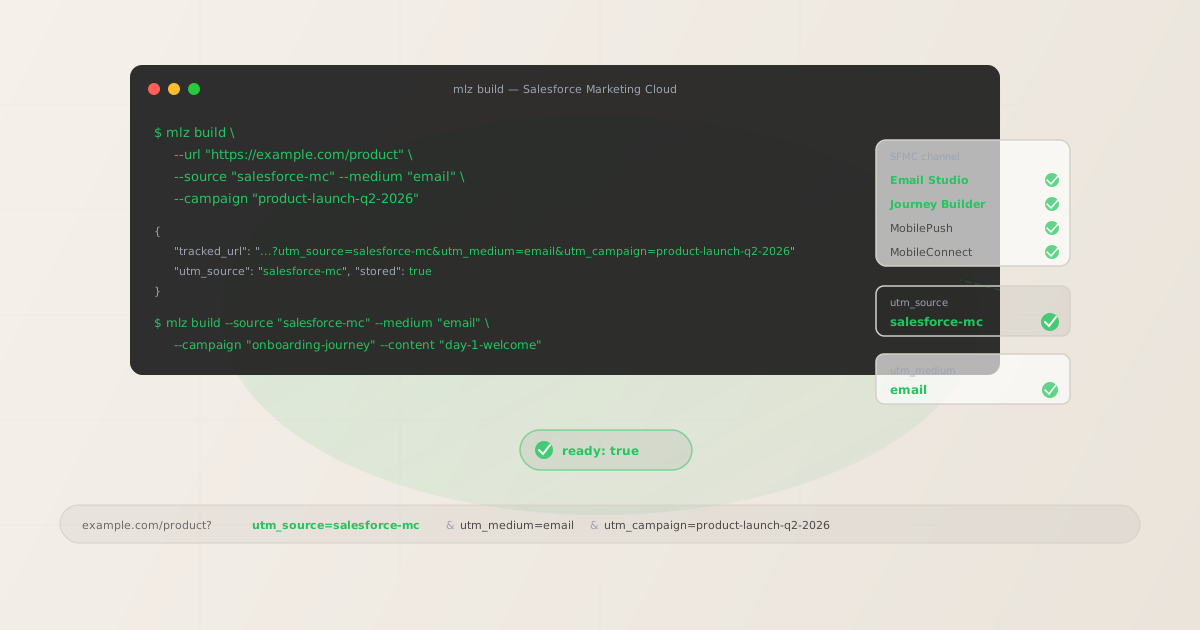
The correct utm_source for Salesforce Marketing Cloud
Use utm_source=salesforce-mc — lowercase, hyphenated — for all sends from Salesforce Marketing Cloud. Avoid sfmc (opaque abbreviation that requires institutional knowledge to decode in filter dropdowns), exacttarget (the legacy brand name ExactTarget was retired when Salesforce acquired the platform), and salesforce alone (too broad — Salesforce has multiple products including Salesforce CRM, which may also appear as a traffic source). The value salesforce-mc is readable in GA4's Traffic Acquisition report without ambiguity and maps unambiguously to the platform.
The utm_medium value depends on the SFMC channel. SFMC is a multi-channel platform: Email Studio and Journey Builder send emails, MobilePush sends push notifications, and MobileConnect sends SMS. Each channel needs a distinct utm_medium so GA4 can separate email, push, and SMS attribution under the same utm_source=salesforce-mc.
| SFMC send type | utm_source | utm_medium | GA4 default channel |
|---|---|---|---|
| Email Studio (batch send) | salesforce-mc |
email |
|
| Journey Builder (triggered email) | salesforce-mc |
email |
|
| MobilePush (push notification) | salesforce-mc |
push |
Custom (not Email default) |
| MobileConnect (SMS) | salesforce-mc |
sms |
Custom (not Email default) |
GA4 automatically maps utm_medium=email to the Email default channel group. Push and SMS sends with utm_medium=push and utm_medium=sms will appear under the Unassigned or Other channel unless you configure custom channel groups in GA4 — which you should do for any SFMC account sending across multiple channels. The key point is that all four channel types share a consistent utm_source=salesforce-mc, so you can always filter by source to see the full SFMC traffic picture before breaking down by medium.
utm_campaign naming for SFMC Email Studio and Journey Builder
SFMC has two primary email entry points with different campaign lifecycle patterns, and each needs a different utm_campaign naming strategy.
Email Studio batch sends are one-time or scheduled sends to a list or segment — promotional emails, product announcements, event invitations, newsletters. These sends have a defined window in time, so their utm_campaign slugs should be date-stamped: product-launch-q2-2026, summer-promo-june-2026, webinar-may-2026, black-friday-2026. Date-stamping makes it easy to compare the same campaign across years in GA4 and distinguish parallel sends in the same period.
Journey Builder sequences are triggered automation journeys — onboarding, win-back, post-purchase, re-engagement. Journeys run continuously with new entrants arriving daily, sometimes for months or years without being rebuilt. Use stable evergreen utm_campaign slugs for Journey Builder: onboarding-journey, win-back-journey, post-purchase-journey, re-engagement-journey. Never date-stamp a Journey Builder slug — you want attribution data to accumulate under a single slug over the entire lifetime of the journey. Use utm_content per email step to distinguish individual emails within the journey.
# Email Studio batch send — date-stamped slug
$ mlz build --url "https://example.com/product" \
  --source "salesforce-mc" --medium "email" \
  --campaign "product-launch-q2-2026" --content "main-cta"

{
  "tracked_url": "https://example.com/product?utm_source=salesforce-mc&utm_medium=email&utm_campaign=product-launch-q2-2026&utm_content=main-cta",
  "params": {
    "utm_source": "salesforce-mc",
    "utm_medium": "email",
    "utm_campaign": "product-launch-q2-2026",
    "utm_content": "main-cta"
  },
  "link_id": "lnk_sf2q9k4m",
  "stored": true
}

# Journey Builder step — stable evergreen slug
$ mlz build --url "https://example.com/onboarding" \
  --source "salesforce-mc" --medium "email" \
  --campaign "onboarding-journey" --content "day-1-welcome"
Copy the tracked_url from the JSON output and paste it directly into the link field in SFMC's Email Studio editor or Journey Builder email activity. SFMC's click-tracking redirect wraps this URL and preserves the full UTM query string when forwarding recipients to the destination.
How to disable SFMC's built-in UTM tracking
SFMC's "Google Analytics Tracking" feature, when enabled, automatically appends UTM parameters derived from the email name and subject to every link in the send. This feature is the source of mixed-case, space-encoded utm_campaign values in GA4. Disable it everywhere before managing parameters manually with mlz build.
- Email Studio: When creating or editing an email, open the Email Properties panel. Look for a "Google Analytics Tracking" checkbox. Uncheck it for every email where you are embedding manually built UTM links. This setting is per-email — it defaults to whatever your account-level default is set to, but overriding it here only affects the current email.
- Journey Builder: Each email activity in a Journey Builder canvas has its own settings panel. Expand the email activity and look for a "Google Analytics Tracking" or UTM tracking toggle in the activity configuration. Disable it for all email activities in the journey where you will paste manually built UTM links. Set this when building the journey, before activating it — it's easy to miss during the rush to launch.
- Account-level default: Your SFMC admin can set the account default for GA tracking in Setup > Tracking settings. Setting this to off disables the checkbox default for all new emails and journeys, reducing the risk that a team member accidentally leaves auto-UTM enabled on a send where you've already built manual links. This is the most efficient change if your entire team manages tracked links through
mlz build.
Note that SFMC's click-tracking redirect (click.exacttarget.com or your admin's custom tracking domain) is completely separate from UTM auto-tagging. The click-tracking redirect records clicks in SFMC's built-in analytics and then forwards recipients to your destination URL with the full UTM query string intact. Do not disable SFMC's click-tracking — only disable the "Google Analytics Tracking" checkbox that appends auto-UTM values.
Building SFMC links with mlz build
Use mlz build to generate normalised tracked URLs for every SFMC send. For an Email Studio batch send:
$ mlz build \
  --url "https://example.com/product" \
  --source "salesforce-mc" \
  --medium "email" \
  --campaign "product-launch-q2-2026" \
  --content "main-cta"

{
  "tracked_url": "https://example.com/product?utm_source=salesforce-mc&utm_medium=email&utm_campaign=product-launch-q2-2026&utm_content=main-cta",
  "params": {
    "utm_source": "salesforce-mc",
    "utm_medium": "email",
    "utm_campaign": "product-launch-q2-2026",
    "utm_content": "main-cta"
  },
  "link_id": "lnk_sf2q9k4m",
  "stored": true
}
For a Journey Builder multi-step onboarding sequence, build links for every email in the journey with a stable campaign slug and a unique utm_content value per step:
# Day 1 — onboarding welcome
$ mlz build \
  --url "https://example.com/onboarding" \
  --source "salesforce-mc" \
  --medium "email" \
  --campaign "onboarding-journey" \
  --content "day-1-welcome"

# Day 7 — feature highlight
$ mlz build \
  --url "https://example.com/features" \
  --source "salesforce-mc" \
  --medium "email" \
  --campaign "onboarding-journey" \
  --content "day-7-features"

{
  "tracked_url": "https://example.com/features?utm_source=salesforce-mc&utm_medium=email&utm_campaign=onboarding-journey&utm_content=day-7-features",
  "params": {
    "utm_source": "salesforce-mc",
    "utm_medium": "email",
    "utm_campaign": "onboarding-journey",
    "utm_content": "day-7-features"
  },
  "link_id": "lnk_sf8j3p7v",
  "stored": true
}

# Day 30 — check-in
$ mlz build \
  --url "https://example.com/success" \
  --source "salesforce-mc" \
  --medium "email" \
  --campaign "onboarding-journey" \
  --content "day-30-check-in"
In GA4's Explore report, set utm_campaign=onboarding-journey as a segment and add utm_content as a secondary dimension to compare which journey step drove the most clicks and conversions — a straightforward optimisation signal that the stable evergreen slug makes possible.
Validating SFMC destination URLs before sending
SFMC Email Studio sends can be scheduled days in advance; Journey Builder sequences can fire months after the journey was built and activated. Destination URLs change in the interim — landing pages get archived, restructured, or redirected as products launch and campaigns end. A broken destination URL in a Journey Builder email will affect every recipient who enters the journey after the page goes offline, with no alert from SFMC.
Use mlz build --validate to confirm destination URLs resolve before scheduling a send or activating a journey:
$ mlz build \
  --url "https://example.com/product" \
  --source "salesforce-mc" \
  --medium "email" \
  --campaign "product-launch-q2-2026" \
  --content "main-cta" \
  --validate

{
  "tracked_url": "https://example.com/product?utm_source=salesforce-mc&utm_medium=email&utm_campaign=product-launch-q2-2026&utm_content=main-cta",
  "validation": {
    "valid": true,
    "checks": [
      { "check": "url_format", "status": "pass", "message": "URL format is valid." },
      { "check": "ssl", "status": "pass", "message": "URL uses HTTPS." },
      { "check": "resolution", "status": "pass", "message": "Destination responded with 200.", "details": { "response_time_ms": 164 } },
      { "check": "redirects", "status": "pass", "message": "No redirects detected." }
    ]
  },
  "link_id": "lnk_sf2q9k4m",
  "stored": true
}
For active Journey Builder journeys, use mlz links list to retrieve all stored tracked URLs for your account, then run periodic mlz check <url> spot-checks on journey destinations quarterly while the journey is active. This is the programmatic equivalent of manually opening every link in your journey — something that becomes impractical once a journey has more than five or six email steps.
SFMC UTM tracking gotchas
- SFMC's click-tracking redirect is not the same as UTM tracking
- SFMC wraps all email links in a click-tracking redirect —
click.exacttarget.comor your admin's custom tracking domain — that logs the click in SFMC's built-in analytics before forwarding the recipient to your destination URL. This redirect is separate from the "Google Analytics Tracking" checkbox that appends auto-UTM values. GA4 sees the final destination URL with your manually built UTM parameters intact — the click-tracking redirect is transparent to UTM tracking. Do not disable SFMC's click-tracking. Only disable the separate "Google Analytics Tracking" checkbox that adds auto-UTM values derived from your email name. - SFMC's auto-UTM uses Email Name as utm_campaign — with spaces and original casing
- When SFMC's GA integration checkbox is active, it reads the email name from Email Properties — whatever text you entered when creating the email — and appends it as
utm_campaign. "Q2 Product Launch - May 2026" becomesutm_campaign=Q2%20Product%20Launch%20-%20May%202026. In GA4, this creates a row entirely separate fromutm_campaign=q2-product-launch-may-2026. You will never merge these rows — GA4 has no deduplication for utm_campaign value variants. Disable the auto-UTM checkbox before your first Email Studio send and manage all parameter values withmlz build. - Journey Builder sends fire on triggers — destination pages can change mid-journey
- A customer entering an onboarding journey today may receive the Day-30 email in a month's time, when the linked page may have been restructured or archived by your web team. Journey Builder has no mechanism to alert you when a destination URL stops resolving. Build all Journey Builder email links with
mlz build --validateat journey creation time, and run periodicmlz check <url>spot-checks on journey destinations after any website restructure or product launch cycle. This is particularly important for win-back and re-engagement journeys, which can remain active for over a year. - MobilePush and MobileConnect need different utm_medium values
- SFMC is a multi-channel platform. If your team sends push notifications from MobilePush alongside Email Studio campaigns, use
utm_medium=pushfor push notification links andutm_medium=smsfor MobileConnect SMS links. All three channels shareutm_source=salesforce-mc, bututm_mediumseparates push attribution from email attribution in GA4's channel breakdown. Without distinct medium values, push clicks will merge into your Email channel group and inflate email performance metrics — a common error on SFMC accounts that expand from email-only to multi-channel sends.
SFMC UTM naming conventions
Recommended UTM parameter values for Salesforce Marketing Cloud, aligned with GA4 default channel groupings:
- utm_source:
salesforce-mc— lowercase hyphenated, for all SFMC sends across all channels (Email Studio, Journey Builder, MobilePush, MobileConnect). - utm_medium:
emailfor Email Studio and Journey Builder email sends;pushfor MobilePush notifications;smsfor MobileConnect SMS. - utm_campaign: For Email Studio batch sends (date-stamped):
product-launch-q2-2026,webinar-may-2026,black-friday-2026,summer-promo-june-2026. For Journey Builder sequences (stable evergreen):onboarding-journey,win-back-journey,post-purchase-journey,re-engagement-journey. Never date-stamp a Journey Builder slug. - utm_content: For Email Studio batch sends:
main-cta,header-image,secondary-link. For Journey Builder steps:day-1-welcome,day-7-features,day-30-check-in. Build one tracked URL per distinct link per email. - utm_term: Use for audience segment targeting where the segment is meaningful for attribution analysis:
enterprise,smb,trial-users,60d-inactive.
See the UTM naming conventions guide for the full cross-platform reference and the UTM tracking for developers guide for programmatic generation and validation at scale.
FAQ
- Should I use salesforce-mc, sfmc, or exacttarget as utm_source?
- Use
utm_source=salesforce-mc. It is readable in GA4 filter dropdowns without requiring institutional knowledge of abbreviations, unambiguous (unlikesalesforcealone, which could refer to Salesforce CRM), and consistent with the platform's current branding. Avoidsfmc(an opaque abbreviation),exacttarget(the legacy brand name from before Salesforce's acquisition), andsalesforcealone. If your account has historic data under a different value such asSFMCorexacttarget, create a custom channel group in GA4 to consolidate old variants while transitioning all future sends tosalesforce-mc. - Does SFMC's click-tracking redirect strip UTM parameters?
- No. SFMC's click-tracking redirect —
click.exacttarget.comor your admin's custom tracking domain — records the click in SFMC's built-in analytics and then forwards the recipient to the full destination URL, including your UTM query string. GA4 receives the UTM parameters from the final destination URL after the redirect. The redirect is transparent to UTM tracking. The only UTM issue arises when SFMC's "Google Analytics Tracking" checkbox is active — that feature appends separate auto-UTM values before the redirect, potentially duplicating or overwriting your manually built parameters. Disable the checkbox; keep the click-tracking redirect active. - How do I name utm_campaign for Journey Builder multi-step journeys?
- Use a stable evergreen slug describing the journey's purpose:
onboarding-journey,win-back-journey,post-purchase-journey,re-engagement-journey. Never date-stamp a Journey Builder slug — journeys run continuously with new entrants arriving daily, and attribution data should accumulate under a single stable slug over the lifetime of the journey. Useutm_contentper email step —day-1-welcome,day-7-features,day-30-check-in— to distinguish individual emails within the journey in GA4 reports. Theutm_campaignstays constant across all steps; onlyutm_contentvaries. - How do I validate all destination URLs in a Journey Builder journey before activation?
- Build all Journey Builder email links with
mlz build --validatebefore activating the journey. The--validateflag runs url_format, ssl, resolution, and redirect checks on the destination URL at build time, catching broken pages before the journey fires. Usemlz links listto retrieve all stored tracked URLs for your account. While the journey is active, runmlz check <url>spot-checks on journey destinations at least quarterly — journey emails can fire months after the journey was built, and destination pages change. This is especially important for win-back and re-engagement journeys that remain active over long periods.
Recommended posts
Build Salesforce Marketing Cloud links from the terminal
Pass --source "salesforce-mc" --medium "email" to mlz build and get a normalised, validated URL ready to paste into SFMC's Email Studio or Journey Builder — all lowercase hyphenated, no mixed-case from SFMC's auto-UTM, stable evergreen slugs for Journey Builder sequences and date-stamped slugs for Email Studio batch sends. Add --validate to confirm every destination resolves before scheduling.
1,000 links/month free. No credit card.
Your API key
Save this now — it won't be shown again.
npm install -g missinglinkz
Free plan: 1,000 links/month. No credit card. See the UTM tracking for developers guide for the full programmatic workflow.