UTM Tracking for Marketo: How to Build and Validate Email and Automation Campaign Links
UTM tracking for Marketo (Adobe Marketo Engage) sits at the intersection of two attribution systems that most teams run simultaneously without realising it. Marketo appends a mktTok token to every link in every email send for its own lead identification. Separately, Marketo's Admin-level Google Analytics integration — when enabled — appends UTM parameters to all links based on the Program name and Email name that you typed in the Marketo interface. The problem: Program names like "Q2 Product Launch 2026" generate utm_campaign=Q2%20Product%20Launch%202026 in GA4. If your team has also manually built links with utm_campaign=product-launch-q2-2026, those are two separate GA4 rows for the same campaign. Engagement Programs compound this: nurture stream emails written months ago fire against landing pages that have since been archived, restructured, or redirected — with no alert from Marketo. The fix is to disable Marketo's auto-UTM toggle and manage all UTM parameters via mlz build for consistent lowercase-hyphenated slugs across every Marketo send, with destination validation built in before activation.
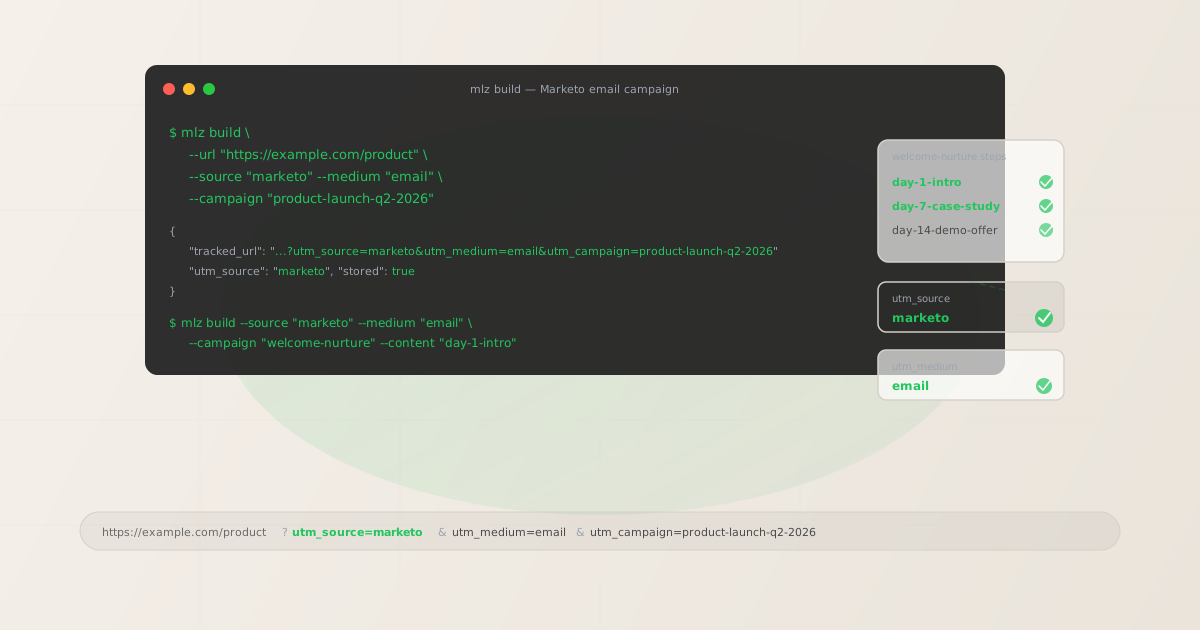
The correct utm_source for Marketo
Use utm_source=marketo — all lowercase, single word, no hyphen or underscore — for all email sends from Marketo. The utm_medium value is email for all Marketo email sends regardless of send type: Email Send Smart Campaigns, Email Programs (including A/B test programs), Engagement Programs (nurture streams), and Operational Emails (transactional sends) all use utm_medium=email.
| Marketo send type | utm_source | utm_medium | GA4 default channel |
|---|---|---|---|
| Email Send Smart Campaign (batch or trigger) | marketo |
email |
|
| Email Program (one-time or A/B test) | marketo |
email |
|
| Engagement Program (nurture stream) | marketo |
email |
|
| Operational Email (transactional) | marketo |
email |
GA4 automatically maps utm_medium=email to the Email default channel group. Using utm_source=marketo consistently across all send types means you can filter by source in GA4's Traffic Acquisition report to see all Marketo-attributed traffic in a single row — Smart Campaigns, Email Programs, Engagement Programs, and Operational Emails combined — then break down by utm_campaign to compare individual sends.
utm_campaign naming for Marketo Programs and Smart Campaigns
Marketo organises work into Programs (containers) and Smart Campaigns (execution logic inside programs). For UTM attribution purposes, the distinction that matters is between date-stamped batch sends and evergreen engagement program streams.
For date-stamped batch sends — one-time email blasts, quarterly announcements, event promotions — use date-stamped slugs: product-launch-q2-2026, webinar-may-2026, black-friday-2026. For Engagement Program streams (nurture sequences that run continuously) use stable evergreen slugs: welcome-nurture, trial-nurture, re-engagement, post-demo-nurture. Never date-stamp nurture slugs — they run continuously and accumulate attribution data under a single slug over months and years.
Use utm_content to distinguish individual emails within an Engagement Program stream: day-1-intro, day-7-case-study, day-14-demo-offer. Keep utm_campaign stable across all steps in the stream.
# Batch email send — date-stamped slug
$ mlz build \
  --url "https://example.com/product" \
  --source "marketo" --medium "email" \
  --campaign "product-launch-q2-2026" --content "main-cta"

# Engagement Program step — stable evergreen slug
$ mlz build \
  --url "https://example.com/getting-started" \
  --source "marketo" --medium "email" \
  --campaign "welcome-nurture" --content "day-1-intro"
In GA4, all steps of the welcome-nurture Engagement Program accumulate under the same utm_campaign row. Add utm_content as a secondary dimension in GA4 Explore to see which nurture step drove the most clicks and conversions — a signal that Marketo's own analytics does not surface in the same way as a GA4 Explore report.
How to disable Marketo's built-in UTM tracking
Marketo has a Google Analytics integration at Admin › Integration › Google Analytics. When this toggle is enabled, Marketo appends UTM parameters to all links in your email sends, deriving utm_campaign from the Program name and Email name you typed in the Marketo interface. Program names with spaces and mixed case — "Q2 Product Launch 2026" — generate utm_campaign=Q2%20Product%20Launch%202026 in GA4, which is a distinct row from any manually built utm_campaign=product-launch-q2-2026 slug.
To resolve the conflict, disable Marketo's auto-UTM integration and manage all parameters via mlz build:
- Admin-level toggle: Navigate to Admin › Integration › Google Analytics in your Marketo instance. Disable the integration toggle. This prevents Marketo from auto-appending UTM parameters to any email links across all Programs and Smart Campaigns. This is the recommended approach for teams managing all tracked links through
mlz build. - Email editor link settings: At the individual email level, Marketo's email editor includes link-level tracking settings where you can set custom UTM values per link or override the admin-level defaults. For Engagement Programs, each email in the stream has its own link settings that can be overridden individually.
An important distinction: mktTok is Marketo's own lead identification token — it identifies leads within Marketo's attribution model and is completely separate from UTM parameters. GA4 ignores mktTok (it is not a GA4 parameter and does not appear in GA4 parameter reports). Disabling Marketo's UTM auto-tagging toggle does not affect mktTok. Leave mktTok active — it does not interfere with your UTM attribution.
Building Marketo links with mlz build
mlz build generates a normalised tracked URL with lowercase hyphen-separated values and stores the link for auditing. For a Marketo batch send:
$ mlz build \
  --url "https://example.com/product" \
  --source "marketo" \
  --medium "email" \
  --campaign "product-launch-q2-2026" \
  --content "main-cta"

{
  "tracked_url": "https://example.com/product?utm_source=marketo&utm_medium=email&utm_campaign=product-launch-q2-2026&utm_content=main-cta",
  "params": {
    "utm_source": "marketo",
    "utm_medium": "email",
    "utm_campaign": "product-launch-q2-2026",
    "utm_content": "main-cta"
  },
  "link_id": "lnk_mk4r7w2n",
  "stored": true
}
Copy the tracked_url and paste it into Marketo's email editor as your link destination. Marketo wraps all links in its own click-tracking redirect to record click counts — this redirect preserves your full destination URL, including the UTM query string, when forwarding recipients to the destination.
For an Engagement Program welcome nurture, build one tracked URL per step using the same utm_campaign slug with a distinct utm_content value per step:
# Day 1
$ mlz build --url "https://example.com/getting-started" \
  --source "marketo" --medium "email" \
  --campaign "welcome-nurture" --content "day-1-intro"
{ "tracked_url": "...?utm_source=marketo&utm_medium=email&utm_campaign=welcome-nurture&utm_content=day-1-intro", "stored": true }

# Day 7
$ mlz build --url "https://example.com/case-study" \
  --source "marketo" --medium "email" \
  --campaign "welcome-nurture" --content "day-7-case-study"
{ "tracked_url": "...?utm_source=marketo&utm_medium=email&utm_campaign=welcome-nurture&utm_content=day-7-case-study", "stored": true }

# Day 14
$ mlz build --url "https://example.com/demo" \
  --source "marketo" --medium "email" \
  --campaign "welcome-nurture" --content "day-14-demo-offer"
{ "tracked_url": "...?utm_source=marketo&utm_medium=email&utm_campaign=welcome-nurture&utm_content=day-14-demo-offer", "stored": true }
Validating Marketo destination URLs before sending
Marketo Engagement Program emails can be written and activated months before they fire. A nurture email built in Q1 can still be sending in Q3, against a landing page that has since been archived, redirected to a new URL, or restructured. Marketo does not alert you when a destination URL returns an error. Use mlz build --validate to confirm destinations resolve cleanly before activating any Program or Smart Campaign:
$ mlz build \
  --url "https://example.com/product" \
  --source "marketo" \
  --medium "email" \
  --campaign "product-launch-q2-2026" \
  --content "main-cta" \
  --validate

{
  "tracked_url": "https://example.com/product?utm_source=marketo&utm_medium=email&utm_campaign=product-launch-q2-2026&utm_content=main-cta",
  "validation": {
    "valid": true,
    "checks": [
      { "check": "url_format", "status": "pass", "message": "URL format is valid." },
      { "check": "ssl", "status": "pass", "message": "URL uses HTTPS." },
      { "check": "resolution", "status": "pass", "message": "Destination responded with 200.", "details": { "response_time_ms": 176 } },
      { "check": "redirects", "status": "pass", "message": "No redirects detected." }
    ]
  },
  "link_id": "lnk_mk4r7w2n",
  "stored": true
}
For Engagement Programs already in-flight, use mlz links list to retrieve all stored tracked URLs for your account and run periodic spot-checks on active nurture stream destinations after any website changes or platform migrations. Engagement Program emails that have been running for months deserve the same validation check as new sends.
Marketo UTM tracking gotchas
- Marketo's GA integration appends utm_campaign from the Email/Program name
- When Marketo's Admin-level Google Analytics integration is enabled, it derives
utm_campaignfrom the name you assigned to the Program or Email in the Marketo interface. Names with spaces, uppercase, or special characters are URL-encoded — "Q2 Product Launch 2026" becomesutm_campaign=Q2%20Product%20Launch%202026. GA4 treats URL-encoded values and manually slugified values as distinct rows:Q2%20Product%20Launch%202026andproduct-launch-q2-2026will never merge in your attribution reports. Disable at Admin › Integration › Google Analytics and usemlz buildto control the exact slug format. - mktTok is Marketo's own identifier and is different from UTM parameters
mktTokidentifies leads for Marketo's own attribution model. GA4 ignoresmktTok— it is not a GA4 parameter and does not appear in GA4's parameter reports. Your UTM parameters pass through Marketo's click-tracking redirect intact. When you disable Marketo's UTM auto-tagging feature,mktTokcontinues to function normally. Only disable the UTM-specific auto-tagging toggle — not Marketo's click tracking or lead identification tokens.- Engagement Program emails fire on schedule — destination pages can change while emails are in-flight
- An Engagement Program email written in Q1 can still be firing in Q3 against a landing page that has since been archived, redirected to a new URL, or removed entirely. Marketo does not alert you when a destination returns a 404 or a redirect chain. Build all Engagement Program links with
mlz build --validateat activation time, and runmlz checkperiodically on active nurture stream destinations to confirm they still resolve — especially after website restructures, product page updates, or CMS migrations. - Multiple programs promoting the same product need consistent utm_campaign slugs
- When two Marketo Programs both promote the same product launch — for example, an Engagement Program nurture stream and a one-time Email Program announcement — use the same
utm_campaignslug across both programs so GA4 attributes all traffic under a single campaign row. Only useutm_contentto differentiate which program or individual email sent the click. If the two programs use different campaign slugs, GA4 splits what should be a single campaign into separate rows, underreporting the total impact of the launch.
Marketo UTM naming conventions
Recommended UTM parameter values for Marketo across all send types, aligned with GA4 default channel groupings:
- utm_source:
marketo— all lowercase, single word, no hyphen or underscore, for all sends from Marketo (Smart Campaigns, Email Programs, Engagement Programs, Operational Emails). - utm_medium:
emailfor all Marketo email sends. - utm_campaign: lowercase hyphen-separated slug — for batch sends:
product-launch-q2-2026,webinar-may-2026,black-friday-2026; for Engagement Program nurture streams:welcome-nurture,trial-nurture,re-engagement,post-demo-nurture. Never date-stamp nurture slugs. - utm_content: link or step identifier — for batch sends:
main-cta,header-image,secondary-link; for Engagement Program steps:day-1-intro,day-7-case-study,day-14-demo-offer. - utm_term: use sparingly for audience segment targeting where segment is meaningful for attribution:
enterprise,smb,trial-users.
See the UTM naming conventions guide for the full cross-platform reference and the UTM tracking for developers guide for programmatic generation and validation at scale.
FAQ
- Should I use marketo, adobe-marketo, or marketo-engage as utm_source?
- Use
utm_source=marketo— single lowercase word. The product is Marketo (now branded Adobe Marketo Engage but still called Marketo in practice by most teams and in most documentation). Usingadobe-marketoormarketo-engagecreates separate GA4 rows from any historic data accumulated undermarketo. All lowercase, no hyphen or underscore. If your team has historic data underMarketo(capitalised) or other variants, create a custom channel group in GA4 that maps all known Marketo variants to a single Email channel while you transition all future sends to the consistent lowercase value. - Does mktTok conflict with UTM parameters?
- No.
mktTokis Marketo's own lead identification token and GA4 ignores it entirely. It does not appear in GA4's parameter reports and has no effect on your UTM attribution. Your UTM parameters pass through Marketo's click-tracking redirect intact. Disable only Marketo's UTM auto-tagging feature — not Marketo's click tracking,mktTok, or any other Marketo tracking mechanism. The two systems operate independently without conflict. - How do I name utm_campaign for Engagement Program streams?
- Use a stable evergreen slug describing the stream's purpose:
welcome-nurture,trial-nurture,re-engagement,post-demo-nurture. Never date-stamp nurture slugs — Engagement Programs run continuously and accumulate attribution data under a stable slug over months and years. Useutm_contentto identify individual steps within the stream:day-1-intro,day-7-case-study,day-14-demo-offer. In GA4 Explore, theutm_campaign=welcome-nurturerow shows total attribution from the entire stream; addutm_contentas a secondary dimension to see which step drove the most clicks. - How do I handle multiple links in one Marketo email?
- Build a separate tracked URL per link using
mlz buildwith the sameutm_campaignslug and a distinct--contentvalue per link:utm_content=main-cta,utm_content=header-image,utm_content=secondary-link. In GA4 Explore, addutm_contentas a secondary dimension to see which specific link in the email drove clicks. This is a frequently overlooked optimisation signal — knowing whether your header image or your CTA button drives more clicks informs email layout decisions across future sends.
Recommended posts
Build Marketo links from the terminal
Pass --source "marketo" --medium "email" to mlz build and get a normalised, validated URL ready to paste into Marketo's email editor — all lowercase hyphenated, no mixed-case from Marketo's auto-UTM, stable evergreen slugs for Engagement Program nurture streams and date-stamped slugs for batch sends. Add --validate to confirm every destination resolves before activation.
1,000 links/month free. No credit card.
Your API key
Save this now — it won't be shown again.
npm install -g missinglinkz
Free plan: 1,000 links/month. No credit card. See the UTM tracking for developers guide for the full programmatic workflow.