UTM Tracking for MailerLite Campaigns: How to Build and Validate Email Campaign Links
UTM tracking for MailerLite is straightforward in principle but has one critical gotcha: MailerLite's built-in Google Analytics integration appends utm_source=MailerLite with a capital M and capital L. Because GA4 is case-sensitive, this creates a separate attribution row from utm_source=mailerlite (lowercase) — meaning teams that switch from MailerLite's auto-UTM to manually applied parameters end up with fragmented GA4 reports, and teams that mix both approaches end up with duplicate parameters in their URLs. This article covers the correct UTM parameter values for MailerLite campaigns and automations, how to build consistent tracked links with mlz build, how to disable MailerLite's auto-UTM to avoid the casing conflict, and how to validate destination URLs before every send.
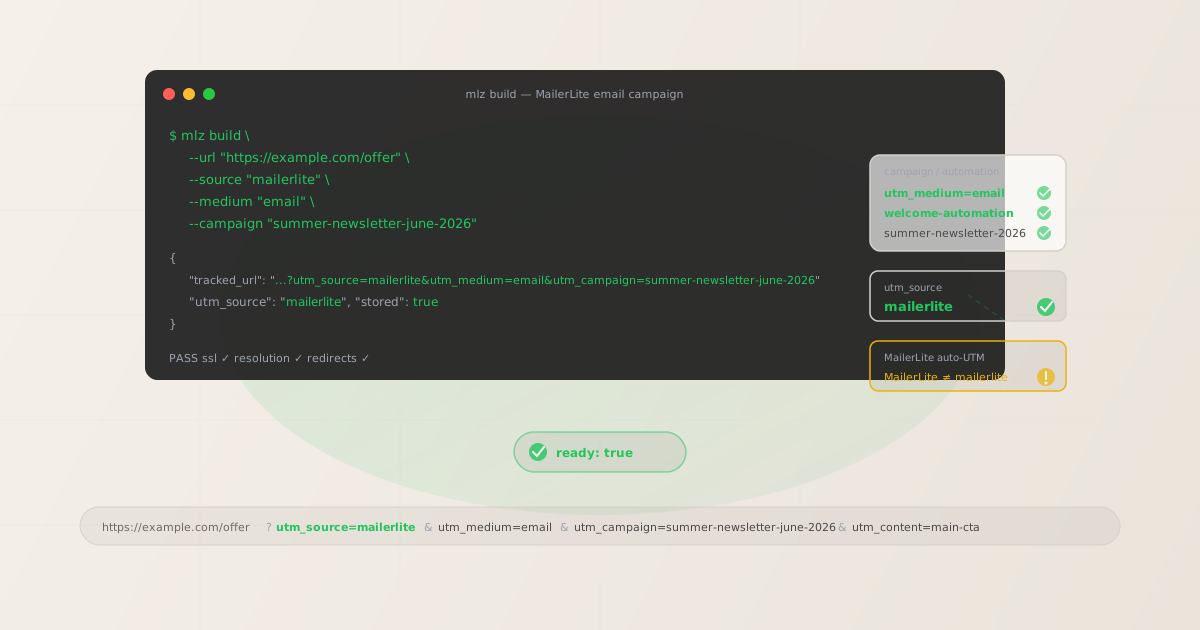
The correct utm_source and utm_medium for MailerLite
For all MailerLite sends, use utm_source=mailerlite — all lowercase, no hyphens. The utm_medium value is email for all email campaigns and automation emails. MailerLite's product covers regular campaigns (one-time newsletters), automation workflows, RSS campaigns, and A/B split campaigns — all of which use email as the channel:
| MailerLite send type | utm_source | utm_medium | GA4 default channel |
|---|---|---|---|
| Regular campaign (newsletter) | mailerlite |
email |
|
| Automation email (workflow step) | mailerlite |
email |
|
| RSS campaign (auto-generated from feed) | mailerlite |
email |
|
| A/B split test campaign | mailerlite |
email |
The lowercase value mailerlite is intentional. MailerLite's own auto-UTM feature generates utm_source=MailerLite (capital M, capital L). In GA4, MailerLite and mailerlite are two distinct values — they appear as separate rows in the Traffic Acquisition report. If you manually apply lowercase parameters while also having MailerLite's auto-UTM enabled, or if you switch from auto-UTM to manual tracking partway through a campaign, your GA4 reports will show split attribution across both rows. Disable MailerLite's auto-UTM and use mlz build with --source "mailerlite" to ensure consistent lowercase values in every tracked URL.
utm_campaign naming for MailerLite campaigns and automations
MailerLite's two main send types — regular campaigns and automation emails — need different utm_campaign naming strategies. Regular campaigns are one-time sends and benefit from date-stamped slugs so they remain distinguishable in GA4 reports over time. Automation emails run continuously and need stable, evergreen slugs that accurately describe the workflow purpose without a date.
# Regular campaign (one-time newsletter) — date in slug
$ mlz build --url "https://example.com/summer-sale" \
  --source "mailerlite" --medium "email" \
  --campaign "summer-sale-june-2026" --content "main-cta"

# Automation email (welcome sequence) — stable evergreen slug
$ mlz build --url "https://example.com/getting-started" \
  --source "mailerlite" --medium "email" \
  --campaign "welcome-automation" --content "day-1-cta"

# A/B test campaign — include test variant in utm_content
$ mlz build --url "https://example.com/offer" \
  --source "mailerlite" --medium "email" \
  --campaign "summer-sale-june-2026" --content "subject-a-cta"
For MailerLite A/B split test campaigns, both variants share the same utm_campaign slug. Use utm_content to distinguish them — for example, utm_content=subject-a-cta and utm_content=subject-b-cta for subject line A/B tests, or utm_content=design-a-cta and utm_content=design-b-cta for layout tests. This lets you compare variant performance directly in GA4's Explore reports by filtering on utm_content, while both variants contribute to the same utm_campaign row for total campaign attribution.
For RSS campaigns — MailerLite's feature that automatically sends emails when new posts are published to a feed — use a stable slug that reflects the RSS source: utm_campaign=blog-rss-digest or utm_campaign=weekly-roundup-rss. Since RSS campaigns repeat automatically, a date in the slug is impractical. Use utm_content with a post identifier or send date if you need to distinguish individual RSS sends in GA4.
Building MailerLite campaign links with mlz build
mlz build generates a normalised tracked URL with lowercase hyphen-separated values and stores the link for auditing. For a MailerLite regular campaign:
# Primary CTA in a MailerLite regular campaign
$ mlz build \
  --url "https://example.com/summer-sale" \
  --source "mailerlite" \
  --medium "email" \
  --campaign "summer-sale-june-2026" \
  --content "main-cta"

{
  "tracked_url": "https://example.com/summer-sale?utm_source=mailerlite&utm_medium=email&utm_campaign=summer-sale-june-2026&utm_content=main-cta",
  "params": {
    "utm_source": "mailerlite",
    "utm_medium": "email",
    "utm_campaign": "summer-sale-june-2026",
    "utm_content": "main-cta"
  },
  "link_id": "lnk_ml4s7n2p",
  "stored": true
}
Copy the tracked_url and paste it into MailerLite's email editor as your link destination. With MailerLite's auto-UTM disabled (covered in the next section), MailerLite's click-tracking redirect passes this URL to the destination with all UTM parameters intact.
For automation emails, build each step's links with a stable campaign slug and a unique utm_content value per step:
# Day 3 email in the welcome automation sequence
$ mlz build \
  --url "https://example.com/features" \
  --source "mailerlite" \
  --medium "email" \
  --campaign "welcome-automation" \
  --content "day-3-features-cta"

{
  "tracked_url": "https://example.com/features?utm_source=mailerlite&utm_medium=email&utm_campaign=welcome-automation&utm_content=day-3-features-cta",
  "params": {
    "utm_source": "mailerlite",
    "utm_medium": "email",
    "utm_campaign": "welcome-automation",
    "utm_content": "day-3-features-cta"
  },
  "link_id": "lnk_ml7w3k9s",
  "stored": true
}
How to disable MailerLite's auto-UTM (and why you must)
MailerLite includes a Google Analytics tracking integration that, when enabled, automatically appends UTM parameters to every link in your campaign. The generated values use mixed case: utm_source=MailerLite, with a capital M and capital L. In GA4, MailerLite and mailerlite are two separate values — they appear as distinct rows in Traffic Acquisition reports.
If you apply manually built UTM parameters (using mlz build) and also have MailerLite's auto-UTM enabled, MailerLite appends its own parameters after yours. When the same UTM key appears twice in a URL's query string (e.g. ?utm_source=mailerlite&utm_source=MailerLite), GA4 records only one value. The resulting attribution is unpredictable and depends on which parameter set MailerLite appends last. The only reliable fix is to disable MailerLite's auto-UTM entirely and use manually built parameters for all tracked links.
To disable MailerLite's Google Analytics UTM tracking:
- For regular campaigns: When creating or editing a campaign in MailerLite, look for the Settings or Tracking step in the campaign wizard. Find the "Google Analytics" or "Enable tracking" toggle and turn it off. The exact label varies by MailerLite's current interface version.
- For automation emails: Inside the automation builder, individual email action blocks may have their own tracking settings. Check each email block's settings and disable the Google Analytics integration if present.
- Account-level setting: Some MailerLite plans allow you to configure a default tracking behaviour at the account level. If your MailerLite account has a global Google Analytics setting, disable it there so it applies to all new campaigns by default.
Once disabled, MailerLite's click-tracking redirect forwards subscribers to your destination URL with the full query string intact — including your manually applied UTM parameters — without appending any MailerLite-generated values.
Validating MailerLite destination URLs before sending
Use mlz build --validate to confirm destination URLs respond correctly before sending a MailerLite campaign or activating an automation:
$ mlz build \
  --url "https://example.com/summer-sale" \
  --source "mailerlite" \
  --medium "email" \
  --campaign "summer-sale-june-2026" \
  --content "main-cta" \
  --validate

{
  "tracked_url": "https://example.com/summer-sale?utm_source=mailerlite&utm_medium=email&utm_campaign=summer-sale-june-2026&utm_content=main-cta",
  "validation": {
    "valid": true,
    "checks": [
      { "check": "url_format", "status": "pass", "message": "URL format is valid." },
      { "check": "ssl", "status": "pass", "message": "URL uses HTTPS." },
      { "check": "resolution", "status": "pass", "message": "Destination responded with 200.", "details": { "response_time_ms": 198 } },
      { "check": "redirects", "status": "pass", "message": "No redirects detected." }
    ]
  },
  "link_id": "lnk_ml4s7n2p",
  "stored": true
}
For MailerLite automations, validate destination URLs when you first build the automation, and then on a regular schedule — monthly or quarterly — while the automation is active. Active automations continue enrolling new contacts as long as they're running. A destination URL that returns a 404 or redirects to a generic page will continue being clicked by every new subscriber who enters the automation. Use mlz links list to retrieve all stored tracked URLs for your account and re-validate them in bulk.
For MailerLite A/B test campaigns, validate both variant URLs before sending. A/B tests are typically sent to a subset of your list first and then the winning variant sent to the remainder — a broken destination URL in either variant affects the test results, and catching it before the initial send avoids wasting the test on a broken experience.
MailerLite UTM tracking gotchas
- MailerLite's auto-UTM generates mixed-case utm_source
- MailerLite's built-in Google Analytics integration appends
utm_source=MailerLitewith capital M and L. In GA4, this is a different value thanutm_source=mailerlite— they create separate rows in every GA4 report. If you've been using MailerLite's auto-UTM and switch to manually built parameters, your historical data will show split attribution. To prevent future fragmentation, disable MailerLite's auto-UTM and consistently usemlz build --source "mailerlite"for all new campaigns. For historical data, you can create a custom channel group in GA4 that maps bothMailerLiteandmailerliteto the same Email channel, but it's cleaner to prevent the split from the start. - RSS campaigns need stable utm_campaign slugs
- MailerLite's RSS campaign feature automatically sends an email when new items appear in your RSS feed. If you use the campaign name from MailerLite as the basis for
utm_campaign— or if you rely on MailerLite's auto-UTM for RSS campaigns — each auto-generated send may get a different campaign slug, fragmenting attribution across dozens of rows in GA4. Use a stable evergreen slug for all RSS campaign links:utm_campaign=blog-rss-digestapplied consistently to every link in your RSS email template. Since the email template is reused for each RSS send, the UTM parameters embedded in the template apply to all sends. - A/B test campaigns: use utm_content not utm_campaign for variant tracking
- When running MailerLite A/B split tests, both variants are part of the same campaign — they should share the same
utm_campaignvalue. Using differentutm_campaignslugs for variant A and variant B makes it impossible to see the combined campaign performance in GA4, and obscures the comparison. Instead, use the sameutm_campaignslug for both variants and distinguish them withutm_content:utm_content=subject-a-ctaandutm_content=subject-b-cta. In GA4's Explore report, create a custom dimension breakdown byutm_contentto compare variant performance directly. - MailerLite's click tracking and UTM parameter preservation
- MailerLite wraps all links in your emails with its own click-tracking redirect (using MailerLite's tracking domain). This redirect records the click for MailerLite's campaign analytics and then forwards the subscriber to your destination URL. MailerLite's redirect preserves the full query string, including your UTM parameters, when forwarding to the destination. The parameters arrive at the destination exactly as you set them in the tracked URL — as long as MailerLite's auto-UTM is disabled. If auto-UTM is enabled, MailerLite appends its own parameters to the URL during the redirect, potentially duplicating or overriding your custom parameters.
- utm_content for multiple CTAs in the same email
- Most MailerLite campaign templates include multiple CTAs — a primary button, a secondary link in the body text, and a PS link. If all three point to the same destination URL with the same UTM parameters, GA4 cannot distinguish which element drove the click. Use unique
utm_contentvalues for each CTA in the same email:utm_content=hero-cta,utm_content=body-link,utm_content=ps-cta. This reveals which email design elements drive conversions without any change to the destination page.
MailerLite UTM naming conventions
Recommended UTM parameter values for MailerLite across all send types, aligned with GA4 default channel groupings:
- utm_source:
mailerlite— all lowercase, no hyphens, for all sends from MailerLite (regular campaigns, automation emails, RSS campaigns, A/B tests). - utm_medium:
emailfor all MailerLite email sends. - utm_campaign: lowercase hyphen-separated slug — for regular campaigns:
summer-sale-june-2026,product-launch-may-2026; for automations:welcome-automation,onboarding-series,re-engagement-automation; for RSS campaigns:blog-rss-digest,weekly-roundup-rss. - utm_content: CTA or variant identifier — for regular campaigns:
main-cta,secondary-cta,ps-link; for automation steps:day-1-cta,day-3-upgrade-cta,day-7-offer-cta; for A/B variants:subject-a-cta,subject-b-cta. - utm_term: Use sparingly — for segment-targeted campaigns where the segment identity is meaningful for attribution:
pro-subscribers,trial-users,inactive-30d.
If your team uses MailerLite alongside a transactional email provider (for order confirmations, password resets), keep the naming convention consistent: platform name as utm_source, channel type as utm_medium. See the UTM naming conventions guide for the full cross-channel reference and the UTM tracking best practices guide for governance across multiple email platforms.
FAQ
- What utm_source should I use for MailerLite?
- Use
utm_source=mailerlite— all lowercase — for all sends from MailerLite. MailerLite's own auto-UTM feature generatesutm_source=MailerLitewith capital letters, which creates a separate GA4 attribution row frommailerlite. Always use lowercase and disable MailerLite's auto-UTM to avoid fragmented reports. Applyingutm_source=mailerliteconsistently across all campaigns, automations, and RSS sends lets you filter GA4's Traffic Acquisition report byutm_source = mailerliteto see your total MailerLite email channel performance. - How do I stop MailerLite from overwriting my UTM parameters?
- MailerLite's built-in Google Analytics integration appends UTM parameters to your links automatically when enabled. If you've already added custom UTM parameters using
mlz build, MailerLite's auto-UTM appends a second set of parameters to the URL — including its own mixed-caseutm_source=MailerLitevalue. To prevent this, disable MailerLite's Google Analytics tracking in the campaign settings (look for a "Tracking" or "Google Analytics" section when creating or editing a campaign) and in the settings of individual automation email blocks. Once disabled, MailerLite passes your full custom URL to the destination without modification. - How do I track MailerLite automation emails separately from regular campaigns in GA4?
- Use distinct
utm_campaignslugs. Regular campaigns are one-time sends — use time-stamped slugs:summer-sale-june-2026,product-update-may-2026. Automation emails run continuously — use stable evergreen slugs that describe the workflow:welcome-automation,onboarding-series,re-engagement-automation. In GA4's Traffic Acquisition report, regular campaigns appear as separate time-specific rows while automation slugs accumulate attribution over time as new contacts move through the workflow. Useutm_contentto further distinguish individual emails within an automation step:day-1-cta,day-3-upgrade-cta. - Should I use utm_source=mailerlite or utm_source=MailerLite?
- Use lowercase
utm_source=mailerlite. GA4 is case-sensitive —MailerLiteandmailerlitecreate separate attribution rows in every report. If your historical data already includesMailerLite(from MailerLite's auto-UTM), switching to lowercase will create a data continuity break in GA4. To minimise fragmentation going forward, disable MailerLite's auto-UTM, adopt lowercase parameters consistently withmlz build, and optionally create a custom channel group in GA4 Admin that maps both values to the Email channel for historical reporting purposes. - Does MailerLite's click tracking preserve my UTM parameters?
- Yes — MailerLite wraps your links in its click-tracking redirect, which records the click for MailerLite's own analytics before forwarding the subscriber to your destination. MailerLite's redirect passes the full URL, including your UTM query string, to the destination unchanged. The only exception is when MailerLite's Google Analytics integration is enabled: MailerLite may append its own UTM parameters during the redirect, potentially adding duplicate keys or overriding your values. Disable the integration, use
mlz build --validateto confirm your destination resolves correctly, and your parameters will arrive at the landing page exactly as built.
Recommended posts
Build MailerLite campaign links from the terminal
Pass --source "mailerlite" --medium "email" to mlz build and get a normalised, validated URL ready to paste into MailerLite's email editor — all lowercase, no mixed-case from MailerLite's auto-UTM, stable slugs for automations and date-stamped slugs for newsletters. Add --validate to confirm the destination resolves cleanly before every campaign send.
1,000 links/month free. No credit card.
Your API key
Save this now — it won't be shown again.
npm install -g missinglinkz
Free plan: 1,000 links/month. No credit card. See the UTM tracking for developers guide for the full programmatic workflow.