UTM Tracking for GetResponse Campaigns: How to Build and Validate Email and Automation Links
UTM tracking for GetResponse is more complex than for single-channel email tools because GetResponse covers newsletters, autoresponders (legacy timed sequences), marketing automation workflows, and webinar funnels — all under one platform. Each send type needs a different UTM utm_campaign naming approach: newsletters are one-time sends that benefit from date-stamped slugs; autoresponders and automation workflows run continuously and need stable, evergreen slugs. Add to this that GetResponse includes a built-in UTM tracking feature that can append its own parameters to links — colliding with manually applied UTM parameters — and the interactions between GetResponse's tracking infrastructure and GA4 have more edge cases than most email platforms. This article covers the correct UTM conventions for GetResponse across all send types, how to build consistent links with mlz build, how to manage GetResponse's auto-UTM feature, and how to validate destination URLs before every campaign goes out.
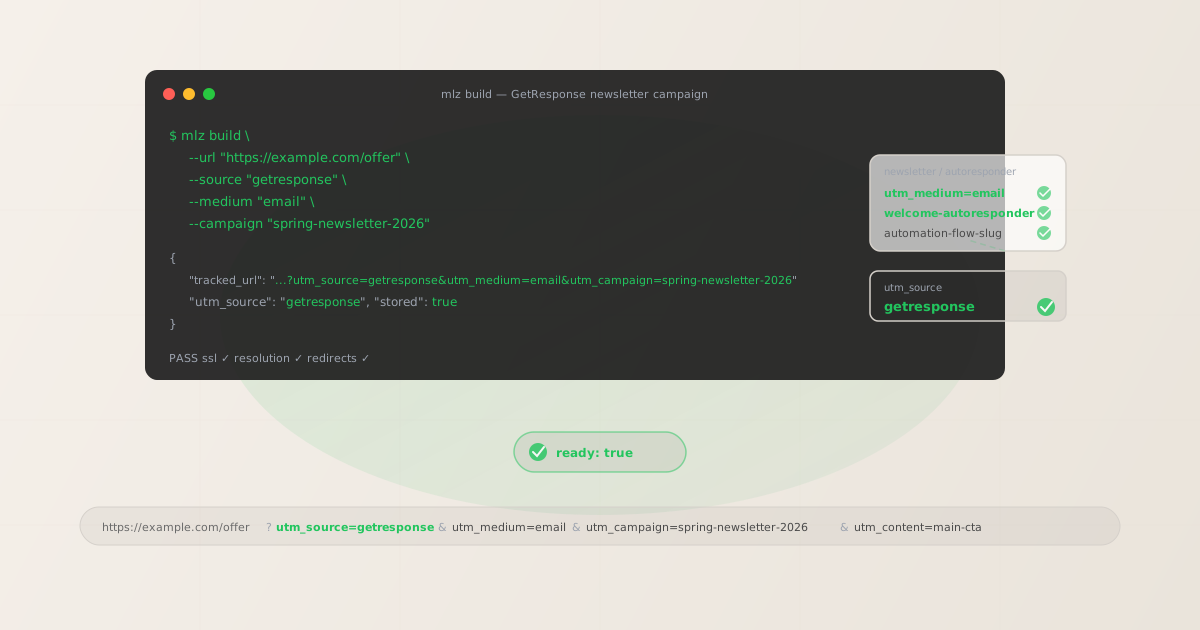
The correct utm_source and utm_medium for GetResponse
For all GetResponse sends, use utm_source=getresponse. The utm_medium value depends on the send type. GetResponse's product covers multiple use cases, each of which corresponds to a different channel in GA4:
| GetResponse send type | utm_source | utm_medium | GA4 default channel |
|---|---|---|---|
| Newsletter (one-time broadcast) | getresponse |
email |
|
| Autoresponder email (timed sequence) | getresponse |
email |
|
| Marketing Automation email (workflow) | getresponse |
email |
|
| Webinar registration email (promotional) | getresponse |
email |
|
| SMS (GetResponse MAX feature) | getresponse |
sms |
Unassigned (custom group needed) |
The key point: utm_medium=email applies regardless of whether the GetResponse email is a one-time newsletter, a step in an autoresponder sequence, a marketing automation workflow email, or an email promoting a webinar. The email is the channel — not the type of send or the destination. Even if you're sending subscribers to a GetResponse webinar landing page, the link is in an email, so utm_medium=email is the correct value.
For GetResponse MAX plans that include SMS, use utm_medium=sms for SMS campaigns. Like Brevo's SMS tracking, utm_medium=sms does not match GA4's default Email channel grouping — it lands in "Unassigned." Create a custom channel group in GA4 Admin under Data Display › Channel Groups to surface GetResponse SMS traffic in a dedicated channel.
utm_campaign naming for newsletters, autoresponders, and automation workflows
The most important UTM decision in GetResponse is utm_campaign naming — and it needs to be handled differently for each send type. Getting this wrong creates fragmented GA4 reports or, worse, stable campaign slugs that accumulate attribution correctly but become meaningless when the same slug is reused across unrelated campaigns.
# Newsletter (one-time broadcast) — include date in slug
$ mlz build --url "https://example.com/offer" \
  --source "getresponse" --medium "email" \
  --campaign "spring-newsletter-may-2026" --content "main-cta"

# Autoresponder (timed sequence) — stable evergreen slug
$ mlz build --url "https://example.com/getting-started" \
  --source "getresponse" --medium "email" \
  --campaign "welcome-autoresponder" --content "day-1-cta"

# Marketing Automation workflow — stable evergreen slug
$ mlz build --url "https://example.com/cart" \
  --source "getresponse" --medium "email" \
  --campaign "abandoned-cart-automation" --content "recover-cta"
The naming logic is: if the send is a one-time event (a newsletter), include the time period in the slug so you can distinguish it from other newsletters in GA4 reports. If the send runs continuously (an autoresponder step or an automation workflow), use a stable slug that describes the purpose without a date — the slug will accurately describe the campaign at any point in its lifetime.
Use utm_content to distinguish individual CTAs within a send or individual steps within an autoresponder. For a 5-step autoresponder, use: utm_content=day-1-cta, utm_content=day-3-cta, utm_content=day-7-offer. Combined with a stable utm_campaign slug, you can then segment GA4 Explore reports by utm_content to see which autoresponder step drives the most conversions, while all autoresponder attribution stays grouped under a single campaign row.
Building GetResponse campaign links with mlz build
mlz build generates a normalised tracked URL with lowercase hyphen-separated values and stores the link for auditing. For a GetResponse newsletter:
# Primary CTA in a GetResponse newsletter
$ mlz build \
  --url "https://example.com/spring-offer" \
  --source "getresponse" \
  --medium "email" \
  --campaign "spring-newsletter-may-2026" \
  --content "main-cta"

{
  "tracked_url": "https://example.com/spring-offer?utm_source=getresponse&utm_medium=email&utm_campaign=spring-newsletter-may-2026&utm_content=main-cta",
  "params": {
    "utm_source": "getresponse",
    "utm_medium": "email",
    "utm_campaign": "spring-newsletter-may-2026",
    "utm_content": "main-cta"
  },
  "link_id": "lnk_gr6n3k8p",
  "stored": true
}
Paste the tracked_url directly into GetResponse's link editor. With GetResponse's auto-UTM disabled (covered in the next section), this URL passes through GetResponse's click-tracking redirect unchanged — your UTM parameters arrive at the destination exactly as built.
For GetResponse autoresponders, build each email's links with a stable campaign slug and a unique utm_content value per email step:
# Day 3 CTA in the welcome autoresponder series
$ mlz build \
  --url "https://example.com/resources" \
  --source "getresponse" \
  --medium "email" \
  --campaign "welcome-autoresponder" \
  --content "day-3-resources-cta"

{
  "tracked_url": "https://example.com/resources?utm_source=getresponse&utm_medium=email&utm_campaign=welcome-autoresponder&utm_content=day-3-resources-cta",
  "params": {
    "utm_source": "getresponse",
    "utm_medium": "email",
    "utm_campaign": "welcome-autoresponder",
    "utm_content": "day-3-resources-cta"
  },
  "link_id": "lnk_gr2w9s4m",
  "stored": true
}
How to manage GetResponse's auto-UTM tracking
GetResponse includes a UTM tracking feature in its newsletter editor and automation builder. When enabled, it automatically appends UTM parameters to links in your emails. The parameters it generates are based on the email or campaign name you entered in GetResponse's interface — for example, a newsletter named "Spring Offer May 2026" becomes utm_campaign=Spring+Offer+May+2026, complete with URL-encoded spaces and mixed-case values.
If you've also manually embedded UTM parameters in your link templates (built with mlz build), you end up with two sets of UTM parameters in the same URL — one from your manual building and one from GetResponse's auto-append. In URL query strings where the same key appears twice, GA4 records the last value for each key. Depending on where GetResponse appends its parameters relative to yours, either set of values may win — producing unpredictable attribution in GA4 reports.
To disable GetResponse's auto-UTM:
- For newsletters: When creating or editing a newsletter, look for the Tracking or Settings section in the campaign editor. Find the UTM tracking or Google Analytics integration option and disable it. The exact label varies by GetResponse interface version, but it typically appears as "Enable Google Analytics tracking" or "UTM parameters".
- For automation workflows: In GetResponse's Marketing Automation builder, individual email message blocks may have tracking settings. Disable UTM tracking at the message level for any automation email where you've manually applied UTM parameters to the destination link.
- For autoresponders: In the autoresponder editor, check the settings for each email in the series. If UTM auto-tagging is available, disable it for emails where you've embedded custom UTM parameters.
Once GetResponse's auto-UTM is disabled, GetResponse's click-tracking redirect passes your full URL — including your custom UTM parameters — to the destination URL unchanged. This is the same behaviour as other email platforms: the click-tracking redirect records the click for GetResponse's analytics without modifying your parameters.
Validating GetResponse destination URLs before sending
Use mlz build --validate to confirm destination URLs respond correctly before sending a GetResponse newsletter or triggering an automation:
$ mlz build \
  --url "https://example.com/spring-offer" \
  --source "getresponse" \
  --medium "email" \
  --campaign "spring-newsletter-may-2026" \
  --content "main-cta" \
  --validate

{
  "tracked_url": "https://example.com/spring-offer?utm_source=getresponse&utm_medium=email&utm_campaign=spring-newsletter-may-2026&utm_content=main-cta",
  "validation": {
    "valid": true,
    "checks": [
      { "check": "url_format", "status": "pass", "message": "URL format is valid." },
      { "check": "ssl", "status": "pass", "message": "URL uses HTTPS." },
      { "check": "resolution", "status": "pass", "message": "Destination responded with 200.", "details": { "response_time_ms": 215 } },
      { "check": "redirects", "status": "pass", "message": "No redirects detected." }
    ]
  },
  "link_id": "lnk_gr6n3k8p",
  "stored": true
}
For GetResponse webinar campaigns, validation is particularly important: GetResponse's webinar feature uses a distinct registration URL (hosted on GetResponse's own webinar domain) as the primary CTA destination. Before the email promoting the webinar goes out, confirm that the webinar registration URL is live and responding with a 200 status. A webinar registration page that returns an error or redirect to a generic page is the kind of failure that tends to happen when the webinar is still being set up — validating before the email send catches it.
For GetResponse automations and autoresponders, set a recurring reminder to validate destination URLs quarterly. Active automations continue sending to new contacts indefinitely, so a broken destination URL in an automation email is a persistent problem until it is fixed. Use mlz links list to see all stored tracked URLs for your account and re-validate them in bulk.
GetResponse UTM tracking gotchas
- GetResponse's auto-UTM uses your newsletter name as utm_campaign
- When GetResponse's built-in UTM tracking is enabled, it sets
utm_campaignto the campaign name you entered in GetResponse's interface — for example, "Spring Offer May 2026" becomesutm_campaign=Spring+Offer+May+2026. GA4 creates a row for this value, URL encoding included. If the same campaign was sent with a slightly different display name last year, GA4 creates a separate row. Over time, you accumulate dozens of single-use campaign rows with inconsistent capitalisation and URL-encoded spaces. Usemlz buildto enforce lowercase hyphen-separated slugs and disable GetResponse's auto-UTM to keep your GA4 campaign taxonomy clean. - Autoresponders vs. newsletters need different utm_campaign strategies
- GetResponse newsletters are one-time sends — include a date period in the slug (
spring-newsletter-may-2026) so you can distinguish them from other newsletters in GA4 reports. GetResponse autoresponders and automations run continuously — use stable, evergreen slugs (welcome-autoresponder,abandoned-cart-automation) that accurately describe the purpose without a date. Mixing these strategies — using date-stamped slugs in autoresponders, or using stable slugs for newsletters — causes either misleading automation attribution or fragmented newsletter reports in GA4. - GetResponse webinar links need email-context UTM parameters, not webinar-specific ones
- When you send an email to promote a GetResponse webinar, the UTM parameters on the CTA link reflect the email channel, not the webinar. Use
utm_source=getresponseandutm_medium=email— because the click came from an email. The webinar is the destination, not the source or medium. A common mistake is to setutm_medium=webinarfor a webinar promotion email, which misattributes the traffic to a non-email channel in GA4. The webinar context should be reflected inutm_campaigninstead:utm_campaign=q2-webinar-launch-may-2026clearly identifies the promotional campaign while keeping the channel attribution correct. - GetResponse's click tracking and custom domains
- GetResponse's click-tracking redirect records all link clicks and can be configured to use a custom domain (rather than GetResponse's default tracking domain). Whether using the default or a custom tracking domain, GetResponse's redirect preserves the full query string — including your UTM parameters — when forwarding to the destination URL. The only scenario where this breaks down is when GetResponse's own UTM auto-tagging is also active: if GetResponse appends its own parameters, and your URL already has the same parameter keys, the resulting duplicate keys may produce unexpected attribution in GA4. Disable GetResponse's auto-UTM to avoid this.
- utm_content for webinar follow-up sequences needs distinct identifiers
- GetResponse's webinar feature includes post-webinar automation — sending follow-up emails to attendees, no-shows, and replay viewers. If you use the same
utm_campaignslug for both the promotional email and the post-webinar follow-up sequence (e.g.q2-webinar-may-2026), GA4 groups all of these sends under one campaign row, making it impossible to distinguish promotional email performance from follow-up email performance. Either use distinct campaign slugs for the promotion vs. the follow-up series (q2-webinar-promo-2026andq2-webinar-followup-2026), or use a stable follow-up campaign slug with detailedutm_contentvalues for each follow-up step (utm_content=attendee-day1-followup,utm_content=noshow-replay-offer).
GetResponse UTM naming conventions
Recommended UTM parameter values for GetResponse across all send types, aligned with GA4 channel groupings:
- utm_source:
getresponse— lowercase, for all email sends from GetResponse (newsletters, autoresponders, automation workflows, webinar promotion emails). - utm_medium:
emailfor all email sends;smsfor GetResponse MAX SMS campaigns. - utm_campaign: lowercase hyphen-separated slug — for newsletters:
spring-newsletter-may-2026,product-launch-june-2026; for autoresponders:welcome-autoresponder,onboarding-series; for automations:abandoned-cart-automation,post-purchase-followup; for webinar promotions:q2-webinar-promo-may-2026. - utm_content: CTA or send identifier — for newsletters:
main-cta,secondary-cta,ps-link; for autoresponders:day-1-cta,day-3-resources-cta,day-7-offer-cta; for webinar follow-ups:attendee-replay-cta,noshow-offer-cta. - utm_term: Segment identifier if sending to a specific list segment — e.g.
pro-plan-users,trial-subscribers,webinar-attendees. Use sparingly.
If your organisation uses GetResponse alongside other email platforms — for example, GetResponse for newsletters and automation, and a transactional email provider for order confirmations — keep the same cross-channel naming convention: platform name as utm_source, channel type as utm_medium. See the UTM naming conventions guide for the full cross-channel reference and the UTM tracking best practices guide for governance at scale.
FAQ
- What utm_source should I use for GetResponse?
- Use
utm_source=getresponse— lowercase, no spaces, no hyphens — for all sends from GetResponse. This applies to newsletters, autoresponders, marketing automation emails, and webinar promotion emails. Theutm_sourcevalue should identify the platform sending the email, not the content type or audience. Using a consistent source value across all GetResponse sends lets you filter the Traffic Acquisition report in GA4 byutm_source = getresponseto see the total contribution of your GetResponse email channel at a glance. - How do I track GetResponse autoresponders vs. newsletters separately in GA4?
- Use distinct
utm_campaignslugs. Newsletters are one-time sends — use time-stamped slugs:spring-newsletter-may-2026,product-launch-june-2026. Autoresponders run continuously — use stable evergreen slugs:welcome-autoresponder,onboarding-series. In GA4's Traffic Acquisition report, these appear as separate campaign rows, letting you compare the performance of your ongoing autoresponder series against individual newsletters. Useutm_contentto further distinguish individual emails within an autoresponder series (day-1-cta,day-3-cta,day-7-offer). - What utm_medium should I use for GetResponse webinar promotion emails?
- Use
utm_medium=email— because the link is in an email. The webinar is the destination of the click, not the channel. A common mistake is to setutm_medium=webinarfor a webinar promotion, which misattributes the traffic to a non-standard channel in GA4 (it would land in "Unassigned"). Useutm_medium=emailto keep the channel attribution correct and reflect the webinar context inutm_campaigninstead:utm_campaign=q2-webinar-promo-may-2026. - How do I disable GetResponse's automatic UTM tracking?
- In the newsletter editor, look for a Tracking or Settings section and disable the "Enable Google Analytics tracking" or "UTM parameters" option. For automation emails, check the settings of individual email message blocks in the Marketing Automation builder and disable UTM tracking at the message level. For autoresponders, check each email's settings in the autoresponder editor. Once disabled, GetResponse's click-tracking redirect passes your full URL — including your manually applied UTM parameters — to the destination unchanged, with no GetResponse-generated parameters appended.
- Does GetResponse's click tracking preserve UTM parameters?
- Yes — GetResponse's click-tracking redirect records the click for GetResponse's own analytics and then forwards the subscriber to your destination with the full URL, including UTM parameters, intact. This is standard for email marketing platforms. The only scenario where this breaks down is when GetResponse's own UTM auto-tagging is also active: GetResponse may append its own parameter values after the redirect, potentially overriding or duplicating your custom UTM parameters. Disable GetResponse's auto-UTM and use
mlz buildto ensure exactly one set of parameters in every tracked URL.
Recommended posts
Build GetResponse campaign links from the terminal
Pass --source "getresponse" --medium "email" to mlz build and get a normalised, validated URL ready to paste into GetResponse's email editor — lowercase values, no mixed-case from auto-UTM, stable slugs for autoresponders and automations. Add --validate to confirm the destination resolves cleanly before every send.
1,000 links/month free. No credit card.
Your API key
Save this now — it won't be shown again.
npm install -g missinglinkz
Free plan: 1,000 links/month. No credit card. See the UTM tracking for developers guide for the full programmatic workflow.