UTM Tracking for Leanplum: How to Build and Validate Campaign Links
Leanplum (now rebranded as Phypl) is a mobile lifecycle engagement platform used primarily by gaming, fintech, and consumer app companies to run multi-channel campaigns across push notifications, in-app messages, and email. The UTM challenge with Leanplum is the same one affecting all push notification platforms: when a user taps a push notification, the device opens the destination URL without passing an HTTP referrer header. GA4 receives the session with no source information and classifies it as Direct traffic. Without UTM parameters in the push notification action URL, every Leanplum push-driven session appears as Direct in GA4 — making it impossible to measure the ROI of your push campaigns. The fix is straightforward: build your tracked URLs with mlz build --source "leanplum" --medium "push" before creating the campaign in Leanplum, add --validate to confirm the destination resolves correctly, and paste the resulting tracked_url into the Leanplum push notification action URL field before the campaign sends.
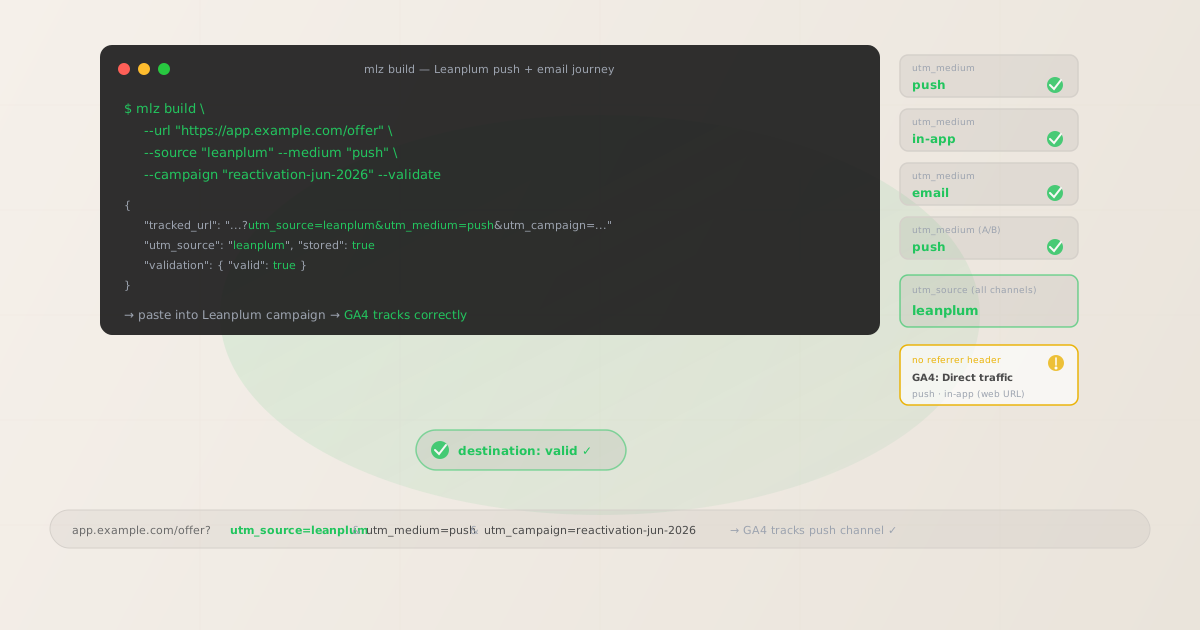
Why Leanplum UTM tracking requires careful setup
Leanplum sends campaigns across three primary channel types — push notifications, in-app messages, and email — each with distinct behavior in terms of GA4 attribution. Understanding how each channel is tracked (or fails to be tracked) by default is the first step to fixing attribution data.
Push notifications in Leanplum are delivered to users' mobile devices via Apple Push Notification Service (APNs) for iOS and Firebase Cloud Messaging (FCM) for Android. When a user taps the push notification, the operating system opens the app or a web URL specified in the notification payload. For push notifications that open a web URL (a landing page, a promotional page, a product listing), the browser opens the URL directly without an HTTP referrer header. GA4 sees the session as Direct traffic. Without UTM parameters in the push action URL, Leanplum push campaigns are entirely invisible in GA4 channel and campaign reporting.
In-app messages in Leanplum are rendered inside the mobile app itself — interstitials, banners, and popups that appear while the user has the app open. When an in-app message contains a CTA that links to a web URL (rather than a deep link to another screen in the same app), the device browser opens the web URL without an HTTP referrer, resulting in the same Direct attribution problem as push. For in-app messages linking to deep links within the app, UTM parameters are not applicable because no web session is created.
Email campaigns sent from Leanplum are the one channel type where some attribution may occur naturally: email clients can pass a referrer header, and GA4 may classify the resulting session as Referral or Email — but this is unreliable and varies by client, device, and privacy settings. Leanplum email does not automatically append UTM parameters to email links, so reliable email attribution still requires manually building tracked URLs with UTM parameters before adding them to Leanplum email templates.
| Leanplum channel | Referrer in GA4? | Without UTM parameters | Recommended utm_medium |
|---|---|---|---|
| Push notification (web URL) | No | Direct in GA4 | ✓ push |
| In-app message (web URL) | No | Direct in GA4 | ✓ in-app |
| Sometimes (unreliable) | Email or Direct depending on client | ✓ email |
Building tracked Leanplum campaign URLs with mlz build
Build your tracked URLs with mlz build before opening Leanplum's campaign creation interface. For push notifications, paste the tracked_url into the action URL field in the Leanplum push notification editor. For in-app message CTAs that link to web URLs, paste the tagged URL into the CTA destination field. For email campaigns, add the tagged URLs to each hyperlink in the email template editor. Add --validate to each build command to confirm that the destination URL resolves correctly and that any redirect chain preserves the UTM query parameters through every hop.
# Push notification action URL
$ mlz build \
  --url "https://app.example.com/offer" \
  --source "leanplum" \
  --medium "push" \
  --campaign "reactivation-jun-2026" \
  --validate

{
  "tracked_url": "https://app.example.com/offer?utm_source=leanplum&utm_medium=push&utm_campaign=reactivation-jun-2026",
  "params": {
    "utm_source": "leanplum",
    "utm_medium": "push",
    "utm_campaign": "reactivation-jun-2026"
  },
  "stored": true
}

# In-app message CTA (same campaign, different medium)
$ mlz build \
  --url "https://app.example.com/offer" \
  --source "leanplum" \
  --medium "in-app" \
  --campaign "reactivation-jun-2026" \
  --validate

{
  "tracked_url": "https://app.example.com/offer?utm_source=leanplum&utm_medium=in-app&utm_campaign=reactivation-jun-2026"
}

# Email campaign link (same campaign)
$ mlz build \
  --url "https://app.example.com/offer" \
  --source "leanplum" \
  --medium "email" \
  --campaign "reactivation-jun-2026" \
  --validate

{
  "tracked_url": "https://app.example.com/offer?utm_source=leanplum&utm_medium=email&utm_campaign=reactivation-jun-2026"
}
With a consistent utm_campaign slug across all Leanplum channels, GA4's campaign report for utm_campaign=reactivation-jun-2026 shows all sessions and conversions from this campaign across push, in-app, and email in a single campaign view. Pivot on utm_medium to compare which channel drove the most reactivations and conversions. This multi-channel campaign view is impossible to construct in GA4 without UTM parameters, because GA4 would otherwise attribute push and in-app sessions to Direct and only attribute email sessions (unreliably) to Email.
UTM tracking for Leanplum A/B tests and multi-step campaigns
Leanplum is particularly well-known for its built-in A/B testing capabilities — the platform allows teams to test different push notification messages, in-app message variants, and email subject lines within a single campaign. For A/B tests where you want to track which variant drove more conversions in GA4, use utm_content to distinguish variants. For multi-step lifecycle campaigns (onboarding sequences, win-back flows, engagement ladders), use utm_content to identify each step so GA4 can show which step in the sequence drove the conversion.
# A/B test: push variant A (feature-focused copy)
$ mlz build \
  --url "https://app.example.com/new-feature" \
  --source "leanplum" \
  --medium "push" \
  --campaign "feature-launch-jun-2026" \
  --content "variant-a" \
  --validate

{
  "tracked_url": "https://app.example.com/new-feature?utm_source=leanplum&utm_medium=push&utm_campaign=feature-launch-jun-2026&utm_content=variant-a"
}

# A/B test: push variant B (benefit-focused copy)
$ mlz build \
  --url "https://app.example.com/new-feature" \
  --source "leanplum" \
  --medium "push" \
  --campaign "feature-launch-jun-2026" \
  --content "variant-b" \
  --validate

{
  "tracked_url": "https://app.example.com/new-feature?utm_source=leanplum&utm_medium=push&utm_campaign=feature-launch-jun-2026&utm_content=variant-b"
}

# Multi-step onboarding: step 1 push (day 1)
$ mlz build \
  --url "https://app.example.com/onboarding/step1" \
  --source "leanplum" \
  --medium "push" \
  --campaign "onboarding-flow" \
  --content "push-day1" \
  --validate

{
  "tracked_url": "https://app.example.com/onboarding/step1?utm_source=leanplum&utm_medium=push&utm_campaign=onboarding-flow&utm_content=push-day1"
}

# Multi-step onboarding: step 2 email (day 3)
$ mlz build \
  --url "https://app.example.com/onboarding/step2" \
  --source "leanplum" \
  --medium "email" \
  --campaign "onboarding-flow" \
  --content "email-day3" \
  --validate

{
  "tracked_url": "https://app.example.com/onboarding/step2?utm_source=leanplum&utm_medium=email&utm_campaign=onboarding-flow&utm_content=email-day3"
}
In GA4, filter by utm_campaign=feature-launch-jun-2026 and pivot on utm_content to compare variant A vs variant B conversion rates directly. For the onboarding flow, filter by utm_campaign=onboarding-flow and pivot on utm_content to see which step in the sequence had the highest drop-off or conversion rate — data that allows you to optimize the Leanplum campaign sequence based on actual attribution rather than Leanplum's internal click metrics, which don't reflect downstream conversion events in GA4.
Leanplum UTM tracking gotchas
- Leanplum push notifications that open deep links don't generate web sessions
- Leanplum push notifications can open either a web URL or a deep link to a specific screen in your mobile app. Push notifications that open deep links (e.g.,
myapp://profileormyapp://product/123) do not create web sessions in GA4 — the app handles the deep link navigation internally without making an HTTP request to a web URL. UTM parameters are only relevant for push notification action URLs that open web destinations in the device browser. For deep links that trigger in-app events, track those through your Firebase/GA4 in-app event schema rather than UTM parameters. - Leanplum's link shortening or tracking wrappers may strip UTM parameters
- Some Leanplum configurations enable link click tracking by wrapping destination URLs through a Leanplum redirect. Depending on how the redirect is configured, the final destination URL may or may not include the original query string parameters (including UTM values). After building a tracked URL with
mlz build --validate, confirm that UTM parameters survive the complete redirect chain by runningmlz check "your-tracked-url"on the fully wrapped version to check that the UTM query string is preserved at the final destination. If Leanplum's redirect strips UTM parameters, configure the redirect to pass the full query string, or use Leanplum's URL parameter pass-through setting if available in your account configuration. - Leanplum A/B tests require separate action URLs per variant to track in GA4
- Leanplum's A/B testing framework allows you to test different message content (push notification copy, subject line, in-app message design) while using the same destination URL. To measure which variant drove more conversions in GA4, each variant must have a distinct
utm_contentvalue — which means building a separate tracked URL per variant. Create one tracked URL with--content "variant-a"and another with--content "variant-b", then configure Leanplum to use the appropriate tracked URL as the action URL for each variant branch. Without distinctutm_contentvalues, GA4 cannot differentiate between conversions driven by each variant. - Leanplum email campaigns may use link-wrapping that creates additional redirect hops
- Leanplum email includes click-tracking that wraps email links through a Leanplum redirect URL for click measurement. The UTM-tagged destination URL is encoded in the tracking redirect. In most configurations, the redirect preserves the full query string including UTM parameters when the user arrives at the destination — but this should be verified. Build a test email link with
mlz build --source "leanplum" --medium "email" --validate, send yourself a test email from Leanplum, click the link, and verify that GA4 records the session with the correctutm_source=leanplumandutm_medium=emailvalues. If the redirect strips UTM parameters, check Leanplum's email settings or contact support for the parameter pass-through configuration option. - GA4 does not have a default "push" channel group — add a custom channel grouping rule
- GA4's default channel grouping does not include a
pushchannel — sessions withutm_medium=pushwill fall into the "Unassigned" bucket in GA4's default channel reports. Add a custom channel grouping rule (Admin > Data Display > Channel Groups) forutm_medium exactly matches pushwith the label "Mobile Push" to group Leanplum push sessions into a named channel in GA4's reports. Similarly, add rules forin-app(label: "In-App") and any other non-standard medium values you use for Leanplum campaigns.
Leanplum UTM naming conventions
Recommended UTM parameter values for Leanplum, aligned with GA4 channel reporting and a lowercase-hyphenated taxonomy:
- utm_source:
leanplumfor all campaigns sent from the Leanplum platform (orphyplif your team has migrated to the new Phypl branding and wants reporting aligned to the rebranded platform name). Use a single consistent source value across all channels —utm_source=leanplumfor push, in-app, and email — so you can filter GA4 to all Leanplum-attributed traffic and then pivot onutm_mediumfor channel breakdown. Avoid compound source values likeleanplum-push; the channel belongs inutm_medium. - utm_medium: Match the delivery channel —
pushfor push notification action URLs;in-appfor in-app message CTAs linking to web URLs;emailfor email campaign links. If you want to distinguish Leanplum's web push (browser notifications for web users, if enabled) from app push, useweb-pushfor the web push medium. Note that GA4's default channel grouping doesn't includepush,in-app, orweb-push— add custom channel grouping rules for each. - utm_campaign: A consistent lowercase-hyphenated slug per campaign or lifecycle flow. For single-send campaigns:
reactivation-jun-2026,feature-launch-jun-2026,flash-sale-jun-2026. For multi-step lifecycle flows:onboarding-flow,winback-30d,engagement-ladder. Use the same slug across all channel messages in a multi-step campaign so GA4 groups all touchpoints into one campaign row. - utm_content: A/B variant identifier or lifecycle step identifier. For A/B tests:
variant-a,variant-b,control,test. For multi-step sequences:push-day1,email-day3,in-app-day7. Omit for single-message campaigns with no variants or steps. - utm_term: Rarely used for Leanplum campaigns. Reserve for cases where the same campaign targets meaningfully different user segments that you want to distinguish in GA4:
utm_term=new-user,utm_term=lapsed-30d,utm_term=vip.
See the UTM naming conventions guide for the full cross-platform reference and the UTM tracking for developers guide for programmatic generation and validation at scale.
FAQ
- Does Leanplum automatically add UTM parameters to campaign links?
- No. Leanplum does not automatically append UTM parameters to push notification action URLs, in-app message CTA URLs, or email campaign links. Some Leanplum configurations apply click-tracking redirects for Leanplum's own click measurement, but these do not add UTM parameters for GA4 attribution. You need to manually build tracked URLs with UTM parameters before entering them into Leanplum's campaign editors. Use
mlz build --source "leanplum" --medium "[channel]" --campaign "your-slug" --validatefor each campaign URL. - What utm_source should I use for Leanplum campaigns?
- Use
utm_source=leanplumfor all campaigns sent from the Leanplum platform. If your team has migrated to Phypl (Leanplum's new brand) and wants reporting aligned to the current product name, you can useutm_source=phypl— but pick one and use it consistently across all channels. A single consistent source value allows you to filter GA4 to all traffic from the platform and then pivot onutm_mediumto compare push, in-app, and email performance. - How do I track Leanplum push notifications in GA4?
- Build a tracked URL with
mlz build --url "your-destination" --source "leanplum" --medium "push" --campaign "campaign-slug" --validate. Copy thetracked_urlfrom the output and paste it into the action URL field in the Leanplum push notification editor. When users tap the push and the destination page opens in their browser, GA4 will attribute the session toutm_source=leanplum / utm_medium=push. Add a custom channel grouping rule in GA4 (Admin > Data Display > Channel Groups) forutm_medium exactly matches pushso Leanplum push sessions appear in a named channel rather than Unassigned. - How do I track Leanplum A/B test performance in GA4?
- Build a separate tracked URL for each A/B variant using distinct
utm_contentvalues:--content "variant-a"for one URL and--content "variant-b"for the other. Configure Leanplum's A/B test to use the corresponding tracked URL as the action URL for each variant branch. In GA4, filter by yourutm_campaignslug and pivot onutm_contentto compare variant A vs variant B conversion rates. This gives you actual GA4 conversion attribution for each variant, in addition to Leanplum's own internal engagement metrics. - How do I validate Leanplum campaign URLs before they go live?
- Run
mlz build --url "your-destination" --source "leanplum" --medium "[channel]" --campaign "your-slug" --validatefor each campaign URL before entering it in Leanplum. The--validateflag confirms HTTPS, resolution (200 response), redirect chain integrity, and UTM parameter preservation through any redirect hops — including Leanplum's click-tracking redirect if applicable. For email campaign landing pages, also runmlz inspect "your-tracked-url"to verify OG tags, Twitter Card metadata, and viewport configuration before the email sends. See the campaign link preflight check guide for the complete pre-launch validation workflow.
Recommended posts
Build Leanplum campaign links from the terminal
Use mlz build --source "leanplum" --medium "push" (or the channel-appropriate medium) to generate tracked URLs for every Leanplum campaign before entering them in the Leanplum campaign editor. For multi-channel campaigns, build one URL per channel with a consistent --campaign slug and distinct --medium values per channel. For A/B tests, add --content "variant-a" and --content "variant-b" to track variant performance in GA4. Add --validate to confirm each destination URL resolves correctly and that UTM parameters survive any Leanplum click-tracking redirect before the campaign activates.
1,000 links/month free. No credit card.
Your API key
Save this now — it won't be shown again.
npm install -g missinglinkz
Free plan: 1,000 links/month. No credit card. See the UTM tracking for developers guide for the full programmatic workflow including API and MCP integration.