UTM Tracking for Kochava: How to Build and Validate Campaign Links
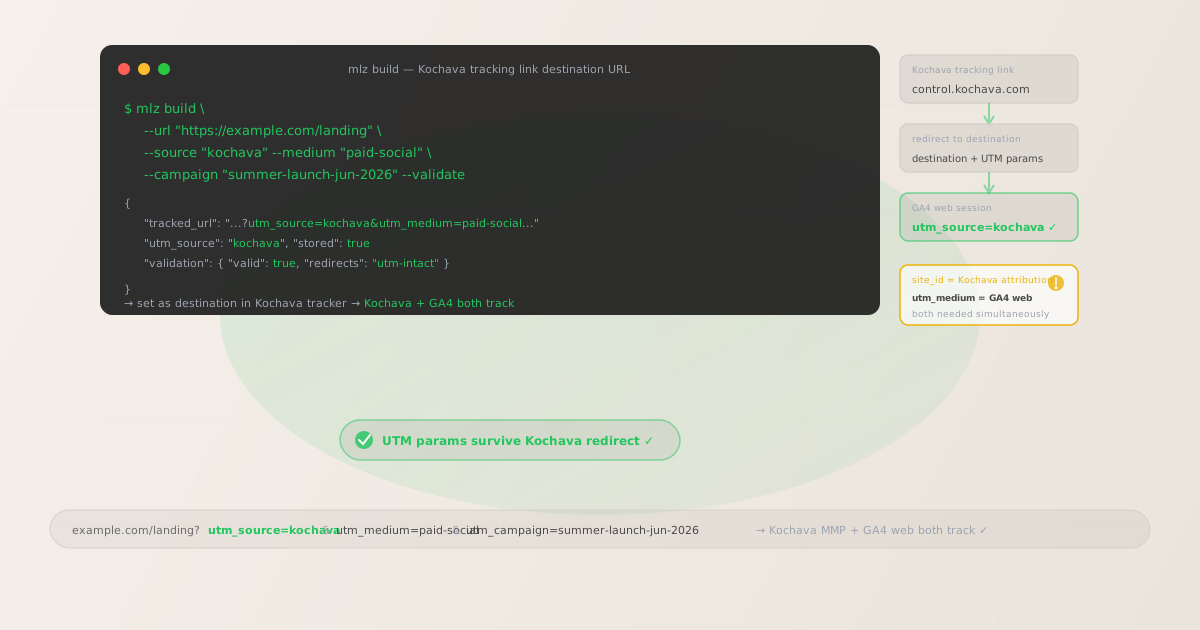
Kochava is a mobile measurement partner (MMP) and unified audience platform used by app teams to measure installs, in-app events, and ROI across paid media channels. Kochava tracking links route ad clicks through Kochava's click-recording infrastructure — capturing site_id (the publisher or network identifier), campaign_id, creative_id, and custom sub-parameters (sub1 through sub5) before redirecting the user to the app store or a web destination. These are Kochava's internal attribution parameters and are not standard UTM parameters — GA4 does not read Kochava's site_id, campaign_id, or network_id for web session attribution. When a Kochava tracking link routes a user to a web destination (instead of the app store), the resulting GA4 web session shows as Direct unless you append UTM parameters to that destination URL. Build your tracked destination URL with mlz build --source "kochava" --medium "[channel]" --campaign "your-slug" --validate and set the resulting tracked_url as the destination in your Kochava tracker configuration. Then run mlz check on the full Kochava tracking link URL to confirm UTM parameters survive Kochava's redirect chain to the final destination.
Why Kochava tracking links need separate UTM parameters for GA4
Kochava and GA4 measure different segments of the user journey using fundamentally different parameter formats. Kochava measures mobile attribution: which publishers, networks, campaigns, and creatives drove ad clicks that led to app installs and in-app conversion events. This measurement happens via Kochava's SDK installed in the mobile app — after the app is opened following a Kochava-tracked click, the SDK records the attribution data associated with that click. GA4 measures web session behavior: what users do on web pages that serve as landing pages for web-targeted campaigns or as fallback destinations when the app is not available.
Kochava tracking links embed attribution metadata using Kochava's own parameter format: site_id identifies the publisher or ad network; campaign_id maps to a Kochava campaign; creative_id identifies the ad creative; network_id identifies the demand-side platform or network. These parameters power Kochava's attribution dashboard and are read by Kochava's click-recording infrastructure when the link is clicked. They are not forwarded to the destination URL and are not understood by GA4 for channel grouping or campaign attribution. GA4 only reads standard utm_source, utm_medium, and utm_campaign parameters in the query string of the URL that opens in the web browser.
The result: teams running web campaigns through Kochava trackers — or using Kochava for cross-device attribution where the web journey is part of the funnel — see persistent Direct traffic in GA4. The fix is to add UTM parameters directly to the destination URL configured in each Kochava tracker.
| Parameter type | Where it appears | What it tracks | Used by |
|---|---|---|---|
site_id |
Kochava tracking link | Publisher/network in Kochava dashboard | ✓ Kochava SDK (app) |
campaign_id |
Kochava tracking link | Campaign in Kochava analytics | ✓ Kochava SDK (app) |
utm_source=kochava |
Destination URL | Web session source in GA4 | ✓ GA4 (web) |
utm_medium |
Destination URL | Channel classification in GA4 | ✓ GA4 (web) |
utm_campaign |
Destination URL | Campaign grouping in GA4 reports | ✓ GA4 (web) |
Kochava also supports passing custom macro values into destination URLs through its tracker configuration. You can use Kochava's macro system to inject values like {campaign_name} or {site_id} into the destination URL query string — but these inject Kochava-specific values, not standard UTM parameters, and their formatting may not align with your GA4 channel grouping taxonomy. The most reliable pattern is to build a fully tagged destination URL with mlz build and set it explicitly as the destination in the Kochava tracker, with UTM parameters that match your established naming conventions.
Building tracked Kochava destination URLs with mlz build
In a Kochava tracker, the destination URL is the web page where users land after clicking the tracked link and being routed through Kochava's click-recording infrastructure. For web-targeted campaigns, this destination URL is what GA4 sees in the browser — it needs UTM parameters. Build your tracked destination URL with mlz build before creating or updating the Kochava tracker, then set the resulting tracked_url as the destination URL in the tracker configuration. Add --validate to confirm the destination resolves correctly and the redirect chain preserves UTM parameters before the tracker goes live.
# Paid social campaign (Meta ad → Kochava tracker → web destination)
$ mlz build \
  --url "https://example.com/landing" \
  --source "kochava" \
  --medium "paid-social" \
  --campaign "summer-launch-jun-2026" \
  --validate

{
  "tracked_url": "https://example.com/landing?utm_source=kochava&utm_medium=paid-social&utm_campaign=summer-launch-jun-2026",
  "params": {
    "utm_source": "kochava",
    "utm_medium": "paid-social",
    "utm_campaign": "summer-launch-jun-2026"
  },
  "stored": true
}

# Paid search campaign (Google Ads → Kochava tracker → web destination)
$ mlz build \
  --url "https://example.com/promo" \
  --source "kochava" \
  --medium "cpc" \
  --campaign "brand-search-jun-2026" \
  --term "product-name" \
  --validate

{
  "tracked_url": "https://example.com/promo?utm_source=kochava&utm_medium=cpc&utm_campaign=brand-search-jun-2026&utm_term=product-name"
}

# Display campaign (programmatic → Kochava tracker → web destination)
$ mlz build \
  --url "https://example.com/offer" \
  --source "kochava" \
  --medium "display" \
  --campaign "retargeting-web-jun-2026" \
  --content "banner-300x250" \
  --validate

{
  "tracked_url": "https://example.com/offer?utm_source=kochava&utm_medium=display&utm_campaign=retargeting-web-jun-2026&utm_content=banner-300x250"
}
Set the tracked_url as the destination URL in the Kochava tracker configuration. When a user clicks the Kochava tracking link, Kochava records the click attribution (site_id, campaign_id, creative_id) and redirects the user to the destination URL — which now carries UTM parameters. GA4 reads those parameters from the URL that opens in the browser and attributes the web session to the correct source, medium, and campaign.
Validating UTM parameters survive the Kochava redirect chain
Kochava tracking links route clicks through Kochava's click-recording server before redirecting to the destination URL. The click-recording server records the attribution metadata embedded in the tracking link URL, then issues a redirect to the destination. If the destination URL is URL-encoded in the tracking link, improper encoding can result in malformed query strings at the final destination — causing UTM parameters to be dropped or corrupted before GA4 records the session.
After configuring the Kochava tracker with your tracked destination URL, validate the complete Kochava tracking link URL to confirm UTM parameters survive the redirect chain.
# Check the full Kochava tracking link URL
# Confirms UTM parameters survive Kochava's click-recording redirect
$ mlz check "https://control.kochava.com/v1/cpi/click?campaign_id=kobrandname-ios1234&site_id=network_xyz&device_id=IDFA&destination=https%3A%2F%2Fexample.com%2Flanding%3Futm_source%3Dkochava%26utm_medium%3Dpaid-social%26utm_campaign%3Dsummer-launch-jun-2026"

{
  "url": "https://control.kochava.com/v1/cpi/click?campaign_id=...",
  "valid": true,
  "checks": [
    { "check": "ssl", "status": "pass", "message": "URL uses HTTPS." },
    { "check": "resolution", "status": "pass", "message": "Destination responded with 200." },
    { "check": "redirects", "status": "pass", "message": "2 redirects detected. UTM parameters present at final destination." }
  ],
  "status_code": 200
}
If mlz check shows that UTM parameters are missing at the final destination, check how the destination URL is encoded in the Kochava tracker. The destination URL value — which includes your UTM parameters with ampersands — must be URL-encoded when embedded as a query parameter in the Kochava tracking link. Ampersands (&) in your tracked destination URL must be encoded as %26 so they are not interpreted as Kochava parameter separators. See the redirect UTM stripping guide for step-by-step diagnosis if parameters are dropped at any hop.
Kochava UTM tracking gotchas
- Kochava's
site_id,campaign_id, andnetwork_idare not UTM parameters and are not read by GA4 - Kochava's attribution parameters are embedded in the tracking link URL as query parameters (
site_id,campaign_id,creative_id,network_id,sub1–sub5). These are read by Kochava's click-recording infrastructure when the link is clicked — they record which publisher, campaign, and creative drove the click for Kochava's attribution dashboard. They are not forwarded to the destination URL and are not recognized by GA4. GA4 only reads standard UTM parameters (utm_source,utm_medium,utm_campaign,utm_term,utm_content) from the query string of the URL that opens in the browser. You need both: Kochava parameters in the tracking link for mobile attribution, UTM parameters in the destination URL for web session attribution in GA4. - Kochava macros in destination URLs inject Kochava values — not your UTM taxonomy
- Kochava supports dynamic macro substitution in destination URLs — for example,
{campaign_name}or{site_id}can be injected into the destination URL at click time. These macros let you pass Kochava attribution values into the destination URL dynamically, but the values they inject are formatted according to how you named things inside Kochava, not according to your UTM taxonomy. If your Kochava campaign name is "Summer Launch 2026 US iOS Meta" and you useutm_campaign={campaign_name}, the injected value will include spaces and uppercase letters — fragmenting GA4 channel reports. Usemlz buildto generate a clean, lowercase-hyphenated tracked URL as the static destination in your Kochava tracker instead of relying on dynamic macros for UTM values. - Kochava SmartLinks (device-aware deep links) need UTM parameters on all web fallback destinations
- Kochava offers SmartLinks — device-aware links that route users to the app store on mobile, open the app if installed, or redirect to a web destination on unsupported devices. SmartLinks use Kochava's routing infrastructure for the device decision layer and then redirect to the appropriate destination. For the web fallback destination, UTM parameters need to be present in the web destination URL — not in the SmartLink URL itself. Build your tracked web destination URL with
mlz buildand configure it as the web fallback in your SmartLink settings. Validate the complete SmartLink URL withmlz checkto confirm UTM parameters are preserved through the SmartLink routing redirect to the final web destination. - CTV and connected TV campaign links tracked through Kochava require separate handling for web attribution
- Kochava's Unified Audience Platform covers Connected TV (CTV) and Over-The-Top (OTT) attribution in addition to mobile. CTV ad impressions and clicks tracked through Kochava are attributed at the device level using Kochava's identity graph. When a CTV campaign drives web conversions (for example, users who see a CTV ad and then visit your website on a different device), Kochava handles the cross-device attribution internally. For direct web clicks on companion ad units or QR codes in CTV campaigns, the click destination URL needs UTM parameters. Build these with
mlz build --source "kochava" --medium "ctv" --campaign "your-slug"and validate the QR code destination URL withmlz checkbefore the CTV campaign goes live. - Kochava attribution windows affect which GA4 sessions are covered by Kochava-attributed installs
- Kochava uses configurable attribution windows (click-through, view-through) to determine which ad interaction receives credit for a downstream install or conversion. When a user clicks a Kochava tracking link, is attributed in Kochava, but doesn't install the app — and instead visits the web destination — that web session is the one GA4 needs to attribute to the correct campaign. The UTM parameters on the destination URL must align with the Kochava campaign that drove the click so cross-channel analysis is consistent. Use a UTM
utm_campaignvalue that matches or mirrors the Kochava campaign identifier to make reconciliation between Kochava reports and GA4 reports straightforward.
Kochava UTM naming conventions
Recommended UTM parameter values for Kochava campaigns, aligned with GA4 channel reporting and a lowercase-hyphenated taxonomy:
- utm_source:
kochavafor all campaigns where Kochava is the tracking and attribution platform. Some teams prefer to use the underlying ad network or channel name (meta,google,tiktok) as the UTM source to match GA4's automatic channel grouping more directly. Usingkochavaas the source groups all Kochava-tracked web sessions together in GA4 — useful when you want to see the total web traffic footprint of Kochava-measured campaigns before drilling into medium and campaign. Using the ad network name aligns GA4's channel grouping more precisely (GA4 recognizesutm_source=googleandutm_medium=cpcas "Paid Search" automatically). Choose one convention and apply it consistently across all Kochava trackers in a given campaign. - utm_medium: Use the channel type aligned with GA4's default channel groupings. For paid social campaigns (Meta, TikTok, Snapchat):
paid-social. For paid search (Google Ads, Bing):cpc. For programmatic display and retargeting:display. For Connected TV / OTT campaigns:ctv. For affiliate or publisher network traffic:affiliate. For influencer campaigns:influencer. Theutm_mediumshould describe the nature of the traffic channel, not the Kochava tracker type. - utm_campaign: A lowercase-hyphenated campaign name that mirrors your Kochava campaign identifier where possible. For paid social campaigns:
summer-launch-jun-2026,retargeting-lapsed-30d. For paid search campaigns:brand-search-q3-2026,competitor-keywords-jun-2026. For app install campaigns targeting web as a secondary goal:app-install-ios-us-jun-2026. Aligningutm_campaignwith your Kochava campaign name simplifies cross-referencing GA4 web session data with Kochava attribution data in reporting. - utm_content: Creative or variant identifier for A/B testing and creative performance analysis. For display campaigns with multiple creative sizes:
utm_content=banner-300x250,utm_content=banner-728x90. For social campaigns with multiple ad creatives:utm_content=video-15s-product,utm_content=image-lifestyle. Useutm_contentwhen you need to identify which ad creative drove the most web sessions — particularly useful when the same Kochava campaign runs multiple creative variants across a publisher network. - utm_term: Keyword or audience segment identifier. For paid search campaigns tracked through Kochava: the search keyword. For audience-segmented retargeting: the audience segment identifier (
utm_term=lapsed-30d). For lookalike campaigns: the seed audience (utm_term=lookalike-buyers). Omit for brand and awareness campaigns where keyword-level web session tracking is not relevant.
See the UTM naming conventions guide for the full cross-platform taxonomy reference, and the UTM tracking for developers guide for programmatic generation and validation at scale.
FAQ
- Why do my Kochava campaign clicks show as Direct in GA4?
- If Kochava is attributing installs and clicks correctly but GA4 shows the resulting web sessions as Direct, UTM parameters are missing from the destination URL configured in the Kochava tracker. Build a tracked destination URL with
mlz build --source "kochava" --medium "[channel]" --campaign "your-campaign" --validateand update the destination URL in your Kochava tracker to that tracked URL. Then runmlz checkon the full Kochava tracking link URL to confirm UTM parameters survive the redirect to the final destination. - Can I use Kochava's macro system to inject UTM parameters dynamically?
- Kochava supports macros like
{campaign_name},{site_id}, and{creative_name}that inject values from the Kochava tracker into the destination URL at click time. You can configure these macros as UTM parameter values — for example,utm_campaign={campaign_name}. However, the injected values will match how your campaigns are named inside Kochava, which may include spaces, uppercase letters, or other characters that fragment GA4 reports. If you use macros, apply Kochava's built-in value normalization options and validate the resulting destination URLs withmlz checkto confirm the injected values are consistent with your UTM taxonomy before launching. - Does Kochava forward UTM parameters automatically from the tracking link to the destination?
- Kochava does not automatically copy UTM parameters from the tracking link URL to the destination URL. Kochava reads its own attribution parameters (
site_id,campaign_id, etc.) from the tracking link and records them for attribution. The destination URL receives only what was explicitly configured as the destination — your tracked URL with UTM parameters. If you add UTM parameters directly to the Kochava tracking link URL itself (not in the destination), Kochava's click-recording server may strip them or not forward them correctly. Always embed UTM parameters in the destination URL directly. - How do I track both Kochava mobile attribution and GA4 web attribution for the same campaign?
- These two measurement systems operate independently and can run simultaneously with no conflict. Kochava measures mobile attribution via its SDK installed in the app — tracking installs, in-app events, and ROI from ad clicks using Kochava's parameter format. GA4 measures web session behavior via URL query strings — reading UTM parameters from the page URL in the browser. For campaigns where users may reach both your app and your website, configure the Kochava tracker with your Kochava attribution parameters as usual, and set a UTM-tagged destination URL (built with
mlz build) as the web destination. Both systems operate on their respective tracking layers simultaneously. - Should I use utm_source=kochava or the actual ad network name?
- Both approaches work; the right choice depends on how you want to slice GA4 reports. Using
utm_source=kochavagroups all Kochava-tracked web sessions under a single source, making it easy to see the total web attribution footprint of your Kochava investment before drilling into medium and campaign. Using the specific ad network name (utm_source=meta,utm_source=google) allows GA4's automatic channel grouping to classify traffic correctly into "Paid Social" or "Paid Search" buckets based on source/medium combinations. If you run the same campaign across multiple networks in Kochava, the specific ad network approach provides more granular GA4 data but requires generating separate tracked URLs per network. Usemlz buildto generate separate tracked destination URLs for each network variant and validate each withmlz check.
Recommended posts
Build Kochava campaign destination URLs from the terminal
Use mlz build --source "kochava" --medium "[channel]" --campaign "your-slug" --validate to generate validated tracked URLs for each Kochava tracker's destination. Set the resulting tracked_url as the destination in your Kochava tracker configuration. After setup, run mlz check on the complete Kochava tracking link URL to confirm UTM parameters survive the redirect chain to the final web destination.
1,000 links/month free. No credit card.
Your API key
Save this now — it won't be shown again.
npm install -g missinglinkz
Free plan: 1,000 links/month. No credit card. See the UTM tracking for developers guide for the full programmatic workflow including API and MCP integration.