UTM Tracking for Drip: How to Build and Validate Email Campaign Links
UTM tracking for Drip requires understanding how Drip structures its email sends — Campaigns for one-time promotional sends and Workflows for automated e-commerce sequences — and how Drip's built-in UTM tracking feature interacts with manually applied parameters. When Drip's UTM tracking is enabled, it appends parameter values derived from your Drip campaign name and account settings, often generating uppercase or space-encoded values that conflict with GA4's case-sensitive matching. For e-commerce teams using Drip with Shopify or WooCommerce, there's an additional complication: destination URLs often pass through platform-level redirects before reaching the product page, which can affect how GA4 records the session source. This article covers the correct UTM values for Drip Campaigns and Workflows, how to build consistent tracked links with mlz build, how to manage Drip's auto-UTM, and how to validate destination URLs before every send.
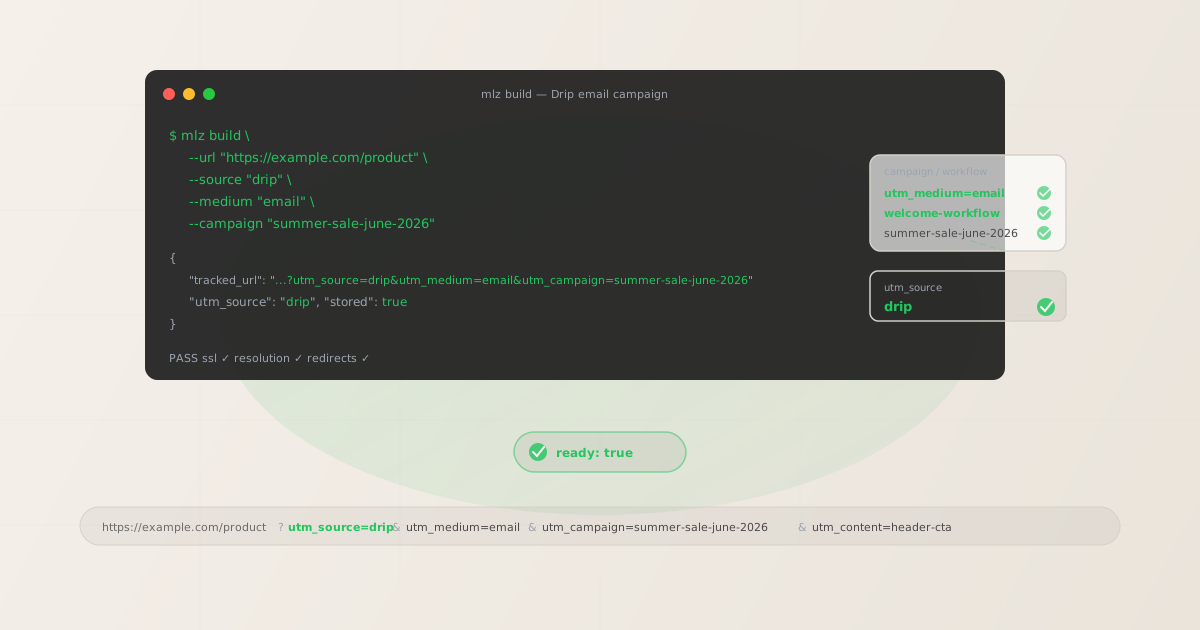
The correct utm_source and utm_medium for Drip
For all Drip email sends, use utm_source=drip — all lowercase. The utm_medium value is email for all email sends from Drip. Drip organises its email features into two primary send types: Campaigns (one-time promotional sends to a segment) and Workflows (automated sequences triggered by subscriber events):
| Drip send type | utm_source | utm_medium | GA4 default channel |
|---|---|---|---|
| Campaign (one-time promotional send) | drip |
email |
|
| Workflow email (automated triggered sequence) | drip |
email |
|
| Broadcast (one-off send via Rules or manual trigger) | drip |
email |
|
| Abandoned cart email (Workflow triggered by cart event) | drip |
email |
Drip's naming convention uses "Campaigns" for one-time sends and "Workflows" for automated sequences. This is opposite to how some platforms use these terms — in Drip, a "Workflow" is the automation engine, not a campaign. Keep this distinction clear when setting utm_campaign values: Drip Campaigns should use date-stamped slugs (they're one-time events), while Drip Workflows should use stable evergreen slugs (they run continuously and accumulate attribution over time).
utm_campaign naming for Drip Campaigns and Workflows
Drip's two send types need different utm_campaign naming strategies. Campaigns are one-time sends and should use date-stamped slugs so they remain distinguishable in GA4 over time. Workflows run continuously and need stable, evergreen slugs that describe the automation's purpose without encoding a date that will become stale.
# Campaign (one-time promotional send) — include date in slug
$ mlz build --url "https://example.com/summer-sale" \
  --source "drip" --medium "email" \
  --campaign "summer-sale-june-2026" --content "main-cta"

# Workflow email (welcome sequence) — stable evergreen slug
$ mlz build --url "https://example.com/getting-started" \
  --source "drip" --medium "email" \
  --campaign "welcome-workflow" --content "day-1-cta"

# Workflow email (abandoned cart recovery) — stable evergreen slug
$ mlz build --url "https://example.com/cart" \
  --source "drip" --medium "email" \
  --campaign "abandoned-cart-workflow" --content "reminder-1-cta"
The slug naming logic reflects the fundamental difference between one-time sends and continuous automations: if the send happens once (a Campaign), include the time period in the slug so GA4 can distinguish it from past and future campaigns. If the send runs continuously (a Workflow), use a descriptive slug without a date — the slug will accurately describe the automation at any point in its lifetime.
For Drip Workflows that contain multiple emails, use utm_content to distinguish individual emails within the sequence while keeping utm_campaign stable. For a 4-step welcome workflow, use: utm_campaign=welcome-workflow across all four emails, with utm_content=day-1-cta, utm_content=day-3-cta, utm_content=day-5-offer, utm_content=day-7-followup for each step. In GA4's Explore report, add utm_content as a secondary dimension to segment by workflow step without fragmenting the campaign-level attribution.
Building Drip campaign links with mlz build
mlz build generates a normalised tracked URL with lowercase hyphen-separated values and stores the link for auditing. For a Drip promotional Campaign:
# Primary CTA in a Drip promotional Campaign
$ mlz build \
  --url "https://example.com/summer-sale" \
  --source "drip" \
  --medium "email" \
  --campaign "summer-sale-june-2026" \
  --content "main-cta"

{
  "tracked_url": "https://example.com/summer-sale?utm_source=drip&utm_medium=email&utm_campaign=summer-sale-june-2026&utm_content=main-cta",
  "params": {
    "utm_source": "drip",
    "utm_medium": "email",
    "utm_campaign": "summer-sale-june-2026",
    "utm_content": "main-cta"
  },
  "link_id": "lnk_dr4p2m7c",
  "stored": true
}
Copy the tracked_url and paste it directly into Drip's email editor as your link destination. Drip's click-tracking redirect (click.dripemail.com) wraps the URL to record the click before forwarding subscribers to your destination — the full query string, including your UTM parameters, passes through this redirect unchanged.
For Drip Workflow emails, build each step's links with a stable campaign slug and a unique utm_content value per step:
# Third email in the post-purchase upsell workflow
$ mlz build \
  --url "https://example.com/upgrade" \
  --source "drip" \
  --medium "email" \
  --campaign "post-purchase-workflow" \
  --content "day-7-upsell-cta"

{
  "tracked_url": "https://example.com/upgrade?utm_source=drip&utm_medium=email&utm_campaign=post-purchase-workflow&utm_content=day-7-upsell-cta",
  "params": {
    "utm_source": "drip",
    "utm_medium": "email",
    "utm_campaign": "post-purchase-workflow",
    "utm_content": "day-7-upsell-cta"
  },
  "link_id": "lnk_dr9k1r5t",
  "stored": true
}
How to disable Drip's built-in UTM tracking
Drip includes a UTM tracking feature that, when enabled, automatically appends UTM parameters to all links in your Campaign emails. Drip derives these values from your Drip campaign name and other account settings — the resulting utm_campaign values typically reflect your Drip campaign's internal name verbatim, which may include uppercase letters, spaces (URL-encoded as %20), and characters inconsistent with GA4's preferred lowercase hyphenated convention.
When Drip's auto-UTM is active and you've also embedded manually built parameters (from mlz build) in your links, Drip appends its own parameters to the URL. If the same UTM key appears twice in a query string — for example, ?utm_source=drip&utm_source=Drip+Email — GA4 processes only one value, and the outcome depends on which value appears last. The reliable solution is to disable Drip's auto-UTM and apply all parameters manually using mlz build.
To manage Drip's UTM tracking:
- Campaign-level setting: When creating or editing a Drip Campaign, look for a Tracking or Analytics section in the campaign settings. Drip provides an option to enable or disable UTM tracking per campaign. Disable it for any campaign where you've already applied custom UTM parameters to your links via
mlz build. - Account-level setting: In your Drip account settings, there may be a global UTM tracking toggle under Integrations or Analytics. When disabled globally, Drip stops appending auto-generated UTM parameters across all campaigns and workflows. This is the cleanest approach if you manage all tracked links through
mlz buildfor every send. - Workflow emails: Drip Workflow emails typically do not have per-email UTM tracking settings — they inherit the account-level setting. If you rely on Drip's auto-UTM for some campaigns while applying custom parameters for others, disable it at the campaign level rather than globally to avoid affecting other sends.
Once Drip's auto-UTM is disabled, Drip's click-tracking redirect (click.dripemail.com) forwards subscribers to your destination URL with the full query string intact — your custom parameters from mlz build arrive at the landing page exactly as built.
Validating Drip destination URLs before sending
Use mlz build --validate to confirm destination URLs resolve correctly before sending a Drip Campaign or activating a Workflow. This is especially important for e-commerce teams using Drip with Shopify or WooCommerce, where product page URLs often pass through platform redirects before reaching the final destination:
$ mlz build \
  --url "https://example.com/summer-sale" \
  --source "drip" \
  --medium "email" \
  --campaign "summer-sale-june-2026" \
  --content "main-cta" \
  --validate

{
  "tracked_url": "https://example.com/summer-sale?utm_source=drip&utm_medium=email&utm_campaign=summer-sale-june-2026&utm_content=main-cta",
  "validation": {
    "valid": true,
    "checks": [
      { "check": "url_format", "status": "pass", "message": "URL format is valid." },
      { "check": "ssl", "status": "pass", "message": "URL uses HTTPS." },
      { "check": "resolution", "status": "pass", "message": "Destination responded with 200.", "details": { "response_time_ms": 198 } },
      { "check": "redirects", "status": "pass", "message": "No redirects detected." }
    ]
  },
  "link_id": "lnk_dr4p2m7c",
  "stored": true
}
For Drip Workflows, validate all destination URLs when setting up the workflow and re-validate them periodically while the workflow is active. Drip Workflows continue enrolling new subscribers indefinitely — a product page that returns a 404 due to a Shopify product being archived or a WooCommerce SKU being removed will keep receiving clicks from every new subscriber who enters the workflow. Use mlz links list to retrieve all stored tracked URLs and re-validate them in bulk.
For abandoned cart workflows specifically: the destination URL is often the cart or checkout page, which may behave differently for returning vs. new sessions. Validate that the URL resolves with a clean 200 and no redirect chains before activating the workflow — e-commerce platform redirects (Shopify's cart recovery URLs, WooCommerce's checkout flow) can strip UTM parameters in some configurations.
Drip UTM tracking gotchas
- Drip's auto-UTM uses your Drip campaign name — not your intended slug
- When Drip's built-in UTM tracking is enabled and appends parameters to your Campaign emails, it derives
utm_campaignfrom your Drip campaign's internal name — whatever you typed in the Drip interface when creating the campaign. If the campaign is named "Summer Sale June 2026," Drip may generateutm_campaign=Summer%20Sale%20June%202026or similar. In GA4, this URL-encoded value creates a separate attribution row from a manually appliedutm_campaign=summer-sale-june-2026. Disable Drip's auto-UTM and build all tracked links withmlz buildto control the exact slug format. - Shopify and WooCommerce product page redirects can affect UTM preservation
- E-commerce stores using Drip often send email links to product pages hosted on Shopify or WooCommerce. Shopify and WooCommerce apply their own redirect logic in certain situations: product URL changes, variant selection redirects, custom domain rewrites, and third-party app redirects can all introduce additional hops before the final page loads. Some of these redirects may not preserve the query string, stripping UTM parameters before GA4 records the session. Use
mlz build --validateto check the redirect chain and confirm UTM parameters survive all hops before sending. - Drip's click.dripemail.com redirect is separate from UTM tracking
- All links in Drip emails are wrapped in a
click.dripemail.comredirect for Drip's click analytics — this happens regardless of whether Drip's UTM tracking feature is enabled or disabled. This redirect preserves your full destination URL, including the UTM query string frommlz build. The click tracking redirect and the UTM tracking feature are independent: disabling the UTM tracking feature prevents Drip from appending its own UTM values, but the click tracking redirect continues to function normally and does not interfere with your custom parameters. - Workflow emails don't have per-step UTM settings — the workflow name is used
- Drip Workflow emails, when UTM tracking is enabled at the account level, typically use the Workflow name as the basis for auto-generated
utm_campaignvalues — not individual step names. This means all emails in a multi-step workflow get the same auto-generatedutm_campaignvalue, making it impossible to distinguish which step in the workflow drove a conversion in GA4. Disable Drip's auto-UTM and applyutm_contentvalues per step usingmlz build: a stableutm_campaignslug for the workflow plus a step-specificutm_contentvalue gives you per-step attribution in GA4 without fragmenting campaign-level reporting. - Multiple CTAs in the same Campaign email: use utm_content to distinguish them
- Drip Campaigns often include a hero CTA button, a secondary text link, and a footer link. If all three point to the same destination with identical UTM parameters, GA4 counts the session once but cannot tell you which email element drove the click. Use distinct
utm_contentvalues for each CTA:utm_content=hero-cta,utm_content=body-link,utm_content=footer-cta. This surfaces click-path data in GA4 without requiring any changes to the destination page.
Drip UTM naming conventions
Recommended UTM parameter values for Drip across all send types, aligned with GA4 default channel groupings:
- utm_source:
drip— all lowercase, for all sends from Drip (Campaigns, Workflows, and one-off sends). - utm_medium:
emailfor all Drip email sends. - utm_campaign: lowercase hyphen-separated slug — for Campaigns (one-time sends):
summer-sale-june-2026,product-launch-may-2026; for Workflows (automations):welcome-workflow,abandoned-cart-workflow,post-purchase-workflow,re-engagement-workflow; for win-back Campaigns:winback-june-2026. - utm_content: CTA or step identifier — for Campaigns:
hero-cta,body-link,footer-cta; for Workflow steps:day-1-cta,day-3-resources-cta,day-7-upsell-cta; for abandoned cart steps:reminder-1-cta,reminder-2-discount-cta. - utm_term: Use sparingly — for segment-targeted Campaigns where the audience segment is meaningful for attribution:
high-value-customers,trial-users,inactive-60d.
If your team uses Drip alongside other email platforms or marketing channels, maintain the same cross-platform convention: platform name as utm_source, channel type as utm_medium. See the UTM naming conventions guide for the full cross-channel reference and the UTM tracking best practices guide for governance when working across multiple platforms.
FAQ
- What utm_source should I use for Drip?
- Use
utm_source=drip— all lowercase — for all sends from Drip, including Campaigns, Workflows, and any one-off sends. The lowercase value is critical because GA4 is case-sensitive: if Drip's auto-UTM generatesutm_source=Drip(capitalised) and you also applyutm_source=dripmanually, GA4 creates separate attribution rows for both values. Disable Drip's auto-UTM and consistently usemlz build --source "drip"to maintain a single lowercase value across all sends. - What is the difference between Drip Campaigns and Workflows for UTM purposes?
- Drip Campaigns are one-time sends to a subscriber segment — the equivalent of a newsletter or promotional email. Drip Workflows are automated multi-step sequences triggered by subscriber events, tags, or e-commerce actions like abandoned carts or purchases. For UTM purposes, Campaigns should use date-stamped
utm_campaignslugs (summer-sale-june-2026) since they're one-time events. Workflows should use stable evergreen slugs (welcome-workflow,abandoned-cart-workflow) since they run continuously and accumulate attribution data indefinitely without a date-specific slug becoming stale. - Does Drip's click tracking redirect preserve UTM parameters?
- Yes. Drip's
click.dripemail.comredirect, which wraps all links in Drip emails for click analytics, preserves your destination URL including the full query string. Your UTM parameters frommlz buildarrive at the landing page unchanged. The only scenario where this breaks down is if Drip's auto-UTM is also enabled and appends its own values — which can result in duplicate parameter keys in the URL. Disable Drip's auto-UTM to ensure your manually built parameters are the only UTM values in the URL. - How do I track individual Drip Workflow steps in GA4?
- Use
utm_contentto distinguish individual emails within a Drip Workflow, while keepingutm_campaignstable across all steps. For example, a 4-step post-purchase workflow might use:utm_campaign=post-purchase-workflowfor all steps, withutm_content=day-1-intro-cta,utm_content=day-3-tips-cta,utm_content=day-7-upsell-cta,utm_content=day-14-review-ctafor each respective email. In GA4's Explore report, addutm_contentas a secondary dimension to theutm_campaign=post-purchase-workflowrow to see a breakdown of conversions by step. - How do I validate Drip links when my destination is a Shopify product page?
- Run
mlz build --validatewith the exact product page URL — including any Shopify-specific path structure — before sending. The validation checks the full redirect chain, SSL status, and whether the destination responds with a 200. For Shopify product pages, pay attention to the redirect check: Shopify can redirect product URLs when products are updated (e.g., handle changes, variant structure changes, or custom app-generated URLs). A product page that redirects through multiple hops before reaching the final destination may strip UTM parameters in certain Shopify configurations. If the validation shows a redirect chain, trace each hop to confirm UTM parameters are preserved end-to-end.
Recommended posts
Build Drip campaign links from the terminal
Pass --source "drip" --medium "email" to mlz build and get a normalised, validated URL ready to paste into Drip's email editor — all lowercase, no mixed-case from Drip's auto-UTM, stable slugs for Workflow emails and date-stamped slugs for Campaigns. Add --validate to confirm the destination resolves cleanly through any e-commerce platform redirects before every send.
1,000 links/month free. No credit card.
Your API key
Save this now — it won't be shown again.
npm install -g missinglinkz
Free plan: 1,000 links/month. No credit card. See the UTM tracking for developers guide for the full programmatic workflow.