UTM Tracking for Constant Contact: How to Build and Validate Email Campaign Links
UTM tracking in Constant Contact has a specific problem that most teams only discover when they open GA4 and find campaign names like "May Newsletter 2026" filling the Traffic Acquisition report. Constant Contact's built-in auto-UTM feature uses your email campaign name as the utm_campaign value — the same human-readable name you typed when creating the campaign. It also generates utm_source=constant_contact with an underscore rather than a hyphen. Neither of these is what you want for reliable, readable attribution. The fix is to disable Constant Contact's auto-UTM and manage all UTM parameters yourself with consistent, lowercase hyphen-separated slugs. This article covers the correct UTM conventions for Constant Contact, how to handle Resend to Non-Openers and A/B testing, how to build consistent links with mlz build, and how to validate destination URLs before every send.
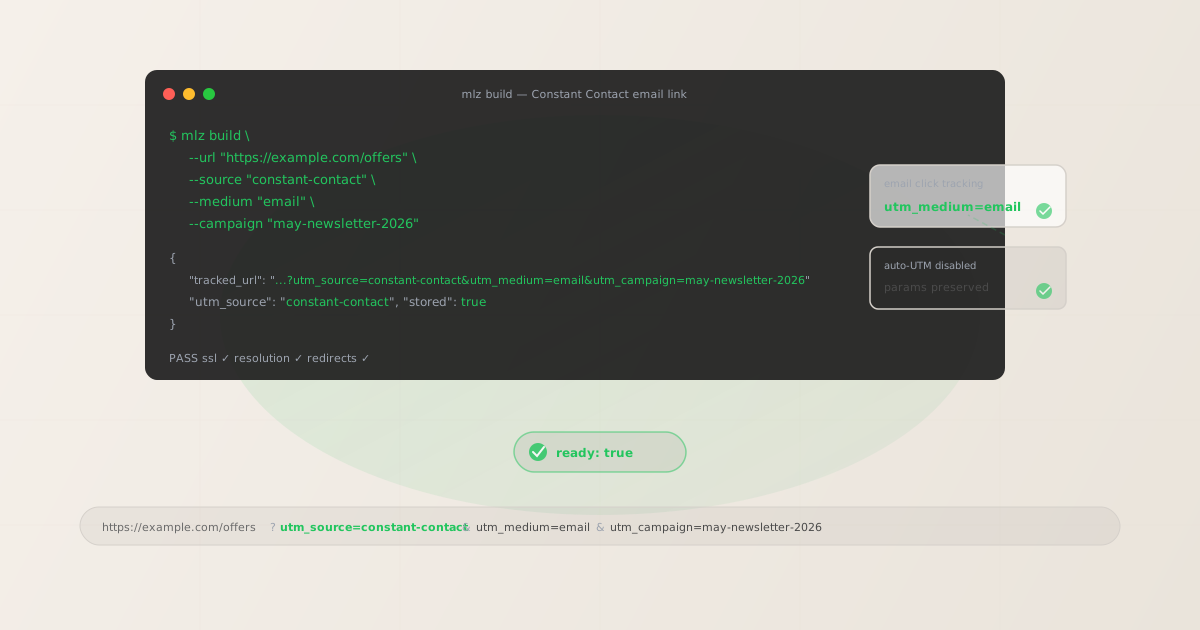
The Constant Contact auto-UTM problem
Constant Contact offers a built-in UTM tracking feature you can enable per campaign. When enabled, it automatically appends UTM parameters to every link in your email before the campaign sends. On paper this sounds convenient — in practice it creates two attribution problems that compound each other.
First, Constant Contact sets utm_source=constant_contact using an underscore. The widely accepted convention for this platform is utm_source=constant-contact with a hyphen (matching the brand name as written). If you sometimes use the auto-UTM and sometimes set your own parameters, GA4 creates two separate rows: one for constant_contact and one for constant-contact. Those are treated as different sources in every Traffic Acquisition report.
Second — and more disruptive — Constant Contact uses the email campaign name you entered in the platform as the utm_campaign value. If your campaign is named "May Newsletter 2026," that becomes utm_campaign=May+Newsletter+2026. If it's "Spring Promo - Limited Time," that becomes utm_campaign=Spring+Promo+-+Limited+Time. The result in GA4 is a campaign report populated with free-form human-readable names rather than machine-readable slugs — no consistent taxonomy, no reliable filtering, and no way to compare performance across equivalent campaigns from different periods.
# What Constant Contact auto-UTM generates (avoid this)
?utm_source=constant_contact
&utm_medium=email
&utm_campaign=May+Newsletter+2026

# What you want (managed with mlz build)
?utm_source=constant-contact
&utm_medium=email
&utm_campaign=may-newsletter-2026
The difference looks minor in a URL, but in GA4 it's the difference between a clean campaign report you can act on and a report full of sentence-case campaign names that change every month. Disable Constant Contact's auto-UTM and build your own parameters with mlz build.
The correct utm_source and utm_medium for Constant Contact
For all Constant Contact sends — regular broadcast emails, A/B tests, Resend to Non-Openers, and automation emails — use utm_source=constant-contact (hyphen, lowercase) and utm_medium=email. This maps cleanly to GA4's default Email channel grouping and follows the same naming pattern used for other email platforms (klaviyo, mailchimp, hubspot).
The critical rule: pick constant-contact (hyphen) or constant_contact (underscore) and never mix them. Once you disable auto-UTM and manage parameters yourself, the choice is straightforward — use constant-contact with a hyphen, which matches how the brand name is written. Document this in your UTM taxonomy so every team member and every tool generates the same value.
| Constant Contact send type | utm_source | utm_medium | GA4 default channel |
|---|---|---|---|
| Regular email (broadcast) | constant-contact |
email |
|
| A/B subject line test | constant-contact |
email |
|
| Resend to Non-Openers | constant-contact |
email |
|
| Automation / workflow email | constant-contact |
email |
For utm_campaign, use lowercase hyphen-separated slugs that identify the campaign's purpose and time period — not the email subject line. For example: may-newsletter-2026, spring-promo-2026, welcome-series. For automation emails, use stable slugs that remain valid for the full lifetime of the automation — omit dates if the automation runs continuously.
For utm_content, use a CTA identifier that distinguishes different links within the same email: primary-cta, secondary-cta, hero-link. For A/B tests, use variant-a and variant-b to differentiate subject line variants while keeping the same utm_campaign value.
Building Constant Contact campaign links with mlz build
mlz build generates a normalised tracked URL with consistent lowercase parameters and stores the link for auditing. For a regular Constant Contact broadcast with multiple CTAs:
# Primary CTA in a Constant Contact broadcast campaign
$ mlz build \
  --url "https://example.com/spring-sale" \
  --source "constant-contact" \
  --medium "email" \
  --campaign "spring-promo-2026" \
  --content "primary-cta"

{
  "tracked_url": "https://example.com/spring-sale?utm_source=constant-contact&utm_medium=email&utm_campaign=spring-promo-2026&utm_content=primary-cta",
  "params": {
    "utm_source": "constant-contact",
    "utm_medium": "email",
    "utm_campaign": "spring-promo-2026",
    "utm_content": "primary-cta"
  },
  "link_id": "lnk_cc3m8k1z",
  "stored": true
}
Paste the tracked_url value directly into the link field in Constant Contact's email editor. With Constant Contact's auto-UTM disabled, the link passes through Constant Contact's click-tracking redirect unchanged — your parameters arrive at the destination exactly as built.
For Constant Contact automation emails — welcome sequences, anniversary emails, re-engagement series — use stable campaign slugs that won't need to change over the lifetime of the automation:
# Email 2 in a Constant Contact welcome automation
$ mlz build \
  --url "https://example.com/getting-started" \
  --source "constant-contact" \
  --medium "email" \
  --campaign "welcome-series" \
  --content "email-2-getting-started"

{
  "tracked_url": "https://example.com/getting-started?utm_source=constant-contact&utm_medium=email&utm_campaign=welcome-series&utm_content=email-2-getting-started",
  "params": {
    "utm_source": "constant-contact",
    "utm_medium": "email",
    "utm_campaign": "welcome-series",
    "utm_content": "email-2-getting-started"
  },
  "link_id": "lnk_cc5w9n4p",
  "stored": true
}
The slug welcome-series stays constant regardless of when a subscriber triggers the automation. Using utm_content=email-2-getting-started identifies both the step number and the destination, so GA4 attribution reports remain readable without cross-referencing the automation workflow in Constant Contact.
How to disable Constant Contact's auto-UTM
Constant Contact's UTM tracking is configured at the campaign level — it is not an account-wide toggle. You enable or disable it for each individual campaign during the campaign setup flow. Here is where to find it:
- Per-campaign setting: When creating or editing a campaign in Constant Contact, look for a "Tracking" section in the campaign settings. Within that section there is a "Google Analytics" or "UTM tracking" option. Disabling it for the campaign prevents Constant Contact from appending auto-generated UTM parameters to any link in that email. You must set this for each new campaign — there is no account-level default that disables it everywhere at once.
- Template-level links already have parameters: When you paste your
mlz build-generated tracked URL directly into the link field in Constant Contact's email editor, that URL already contains the?utm_source=...query string. With auto-UTM disabled, the click-tracking redirect passes that query string through intact. No further action is required. - Click tracking remains active independently: Disabling Constant Contact's auto-UTM does not disable its click tracking. Constant Contact's click-tracking redirect (through
r.constantcontact.com) continues to wrap all email links for its own analytics — recording which recipients clicked which links. This is separate from UTM parameters and does not interfere with the parameters you set. You keep Constant Contact's click analytics; you just remove the conflicting auto-UTM values.
If you are managing a large number of campaigns and disabling auto-UTM per-campaign is operationally difficult, the next best approach is to ensure Constant Contact's UTM settings match your taxonomy exactly — set utm_source to constant-contact (hyphen) in Constant Contact's settings, and do not add UTM parameters to the link URLs themselves in the email template. Letting auto-UTM be the only source of parameters avoids duplicates. However, you still lose the clean utm_campaign slug — Constant Contact will use the campaign name. A per-campaign process of disabling auto-UTM and using managed links is the only way to get fully clean attribution.
Validating Constant Contact destination URLs before sending
Before finalising any Constant Contact campaign, validate the destination URLs with mlz build --validate. This confirms each destination responds with a 200, uses HTTPS, and resolves without unexpected redirects that might strip UTM parameters:
$ mlz build \
  --url "https://example.com/spring-sale" \
  --source "constant-contact" \
  --medium "email" \
  --campaign "spring-promo-2026" \
  --content "primary-cta" \
  --validate

{
  "tracked_url": "https://example.com/spring-sale?utm_source=constant-contact&utm_medium=email&utm_campaign=spring-promo-2026&utm_content=primary-cta",
  "validation": {
    "valid": true,
    "checks": [
      { "check": "url_format", "status": "pass", "message": "URL format is valid." },
      { "check": "ssl", "status": "pass", "message": "URL uses HTTPS." },
      { "check": "resolution", "status": "pass", "message": "Destination responded with 200.", "details": { "response_time_ms": 198 } },
      { "check": "redirects", "status": "pass", "message": "No redirects detected." }
    ]
  },
  "link_id": "lnk_cc3m8k1z",
  "stored": true
}
For Constant Contact automation emails, periodically re-validate destination URLs — especially after landing page updates, CMS migrations, or campaign page expirations. An automation pointing to a seasonal promotion page that was taken down will silently send contacts to a 404 or a redirect to your homepage. Depending on how that redirect is configured, UTM parameters may not be preserved. Build periodic validation into your automation audit process: run mlz build --validate for each active automation's links at least once per quarter.
Constant Contact UTM tracking gotchas
- Underscore vs. hyphen in utm_source
- Constant Contact's auto-UTM generates
utm_source=constant_contactwith an underscore. If you manage your own parameters you should useutm_source=constant-contactwith a hyphen, matching the brand name. GA4 is case- and character-sensitive:constant_contactandconstant-contactare treated as two different sources and appear as separate rows in Traffic Acquisition reports. Pick one form and never mix them. Disable auto-UTM so you control the value entirely. - Campaign name becomes utm_campaign
- When Constant Contact's auto-UTM is enabled, it uses the email campaign name you entered in the platform — for example "May Newsletter 2026" — as the
utm_campaignvalue. This produces URL-encoded campaign names likeutm_campaign=May+Newsletter+2026in GA4, making campaign reports unreadable and impossible to filter consistently across periods. Managing your own parameters withmlz buildensuresutm_campaignis always a clean lowercase slug:may-newsletter-2026. - Resend to Non-Openers should use the same UTM parameters
- Constant Contact's Resend to Non-Openers feature automatically sends the same campaign a second time to contacts who did not open the original send. This is the same campaign — keep the same UTM parameters for the resend as you used in the original send. Do not create new
utm_campaignvalues for the resend. Changing UTM parameters for the resend splits the attribution across two separate campaign rows in GA4, making it impossible to see the full reach of the campaign in a single report. If you want to track resend engagement specifically, useutm_contentto distinguish sends:send-1andsend-2, keepingutm_campaignidentical. - A/B testing subject lines: use utm_content, not separate utm_campaign values
- Constant Contact has an A/B subject line testing feature that sends different subject lines to segments of your list. For A/B tests, use the same
utm_campaignvalue for both variants — the campaign is the same campaign regardless of which subject line a contact received. Distinguish the variants withutm_content:utm_content=variant-aandutm_content=variant-b. This lets you see total campaign attribution in GA4 while still being able to filter byutm_contentto compare which subject line drove more traffic and conversions. - Constant Contact's click-tracking redirect preserves UTM parameters
- Constant Contact wraps all email links with its own click-tracking redirect through
r.constantcontact.comto record link clicks for Constant Contact's email analytics. This redirect passes the full query string including your UTM parameters through to the destination URL unchanged. You do not need to do anything special for parameter preservation through this redirect — your UTM parameters survive it intact. The only case where the redirect becomes a problem is when Constant Contact's auto-UTM is also enabled at the same time, which can cause the auto-generated parameters to collide with your custom ones. Disable auto-UTM to eliminate that risk.
Constant Contact UTM naming conventions
Recommended conventions for Constant Contact UTM parameters, aligned with GA4 channel groupings and cross-platform attribution standards:
- utm_source:
constant-contact— hyphen, lowercase, for all sends from Constant Contact (broadcasts, automations, A/B tests, resends) - utm_medium:
emailfor all email channels - utm_campaign: lowercase hyphen-separated slug — e.g.
may-newsletter-2026,spring-promo-2026,welcome-series,re-engagement-q3. For one-time broadcasts, include the time period. For automations, use stable slugs without dates. - utm_content: CTA or step identifier — e.g.
primary-cta,secondary-cta,email-1-welcome,email-2-getting-started,variant-a,variant-b,send-1,send-2. - utm_term: Contact list or segment identifier if relevant — e.g.
vip-subscribers,trial-users,inactive-60-days.
If your team uses multiple email platforms alongside Constant Contact — for example, Constant Contact for newsletters and another platform for transactional email — keep the same cross-channel naming conventions: platform name as utm_source, channel type as utm_medium, and your campaign taxonomy as utm_campaign. This lets you compare performance across platforms in GA4 by filtering on utm_medium=email and grouping by source. See the UTM naming conventions guide for the full cross-channel reference.
FAQ
- What utm_source should I use for Constant Contact?
- Use
utm_source=constant-contact— hyphen, lowercase — for all emails sent from Constant Contact. This matches the brand name as written and is the convention used by teams that manage UTM parameters themselves rather than relying on Constant Contact's auto-UTM. Do not useconstant_contactwith an underscore (which is what Constant Contact's auto-UTM generates) unless you are specifically matching the auto-UTM output. Whatever you choose, be consistent: mixingconstant-contactandconstant_contactcreates two separate source rows in GA4's Traffic Acquisition report. - Does Constant Contact's click tracking redirect strip UTM parameters?
- No. Constant Contact's click-tracking redirect (through
r.constantcontact.com) preserves the full query string including your UTM parameters. The recipient's click passes through Constant Contact's redirect, which records the click for Constant Contact's email analytics, and then forwards the recipient to your destination URL with all parameters intact. If your destination URL itself has a redirect — through a link shortener, a CMS redirect rule, or a landing page platform redirect — that secondary redirect may or may not preserve UTM parameters depending on how it is configured. Usemlz build --validateto confirm the full redirect chain resolves correctly. - Should I use the same UTM parameters for a Resend to Non-Openers campaign?
- Yes. Resend to Non-Openers is the same campaign sent a second time — use the same
utm_source,utm_medium, andutm_campaignvalues as the original send. The resend is not a new campaign; creating a newutm_campaignslug for it fragments your attribution across two rows in GA4 and makes it impossible to see the total reach of the campaign in a single view. If you want to track resend engagement separately, useutm_contentto distinguish:utm_content=send-1for the original andutm_content=send-2for the resend, keepingutm_campaignidentical for both. - How do I track A/B subject line tests in GA4 with UTM parameters?
- Use the same
utm_campaignvalue for both A/B variants — the campaign is the same regardless of which subject line a contact received. Distinguish the variants usingutm_content: setutm_content=variant-afor one version andutm_content=variant-bfor the other. In GA4 you can then see total campaign traffic under the sharedutm_campaignslug, and filter or segment byutm_contentto compare which subject line drove more clicks and conversions. Do not create separateutm_campaignvalues for A/B variants — that splits attribution and makes cross-variant comparison impossible in a single campaign view. - How do I disable Constant Contact's auto-UTM?
- Constant Contact's auto-UTM is configured per campaign, not at the account level. When creating or editing a campaign, find the "Tracking" section in the campaign settings panel. Look for a Google Analytics or UTM tracking option and disable it for that campaign. Repeat this for each new campaign. Once disabled, paste your
mlz build-generated tracked URLs directly into the link fields in Constant Contact's email editor — the click-tracking redirect will pass your parameters through intact without appending its own.
Recommended posts
Build Constant Contact campaign links from the terminal
Pass --source "constant-contact" --medium "email" to mlz build and get a normalised, validated URL ready to paste into Constant Contact's email editor — no campaign-name slugs in GA4, no underscore-vs-hyphen confusion, no mixed-case values. Add --content to identify CTAs and A/B variants, and --validate to confirm destinations resolve cleanly before your campaign sends.
1,000 links/month free. No credit card.
Your API key
Save this now — it won't be shown again.
npm install -g missinglinkz
Free plan: 1,000 links/month. No credit card. See the UTM tracking for developers guide for the full programmatic workflow.