UTM Tracking for Campaign Monitor: How to Build and Validate Email Campaign Links
UTM tracking for Campaign Monitor requires two decisions that many teams get wrong: what value to use for utm_source (is it campaign-monitor, campaignmonitor, or campaign_monitor?) and how Campaign Monitor's built-in Google Analytics integration interacts with manually applied UTM parameters. Campaign Monitor's auto-UTM appends parameter values derived from your campaign's internal name — producing mixed-case and space-encoded values that fragment GA4 attribution reports. For agency teams managing Campaign Monitor across multiple client accounts, the problem compounds: without a shared naming convention, each client accumulates different utm_source variants and inconsistent utm_campaign slugs. This article covers the correct UTM values for Campaign Monitor Campaigns and Journeys, how to build consistent tracked links with mlz build, how to disable Campaign Monitor's auto-UTM, and how to validate destination URLs before every send.
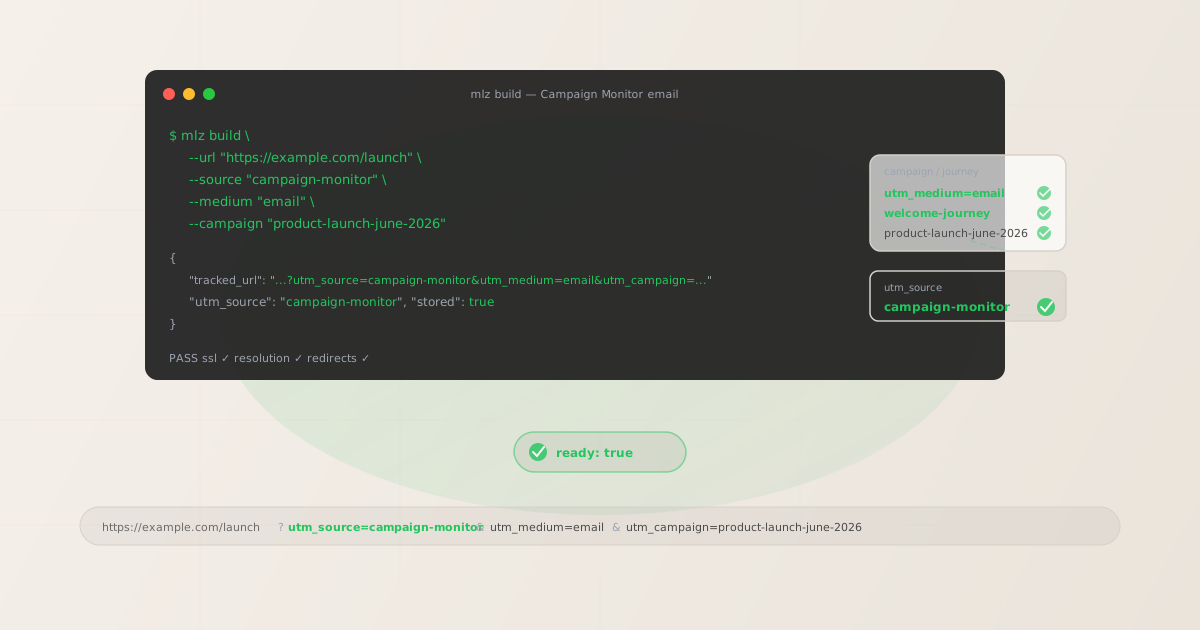
The correct utm_source for Campaign Monitor
Use utm_source=campaign-monitor — all lowercase, with a hyphen — for all sends from Campaign Monitor. This is the consistent, GA4-friendly value: lowercase so it matches GA4's case-sensitive attribution, hyphenated to match the standard kebab-case convention used across all platform source names. The utm_medium value is email for all Campaign Monitor email sends. Campaign Monitor organises its email features into two primary send types:
| Campaign Monitor send type | utm_source | utm_medium | GA4 default channel |
|---|---|---|---|
| Campaign (one-time send to a list or segment) | campaign-monitor |
email |
|
| Journey email (automated sequence step) | campaign-monitor |
email |
|
| Transactional email (via Campaign Monitor Transactional) | campaign-monitor |
email |
|
| RSS campaign (automated send on RSS update) | campaign-monitor |
email |
The choice of campaign-monitor (hyphenated) over alternatives like campaignmonitor (no separator) or campaign_monitor (underscore) matters for long-term consistency. GA4 treats each variant as a distinct value — once you pick a format, all future sends must use the same format to keep attribution unified. The hyphenated format is consistent with how other multi-word platform names appear in the UTM naming conventions guide (constant-contact, google-ads) and is the easiest to read in GA4 reports.
utm_campaign naming for Campaign Monitor Campaigns and Journeys
Campaign Monitor's two primary send types need different utm_campaign naming strategies. Campaigns are one-time sends and should use date-stamped slugs. Journeys are automated sequences that run continuously and need stable, evergreen slugs that describe the automation's purpose without encoding a date.
# Campaign (one-time send) — include date in slug
$ mlz build --url "https://example.com/launch" \
  --source "campaign-monitor" --medium "email" \
  --campaign "product-launch-june-2026" --content "main-cta"

# Journey email (welcome sequence) — stable evergreen slug
$ mlz build --url "https://example.com/getting-started" \
  --source "campaign-monitor" --medium "email" \
  --campaign "welcome-journey" --content "day-1-cta"

# Journey email (re-engagement sequence) — stable evergreen slug
$ mlz build --url "https://example.com/offer" \
  --source "campaign-monitor" --medium "email" \
  --campaign "re-engagement-journey" --content "winback-cta"
The naming pattern reflects the functional difference between one-time sends and continuous automations: Campaigns happen once, so their slugs should encode when they happened. Journeys run indefinitely, so their slugs should describe what the Journey does — the same slug remains accurate one month or two years after the Journey was first activated.
Use utm_content to distinguish individual emails within a Campaign Monitor Journey. For a 5-step onboarding Journey, use: utm_campaign=onboarding-journey for all steps, with utm_content=day-1-cta, utm_content=day-3-tips-cta, utm_content=day-7-offer per email. In GA4's Explore report, utm_content as a secondary dimension on the Journey's campaign row gives you per-step attribution without fragmenting campaign-level data.
Building Campaign Monitor links with mlz build
mlz build generates a normalised tracked URL with lowercase hyphen-separated values and stores the link for auditing. For a Campaign Monitor Campaign:
# Primary CTA in a Campaign Monitor Campaign
$ mlz build \
  --url "https://example.com/launch" \
  --source "campaign-monitor" \
  --medium "email" \
  --campaign "product-launch-june-2026" \
  --content "main-cta"

{
  "tracked_url": "https://example.com/launch?utm_source=campaign-monitor&utm_medium=email&utm_campaign=product-launch-june-2026&utm_content=main-cta",
  "params": {
    "utm_source": "campaign-monitor",
    "utm_medium": "email",
    "utm_campaign": "product-launch-june-2026",
    "utm_content": "main-cta"
  },
  "link_id": "lnk_cm7v3n9k",
  "stored": true
}
Copy the tracked_url and paste it directly into Campaign Monitor's email editor as your link destination. Campaign Monitor's click-tracking redirect wraps all links in your email to record click data — this redirect preserves your full destination URL, including the UTM query string, when forwarding recipients to the destination.
For Campaign Monitor Journey emails, build each step's links with a stable campaign slug and a unique utm_content value per step:
# Day 7 email in the onboarding Journey sequence
$ mlz build \
  --url "https://example.com/upgrade" \
  --source "campaign-monitor" \
  --medium "email" \
  --campaign "onboarding-journey" \
  --content "day-7-upgrade-cta"

{
  "tracked_url": "https://example.com/upgrade?utm_source=campaign-monitor&utm_medium=email&utm_campaign=onboarding-journey&utm_content=day-7-upgrade-cta",
  "params": {
    "utm_source": "campaign-monitor",
    "utm_medium": "email",
    "utm_campaign": "onboarding-journey",
    "utm_content": "day-7-upgrade-cta"
  },
  "link_id": "lnk_cm2h8p4x",
  "stored": true
}
How to disable Campaign Monitor's Google Analytics integration
Campaign Monitor includes a Google Analytics integration that, when enabled, automatically appends UTM parameters to all links in your Campaign emails. Campaign Monitor derives the utm_campaign value from your campaign's internal name — whatever you typed in Campaign Monitor's "Campaign name" field when creating the send. If the campaign is named "Product Launch June 2026," Campaign Monitor generates utm_campaign=Product%20Launch%20June%202026 (URL-encoded spaces, mixed case). In GA4, this creates a separate row from a manually applied utm_campaign=product-launch-june-2026.
When Campaign Monitor's Google Analytics integration is active and you've also embedded manually built parameters in your links, Campaign Monitor appends its own parameters during the send. If the same UTM key appears twice in a URL, GA4 processes only one value — and which value wins depends on parameter order, which you cannot reliably control. The clean solution is to disable Campaign Monitor's Google Analytics integration entirely and apply all parameters manually using mlz build.
To disable Campaign Monitor's Google Analytics integration:
- Campaign-level setting: When creating or editing a Campaign, Campaign Monitor presents a step in the campaign wizard for tracking settings. Look for a "Google Analytics" or "Tracking" section. Disable the Google Analytics tracking option for any campaign where you've applied custom UTM parameters to your links. This only affects the current campaign and does not change the account-level default.
- Account-level setting: In your Campaign Monitor account settings under Integrations or Tracking, there is a setting for the Google Analytics integration. Disabling it at the account level removes the auto-UTM from all future campaigns by default, unless overridden per campaign. This is the most efficient approach for teams that manage all tracked links through
mlz build. - Journey emails: Campaign Monitor's Journeys (automated sequences) use the Journey name as the basis for auto-generated UTM values when the integration is active. Disable the integration at the account level, or review the Journey-level settings when building new Journeys to confirm auto-UTM is not active for Journey sends.
Once disabled, Campaign Monitor's click-tracking redirect forwards recipients to your destination URL with your manually built UTM parameters intact — exactly as constructed by mlz build.
Agency teams: per-client UTM taxonomy in Campaign Monitor
Campaign Monitor is popular with agencies managing multiple client email programs from a single account or sub-account structure. For agency teams, UTM tracking consistency requires a shared naming convention across all client accounts — otherwise each client accumulates its own variants of utm_source (some clients may have historic data under cm, campaignmonitor, or campaign_monitor from past manual tagging).
The recommended approach for agencies: standardise on utm_source=campaign-monitor across all client accounts, and use the utm_campaign slug to encode both the client context and the send type. For a multi-client agency, a common pattern is to prefix the campaign slug with a client identifier:
# Client A — one-time promotional campaign
$ mlz build --url "https://clienta.com/sale" \
  --source "campaign-monitor" --medium "email" \
  --campaign "clienta-summer-sale-june-2026" --content "main-cta"

# Client B — welcome Journey (stable slug)
$ mlz build --url "https://clientb.com/welcome" \
  --source "campaign-monitor" --medium "email" \
  --campaign "clientb-welcome-journey" --content "day-1-cta"
The client prefix ensures that when agency teams pull consolidated GA4 reports across clients, campaign-level attribution rows are immediately identifiable by client without needing to cross-reference account data. Each client's GA4 property receives sends with a consistent utm_source=campaign-monitor and client-prefixed utm_campaign slugs — making cross-client comparisons clean and preventing accidental attribution merges if different clients happen to run similarly named campaigns at the same time.
See the UTM governance at scale guide for a broader framework for managing UTM taxonomy consistency across an agency's full client portfolio.
Validating Campaign Monitor destination URLs before sending
Use mlz build --validate to confirm destination URLs resolve correctly before sending a Campaign or activating a Journey:
$ mlz build \
  --url "https://example.com/launch" \
  --source "campaign-monitor" \
  --medium "email" \
  --campaign "product-launch-june-2026" \
  --content "main-cta" \
  --validate

{
  "tracked_url": "https://example.com/launch?utm_source=campaign-monitor&utm_medium=email&utm_campaign=product-launch-june-2026&utm_content=main-cta",
  "validation": {
    "valid": true,
    "checks": [
      { "check": "url_format", "status": "pass", "message": "URL format is valid." },
      { "check": "ssl", "status": "pass", "message": "URL uses HTTPS." },
      { "check": "resolution", "status": "pass", "message": "Destination responded with 200.", "details": { "response_time_ms": 211 } },
      { "check": "redirects", "status": "pass", "message": "No redirects detected." }
    ]
  },
  "link_id": "lnk_cm7v3n9k",
  "stored": true
}
For Campaign Monitor Journeys, validate all destination URLs when building the Journey, and schedule periodic re-validation while the Journey is active. Journeys run continuously — a destination URL that changes or goes offline after initial setup will affect every future recipient who reaches that step. Use mlz links list to retrieve all stored tracked URLs for your account and re-validate them in bulk.
Campaign Monitor UTM tracking gotchas
- Campaign Monitor's auto-UTM uses your campaign name — not a slug you control
- When Campaign Monitor's Google Analytics integration appends UTM parameters, it derives
utm_campaignfrom your Campaign Monitor campaign name — whatever text you entered in the "Campaign name" field. If the name includes spaces, uppercase, or punctuation, Campaign Monitor URL-encodes these characters when appending the parameter. The result in GA4 is autm_campaignrow with a value likeProduct%20Launch%20Q2rather thanproduct-launch-q2. These two values create separate attribution rows in GA4 — splitting data that should be unified. Disable Campaign Monitor's auto-UTM and usemlz buildto control the slug format exactly. - utm_source variants from historical manual tagging accumulate in GA4
- Teams that have been tagging Campaign Monitor links manually for years often have historical data under multiple source values:
cm,CampaignMonitor,campaign_monitor,campaignmonitor. GA4 treats each of these as a distinct source, fragmenting historical email attribution across multiple rows. When standardising toutm_source=campaign-monitor, create a custom channel group in GA4 that maps all known variants to a single "Email" channel — this preserves continuity in your reports while you transition to the new consistent value going forward. - Campaign Monitor Journeys use the Journey name for auto-UTM, not step names
- When Campaign Monitor's Google Analytics integration is active for a Journey, it uses the Journey name as the source of the auto-generated
utm_campaignvalue — not individual step names. All emails in a multi-step Journey receive the same auto-generatedutm_campaign, making it impossible to distinguish which step in the sequence drove a conversion. Disable the Google Analytics integration and applyutm_contentvalues per step: a stableutm_campaignslug for the Journey plus a step-specificutm_contentvalue per email gives you per-step attribution in GA4. - Campaign Monitor's click tracking redirect preserves UTM parameters
- Campaign Monitor wraps all links in your email with a click-tracking redirect (hosted on
links.campaignmonitor.comor similar) to record click events. This redirect preserves your full destination URL, including the UTM query string built withmlz build, when forwarding recipients. The click-tracking redirect and the Google Analytics integration are independent features — disabling the Google Analytics integration does not affect click tracking. Once the integration is disabled, your custom UTM parameters are the only values appended to destination URLs. - RSS campaigns need stable utm_campaign slugs in the template
- Campaign Monitor's RSS-to-email feature automatically sends campaigns when new content appears in your RSS feed. Because the email template is reused for every RSS send, UTM parameters embedded in the template apply to all future sends. Use a stable evergreen slug:
utm_campaign=blog-rss-updateorutm_campaign=weekly-newsletter. If Campaign Monitor's auto-UTM is active for RSS campaigns, it derivesutm_campaignfrom the auto-generated campaign name, which may vary between sends depending on how Campaign Monitor names the RSS-triggered send — creating fragmented GA4 attribution over time.
Campaign Monitor UTM naming conventions
Recommended UTM parameter values for Campaign Monitor across all send types, aligned with GA4 default channel groupings:
- utm_source:
campaign-monitor— all lowercase, hyphenated, for all sends from Campaign Monitor (Campaigns, Journeys, RSS campaigns, transactional). - utm_medium:
emailfor all Campaign Monitor email sends. - utm_campaign: lowercase hyphen-separated slug — for Campaigns (one-time sends):
product-launch-june-2026,summer-sale-may-2026; for Journeys (automations):welcome-journey,onboarding-journey,re-engagement-journey; for RSS campaigns:blog-rss-update,weekly-newsletter. For agency teams, prefix with client identifier:clienta-summer-sale-june-2026. - utm_content: CTA or step identifier — for Campaigns:
main-cta,body-link,footer-cta; for Journey steps:day-1-cta,day-3-resources-cta,day-7-upgrade-cta. - utm_term: Use sparingly — for segment-targeted Campaigns where the audience segment is meaningful for attribution:
enterprise-customers,trial-users,inactive-90d.
If your team uses Campaign Monitor alongside other email platforms or marketing channels, maintain the same cross-platform convention: platform name as utm_source, channel type as utm_medium. See the UTM naming conventions guide for the full cross-channel reference and the UTM governance at scale guide for taxonomy management across multiple clients and platforms.
FAQ
- Should I use campaign-monitor, campaignmonitor, or cm as utm_source?
- Use
utm_source=campaign-monitor— hyphenated, all lowercase. This is the most readable format in GA4 reports, consistent with the kebab-case convention used for other multi-word platform names (constant-contact,google-ads), and unambiguous about which platform it refers to. Avoidcm(ambiguous — could be any platform with those initials),campaignmonitor(readable but inconsistent with the hyphen convention), andCampaignMonitororCampaign+Monitor(mixed case or URL-encoded — these fragment GA4 attribution from correctly-cased values). - What is the difference between Campaign Monitor Campaigns and Journeys for UTM purposes?
- Campaign Monitor Campaigns are one-time sends to a list or segment — equivalent to a newsletter or promotional blast. Campaign Monitor Journeys are automated multi-step sequences triggered by subscriber events like signup, a link click, or a date condition — equivalent to what other platforms call automations or sequences. For UTM purposes, Campaigns should use date-stamped
utm_campaignslugs (summer-sale-june-2026) since they're one-time events. Journeys should use stable evergreen slugs (welcome-journey,re-engagement-journey) since they run indefinitely and need to accumulate attribution data under a single consistent slug over time. - How do I disable Campaign Monitor's Google Analytics auto-UTM?
- When creating or editing a Campaign, Campaign Monitor presents a tracking settings step in the campaign wizard. Locate the Google Analytics tracking option and disable it for campaigns where you've applied custom parameters. To disable it globally by default, go to your Campaign Monitor account settings and look for Integrations or Tracking — set the Google Analytics integration to off. Note that disabling it globally affects all future campaigns; if some campaigns rely on auto-UTM while others use custom parameters, manage the setting per campaign rather than globally.
- How do I track individual Journey steps in GA4?
- Use
utm_contentto distinguish individual emails within a Campaign Monitor Journey, while keepingutm_campaignstable across all steps. For a 4-step welcome Journey, useutm_campaign=welcome-journeyfor all four emails withutm_content=day-1-cta,utm_content=day-3-tips-cta,utm_content=day-7-offer,utm_content=day-14-followupfor each step. Build each email's link with the appropriate--contentflag inmlz buildand paste the resultingtracked_urldirectly into the Journey email editor. - How should agencies name UTM parameters across multiple Campaign Monitor clients?
- Standardise on
utm_source=campaign-monitoracross all client accounts. Use theutm_campaignslug to encode the client identifier: prefix each campaign slug with a short client code or name —clienta-welcome-journey,clientb-summer-sale-june-2026. This makes client attribution immediately clear in consolidated GA4 views without requiring cross-referencing of account data. Document the naming convention in a shared style guide and enforce it withmlz build— the CLI normalises all values to lowercase hyphenated format, preventing accidental casing or spacing inconsistencies when different team members build links.
Recommended posts
Build Campaign Monitor links from the terminal
Pass --source "campaign-monitor" --medium "email" to mlz build and get a normalised, validated URL ready to paste into Campaign Monitor's email editor — all lowercase hyphenated, no mixed-case from Campaign Monitor's auto-UTM, stable slugs for Journey emails and date-stamped slugs for one-time Campaigns. Agency teams can prefix utm_campaign slugs with client identifiers for clean cross-client attribution. Add --validate to confirm every destination resolves cleanly before send.
1,000 links/month free. No credit card.
Your API key
Save this now — it won't be shown again.
npm install -g missinglinkz
Free plan: 1,000 links/month. No credit card. See the UTM tracking for developers guide for the full programmatic workflow.