UTM Tracking for Brevo Campaigns: How to Build and Validate Email, SMS, and WhatsApp Campaign Links
The most common UTM tracking question for Brevo users isn't about which parameters to use — it's about which utm_source value to use after the platform rebranded from Sendinblue in May 2023. Teams with pre-rebrand campaigns have historical GA4 data under utm_source=sendinblue. New sends go out under utm_source=brevo. Without a deliberate decision, GA4 reports fragment: Brevo's email performance is split across two source values with no way to compare channel-over-channel trends. Add to this that Brevo supports email, SMS, and WhatsApp campaigns — each needing a different utm_medium — and Brevo's own auto-UTM feature (which uses campaign display names rather than slugs), and UTM tracking for Brevo has more moving parts than most email platforms. This article covers the correct UTM conventions for Brevo across all channels, how to handle the Sendinblue migration cleanly, how to build consistent links with mlz build, and how to validate destination URLs — including SMS short URLs — before every send.
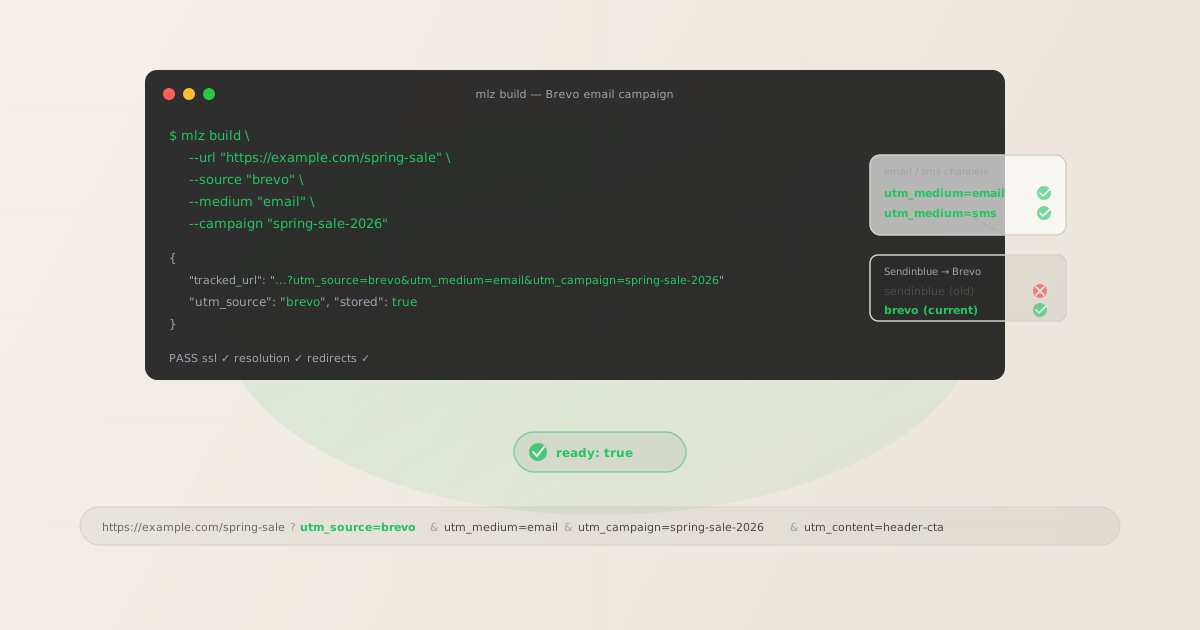
The Sendinblue-to-Brevo rebrand and UTM parameters
Brevo rebranded from Sendinblue in May 2023. The rebrand was a full platform rename — new domain, new UI, new brand identity — but the underlying product (email, SMS, marketing automation) remained continuous. For UTM tracking, this creates a specific data problem: sessions from before the rebrand were attributed to utm_source=sendinblue. Sessions from after the rebrand are attributed to utm_source=brevo. In GA4's Traffic Acquisition report, these appear as two separate sources even though they represent the same channel.
This fragmentation makes year-over-year comparisons difficult. If you ran email campaigns in Q2 2023 and want to compare them to Q2 2026, the Q2 2023 data is under sendinblue and the Q2 2026 data is under brevo. Any filter or segment that covers "email platform traffic" has to include both source values to be accurate.
# What GA4 sees when both utm_source values are in use

# Pre-May 2023: old Sendinblue campaigns
utm_source=sendinblue  utm_medium=email  sessions: 4,210
utm_source=sendinblue  utm_medium=email  sessions: 3,890
utm_source=sendinblue  utm_medium=email  sessions: 2,940

# Post-May 2023: new Brevo campaigns
utm_source=brevo  utm_medium=email  sessions: 5,120
utm_source=brevo  utm_medium=email  sessions: 4,770

# The same channel — split into two source rows in every report
The recommended approach is to migrate fully to utm_source=brevo for all new campaigns and accept the historical data break. Do not maintain utm_source=sendinblue going forward — using the old brand name on current sends perpetuates confusion for new team members who don't know the history, and it continues to accumulate data in a bucket that will grow increasingly stale relative to the active brevo bucket.
When you make the switch, add a GA4 annotation at the transition date so future analysts understand why the sendinblue source stops appearing and brevo begins. GA4 annotations (found in the Admin interface under "Annotations") are the standard mechanism for documenting data breaks — they appear as flags on charts when viewing the date range that includes the transition.
If your organisation still has active campaigns with utm_source=sendinblue in templates from before the rebrand, audit and update them now. Use mlz links list to find all stored links containing sendinblue as the source and rebuild them with utm_source=brevo.
The correct utm_source and utm_medium for Brevo
For all Brevo sends, use utm_source=brevo. The utm_medium value depends on the channel. Brevo is a multi-channel platform — email, SMS, and WhatsApp each need a different medium value so GA4 can distinguish them in channel grouping reports.
| Brevo channel | utm_source | utm_medium | GA4 default channel |
|---|---|---|---|
| Email campaign (broadcast) | brevo |
email |
|
| Automation email (workflow step) | brevo |
email |
|
| Transactional email | brevo |
email |
|
| SMS campaign | brevo |
sms |
Unassigned (custom group needed) |
| WhatsApp campaign | brevo |
whatsapp |
Unassigned (custom group needed) |
A note on utm_medium=sms and utm_medium=whatsapp: GA4's default channel groupings recognise email as a medium that maps to the Email channel, and cpc / paid as paid channels. But sms and whatsapp are not included in GA4's default channel groupings — they fall into "Unassigned." To see Brevo SMS and WhatsApp traffic in a dedicated channel in GA4, create a custom channel group in GA4's Admin interface under Data Display › Channel Groups with a rule matching utm_source = brevo and utm_medium = sms (or whatsapp). Despite landing in "Unassigned" by default, using descriptive medium values is still the right approach — it gives you accurate raw data and the ability to create custom groups without retagging.
For utm_campaign, use lowercase hyphen-separated slugs. For Brevo automation workflows, use stable slugs without time-specific dates since the workflow runs continuously — welcome-series, abandoned-cart, post-purchase. For one-time broadcast campaigns, include the time period: spring-sale-2026, may-newsletter-2026.
Building Brevo campaign links with mlz build
mlz build generates a normalised, validated tracked URL and stores the link for auditing. For a Brevo email campaign with a primary CTA:
# Primary CTA in a Brevo broadcast email campaign
$ mlz build \
  --url "https://example.com/spring-sale" \
  --source "brevo" \
  --medium "email" \
  --campaign "spring-sale-2026" \
  --content "shop-now-cta"

{
  "tracked_url": "https://example.com/spring-sale?utm_source=brevo&utm_medium=email&utm_campaign=spring-sale-2026&utm_content=shop-now-cta",
  "params": {
    "utm_source": "brevo",
    "utm_medium": "email",
    "utm_campaign": "spring-sale-2026",
    "utm_content": "shop-now-cta"
  },
  "link_id": "lnk_bv9k2n4m",
  "stored": true
}
Paste the tracked_url value directly into the link field in Brevo's email editor. With Brevo's auto-UTM disabled (see below), this URL passes through Brevo's click-tracking redirect unchanged — your UTM parameters arrive at the destination exactly as built.
For Brevo SMS campaigns, links in SMS messages are typically shortened by Brevo's own link shortener to fit within SMS character limits. You can still use full tracked URLs in Brevo's SMS editor — Brevo will shorten the URL automatically. Build the SMS tracked URL with --medium "sms":
# Link for a Brevo SMS campaign
$ mlz build \
  --url "https://example.com/spring-sale" \
  --source "brevo" \
  --medium "sms" \
  --campaign "spring-sale-sms-2026"

{
  "tracked_url": "https://example.com/spring-sale?utm_source=brevo&utm_medium=sms&utm_campaign=spring-sale-sms-2026",
  "params": {
    "utm_source": "brevo",
    "utm_medium": "sms",
    "utm_campaign": "spring-sale-sms-2026"
  },
  "link_id": "lnk_bv3m8p7q",
  "stored": true
}
After building the SMS tracked URL, paste it into Brevo's SMS editor. Brevo's link shortener will shorten it for character-limit purposes. Before sending, validate the full redirect chain — the SMS short URL should forward through Brevo's tracking redirect and arrive at your destination with the UTM parameters intact. Use mlz build --validate on the full tracked URL (not the shortened URL) to confirm the destination responds correctly before the SMS sends. See the validation section below for the full workflow.
How to manage Brevo's auto-UTM
Brevo includes a campaign tracking feature that can automatically append UTM parameters to links in your email campaigns. When enabled, Brevo appends parameters based on the campaign settings — but the utm_campaign value it generates uses the campaign name you entered in Brevo's interface (for example, "Spring Sale May 2026") rather than a clean lowercase slug.
The result is the same problem as with other email platforms: if you also added UTM parameters to your link templates manually, you end up with two sets of parameters appended to the same URL — with the last value of each duplicate key winning in GA4. The reliable fix is to disable Brevo's auto-UTM and manage all parameters yourself.
To disable Brevo's auto-UTM in the campaign editor:
- Email campaigns: In Brevo's campaign creation flow, look for the Settings or Tracking step (usually the final step before sending or scheduling). You'll find a "Google Analytics" or "UTM tracking" toggle. Disable this to prevent Brevo from appending its own parameters. With the toggle off, Brevo's click-tracking redirect still records clicks for Brevo's own analytics — it just won't inject UTM parameters into the destination URL.
- Account-level defaults: Brevo allows setting default campaign tracking options at the account level. Review your account settings under Settings › Campaign Settings to see whether UTM auto-tagging is enabled by default, and disable it there to prevent it from being pre-enabled in every new campaign you create.
- Transactional email: Brevo's transactional email API does not apply the same campaign-level UTM auto-tagging. UTM parameters for transactional email links should be managed at the template level — embed them directly in the link templates in your Brevo transactional email templates, or build them programmatically using
mlz buildbefore populating the template variables.
Once Brevo's auto-UTM is disabled, Brevo's click-tracking redirect passes the full query string — including your custom UTM parameters — through to the destination URL unchanged. This is the same behaviour as Mailchimp, Klaviyo, ActiveCampaign, and other email platforms: the platform's redirect records the click for its own analytics without modifying your parameters.
Validating Brevo destination URLs before sending
Use mlz build --validate to confirm destination URLs respond correctly before sending a Brevo campaign. For email campaigns, this confirms the landing page is live and the full URL (including UTM parameters) resolves to a 200 response:
$ mlz build \
  --url "https://example.com/spring-sale" \
  --source "brevo" \
  --medium "email" \
  --campaign "spring-sale-2026" \
  --content "shop-now-cta" \
  --validate

{
  "tracked_url": "https://example.com/spring-sale?utm_source=brevo&utm_medium=email&utm_campaign=spring-sale-2026&utm_content=shop-now-cta",
  "validation": {
    "valid": true,
    "checks": [
      { "check": "url_format", "status": "pass", "message": "URL format is valid." },
      { "check": "ssl", "status": "pass", "message": "URL uses HTTPS." },
      { "check": "resolution", "status": "pass", "message": "Destination responded with 200.", "details": { "response_time_ms": 198 } },
      { "check": "redirects", "status": "pass", "message": "No redirects detected." }
    ]
  },
  "link_id": "lnk_bv9k2n4m",
  "stored": true
}
For Brevo SMS campaigns, validation has an additional consideration: links in SMS messages go through two redirects before reaching the destination — first Brevo's SMS link shortener, then Brevo's click-tracking redirect. Validate the original destination URL with --validate before the SMS is created. After creating the SMS in Brevo's editor and receiving the shortened URL, manually test a click on the short URL in a browser and confirm that the UTM parameters are present in the browser address bar after the redirect chain resolves. This two-step check (validate the destination programmatically, then manually test the shortener chain) is the most reliable approach for SMS links.
For Brevo automation workflows, periodically re-validate destination URLs — especially after website changes, landing page rebuilds, or promotional campaign end dates. An automation workflow that was built around a specific offer page and never updated will continue sending contacts to that URL even if the page is retired or redirects to a generic page. Set a calendar reminder to audit all active Brevo automation link destinations at least once per quarter.
Brevo UTM tracking gotchas
- The Sendinblue utm_source legacy data problem
- Any campaigns sent before the May 2023 Brevo rebrand that used
utm_source=sendinblueare permanently attributed tosendinbluein GA4. GA4 does not retroactively reclassify historical sessions. Moving toutm_source=brevofor all future sends is the right call — accept the historical data break, annotate it in GA4, and don't look back. Continuing to useutm_source=sendinblueon new sends (to maintain apparent continuity) causes more confusion than the data break itself, as it obscures the current platform name from new team members and from GA4 channel reports. - Brevo's auto-UTM uses campaign display names, not slugs
- When Brevo's built-in campaign tracking is enabled, it sets
utm_campaignto the campaign name you entered in Brevo's UI — for example, "Spring Sale May 2026" becomesutm_campaign=Spring+Sale+May+2026. GA4 then creates a row for this value in the Traffic Acquisition report. If the same campaign was sent with a different display name the previous year (for example, "Spring Sale May 2025"), GA4 creates a separate row. Over time, you accumulate dozens of single-use campaign rows with no consistent taxonomy. Usemlz buildto enforce lowercase hyphen-separated slugs, disable Brevo's auto-UTM, and keep your GA4 campaign taxonomy clean. - SMS links go through Brevo's link shortener — validate the full chain
- Brevo shortens URLs in SMS campaigns to fit within SMS character limits. The shortener should preserve the UTM parameters you embedded in the original URL, but you should verify this before every SMS send. Validate the original destination URL programmatically with
mlz build --validateto confirm it resolves correctly, then manually test a click on the Brevo-shortened URL in a browser and verify the UTM parameters appear in the final destination URL's address bar. Do not assume the shortener works correctly without testing — shortener configuration changes and edge cases (such as very long query strings) can cause parameter truncation. - utm_medium=sms and utm_medium=whatsapp do not match GA4's default channel groupings
- GA4's default Email channel grouping matches sessions where
utm_mediumexactly equalsemail(or containse-mail). The valuessmsandwhatsappdo not match any default GA4 channel — they fall into "Unassigned." This does not mean you should useutm_medium=emailfor SMS sends (that would break channel attribution entirely). Instead, create a custom channel group in GA4 Admin under Data Display › Channel Groups that includes rules for SMS and WhatsApp traffic from Brevo. Despite the "Unassigned" default grouping, the raw data withutm_medium=smsis accurate and queryable in GA4 Explore reports and Looker Studio. - WhatsApp links: use utm_medium=whatsapp for clear channel attribution
- Brevo WhatsApp campaigns support tracked URLs in messages. Use
utm_medium=whatsapp(lowercase, no spaces or hyphens) consistently for all WhatsApp sends. This ensures WhatsApp traffic from Brevo is distinguishable in GA4 from both email (utm_medium=email) and SMS (utm_medium=sms) sends, even though all three useutm_source=brevo. Without a distinct medium value, WhatsApp traffic would be indistinguishable from SMS traffic in GA4 reports. - Brevo Automations: use stable slugs without time-specific dates
- Brevo Automations (formerly Brevo Automation workflows) run continuously — the same workflow may send emails for months or years. Use stable
utm_campaignslugs that don't include specific dates:welcome-series,abandoned-cart,post-purchase-followup,re-engagement. Time-stamped slugs likewelcome-series-may-2026cause GA4 attribution to break when the slug is updated — sessions from before and after the update appear under different campaign rows. If you need to track a significant change to an automation, add a version identifier rather than a date:welcome-series-v2.
Brevo UTM naming conventions
Recommended UTM parameter values for Brevo across all channels, aligned with GA4 channel groupings and cross-platform attribution standards:
- utm_source:
brevo— lowercase, for all sends from Brevo regardless of channel (email, SMS, WhatsApp, transactional). The Sendinblue name is retired; do not use it for any new campaigns. - utm_medium:
emailfor email campaigns and automation emails;smsfor SMS campaigns;whatsappfor WhatsApp campaigns. - utm_campaign: lowercase hyphen-separated slug — for broadcast emails:
spring-sale-2026,may-newsletter-2026,product-launch-may-2026; for automation workflows:welcome-series,abandoned-cart,post-purchase-followup,re-engagement. - utm_content: CTA or variant identifier — e.g.
shop-now-cta,header-cta,footer-cta,email-1-welcome,email-3-product-highlight. For A/B test variants:variant-a,variant-b. - utm_term: Segment or list identifier if relevant — e.g.
vip-customers,trial-users,inactive-90-days. Use sparingly for broad email campaigns; more useful for targeted segments within a single send.
If your organisation uses Brevo alongside other email platforms — for example, Klaviyo for eCommerce and Brevo for transactional and WhatsApp — keep the same cross-channel naming conventions: platform name as utm_source, channel type as utm_medium, and your campaign taxonomy as utm_campaign. See the UTM naming conventions guide for the full cross-channel reference and the UTM tracking best practices guide for governance at scale.
FAQ
- Should I use utm_source=brevo or utm_source=sendinblue?
- Use
utm_source=brevofor all new campaigns. Brevo rebranded from Sendinblue in May 2023 and the old name is retired. If your historical GA4 data has sessions underutm_source=sendinbluefrom pre-rebrand campaigns, accept that data break — it's permanent. Add a GA4 annotation at the transition date so future analysts understand why thesendinbluesource stops appearing. Continuing to useutm_source=sendinblueon new sends (to maintain apparent continuity in older date ranges) creates more confusion than the data break itself: new team members won't understand why current campaigns use the old brand name, and the data undersendinbluewill grow increasingly stale and misleading. - How do I set up UTM tracking for Brevo SMS campaigns?
- Build the tracked URL with
mlz build --source "brevo" --medium "sms" --campaign "your-campaign-slug". Paste the resultingtracked_urlinto the link field in Brevo's SMS editor. Brevo's link shortener will shorten the URL to fit SMS character limits. Before sending, validate the destination URL with--validateto confirm it resolves correctly. After the SMS is created and you have the Brevo-shortened URL, manually test a click on it in a browser and confirm that the UTM parameters appear in the final destination URL. The two-step check (programmatic validation of the destination, manual test of the shortener chain) gives you the highest confidence before the SMS goes out. - Does Brevo's click tracking preserve UTM parameters?
- Yes — Brevo's email click-tracking redirect (used to record clicks for Brevo's own analytics) preserves the full query string including UTM parameters. The click goes through Brevo's redirect domain, which records the click, then forwards to your destination URL with all parameters intact. This is standard for email marketing platforms and is the same behaviour as Klaviyo, Mailchimp, ActiveCampaign, and HubSpot. The one scenario where Brevo's tracking can interfere with your UTM parameters is when Brevo's own auto-UTM feature is also enabled — it may append its own parameters after the redirect resolves, potentially creating duplicate keys. Disable Brevo's auto-UTM in the campaign settings to avoid this.
- How do I track Brevo email vs. SMS performance separately in GA4?
- Use distinct
utm_mediumvalues —emailfor email campaigns andsmsfor SMS campaigns — while keepingutm_source=brevofor both. In GA4, you can filter byutm_source=brevoin the Traffic Acquisition report to see all Brevo traffic, then segment byutm_mediumto compare email and SMS performance. Note thatutm_medium=smslands in GA4's "Unassigned" channel by default (unlikeutm_medium=emailwhich maps to the Email channel). Create a custom channel group in GA4 Admin under Data Display › Channel Groups to surface SMS and WhatsApp Brevo traffic in its own dedicated channel in default reports. - How do I disable Brevo's auto-UTM tagging?
- In Brevo's email campaign creation flow, navigate to the Settings or Tracking step (typically the final step before scheduling or sending). Look for a "Google Analytics" or "UTM tracking" toggle and disable it. This prevents Brevo from appending its own UTM parameters to links at send time. You can also disable UTM auto-tagging as the default for all new campaigns by going to Settings › Campaign Settings at the account level. Once disabled, Brevo's click-tracking redirect still records clicks for Brevo's own analytics — it just won't inject UTM parameters into the destination URLs, leaving your custom parameters (built with
mlz build) as the only UTM parameters in the URL.
Recommended posts
Build Brevo campaign links from the terminal
Pass --source "brevo" --medium "email" (or --medium "sms" / --medium "whatsapp") to mlz build and get a normalised, validated URL ready to paste into Brevo's campaign editor — no mixed-case values, no display-name slugs in GA4 reports, no duplicate parameters from Brevo's auto-UTM. Add --validate to confirm the destination resolves cleanly before every send.
1,000 links/month free. No credit card.
Your API key
Save this now — it won't be shown again.
npm install -g missinglinkz
Free plan: 1,000 links/month. No credit card. See the UTM tracking for developers guide for the full programmatic workflow.