UTM Tracking for AWeber Campaigns: How to Build and Validate Email Campaign Links
UTM tracking for AWeber requires understanding the distinction between AWeber's two primary send types — broadcasts and campaigns — and how AWeber's built-in Google Analytics integration interacts with manually applied UTM parameters. AWeber's auto-UTM feature, when enabled, appends its own utm_source, utm_medium, and utm_campaign values to every link in your emails, using values derived from your AWeber message settings rather than a consistent lowercase-hyphenated naming convention. If you've also embedded custom UTM parameters in your links, the resulting URLs can contain two sets of UTM parameters — with unpredictable effects on GA4 attribution. This article covers the correct UTM values for AWeber broadcasts and campaigns, how to build consistent tracked links with mlz build, how to disable AWeber's auto-UTM, and how to validate destination URLs before every send.
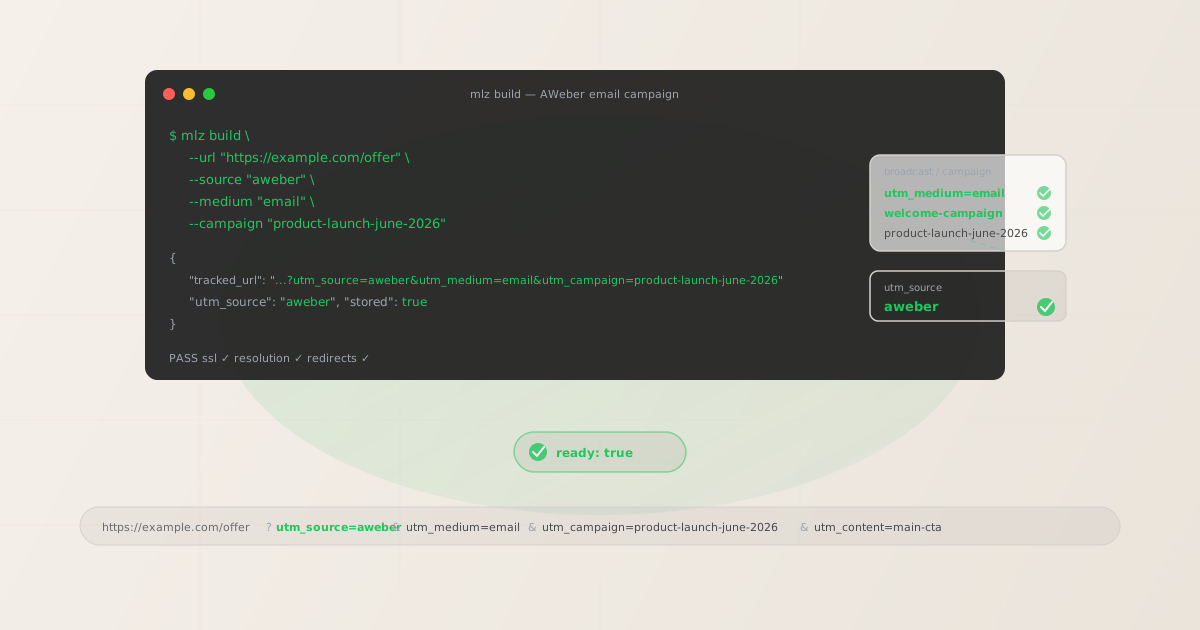
The correct utm_source and utm_medium for AWeber
For all AWeber sends, use utm_source=aweber — all lowercase. The utm_medium value is email for all email sends from AWeber. AWeber organises its email features into broadcasts (one-time sends to a list) and campaigns (automated drip sequences triggered by subscription or events):
| AWeber send type | utm_source | utm_medium | GA4 default channel |
|---|---|---|---|
| Broadcast (one-time send to list) | aweber |
email |
|
| Campaign email (automated drip sequence) | aweber |
email |
|
| Campaign triggered by tag or event | aweber |
email |
|
| RSS to email (AWeber's RSS newsletter feature) | aweber |
email |
AWeber's terminology uses "broadcasts" for one-time sends and "campaigns" for automated drip sequences. This is the inverse of some other platforms — in AWeber, a "campaign" is an automation workflow, not a one-time newsletter. Keep this distinction in mind when setting utm_campaign values: AWeber broadcasts need date-stamped slugs (they're one-time sends), while AWeber campaigns (automations) need stable evergreen slugs (they run continuously). Using AWeber's internal naming for these sends in your UTM parameters causes naming inconsistencies across email platforms if you use multiple tools.
utm_campaign naming for AWeber broadcasts and campaigns
AWeber's two send types — broadcasts and campaigns — need different utm_campaign naming strategies. Broadcasts are one-time sends and should use date-stamped slugs so they remain distinguishable in GA4 over time. AWeber campaigns (automated sequences) run continuously and need stable, evergreen slugs that describe the automation's purpose without a date.
# Broadcast (one-time send) — include date in slug
$ mlz build --url "https://example.com/launch" \
  --source "aweber" --medium "email" \
  --campaign "product-launch-june-2026" --content "main-cta"

# Campaign email (welcome drip sequence) — stable evergreen slug
$ mlz build --url "https://example.com/getting-started" \
  --source "aweber" --medium "email" \
  --campaign "welcome-campaign" --content "day-1-cta"

# Campaign email (re-engagement automation) — stable evergreen slug
$ mlz build --url "https://example.com/offer" \
  --source "aweber" --medium "email" \
  --campaign "re-engagement-campaign" --content "winback-cta"
The slug naming logic mirrors the distinction between one-time sends and continuous automations: if the send happens once (a broadcast), include the time period in the slug so GA4 can distinguish it from past and future broadcasts. If the send runs continuously (an AWeber campaign sequence), use a descriptive slug without a date — the slug will accurately describe the automation at any point in its lifetime.
Use utm_content to distinguish individual emails within an AWeber campaign sequence. For a 5-step welcome drip, use: utm_content=day-1-cta, utm_content=day-3-cta, utm_content=day-5-offer. Combined with a stable utm_campaign slug, you can segment GA4 Explore reports by utm_content to see which campaign step drives the most conversions, while all attribution stays grouped under the campaign row.
Building AWeber campaign links with mlz build
mlz build generates a normalised tracked URL with lowercase hyphen-separated values and stores the link for auditing. For an AWeber broadcast:
# Primary CTA in an AWeber broadcast
$ mlz build \
  --url "https://example.com/launch" \
  --source "aweber" \
  --medium "email" \
  --campaign "product-launch-june-2026" \
  --content "main-cta"

{
  "tracked_url": "https://example.com/launch?utm_source=aweber&utm_medium=email&utm_campaign=product-launch-june-2026&utm_content=main-cta",
  "params": {
    "utm_source": "aweber",
    "utm_medium": "email",
    "utm_campaign": "product-launch-june-2026",
    "utm_content": "main-cta"
  },
  "link_id": "lnk_aw5p8m3r",
  "stored": true
}
Copy the tracked_url and paste it directly into AWeber's email editor as your link destination. With AWeber's Google Analytics integration disabled (covered in the next section), AWeber's click-tracking redirect passes this URL to the destination with all UTM parameters intact.
For AWeber campaign emails (automated sequences), build each step's links with a stable campaign slug and a unique utm_content value per step:
# Day 5 email in the welcome campaign drip sequence
$ mlz build \
  --url "https://example.com/upgrade" \
  --source "aweber" \
  --medium "email" \
  --campaign "welcome-campaign" \
  --content "day-5-upgrade-cta"

{
  "tracked_url": "https://example.com/upgrade?utm_source=aweber&utm_medium=email&utm_campaign=welcome-campaign&utm_content=day-5-upgrade-cta",
  "params": {
    "utm_source": "aweber",
    "utm_medium": "email",
    "utm_campaign": "welcome-campaign",
    "utm_content": "day-5-upgrade-cta"
  },
  "link_id": "lnk_aw2k6n8q",
  "stored": true
}
How to disable AWeber's Google Analytics auto-UTM
AWeber includes a Google Analytics integration that, when enabled, automatically appends UTM parameters to links in your emails. AWeber generates these values using your message name and list name as inputs — the resulting values may include spaces (URL-encoded as + or %20), mixed-case characters, and inconsistent formatting that doesn't align with GA4's preferred lowercase hyphenated convention.
When AWeber's auto-UTM is enabled and you've also embedded manually built parameters (from mlz build) in your links, AWeber appends its own parameters to the URL during the send. If the same UTM key appears multiple times in a query string — for example, ?utm_source=aweber&utm_source=Aweber+Newsletter — GA4 processes only one value. The recorded attribution depends on which value appears last, and the outcome is effectively unpredictable without knowing exactly how AWeber appends its parameters relative to yours. The reliable solution is to disable AWeber's auto-UTM entirely and apply all parameters manually using mlz build.
To disable AWeber's Google Analytics integration:
- Account-level setting: In your AWeber account, go to Account Settings and look for a Tracking or Integrations section. Find the Google Analytics integration and disable it. When disabled at the account level, AWeber stops appending UTM parameters to all emails across all lists.
- Per-message setting: In some AWeber plans and interface versions, individual broadcast and campaign messages have their own tracking settings. When composing or editing a message, look for a tracking or analytics section and disable UTM auto-appending for that message. This allows you to disable auto-UTM selectively for messages where you've applied custom parameters, while leaving it enabled for messages where you rely on AWeber's auto-tagging.
Once disabled, AWeber's click-tracking redirect forwards subscribers to your destination URL with the full query string intact — including your manually built UTM parameters — without AWeber appending its own values. This is the state you want for all tracked campaigns where you use mlz build to generate your URLs.
Validating AWeber destination URLs before sending
Use mlz build --validate to confirm destination URLs respond correctly before sending an AWeber broadcast or activating a campaign sequence:
$ mlz build \
  --url "https://example.com/launch" \
  --source "aweber" \
  --medium "email" \
  --campaign "product-launch-june-2026" \
  --content "main-cta" \
  --validate

{
  "tracked_url": "https://example.com/launch?utm_source=aweber&utm_medium=email&utm_campaign=product-launch-june-2026&utm_content=main-cta",
  "validation": {
    "valid": true,
    "checks": [
      { "check": "url_format", "status": "pass", "message": "URL format is valid." },
      { "check": "ssl", "status": "pass", "message": "URL uses HTTPS." },
      { "check": "resolution", "status": "pass", "message": "Destination responded with 200.", "details": { "response_time_ms": 224 } },
      { "check": "redirects", "status": "pass", "message": "No redirects detected." }
    ]
  },
  "link_id": "lnk_aw5p8m3r",
  "stored": true
}
For AWeber campaigns (automated sequences), validate all destination URLs when setting up the campaign, and re-validate them periodically while the campaign is active. AWeber campaigns continue enrolling new subscribers as long as they're active — a destination URL that returns a 404 will keep receiving clicks from every new subscriber who enters the campaign. Use mlz links list to retrieve all stored tracked URLs for your account and re-validate them in bulk.
For AWeber broadcasts, validate destination URLs as part of your pre-send checklist — after writing the email but before scheduling or sending. Destination URLs can change during the time between drafting an email and sending it: pages may be taken down, redirects added, or SSL certificates expire. A pre-send validation step catches these issues before your list receives a broken link.
AWeber UTM tracking gotchas
- AWeber's auto-UTM uses your AWeber list and message name — not your intended slug
- When AWeber's Google Analytics integration appends UTM parameters automatically, it derives
utm_campaignfrom your AWeber message or broadcast name — whatever you typed in AWeber's interface. If your broadcast is named "Product Launch June 2026," AWeber generatesutm_campaign=Product+Launch+June+2026(with URL-encoded spaces and mixed case). In GA4, this creates a separate row from a manually appliedutm_campaign=product-launch-june-2026. Disable AWeber's auto-UTM and build all tracked links withmlz buildto control the exact slug format. - AWeber's "Campaign" terminology means automation, not newsletter
- AWeber uses "campaigns" to refer to automated drip sequences (the equivalent of what other platforms call "automations" or "sequences"). When naming your UTM
utm_campaignslugs for AWeber, don't conflate AWeber's internal "campaign" terminology with the GA4 campaign concept. A good naming practice: useutm_campaign=welcome-campaignorutm_campaign=onboarding-seriesfor AWeber drip sequences (stable slugs), andutm_campaign=product-launch-june-2026for AWeber broadcasts (date-stamped slugs). This keeps your GA4 terminology consistent with how other email platforms use "campaign" to describe both types of send. - RSS to email campaigns need stable utm_campaign slugs in the template
- AWeber's RSS to email feature automatically sends an email each time new items appear in your RSS feed. Since the email template is reused for every RSS send, UTM parameters embedded in the template's links apply to all sends. Use a stable evergreen slug in the template:
utm_campaign=blog-rss-updateapplied consistently to every link. If you use AWeber's auto-UTM for RSS campaigns, it derivesutm_campaignfrom the RSS broadcast name, which may change with each send depending on how your RSS title is formatted — producing fragmented attribution in GA4. - AWeber's click tracking preserves UTM parameters through the redirect
- AWeber wraps all links in its email editor with a click-tracking redirect that records the click before forwarding the subscriber to the destination. AWeber's redirect preserves the full query string, including your UTM parameters. The parameters arrive at your landing page exactly as built — as long as AWeber's Google Analytics auto-UTM is disabled. If auto-UTM is enabled, AWeber appends its own UTM values during the redirect, which may override your custom values depending on the order of parameters in the resulting URL.
- Multiple CTAs in the same broadcast: use utm_content to distinguish them
- AWeber broadcasts often include a primary CTA button, body text links, and a postscript link. If all three point to the same destination with identical UTM parameters, GA4 counts the session once but cannot tell you which email element drove the click. Use distinct
utm_contentvalues for each CTA in the same broadcast:utm_content=header-cta,utm_content=body-link,utm_content=ps-cta. This surfaces click-path data in GA4 without requiring any changes to the destination page or URL structure.
AWeber UTM naming conventions
Recommended UTM parameter values for AWeber across all send types, aligned with GA4 default channel groupings:
- utm_source:
aweber— all lowercase, for all sends from AWeber (broadcasts, campaign sequences, RSS to email). - utm_medium:
emailfor all AWeber email sends. - utm_campaign: lowercase hyphen-separated slug — for broadcasts:
product-launch-june-2026,summer-sale-may-2026; for campaign sequences (automations):welcome-campaign,onboarding-series,re-engagement-campaign; for RSS campaigns:blog-rss-update,weekly-content-digest. - utm_content: CTA or step identifier — for broadcasts:
header-cta,body-link,ps-cta; for campaign steps:day-1-cta,day-3-resources-cta,day-5-upgrade-cta; for re-engagement:winback-cta,final-offer-cta. - utm_term: Use sparingly — for segment-targeted broadcasts where the audience segment is meaningful for attribution:
pro-subscribers,trial-users,inactive-90d.
If your team uses AWeber alongside other email platforms or marketing tools, maintain the same cross-platform convention: platform name as utm_source, channel type as utm_medium. See the UTM naming conventions guide for the full cross-channel reference and the UTM tracking best practices guide for governance when working across multiple platforms.
FAQ
- What utm_source should I use for AWeber?
- Use
utm_source=aweber— all lowercase — for all sends from AWeber, including broadcasts, campaign sequences, and RSS to email. The lowercase value is important because GA4 is case-sensitive: if AWeber's auto-UTM generatesutm_source=AWeber(mixed case) and you also applyutm_source=awebermanually, GA4 creates separate attribution rows for both values. Disable AWeber's auto-UTM and consistently usemlz build --source "aweber"to maintain a single lowercase value across all sends. - What is the difference between AWeber broadcasts and campaigns for UTM purposes?
- AWeber broadcasts are one-time sends to a list segment — the equivalent of a newsletter or promotional email. AWeber campaigns are automated drip sequences triggered by subscription events, tags, or other conditions — the equivalent of what other platforms call automations or sequences. For UTM purposes, broadcasts should use date-stamped
utm_campaignslugs (product-launch-june-2026) since they're one-time events. Campaign sequences should use stable evergreen slugs (welcome-campaign,re-engagement-campaign) since they run continuously and need to accumulate attribution over time without a date-specific slug becoming stale. - How do I disable AWeber's automatic UTM tracking?
- In your AWeber account, go to Account Settings and find the Tracking or Integrations section. Locate the Google Analytics integration and disable it. When disabled at the account level, AWeber stops appending its auto-generated UTM parameters to all email links across all lists and messages. If you only want to disable it for specific messages, look for tracking settings within the individual broadcast or campaign email editor. Once disabled, AWeber passes your destination URL — including your custom UTM parameters from
mlz build— to the subscriber's browser unchanged through the click-tracking redirect. - Does AWeber's click tracking interfere with UTM parameters?
- AWeber's click-tracking redirect wraps all links in your emails to record click events in AWeber's analytics. The redirect preserves your full destination URL, including the UTM query string, when forwarding subscribers. Your UTM parameters arrive at the destination page intact. The only scenario where this breaks down is when AWeber's Google Analytics integration is enabled: AWeber appends its own UTM parameters during the redirect, which may appear after or before your custom parameters in the URL. When the same key appears twice in a query string, GA4 processes the last occurrence — making the recorded attribution unpredictable. Disable AWeber's Google Analytics integration to ensure your manually built parameters are the only UTM values in the URL.
- How do I track individual AWeber campaign emails in GA4?
- Use
utm_contentto distinguish individual emails within an AWeber campaign sequence, while keepingutm_campaignstable across all steps. For example, a 5-step welcome campaign might use:utm_campaign=welcome-campaignfor all steps, withutm_content=day-1-cta,utm_content=day-3-resources-cta,utm_content=day-5-upgrade-ctafor each respective email. In GA4's Explore report, addutm_contentas a secondary dimension to theutm_campaign=welcome-campaignrow to see a breakdown of conversions by step — without fragmenting your campaign-level attribution across multiple campaign slugs.
Recommended posts
Build AWeber campaign links from the terminal
Pass --source "aweber" --medium "email" to mlz build and get a normalised, validated URL ready to paste into AWeber's email editor — all lowercase, no mixed-case from AWeber's auto-UTM, stable slugs for campaign sequences and date-stamped slugs for broadcasts. Add --validate to confirm the destination resolves cleanly before every send.
1,000 links/month free. No credit card.
Your API key
Save this now — it won't be shown again.
npm install -g missinglinkz
Free plan: 1,000 links/month. No credit card. See the UTM tracking for developers guide for the full programmatic workflow.