Twitter Card Not Showing Image: 5 Reasons X Won't Render Your Preview
When a Twitter Card image isn't showing on X, the post appears as a plain text link — no preview image, no headline, no description. This kills click-through rates on paid and organic posts alike. The fix is almost always one of five specific issues: a missing twitter:card tag, an inaccessible image URL, wrong image dimensions, a missing twitter:image tag, or a caching problem from X's card validator. Here's how to diagnose each one — and how MissingLinkz's mlz inspect command automates all five checks in a single terminal command before your post goes out.
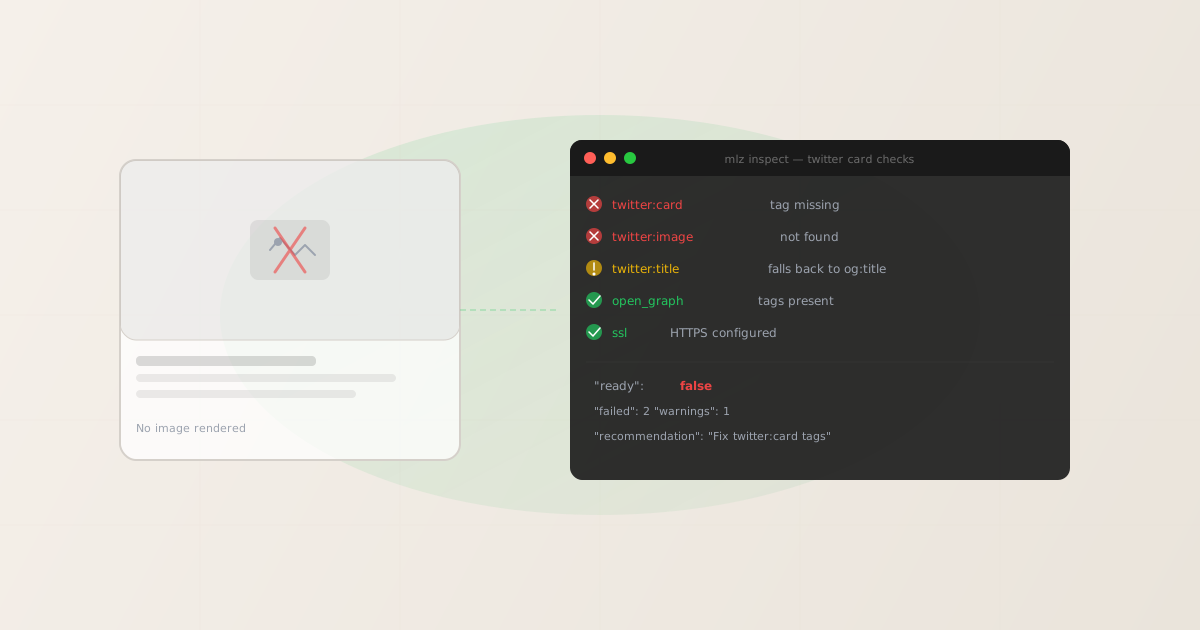
How X decides whether to show an image preview
X's card renderer fetches your page and reads specific <meta> tags to decide what to display. The rendering logic is a hierarchy:
- Is
twitter:cardset tosummary_large_image? If not, X either shows no image (summary card) or no card at all. - Is
twitter:imagepresent? If not, X falls back toog:image. If neither exists, no image renders. - Is the image URL accessible to X's crawler? If the image requires auth, returns an error, or is on a blocked domain, X shows nothing.
- Does the image meet the minimum dimensions? Images under 144×144 px are rejected; for large image cards, under 300×157 px may show as a small thumbnail.
All five issues below stem from one of these four conditions failing. The fastest way to check all of them at once is mlz inspect, which reads the same tags X's crawler reads and reports what it finds. See the complete Twitter Card tags guide for the full specification.
Reason 1: Missing twitter:card meta tag
The twitter:card tag tells X which card format to render. Without it, X falls back to a plain link with no image preview — even if you have a perfectly valid og:image. This is the most common cause of "Twitter Card image not showing" issues.
The tag goes in the <head> of your page:
<!-- For large image previews (recommended for most use cases) -->
<meta name="twitter:card" content="summary_large_image">

<!-- For small square thumbnail -->
<meta name="twitter:card" content="summary">
If you're using a CMS like WordPress or Webflow, this tag is usually added by an SEO plugin (Yoast, RankMath) or the platform's built-in OG settings. If the tag is missing despite your CMS claiming to set it, check whether the SEO plugin is active on the specific page template being used — some plugins exclude certain page types by default.
Reason 2: Missing or misconfigured twitter:image tag
Even with twitter:card set correctly, a missing twitter:image tag means X has to fall back to og:image. If og:image is also missing, you get no image — it's worth checking whether your landing page has OG tags before you rely on that fallback. If og:image exists but uses a relative URL (e.g. /images/hero.jpg instead of https://example.com/images/hero.jpg), X can't resolve it.
The correct pattern:
<!-- Always use absolute URLs for social image tags -->
<meta name="twitter:image" content="https://example.com/images/campaign-hero.jpg">
<meta property="og:image" content="https://example.com/images/campaign-hero.jpg">

<!-- Optional but helpful -->
<meta name="twitter:image:alt" content="Description of the image for accessibility">
Common mistakes: using a protocol-relative URL (//example.com/image.jpg), using a root-relative URL (/image.jpg), or using a data URI. All three fail X's validator. The URL must start with https://.
Reason 3: Image URL is inaccessible to X's crawler
X's card crawler fetches your image from its own servers — not from your browser. If the image URL requires a session cookie, login, CDN token, or IP-based access control, the crawler gets a 401 or 403 and renders nothing. This is common with:
- Images behind CDN authentication: Signed URLs or private S3 buckets that expire — the URL was valid when you set it, but expired by the time X tried to fetch it.
- Staging environments: Pages on password-protected staging domains where X's crawler IP is not whitelisted.
- Bot-blocking middleware: Cloudflare or WAF rules that block non-browser user agents, including X's
Twitterbot. - Images served from localhost or private networks: Any URL X's external crawler can't reach returns an error.
To verify: paste the image URL directly into a browser incognito window (to strip cookies). If you can see the image without logging in, the URL is likely accessible. If you can't, that's the problem.
For a more precise test — one that reproduces exactly what X's crawler sees — use curl with the Twitterbot user agent string:
curl -s -A "Twitterbot/1.0" -o /dev/null -w "%{http_code}" https://your-domain.com/images/hero.jpg
A 200 response means the image is publicly accessible to X's crawler. A 401, 403, or connection error means the crawler is being blocked — check your CDN signed URL expiration, WAF bot-filtering rules, and Cloudflare security settings for any rules that match Twitterbot user agents. Bot-blocking rules often catch Twitterbot alongside other scrapers — whitelist the user agent specifically to allow card previews while still blocking malicious traffic.
Reason 4: Image dimensions are too small or the format is unsupported
X rejects images that don't meet its minimum size requirements. For summary_large_image cards, the image should be at least 1200×628 px for full quality rendering — technically the minimum is 300×157 px, but images below 1200×628 render at reduced quality on retina displays and may appear blurry.
Supported formats: JPEG, PNG, WebP, GIF (static only — animated GIFs are not shown as images in cards). SVG images are not supported by X's card crawler and will silently fail — use a PNG or JPEG as your twitter:image even if you use SVG elsewhere on the page.
| Card type | Minimum dimensions | Recommended |
|---|---|---|
summary_large_image |
300×157 px | 1200×628 px |
summary |
144×144 px | 400×400 px |
For the complete platform-by-platform size guide including LinkedIn, Facebook, and Reddit, see social media preview image sizes (2026).
Reason 5: X has cached a broken version of the card
X caches card previews aggressively. If your page previously had broken or missing Twitter Card tags, X may have cached that failed state. Even after you add the correct tags, X may continue showing the old (broken) version for hours or days.
To force X to re-fetch your card, use the X Card Validator tool and paste your URL. This manually triggers a fresh crawl and clears the cached result. You need a logged-in X account to access the validator.
If the validator shows your card correctly but it still appears broken on the timeline, the issue is a different cache layer — usually your CDN or the user's browser. Wait a few hours, or hard-reload the page in your browser (Ctrl+Shift+R on Chrome).
Start here: debug your Twitter Card in the right order
Most Twitter Card image failures trace to one of two causes. Running through this flow takes under two minutes and identifies the culprit before you start editing HTML.
- Step 1 — Does your card appear correctly in the X Card Validator?
- Yes → Your tags are correct. The problem is a cache issue (Reason 5) or a timeline display difference. Force a fresh crawl by pasting your URL into the X Card Validator and wait 24–48 hours for the timeline cache to expire.
No → Continue to Step 2. - Step 2 — Does
mlz inspectreport a passingtwitter_cardcheck? - Run
mlz inspect https://your-page.com. If thetwitter_cardblock in the JSON output is null or missing required fields, you have a tag problem: either a missingtwitter:cardmeta tag (Reason 1) or a missing or brokentwitter:imageURL (Reason 2). Fix the missing tag and re-runmlz inspectto confirm.
If the block is present and correct, continue to Step 3. - Step 3 — Does the image URL return 200 with the Twitterbot user agent?
- Run:
curl -s -A "Twitterbot/1.0" -o /dev/null -w "%{http_code}" https://your-domain.com/images/hero.jpg. A200means X's crawler can fetch the image. A401or403means the image URL is blocked for X's crawler — check your CDN, WAF, or Cloudflare bot rules (Reason 3). - Step 4 — Is the image at least 300×157 px and in a supported format?
- Open the image URL directly in a browser tab. Confirm dimensions using your OS image viewer or browser dev tools. Supported formats are JPEG, PNG, and WebP. SVG files and animated GIFs are silently rejected by X's card renderer (Reason 4). If the format or dimensions are wrong, export a raster version at 1200×628 px or larger and update the
twitter:imagetag to point to it.
Diagnosing your Twitter Card with mlz inspect
Rather than opening four browser tabs and checking each issue manually, mlz inspect reads all the relevant meta tags in a single command and reports what it finds — including whether twitter:card is set, what twitter:image resolves to, and whether OG tag fallbacks are configured:
mlz inspect https://your-landing-page.com
$ mlz inspect https://your-landing-page.com

{
  "url": "https://your-landing-page.com",
  "success": true,
  "checks": [
    { "check": "twitter_card", "status": "pass",
      "message": "Twitter Card present (type: summary_large_image)." },
    { "check": "open_graph", "status": "pass",
      "message": "Open Graph tags present: title, description, and image." },
    { "check": "fetch", "status": "pass",
      "message": "Page fetched successfully (312ms)." }
  ],
  "twitter_card": {
    "card": "summary_large_image",
    "title": "Your Page Title",
    "description": "Your page description...",
    "image": "https://your-landing-page.com/images/hero.jpg"
  },
  "open_graph": {
    "title": "Your Page Title",
    "image": "https://your-landing-page.com/images/hero.jpg"
  }
}
The twitter_card block in the response shows exactly what X's crawler will read: the card type, title, description, and image URL. If twitter_card is null or missing fields, you know what to fix before the post goes out. Compare the image URL here against what you expect — if they don't match, your CMS is outputting the wrong value.
For a deeper look at the full inspect output including OG tags, viewport, canonical, and favicon, see the landing page validation for social sharing guide. To compare this approach against other CLI OG tag checkers, see mlz inspect vs og-check vs meta-preview-analyzer.
Quick diagnostic checklist
Run through this list in order — most issues are identified in the first two steps:
- 1. Run
mlz inspecton the page - Install with
npm install -g missinglinkz, then runmlz inspect https://your-page.com. Check thetwitter_cardblock in the output. If it's null or missing fields, that's your issue — add the missing tags. - 2. Verify the image URL returns 200 in an incognito window
- Open a private browsing window and paste the
twitter:imageURL directly. If you see an error or login prompt, the image isn't publicly accessible to X's crawler. - 3. Check the image dimensions and format
- Use your OS image viewer or an online tool to confirm the image is at least 1200×628 px for
summary_large_image. Confirm the file is JPEG, PNG, or WebP — not SVG or animated GIF. - 4. Force X to re-crawl the page
- Use the X Card Validator (cards-dev.twitter.com/validator) to trigger a fresh fetch and clear the cached card. This is required after fixing any of the above issues.
- 5. Check your CDN cache and bot-blocking rules
- If the validator shows your card correctly but posts still look broken, check your CDN for cached 404 responses and your WAF/Cloudflare for rules that might block
Twitterbot.
FAQ
- Do I need both
twitter:cardandog:imagetags? - You need at least
twitter:cardto declare the card type, and eithertwitter:imageorog:imagefor the preview image. If you only setog:imagewithouttwitter:card, X shows a plain link with no card. Best practice is to set both:twitter:card,twitter:title,twitter:description, andtwitter:imageexplicitly — then useog:*tags as the fallback for other platforms. - My card shows in the X Card Validator but not on actual posts — why?
- This is almost always a cache issue. The validator forces a fresh crawl; regular timeline posts use a cached version. Wait 24–48 hours, or add a cache-busting query parameter to your image URL (e.g.
hero.jpg?v=2) to force X to re-fetch the new image on the next crawl cycle. - Does X support SVG images in Twitter Cards?
- No. X's card crawler doesn't render SVG files for card previews. If your
twitter:imageorog:imagepoints to an SVG, X will silently fail to show it. Use JPEG or PNG for social preview images — even if your brand assets are primarily SVG. Export a raster version specifically for OG/Twitter Card use. - Can I use the same image for all social platforms?
- Yes, if the image meets all platforms' requirements. The most restrictive common denominator is 1200×628 px at 16:9 ratio — this works for X, LinkedIn, and Facebook. See social media preview image sizes (2026) for the full platform comparison. Pinterest and Reddit have different requirements and may need separate images.
- My page has correct tags but the image still doesn't show on mobile. What's different?
- The X mobile app uses the same card data as desktop — if the card works on desktop but not mobile, it's likely a display difference rather than a tag problem.
summary_large_imagecards may be downgraded tosummarythumbnails if the user's settings or their feed algorithm deprioritizes card display. This isn't something you can control with meta tags. - Why is my Twitter Card showing the old image after I updated it?
- X caches card previews aggressively — sometimes for 24–72 hours after the underlying page changes. After updating
twitter:imageor replacing the image file at the same URL, you need to force a fresh crawl via the X Card Validator: paste your page URL and click preview. This clears X's cache for that URL. If the image content changed but the URL stayed the same (you overwrote the file), also add a cache-busting query parameter to the image URL in your meta tag — e.g.hero.jpg?v=2— so X treats it as a new asset on the next crawl. - How long does X cache a Twitter Card?
- X's card cache TTL is not publicly documented, but observed behavior suggests 24–72 hours for normal updates. The X Card Validator bypasses this cache and forces a fresh crawl on demand. For time-sensitive campaign launches, use the validator to pre-warm the correct card before publishing the post — if the validator shows the right preview, the timeline will update within a few hours. Do not rely on the timeline rendering as a validation tool; always use the Card Validator or
mlz inspectto confirm tags before publishing. - Does X still support Twitter Cards in 2026?
- Yes. Despite the platform rebranding to X, Twitter Cards continue to work using the same
twitter:card,twitter:title,twitter:description, andtwitter:imagemeta tag names. These have not been renamed to use anx:prefix — keep using the originaltwitter:namespace in all your pages. The X Card Validator is still available at cards-dev.twitter.com/validator. See the complete Twitter Card tags guide for the current specification and recommended tag values.
Recommended posts
Check your Twitter Card tags before your next campaign post
One command reads every tag X's crawler reads — twitter:card, twitter:image, OG fallbacks, viewport, and more — and reports exactly what's missing. No browser required.
1,000 links/month free. No credit card.
Your API key
Save this now — it won't be shown again.
npm install -g missinglinkz
Then run mlz inspect https://your-landing-page.com with your key — it reads every card tag in one pass. 1,000 inspections/month on the free tier.