UTM Spreadsheet vs Automated Tool: When to Make the Switch
A spreadsheet is a perfectly reasonable place to start managing UTM links. It requires no new tools, handles small link volumes well, and can be shared across a team in minutes. The problem is not that spreadsheets are wrong — it's that they break quietly: naming conventions drift, manual errors accumulate, and there is no validation step before links go live. This guide explains exactly where spreadsheets hit their limits and what an automated UTM tool adds when you cross that threshold.
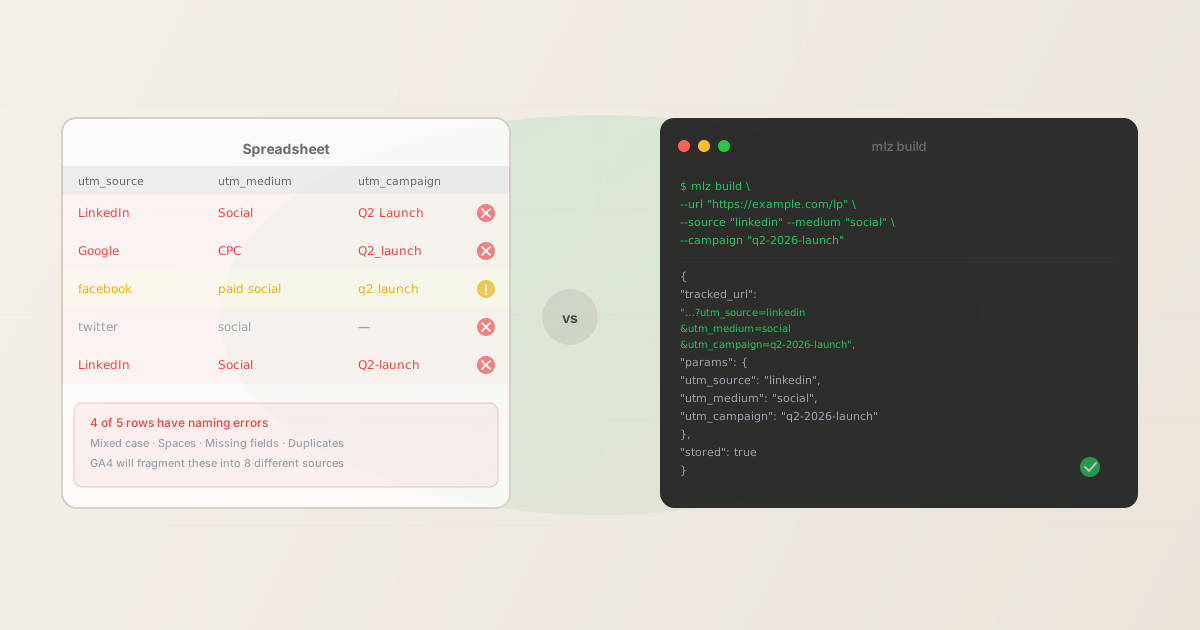
Why spreadsheets are a reasonable starting point
A Google Sheet with columns for source, medium, campaign, and the assembled URL handles everything a small team needs: link generation via a CONCATENATE formula, a shared record of what was published, and enough visibility for anyone on the team to check what source and campaign a link belongs to.
At low link volumes — say, fewer than 50 campaign links per month across two or three channels — the manual overhead is manageable and the tooling overhead of a purpose-built system is not worth it. The spreadsheet ships faster, costs nothing, and is already in a format the whole team knows how to use.
The threshold question is not "can a spreadsheet do this?" but "is the spreadsheet producing reliable data?" At some point, the answer becomes no — and the failure is usually invisible until you see the GA4 report.
Five signs you've outgrown your UTM spreadsheet
- 1. GA4 shows multiple versions of the same source
- You see "LinkedIn," "linkedin," "Linkedin," and "LINKEDIN" as separate rows in your acquisition report. Each came from a different team member or a copy-paste where the casing wasn't corrected. A spreadsheet enforces no naming convention — every row is whatever was typed. A tool enforces lowercase at the point of generation, so this fragmentation can't happen.
- 2. You can't tell which links are still live
- Spreadsheet rows accumulate. After a year of campaigns you have 400 rows, no status column, and no way to know which links are still being used in active ad creative, which are from finished campaigns, and which were generated and never deployed. A tool with link storage lets you query by campaign, filter by date, and see how often each link was generated.
- 3. Building 30 links for a single campaign takes most of a morning
- When a campaign needs a link per channel, per creative variant, and per region, the manual work compounds. Thirty links might take an hour in a spreadsheet, with high risk of copy-paste errors between rows. The same set can be generated from a shell loop in under a minute with
mlz build, and every link is structurally identical down to the formatting. - 4. A link was broken and you didn't know until after the campaign ended
- Spreadsheets generate links but never validate them. If the destination URL changed, if the redirect stripped UTM parameters, or if a typo produced a 404, the broken link ran for the full campaign duration. Automated tools can validate the destination at build time — catching failures before any spend goes against the link.
- 5. Multiple people are editing the spreadsheet simultaneously
- Concurrent edits in a shared spreadsheet lead to overwritten rows, formula drift in the CONCATENATE columns, and links that were generated from a partially edited version of the naming convention. Once more than two people are building links from the same document, version control becomes a problem that a spreadsheet cannot solve.
What automated UTM building actually adds
The gap between a spreadsheet and a purpose-built tool is not primarily about convenience — it's about data quality. The three things an automated tool provides that a spreadsheet cannot:
- Enforced naming conventions
- The tool normalizes parameter values at the point of generation: lowercase, no spaces, hyphens between words. Every link that leaves the system is structurally identical to every other link for the same source-medium-campaign combination. GA4 sees one row, not six variants.
- Validation before publishing
- Before a link is returned, the destination URL can be checked for HTTP resolution, SSL, redirect chain integrity, and UTM parameter preservation. A link that fails validation is flagged before it enters any campaign asset — not after the campaign runs.
- Structured output and scriptability
- A CLI tool that outputs JSON can be called from a shell script, a CI/CD pipeline, a GitHub Action, or an AI agent. Campaign link generation becomes a step in a workflow, not a manual process. The output is machine-readable and can be piped into other tools, stored in a database, or consumed by downstream systems.
Walkthrough: building a link with mlz build
The direct replacement for a spreadsheet CONCATENATE formula is mlz build. Pass the destination URL and the three required UTM parameters — it returns the full tracked URL, the individual parameter values, and a link ID for reference:
mlz build --url "https://example.com/landing" --source "linkedin" --medium "social" --campaign "q2-2026-launch"
{
  "tracked_url": "https://example.com/landing?utm_source=linkedin&utm_medium=social&utm_campaign=q2-2026-launch",
  "params": {
    "utm_source": "linkedin",
    "utm_medium": "social",
    "utm_campaign": "q2-2026-launch"
  },
  "destination_url": "https://example.com/landing",
  "link_id": "lnk_9wlvd9qi",
  "campaign_id": "cmp_kbcht77d",
  "stored": true
}
The parameters are lowercase, the link is stored with a persistent ID, and the output is structured JSON that can be parsed by any downstream script. For a campaign that needs 20 links across different channels, the same command runs in a loop reading from a CSV file — every link is built with identical formatting in seconds, not an hour of manual spreadsheet work.
# campaigns.csv: source,medium,campaign
# linkedin,social,q2-2026-launch
# google,cpc,q2-2026-launch
# facebook,social,q2-2026-launch

$ tail -n +2 campaigns.csv | while IFS=, read source medium campaign; do
  mlz build \
    --url "https://example.com/landing" \
    --source "$source" \
    --medium "$medium" \
    --campaign "$campaign" \
    --format json | jq -r '.tracked_url'
done

https://example.com/landing?utm_source=linkedin&utm_medium=social&utm_campaign=q2-2026-launch
https://example.com/landing?utm_source=google&utm_medium=cpc&utm_campaign=q2-2026-launch
https://example.com/landing?utm_source=facebook&utm_medium=social&utm_campaign=q2-2026-launch
The output of this loop can be piped directly into a file, sent to a campaign management system, or used as input for the next validation step. For teams scaling to dozens or hundreds of links per campaign, this pattern replaces hours of manual spreadsheet work. See How to Build UTM Links Programmatically for the full CLI, npm, and API approaches.
When a spreadsheet is still the right choice
Not every team has crossed the threshold. A spreadsheet remains the right tool when:
- The team is one or two people who both understand the naming convention and follow it consistently
- Link volume is fewer than 30–40 links per month, across no more than three channels
- All links point to a small number of stable destination URLs that don't change or redirect
- There is no CI/CD pipeline, AI agent workflow, or script that needs to consume link data programmatically
- Historical link data doesn't need to be queried, filtered, or integrated with other systems
If all five of these conditions apply, the overhead of adopting a new tool is not justified. Add validation discipline to your spreadsheet workflow — manually run each destination URL through a check before publishing — and you'll avoid most of the failures that drive teams to switch.
When any of these conditions breaks down — especially when the team grows, the channel count increases, or links start feeding into automated workflows — the spreadsheet's limitations become data quality problems that degrade your analytics. That's the moment to switch.
For teams managing UTM conventions across multiple clients or products, see UTM Governance at Scale for how to enforce taxonomy rules programmatically as the organization grows.
FAQ
- Can I migrate my existing spreadsheet links to mlz?
- Yes. Your existing UTM links don't need to change — the URLs themselves will continue working in any analytics system. The migration is about how you generate new links going forward, not about retroactively modifying existing ones. Start generating new links with
mlz buildand leave historical spreadsheet records as reference for old campaigns. - My spreadsheet has a CONCATENATE formula that already enforces lowercase. Is that enough?
- A CONCATENATE formula enforces lowercase only if the input values are typed lowercase — it doesn't normalize them. If a team member types "LinkedIn" into the source column, the formula outputs "LinkedIn." Enforced lowercase requires a tool that normalizes the value regardless of what is typed, not a formula that assembles what it's given.
- Does mlz build replace the spreadsheet as a record of what was published?
mlz buildstores each generated link with a link ID and campaign ID when an API key is configured. You can retrieve the list of links withmlz links listand filter by campaign. For teams that need a human-readable record, the JSON output of each build command can be appended to a log file — a more reliable history than a shared spreadsheet where rows can be accidentally overwritten.- Can I use mlz with my existing spreadsheet, not instead of it?
- Yes. The most common migration pattern is to keep the spreadsheet as a campaign planning document (which channels, which copy, which dates) and replace only the link-generation step with
mlz build. The spreadsheet tracks what was planned; the tool generates and validates the actual links. The structured JSON output ofmlz buildcan even be pasted back into the spreadsheet's URL column if that's where the rest of the team expects to find it.
Recommended posts
Upgrade from spreadsheet to CLI in one command
Install MissingLinkz and build your first validated campaign link from the terminal. Every link is lowercase-enforced, stored, and verifiable — no more manual copy-paste.
1,000 links/month free. No credit card.
Your API key
Save this now — it won't be shown again.
npm install -g missinglinkz
Free plan: 1,000 links/month. No credit card. See all commands in the SKILL.md reference.