UTM Tracking for WebEngage: How to Build and Validate Campaign Links
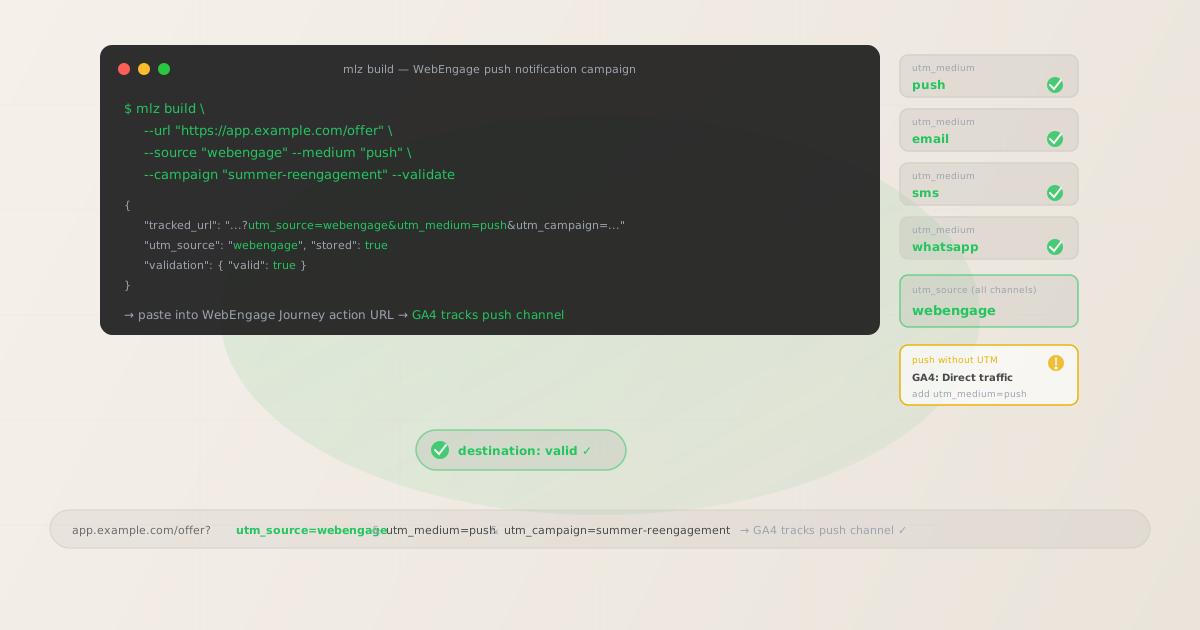
WebEngage is a user engagement and retention platform used primarily by consumer internet businesses across Asia and emerging markets. It covers push notifications (mobile and web), email, in-app messages, SMS, and WhatsApp — all orchestrated through its Journey Designer (automated workflow builder). The UTM tracking challenge with WebEngage is the same one that affects every multi-channel engagement platform: push notifications and SMS have no HTTP referrer. When a user taps a push notification or clicks an SMS link, the browser or app opens the destination URL without passing a referrer header, and GA4 classifies every session as Direct traffic. The only way to fix this is to include UTM parameters in every push notification action URL, every SMS link, and every WhatsApp message link before entering them in WebEngage. Build all your tracked URLs with mlz build --source "webengage" --medium "push" (or the channel-appropriate medium) before configuring the WebEngage campaign, then run --validate to confirm each destination URL resolves correctly before the Journey sends.
Why WebEngage UTM tracking requires careful setup
WebEngage sends campaigns across five channel types, and each channel behaves differently in terms of HTTP referrer handling and GA4 attribution. Email campaigns sent from WebEngage typically carry a referrer header when a user clicks a link — GA4 reads the referrer and can identify the traffic as email. But WebEngage does not automatically append UTM parameters to email links, so the attribution in GA4 depends entirely on the referrer, which can be unreliable across email clients and link-tracking configurations. For push notifications (both mobile app push and web push), in-app messages that deep-link to web URLs, SMS, and WhatsApp, there is no referrer at all.
In-app messages in WebEngage can link to either a deep link (a custom URI scheme like myapp://offers/summer) or an external web URL. Deep links open inside the native app and do not generate an HTTP session in GA4 at all unless the app explicitly fires a GA4 event. External web URL CTAs from in-app messages open in a browser or in-app browser — without a referrer header — and appear as Direct in GA4. For any in-app message CTA that links to a web destination you want tracked in GA4, build a tagged URL with utm_medium=in-app.
WhatsApp messages sent through WebEngage (using WhatsApp Business API) contain links that users tap in the WhatsApp application. WhatsApp does not pass a referrer header when links are opened from the app on most platforms. Without UTM parameters, WhatsApp-driven web sessions appear as Direct in GA4.
| WebEngage channel | Referrer in GA4? | Without UTM parameters | Recommended utm_medium |
|---|---|---|---|
| Mobile push notification | No | Direct in GA4 | ✓ push |
| Web push notification | No | Direct in GA4 | ✓ web-push |
| Sometimes (unreliable) | Email or Direct depending on client | ✓ email |
|
| SMS | No | Direct in GA4 | ✓ sms |
| No | Direct in GA4 | ✓ whatsapp |
|
| In-app message (web URL CTA) | No | Direct in GA4 | ✓ in-app |
Building tracked WebEngage campaign URLs with mlz build
Build your tracked URLs with mlz build before opening WebEngage's campaign editor or Journey Designer. For push notifications, paste the tracked_url into the notification's Action URL (also called the "Click Action URL" in WebEngage's push editor). For email, paste it into each hyperlink in the email HTML editor. For SMS and WhatsApp, paste it as the clickable URL in the message body before WebEngage's link-shortening wraps it. For in-app messages with web URL CTAs, paste it into the CTA's destination URL field. Add --validate to each build command to confirm the destination URL resolves correctly before the campaign goes live.
# Mobile push notification
$ mlz build \
  --url "https://app.example.com/summer-offer" \
  --source "webengage" \
  --medium "push" \
  --campaign "summer-reengagement-jun-2026" \
  --validate

{
  "tracked_url": "https://app.example.com/summer-offer?utm_source=webengage&utm_medium=push&utm_campaign=summer-reengagement-jun-2026",
  "params": {
    "utm_source": "webengage",
    "utm_medium": "push",
    "utm_campaign": "summer-reengagement-jun-2026"
  },
  "stored": true
}

# Same campaign — email channel (different medium)
$ mlz build \
  --url "https://app.example.com/summer-offer" \
  --source "webengage" \
  --medium "email" \
  --campaign "summer-reengagement-jun-2026" \
  --validate

{
  "tracked_url": "https://app.example.com/summer-offer?utm_source=webengage&utm_medium=email&utm_campaign=summer-reengagement-jun-2026"
}

# WhatsApp message link (same campaign slug)
$ mlz build \
  --url "https://app.example.com/summer-offer" \
  --source "webengage" \
  --medium "whatsapp" \
  --campaign "summer-reengagement-jun-2026" \
  --validate

{
  "tracked_url": "https://app.example.com/summer-offer?utm_source=webengage&utm_medium=whatsapp&utm_campaign=summer-reengagement-jun-2026"
}
In GA4, filter by utm_campaign=summer-reengagement-jun-2026 to see all sessions from this WebEngage campaign across every channel in a single campaign report row. Pivot on utm_medium to compare push, email, and WhatsApp channel performance side by side. A consistent utm_campaign slug across all channels groups every touchpoint into one campaign view, while distinct utm_medium values separate them by channel for attribution analysis and GA4 channel grouping rules.
UTM tracking for WebEngage Journeys (multi-step automation)
WebEngage's Journey Designer is its visual automation workflow builder — similar in concept to Flows in MoEngage, Journeys in Braze, or Scenarios in Bloomreach. A Journey can include push, email, SMS, WhatsApp, and in-app message nodes in a coordinated sequence, triggered by user events or attributes. For each Journey node that includes a URL to an external destination, build a separate tracked URL using a consistent utm_campaign slug for the whole Journey and matching utm_medium to the channel of each node. Use utm_content to identify individual Journey steps so GA4 can show which node in the sequence drove each conversion.
# Node 1: Push notification (1 hour after cart abandonment)
$ mlz build \
  --url "https://app.example.com/cart" \
  --source "webengage" \
  --medium "push" \
  --campaign "cart-abandon-journey" \
  --content "push-1h" \
  --validate

{
  "tracked_url": "https://app.example.com/cart?utm_source=webengage&utm_medium=push&utm_campaign=cart-abandon-journey&utm_content=push-1h"
}

# Node 2: Email (6 hours after abandonment)
$ mlz build \
  --url "https://app.example.com/cart" \
  --source "webengage" \
  --medium "email" \
  --campaign "cart-abandon-journey" \
  --content "email-6h" \
  --validate

{
  "tracked_url": "https://app.example.com/cart?utm_source=webengage&utm_medium=email&utm_campaign=cart-abandon-journey&utm_content=email-6h"
}

# Node 3: WhatsApp with discount (24 hours after abandonment)
$ mlz build \
  --url "https://app.example.com/cart?promo=SAVE15" \
  --source "webengage" \
  --medium "whatsapp" \
  --campaign "cart-abandon-journey" \
  --content "wa-24h-promo" \
  --validate

{
  "tracked_url": "https://app.example.com/cart?promo=SAVE15&utm_source=webengage&utm_medium=whatsapp&utm_campaign=cart-abandon-journey&utm_content=wa-24h-promo"
}
With this tagging structure, GA4's campaign report for utm_campaign=cart-abandon-journey shows all cart recoveries attributable to this WebEngage Journey across every channel. The utm_content dimension reveals which Journey step (push at 1h, email at 6h, WhatsApp at 24h) was the last touchpoint before checkout. Note that for the WhatsApp node with a promo parameter, mlz build appends UTM parameters alongside any existing query parameters in the destination URL — promo=SAVE15 is preserved alongside the UTM values.
WebEngage UTM tracking gotchas
- WebEngage's built-in link tracking can conflict with manual UTM parameters in email
- WebEngage email campaigns have an optional click-tracking feature that wraps all email links through a WebEngage redirect URL for click-count measurement. When this tracking is enabled, every link in the email becomes a redirect through WebEngage's tracking domain before landing on the final destination. If you have already added UTM parameters to the destination URL, those parameters are preserved through the redirect — but the redirect itself may add its own query parameters alongside yours. Check WebEngage's email campaign settings for link-tracking options. The safest configuration is to use manual UTM parameters (built with
mlz build) and confirm that WebEngage's click-tracking redirect does not strip or overwrite them by runningmlz build --validateand verifying the redirect chain preserves all query parameters. - WebEngage SMS links may be shortened — build tracked URLs before shortening
- WebEngage SMS campaigns support built-in link shortening, which wraps the destination URL in a short link. Always build the fully tagged URL with
mlz build --source "webengage" --medium "sms" --campaign "your-campaign-slug" --validatebefore pasting into the WebEngage SMS editor. WebEngage's short link wraps the complete tagged URL, and the redirect from the short link to the destination typically preserves the query string including UTM parameters. Confirm this preservation withmlz build --validate— the validation step follows the redirect chain and confirms UTM parameters are intact at the final destination. - WebEngage in-app message deep links vs. web URLs are tracked differently
- WebEngage in-app messages support two types of CTAs: deep links (custom URI schemes like
myapp://product/123) and external web URLs. Deep links open a screen inside the native app and do not create a web session — GA4 does not record a session from a deep link tap unless the app explicitly fires a GA4 screen view or conversion event. External web URL CTAs open in a browser (or in-app browser) and do create a web session — but without a referrer, so they appear as Direct unless UTM parameters are in the URL. For in-app message CTAs that link to web destinations, build tracked URLs withutm_medium=in-app. For deep link CTAs, configure the destination screen in the app to fire a GA4 event with campaign parameters instead of relying on URL-based attribution. - WhatsApp links from WebEngage may route through WhatsApp's own redirect
- Depending on how your WebEngage WhatsApp Business API integration is configured, links in WhatsApp messages may pass through WhatsApp's link preview cache or click-tracking system before reaching the final destination. In most cases, the redirect preserves query string parameters including UTM values. To confirm, build a test URL with
mlz build --source "webengage" --medium "whatsapp" --validateand click through from a real WhatsApp message to verify that GA4 records the session with the correct UTM parameters. If UTM values are being stripped by WhatsApp's redirect, use a URL shortener that preserves query strings and validate the shortener's redirect behavior withmlz build --validate. - WebEngage on-site surveys and feedback widgets also drive external traffic
- WebEngage includes on-site feedback widgets, Net Promoter Score surveys, and in-browser notification prompts that can link to external pages. For any WebEngage-generated on-site element that includes a link to an external web destination, treat the on-site element as its own campaign channel. Build tracked URLs with
utm_source=webengage&utm_medium=onsiteand a descriptive campaign slug. This is particularly relevant for post-purchase survey completion redirect pages and NPS survey thank-you pages that link back to the main site.
WebEngage UTM naming conventions
Recommended UTM parameter values for WebEngage, aligned with GA4 channel reporting and a lowercase-hyphenated taxonomy:
- utm_source:
webengagefor all campaigns sent from the WebEngage platform across all channels. Always lowercase, single word. A single source value for all WebEngage channels makes it easy to filter GA4 acquisition reports to see all WebEngage-attributed traffic, then pivot onutm_mediumfor channel breakdown. Avoid compound source values likewebengage-pushorwebengage-email— the channel distinction belongs inutm_medium. - utm_medium: Match the delivery channel —
pushfor mobile push notifications;web-pushfor web browser push notifications;emailfor email campaigns;smsfor SMS messages;whatsappfor WhatsApp Business API messages;in-appfor in-app message CTAs that link to web URLs. GA4's default channel grouping does not includepush,web-push,whatsapp, orin-app— add custom channel grouping rules (Admin > Data Display > Channel Groups) for each of these medium values. - utm_campaign: A consistent slug per campaign or Journey. For one-off campaigns:
summer-sale-jun-2026,product-launch-jun. For automated Journeys:cart-abandon-journey,onboarding-journey,win-back-60d,post-purchase-journey. Use the same slug across all channel nodes in a Journey so GA4 groups all channel touches into a single campaign row. - utm_content: Journey node identifier or A/B variant label. For multi-step Journeys:
push-1h,email-6h,wa-24h-promo. For A/B tested variants:variant-a,variant-b. Omit for single-message campaigns with no variants. - utm_term: Rarely used for WebEngage campaigns. Use only when the same Journey targets meaningfully different audience segments:
utm_term=new-users,utm_term=lapsed-30d,utm_term=high-value.
See the UTM naming conventions guide for the full cross-platform reference and the UTM tracking for developers guide for programmatic generation and validation at scale.
FAQ
- Does WebEngage automatically add UTM parameters to campaign links?
- No. WebEngage does not automatically append UTM parameters to push notification action URLs, SMS links, WhatsApp message links, or in-app message CTA URLs. For email campaigns, WebEngage may apply click-tracking redirect wrapping, but this is for WebEngage's own click count measurement and does not add UTM parameters for GA4 attribution. You need to manually build tracked URLs with UTM parameters and paste them into each WebEngage campaign and Journey node. Use
mlz build --source "webengage" --medium "[channel]" --campaign "your-campaign-slug" --validateto generate and validate each URL before entering it in WebEngage. - What utm_source should I use for WebEngage?
- Use
utm_source=webengagefor all campaigns sent through the WebEngage platform across all channels (push, email, SMS, WhatsApp, in-app). A single source value makes it easy to filter GA4 to see all WebEngage-attributed traffic in one view, then break it down byutm_mediumfor channel comparison. Avoid using channel-specific source values likeutm_source=webengage-push— the channel belongs inutm_medium. - How do I track WebEngage Journeys (multi-step automations) in GA4?
- Use a consistent
utm_campaignslug for all nodes in the Journey, matchutm_mediumto the channel of each node (push, email, sms, whatsapp, in-app), and useutm_contentto identify each node (e.g.,push-1h,email-6h,wa-24h-promo). In GA4, filter byutm_campaignto see all sessions from the Journey across all channels, then pivot onutm_mediumto compare which channel drove the most conversions and onutm_contentto compare individual Journey step performance. - Why do my WebEngage push notification clicks appear as Direct in GA4?
- Push notification taps open the destination URL without an HTTP referrer header — the device opens the URL directly from the notification payload. GA4 has no referrer to read, so it classifies the session as Direct. The only fix is to include UTM parameters in the notification's Action URL before the push campaign sends. If you are already seeing Direct traffic spikes that correlate with push sends, the notifications are reaching users but attributing their sessions to Direct. Build all future push notification action URLs with
mlz build --source "webengage" --medium "push" --validatebefore entering them in the WebEngage push campaign editor. - How do I validate WebEngage campaign URLs before sending?
- Run
mlz build --url "your-destination" --source "webengage" --medium "[channel]" --campaign "your-campaign" --validatefor each campaign URL before entering it in WebEngage. The--validateflag confirms HTTPS, resolution (200 response), redirect chain integrity, and query string preservation through any redirects — including WebEngage's own click-tracking redirects if applicable. For email campaign landing pages that will also be shared on social or referenced in other channels, runmlz inspect "your-tracked-url"to verify OG tags, Twitter Card metadata, and viewport configuration before the campaign sends. See the campaign link preflight check guide for the complete pre-launch validation workflow.
Recommended posts
Build WebEngage campaign links from the terminal
Use mlz build --source "webengage" --medium "push" (or the channel-appropriate medium) to generate tracked URLs for every WebEngage campaign and Journey node before entering them in the WebEngage editor. Build a separate URL per channel node within each Journey — using the same --campaign slug but a different --medium for each channel step. Add --content "push-1h", --content "email-6h", etc. to identify individual Journey nodes in GA4 reports. Add --validate to confirm each destination URL resolves correctly and that query parameters are preserved through any redirect chain before the Journey goes live.
1,000 links/month free. No credit card.
Your API key
Save this now — it won't be shown again.
npm install -g missinglinkz
Free plan: 1,000 links/month. No credit card. See the UTM tracking for developers guide for the full programmatic workflow including API and MCP integration.