UTM Tracking for CleverTap: How to Build and Validate Campaign Links
CleverTap is a customer engagement and retention platform covering push notifications (mobile and web), email, in-app messages, and SMS. UTM tracking for CleverTap requires manually adding utm_source=clevertap to every campaign URL — CleverTap does not auto-append UTM parameters to destination links by default. The correct utm_medium depends on the channel: push for mobile and web push notifications, email for email campaigns, sms for SMS, and in-app for in-app message CTAs that open external URLs. Push notifications have no HTTP referrer — without UTM parameters, GA4 classifies taps as Direct traffic. Build tracked CleverTap URLs with mlz build --source "clevertap" --medium "push" (or the appropriate medium) before entering them in the CleverTap campaign builder, and run --validate to confirm the destination URL resolves correctly before launching.
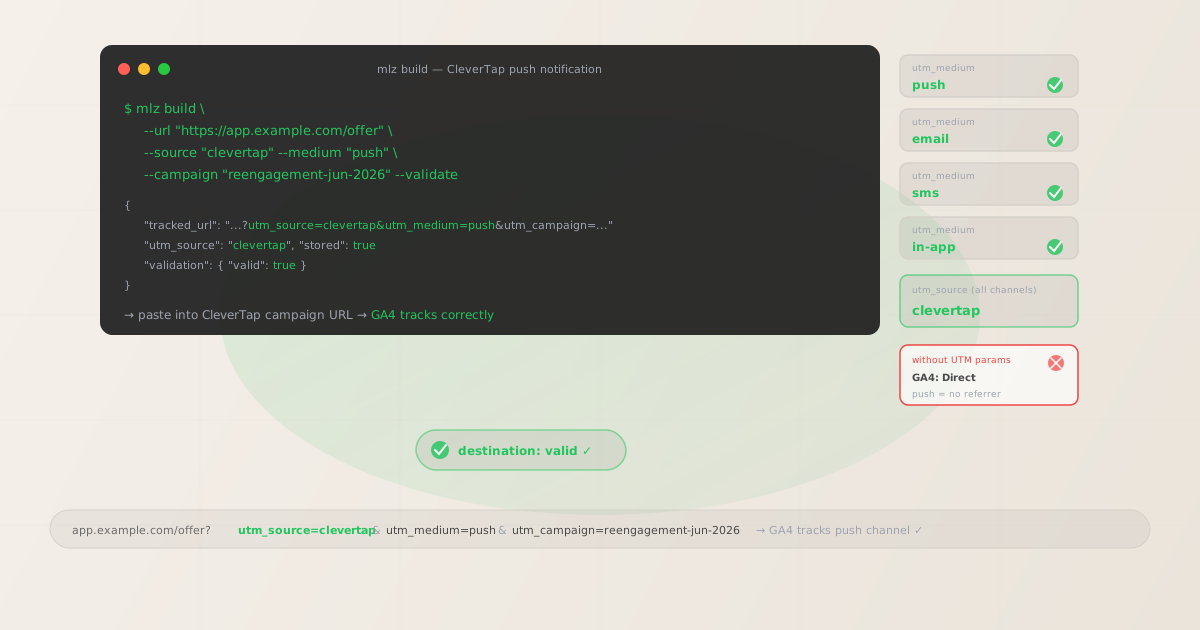
Why CleverTap requires per-channel UTM tracking
CleverTap is built for mobile-first engagement — its core channels are push notifications, in-app messages, email, and SMS, all orchestrated from a single platform. This cross-channel architecture creates a UTM tracking challenge: if you use the same tracked URL across push, email, and in-app steps in a CleverTap Journey, GA4 cannot distinguish which channel drove each session. The utm_medium parameter is the only reliable way to separate channel attribution in GA4 when one platform delivers across multiple channels.
Push notifications are the highest-risk channel. When a user taps a CleverTap push notification, the device opens the campaign URL with no HTTP referrer header. GA4 sees a session with no referrer and classifies it as Direct traffic — your push channel's contribution vanishes into the Direct bucket. SMS links have the same problem: no referrer, no attribution. Email traffic is slightly more forgiving because some email clients pass referrer headers, but explicit UTM parameters on email links give you guaranteed attribution that is more reliable than referrer inference.
The only approach that works consistently across all CleverTap channels is per-channel UTM tagging: build a separate tracked URL for each channel step within a Journey, keeping utm_campaign consistent across all steps and varying utm_medium by channel.
| CleverTap channel | Referrer passed? | Without UTM | Recommended utm_medium |
|---|---|---|---|
| Mobile push (iOS / Android) | No | Direct in GA4 | ✓ push |
| Web push notification | No | Direct in GA4 | ✓ push |
| Email campaign | Often yes | Usually Email in GA4 | ✓ email |
| SMS campaign | No | Direct in GA4 | ✓ sms |
| In-app message (opens browser) | No | Direct in GA4 | ✓ in-app |
Building tracked CleverTap campaign URLs with mlz build
CleverTap's campaign builders have a destination URL field — in push campaigns this is the "Redirect URL" or deep link target, in email it is any hyperlink, in in-app messages it is the button action URL, and in SMS it is the message link. Build your tracked URL with mlz build before opening the CleverTap campaign builder, then paste the tracked_url into the appropriate URL field. For multi-channel Journeys, build a separate tracked URL per channel step — changing only the --medium flag while keeping the same --campaign slug.
# Push notification step in a CleverTap Journey
$ mlz build \
  --url "https://app.example.com/reengagement" \
  --source "clevertap" \
  --medium "push" \
  --campaign "win-back-jun-2026" \
  --validate

{
  "tracked_url": "https://app.example.com/reengagement?utm_source=clevertap&utm_medium=push&utm_campaign=win-back-jun-2026",
  "params": {
    "utm_source": "clevertap",
    "utm_medium": "push",
    "utm_campaign": "win-back-jun-2026"
  },
  "stored": true
}

# Email step in the same Journey (same campaign, different medium)
$ mlz build \
  --url "https://app.example.com/reengagement" \
  --source "clevertap" \
  --medium "email" \
  --campaign "win-back-jun-2026" \
  --validate

{
  "tracked_url": "https://app.example.com/reengagement?utm_source=clevertap&utm_medium=email&utm_campaign=win-back-jun-2026"
}

# SMS step: same campaign slug, utm_medium=sms
$ mlz build \
  --url "https://app.example.com/reengagement" \
  --source "clevertap" \
  --medium "sms" \
  --campaign "win-back-jun-2026" \
  --validate

{
  "tracked_url": "https://app.example.com/reengagement?utm_source=clevertap&utm_medium=sms&utm_campaign=win-back-jun-2026"
}
In GA4, filter by utm_campaign=win-back-jun-2026 to see all sessions from this CleverTap Journey, then pivot on the utm_medium dimension to compare push, email, and SMS contributions side by side. The consistent utm_campaign slug groups all Journey touchpoints together, while distinct utm_medium values separate them by channel — giving you a complete multi-channel attribution picture in a standard GA4 acquisition report without any custom dimensions or custom channel groupings.
UTM tracking for CleverTap Journeys (multi-step automation)
CleverTap Journeys are multi-step automated workflows triggered by user behavior events — app installs, purchases, inactivity, or custom events. A single Journey can include push notifications, emails, in-app messages, and SMS in a coordinated sequence. When building a Journey, every step that includes a link to an external URL needs its own tracked URL. Use a consistent utm_campaign slug for all steps in the Journey, match utm_medium to the channel for each step, and use utm_content to identify the specific step or variant.
# Step 1: Welcome push notification (day 0)
$ mlz build \
  --url "https://app.example.com/onboarding/step1" \
  --source "clevertap" \
  --medium "push" \
  --campaign "onboarding-journey" \
  --content "push-day-0" \
  --validate

{
  "tracked_url": "https://app.example.com/onboarding/step1?utm_source=clevertap&utm_medium=push&utm_campaign=onboarding-journey&utm_content=push-day-0"
}

# Step 2: Onboarding email (day 1)
$ mlz build \
  --url "https://app.example.com/onboarding/step2" \
  --source "clevertap" \
  --medium "email" \
  --campaign "onboarding-journey" \
  --content "email-day-1" \
  --validate

{
  "tracked_url": "https://app.example.com/onboarding/step2?utm_source=clevertap&utm_medium=email&utm_campaign=onboarding-journey&utm_content=email-day-1"
}

# Step 3: In-app message (day 3, shown when user opens app)
$ mlz build \
  --url "https://app.example.com/feature-tour" \
  --source "clevertap" \
  --medium "in-app" \
  --campaign "onboarding-journey" \
  --content "in-app-day-3" \
  --validate

{
  "tracked_url": "https://app.example.com/feature-tour?utm_source=clevertap&utm_medium=in-app&utm_campaign=onboarding-journey&utm_content=in-app-day-3"
}
With this tagging structure, GA4's campaign report for utm_campaign=onboarding-journey shows total sessions, completed onboarding steps, and any conversion events associated with the entire Journey. The utm_medium dimension breaks down which channel drove each step completion, and utm_content shows which specific step in the Journey was the last touchpoint before the conversion event. This is the standard UTM structure for Journey-level attribution in GA4.
CleverTap UTM tracking gotchas
- CleverTap does not auto-append UTM parameters to campaign URLs
- CleverTap has no global setting that automatically appends standard UTM parameters to all campaign links. CleverTap's built-in analytics tracks delivery and engagement using CleverTap's own internal tracking — but these are not UTM parameters and GA4 cannot read them for session attribution. Every push notification Redirect URL, every email hyperlink, every in-app message CTA URL, and every SMS link requires a manually tagged URL. Build tracked URLs with
mlz buildbefore entering them in CleverTap to ensure standard UTM parameters are present on every campaign destination URL. - Using a single tracked URL across all channels in a Journey merges attribution
- A common shortcut is building one URL with
utm_source=clevertap&utm_medium=pushand reusing it for every step in a Journey. This is incorrect for any non-push step — email clicks, SMS clicks, and in-app CTAs that reuse the same push-tagged URL will be attributed to the push channel in GA4. Build a separate tracked URL per channel step, changing only theutm_mediumvalue. The additional build commands take under a minute and produce channel-level attribution that is accurate rather than misleading. - CleverTap SMS uses link shortening — add UTM parameters before shortening
- CleverTap SMS campaigns can use built-in link shortening. If UTM parameters are added after the URL has already been shortened, the parameters append to the short URL and may or may not survive the redirect chain depending on the redirect implementation. The reliable approach is to build the fully tagged URL with
mlz buildfirst, then paste that tagged URL into the CleverTap SMS campaign builder before CleverTap applies any shortening. CleverTap shortens the complete tagged URL as a unit, and the redirect from the short link to the destination typically preserves query string parameters. Usemlz build --validateto confirm the destination resolves before the SMS campaign launches. - CleverTap in-app CTAs that navigate within the app do not need UTM tags
- CleverTap in-app messages can have CTA buttons that navigate to an in-app screen (deep link routing) or open an external browser URL. UTM parameters are only relevant for external browser URLs — in-app routing does not load a web URL and GA4 never sees the navigation event in the standard SDK configuration. For in-app CTAs that open external browser URLs (promotional banners, feature announcements, campaign landing pages), build a tracked URL with
utm_medium=in-app. For buttons using in-app routing or deep links that stay inside the app, no UTM tagging is needed. - CleverTap A/B testing variants need separate tracked URLs
- CleverTap supports A/B testing for push notifications and emails, allowing you to test different message copy, images, or send times. If the A/B variants link to the same destination URL, standard UTM parameters cannot distinguish variant performance in GA4 (GA4 doesn't know which CleverTap variant drove the session). Use
utm_contentto differentiate variants: build--content "variant-a"and--content "variant-b"URLs for each test arm and use them in the respective CleverTap variant configurations. In GA4, pivot onutm_contentwithin the campaign to compare variant conversion rates directly.
CleverTap UTM naming conventions
Recommended UTM parameter values for CleverTap, aligned with GA4 channel reporting and a lowercase-hyphenated taxonomy:
- utm_source:
clevertapfor all sends from the CleverTap platform across all channels. Always lowercase. A single source value for all CleverTap channels makes it easy to filter GA4 acquisition reports to see all CleverTap-attributed traffic regardless of channel, then pivot onutm_mediumfor channel breakdown. - utm_medium: Match the delivery channel —
pushfor mobile push notifications (iOS and Android) and web push;emailfor email campaigns;smsfor SMS campaigns;in-appfor in-app message CTAs that open external browser URLs. Add a GA4 custom channel grouping rule (Admin > Data Display > Channel Groups) to classifyutm_medium=pushunder a Push channel, as GA4 does not include Push in its default channel grouping. Similarly add a rule forutm_medium=in-appif you want a dedicated In-App channel row in GA4 reports. - utm_campaign: A consistent slug per campaign or Journey. For one-off campaigns:
black-friday-nov-2026,new-feature-launch-jun,weekly-digest-jun-8. For automated Journeys:onboarding-journey,win-back-30d,cart-abandonment-flow,reengagement-jun-2026. Use the same campaign slug across all channel steps in a Journey so GA4 groups all Journey touchpoints into a single campaign row. - utm_content: Journey step identifier or A/B variant label. For multi-step Journeys:
push-day-0,email-day-1,in-app-day-3. For A/B tests:variant-a,variant-b. For specific in-app CTA buttons:primary-cta,banner-cta. Omit when a campaign has a single CTA, single step, and no variants. - utm_term: Rarely used for CleverTap campaigns. Consider for audience segmentation where the same campaign is sent to different behavioral segments:
utm_term=lapsed-30d,utm_term=high-value,utm_term=new-users.
See the UTM naming conventions guide for the full cross-platform reference and the UTM tracking for developers guide for programmatic generation and validation at scale.
FAQ
- Does CleverTap auto-tag campaign URLs with UTM parameters?
- No. CleverTap does not have a global auto-UTM setting that appends standard UTM parameters to all campaign links. CleverTap tracks campaign performance in its own analytics using CleverTap's internal event tracking — but these are not standard UTM parameters and GA4 cannot use them for session attribution. To correctly attribute CleverTap-driven sessions in GA4, you must manually add UTM parameters to every campaign URL before entering it in CleverTap's campaign builders. Build tagged URLs with
mlz build --source "clevertap" --medium "push"(or the channel-appropriate medium) before opening the CleverTap campaign editor. - What utm_source should I use for CleverTap?
- Use
utm_source=clevertapfor all campaigns sent through the CleverTap platform. Use a single source value for all CleverTap channels (push, email, SMS, in-app) rather than channel-specific source values likeutm_source=clevertap-push— the channel distinction belongs inutm_medium, notutm_source. A unified source value makes it easy to filter GA4 to see all CleverTap traffic in one view, then pivot onutm_mediumto compare channel performance. - How do I track CleverTap Journeys in GA4?
- Use a consistent
utm_campaignslug for all steps in the Journey, matchutm_mediumto the channel for each step, and useutm_contentto identify each step (e.g.,push-day-0,email-day-1). In GA4, filter byutm_campaignto see all sessions from the Journey, then pivot onutm_mediumto compare channel contributions and onutm_contentto compare individual step performance. This gives you multi-touch Journey attribution in standard GA4 reports without requiring custom dimensions or BigQuery. - CleverTap has its own analytics dashboard — do I still need UTM parameters for GA4?
- Yes. CleverTap's analytics dashboard reports on CleverTap-specific events: notification delivered, notification clicked, email opened, email clicked, in-app viewed, SMS delivered. It does not push session or channel attribution data into GA4's acquisition reports. GA4's channel reporting is built from UTM parameters and referrer headers — it has no visibility into CleverTap's internal event data. If your product or marketing analytics live in GA4 (conversions, LTV, funnel reports), UTM parameters on every CleverTap campaign URL are required to correctly attribute sessions in those reports.
- How do I validate CleverTap campaign URLs before launching?
- Run
mlz build --url "your-destination-url" --source "clevertap" --medium "push" --campaign "your-campaign-slug" --validatefor each campaign URL before entering it in CleverTap. The--validateflag confirms HTTPS, resolution (200 response), redirect chain integrity, and query string preservation through any redirects. For landing pages that will be shared across multiple channels, runmlz inspect "your-tracked-url"to verify OG tags, Twitter Card metadata, and viewport configuration — a landing page missing OG tags will render poorly when users share it from email or social, even if the push campaign itself delivers correctly. See the campaign link preflight check guide for the full pre-launch validation workflow.
Recommended posts
Build CleverTap campaign links from the terminal
Use mlz build --source "clevertap" --medium "push" (or the channel-appropriate medium) to generate tracked URLs for every CleverTap campaign before entering them in the campaign builder. Build a separate URL per channel step within each CleverTap Journey — using the same --campaign slug but a different --medium for each step. Add --content "push-day-0", --content "email-day-1", etc. to identify individual Journey steps in GA4 reports. Add --validate to confirm each destination URL resolves correctly before the campaign goes live. CleverTap campaigns sent without UTM parameters will appear as Direct traffic in GA4, with no retroactive fix available after sending.
1,000 links/month free. No credit card.
Your API key
Save this now — it won't be shown again.
npm install -g missinglinkz
Free plan: 1,000 links/month. No credit card. See the UTM tracking for developers guide for the full programmatic workflow including API and MCP integration.