UTM Tracking for Pushwoosh: How to Build and Validate Campaign Links
Pushwoosh is a multichannel push notification and messaging platform used by apps, media publishers, and e-commerce companies to send mobile push notifications, web push notifications, in-app messages, and email campaigns. The UTM attribution problem with Pushwoosh is the same one affecting every push platform: both mobile push and web push notifications deliver the destination URL without an HTTP referrer header. When a user taps a mobile push or clicks a web push notification, the device or browser opens the destination URL directly, and GA4 classifies the resulting session as Direct traffic. Without UTM parameters in the Pushwoosh push notification action URL, every push-driven session in GA4 is invisible to attribution reporting. The fix is to build tracked URLs with mlz build --source "pushwoosh" --medium "push" (or --medium "web-push" for browser push) before creating the campaign in Pushwoosh, add --validate to confirm the destination resolves correctly, and paste the resulting tracked_url into the Pushwoosh push notification URL field before the campaign sends.
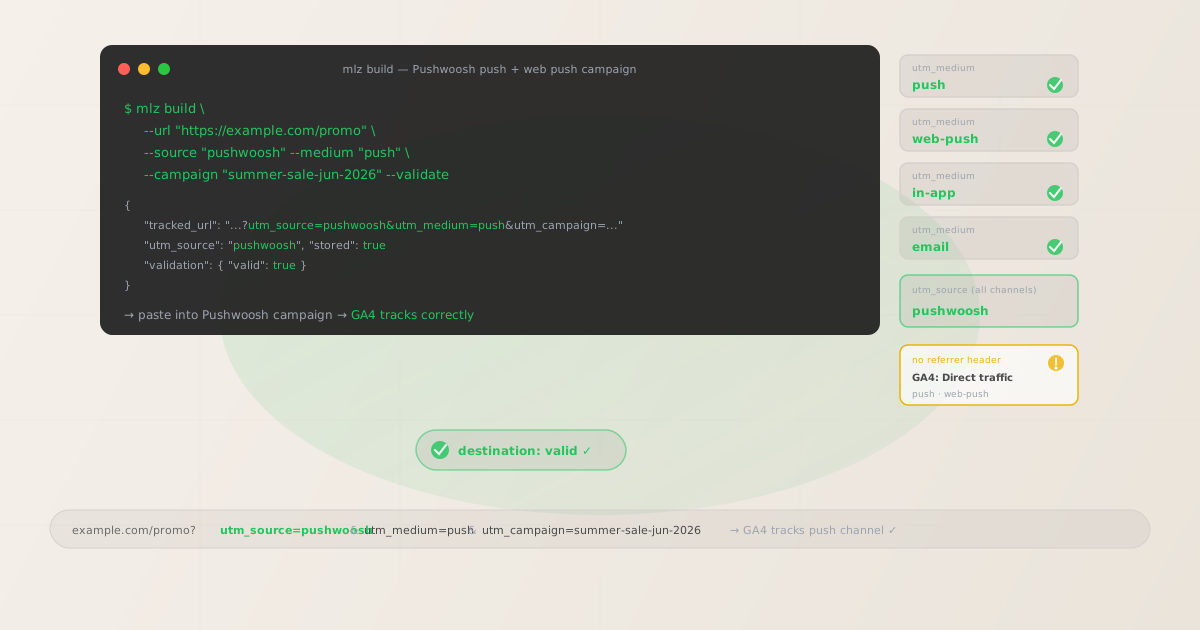
Why Pushwoosh UTM tracking requires careful setup
Pushwoosh supports four channel types — mobile push notifications, web push notifications, in-app messages, and email — each with different behavior in terms of how GA4 attributes the resulting sessions. The push channels are the most important to address because they generate the highest traffic volume for most Pushwoosh customers and have the most severe attribution failure without UTM parameters.
Mobile push notifications from Pushwoosh are delivered via APNs (iOS) and FCM (Android). When a user taps a mobile push notification, the operating system opens the action URL specified in the push payload. If the action URL is a web destination (landing page, product page, article), the browser opens it without passing a referrer header. GA4 receives no source information and attributes the session to Direct. For apps that send both deep links and web URLs in push notifications, the deep-link-opening notifications don't generate web sessions at all — only push notifications opening web URLs need UTM parameters.
Web push notifications from Pushwoosh face the same problem. When a desktop or mobile browser receives a web push notification and the user clicks it, the browser opens the notification's action URL without a referrer header. GA4 attributes the session to Direct unless UTM parameters are present in the action URL. Web push is particularly underreported in many teams' attribution models because the sessions look identical to organic Direct visits in GA4 — even teams that track mobile push via UTM often overlook web push attribution.
In-app messages in Pushwoosh are rendered inside the mobile app. When an in-app message contains a CTA linking to a web URL, tapping the CTA opens the URL in the device browser without a referrer, resulting in Direct attribution. In-app message CTAs that open deep links within the app don't create web sessions. Email campaigns from Pushwoosh benefit from email client referrer behavior in some configurations, but this is unreliable without UTM parameters.
| Pushwoosh channel | Referrer in GA4? | Without UTM parameters | Recommended utm_medium |
|---|---|---|---|
| Mobile push notification | No | Direct in GA4 | ✓ push |
| Web push notification | No | Direct in GA4 | ✓ web-push |
| In-app message (web URL) | No | Direct in GA4 | ✓ in-app |
| Sometimes (unreliable) | Email or Direct depending on client | ✓ email |
Building tracked Pushwoosh campaign URLs with mlz build
Build your tracked URLs with mlz build before creating the campaign in Pushwoosh's control panel. For mobile push notifications, paste the tracked_url into the Action URL field in the Pushwoosh push notification editor. For web push notifications, paste the tracked URL into the notification's URL field in the web push campaign editor. For in-app message CTAs linking to web URLs, enter the tagged URL as the CTA action URL. For email campaigns, add tagged URLs to each hyperlink in the email template. Add --validate to each build command to confirm the destination resolves correctly and UTM parameters survive any redirect chain — including Pushwoosh's own click-tracking redirects if link tracking is enabled.
# Mobile push notification action URL
$ mlz build \
  --url "https://example.com/promo" \
  --source "pushwoosh" \
  --medium "push" \
  --campaign "summer-sale-jun-2026" \
  --validate

{
  "tracked_url": "https://example.com/promo?utm_source=pushwoosh&utm_medium=push&utm_campaign=summer-sale-jun-2026",
  "params": {
    "utm_source": "pushwoosh",
    "utm_medium": "push",
    "utm_campaign": "summer-sale-jun-2026"
  },
  "stored": true
}

# Web push notification URL (same campaign)
$ mlz build \
  --url "https://example.com/promo" \
  --source "pushwoosh" \
  --medium "web-push" \
  --campaign "summer-sale-jun-2026" \
  --validate

{
  "tracked_url": "https://example.com/promo?utm_source=pushwoosh&utm_medium=web-push&utm_campaign=summer-sale-jun-2026"
}

# In-app message CTA (same campaign)
$ mlz build \
  --url "https://example.com/promo" \
  --source "pushwoosh" \
  --medium "in-app" \
  --campaign "summer-sale-jun-2026" \
  --validate

{
  "tracked_url": "https://example.com/promo?utm_source=pushwoosh&utm_medium=in-app&utm_campaign=summer-sale-jun-2026"
}
With a consistent utm_campaign slug across all Pushwoosh channels, GA4's campaign report for utm_campaign=summer-sale-jun-2026 shows all sessions from mobile push, web push, and in-app in a single campaign row. Pivot on utm_medium to compare which channel drove the most sessions and conversions. Using distinct utm_medium values for mobile push (push) vs web push (web-push) is particularly important for Pushwoosh customers who run both channel types simultaneously — without this distinction, both would appear under the same push medium and you couldn't differentiate the performance of mobile vs web push in GA4.
UTM tracking for Pushwoosh Customer Journey automation
Pushwoosh's Customer Journey feature allows you to build multi-step automation sequences that send push notifications, in-app messages, and emails across multiple touchpoints — similar to marketing automation workflow builders. For Customer Journey sequences, use utm_content to identify each journey step so GA4 can show which step in the sequence drove conversions. Use a consistent utm_campaign slug for the whole journey and match utm_medium to the channel type of each step.
# Journey step 1: push notification (day 1 after lapse)
$ mlz build \
  --url "https://example.com/come-back" \
  --source "pushwoosh" \
  --medium "push" \
  --campaign "winback-30d" \
  --content "push-day1" \
  --validate

{
  "tracked_url": "https://example.com/come-back?utm_source=pushwoosh&utm_medium=push&utm_campaign=winback-30d&utm_content=push-day1"
}

# Journey step 2: in-app message (day 3, user opens app)
$ mlz build \
  --url "https://example.com/offer" \
  --source "pushwoosh" \
  --medium "in-app" \
  --campaign "winback-30d" \
  --content "inapp-day3" \
  --validate

{
  "tracked_url": "https://example.com/offer?utm_source=pushwoosh&utm_medium=in-app&utm_campaign=winback-30d&utm_content=inapp-day3"
}

# Journey step 3: email follow-up (day 7)
$ mlz build \
  --url "https://example.com/final-offer" \
  --source "pushwoosh" \
  --medium "email" \
  --campaign "winback-30d" \
  --content "email-day7" \
  --validate

{
  "tracked_url": "https://example.com/final-offer?utm_source=pushwoosh&utm_medium=email&utm_campaign=winback-30d&utm_content=email-day7"
}
In GA4, filter by utm_campaign=winback-30d to see all sessions and conversions from this Pushwoosh Customer Journey across push, in-app, and email. Pivot on utm_content to identify which step in the win-back sequence drove the most reactivation conversions — data you can use to optimize the journey by adjusting timing, channel order, or message content for the steps with the lowest conversion rate.
Pushwoosh UTM tracking gotchas
- Pushwoosh's link tracking feature wraps action URLs and may affect UTM parameter delivery
- Pushwoosh includes a link click-tracking feature that wraps push notification action URLs through a Pushwoosh redirect for click measurement. Whether this redirect preserves the full query string — including UTM parameters — at the final destination depends on Pushwoosh's redirect configuration. After building a tracked URL with
mlz build --validate, test the campaign by sending a push notification to a test device, tapping it, and checking GA4 in real-time to confirm the session appears with the correctutm_source=pushwooshandutm_mediumvalues. Alternatively, runmlz check "your-tracked-url"on the Pushwoosh-wrapped version of the URL to verify that UTM parameters survive the redirect chain before the campaign sends to a live audience. - Pushwoosh mobile push can open deep links or web URLs — UTM parameters apply only to web URLs
- Pushwoosh mobile push notifications can open either a web URL in the device browser or a deep link to a specific in-app screen. Push notifications configured with a deep link action (e.g.,
myapp://products/sale) open the app directly without creating a web session in GA4. UTM parameters are only applicable for push notification action URLs that open web destinations in the device browser. For push notifications using deep links, track user behavior through Firebase Analytics in-app events rather than UTM parameters. Only applymlz buildtracked URLs to push notifications configured with HTTP/HTTPS action URLs. - Web push subscribers and mobile push subscribers are different audiences — use separate campaigns for accurate attribution
- Pushwoosh allows you to send a single campaign to both web push subscribers (browser notification opt-ins) and mobile push subscribers (app push opt-ins) simultaneously. For attribution accuracy in GA4, send these as separate campaigns with distinct
utm_mediumvalues —utm_medium=pushfor mobile push andutm_medium=web-pushfor web push. This allows GA4 to distinguish mobile push-driven sessions from web push-driven sessions in channel and campaign reporting. If you send both audiences in a single Pushwoosh campaign using one action URL, you lose the ability to differentiate mobile vs web push performance in GA4 unless you use Pushwoosh's audience segmentation to apply different action URLs per audience segment. - GA4 does not have default channel groups for push or web-push — add custom channel grouping
- GA4's default channel grouping does not include
pushorweb-pushas named channels. Sessions withutm_medium=pushorutm_medium=web-pushwill appear in GA4's "Unassigned" channel bucket in the default channel reports unless you configure custom channel grouping rules. Add rules in GA4 (Admin > Data Display > Channel Groups):utm_medium exactly matches push→ label "Mobile Push";utm_medium exactly matches web-push→ label "Web Push";utm_medium exactly matches in-app→ label "In-App". Without these rules, your Pushwoosh campaigns will look like they're not generating any traffic in GA4's default Acquisition reports even though the UTM parameters are working correctly. - Pushwoosh's Rich Media in-app messages may contain multiple CTAs with different destinations
- Pushwoosh's in-app message editor supports Rich Media formats (interstitials, banners, sliders) with multiple buttons, each potentially linking to a different destination URL. For in-app messages with multiple CTA buttons, build a separate tracked URL for each button with a distinct
utm_contentvalue:--content "cta-primary"for the main action button and--content "cta-secondary"for a secondary button linking to a different page. This allows GA4 to differentiate which in-app message button drove conversions rather than attributing all in-app CTA clicks to a single undifferentiatedutm_medium=in-appbucket.
Pushwoosh UTM naming conventions
Recommended UTM parameter values for Pushwoosh, aligned with GA4 channel reporting and a lowercase-hyphenated taxonomy:
- utm_source:
pushwooshfor all campaigns across all Pushwoosh channels (mobile push, web push, in-app, email). A single consistent source value across all channels makes it easy to filter GA4 to all Pushwoosh-attributed traffic and then pivot onutm_mediumfor channel-level breakdown. Avoid channel-specific source values likepushwoosh-webpush— the channel belongs inutm_medium. - utm_medium:
pushfor mobile app push notification action URLs;web-pushfor web browser push notification URLs (critical to distinguish from mobile push for separate channel reporting in GA4);in-appfor in-app message CTAs linking to web URLs;emailfor email campaign links. GA4's default channel grouping doesn't includepush,web-push, orin-app— add custom channel grouping rules for each medium value. - utm_campaign: A consistent lowercase-hyphenated slug per campaign or Customer Journey automation. For single-send campaigns:
summer-sale-jun-2026,new-release-jun,daily-digest-2026-06. For Customer Journey automations:onboarding-flow,winback-30d,cart-abandon-journey. Use the same slug across all channel steps in a Customer Journey so GA4 groups all touchpoints into one campaign row and you can measure total journey performance. - utm_content: Journey step identifier or CTA variant label. For Customer Journey automations:
push-day1,inapp-day3,email-day7. For in-app messages with multiple buttons:cta-primary,cta-secondary. For A/B test variants:variant-a,variant-b. Omit for single-message campaigns with a single CTA and no variants. - utm_term: Rarely used for Pushwoosh campaigns. Reserve for cases where the same campaign or journey targets meaningfully different audience segments:
utm_term=new-user,utm_term=lapsed-30d,utm_term=high-value.
See the UTM naming conventions guide for the full cross-platform reference and the UTM tracking for developers guide for programmatic generation and validation at scale.
FAQ
- Does Pushwoosh automatically add UTM parameters to push notification URLs?
- No. Pushwoosh does not automatically append UTM parameters to push notification action URLs, web push notification URLs, in-app message CTA URLs, or email campaign links. Pushwoosh's link click-tracking feature wraps URLs for Pushwoosh's own click measurement, but this does not add UTM parameters for GA4 attribution. You need to manually build tracked URLs with UTM parameters before entering them into Pushwoosh's campaign editors. Use
mlz build --source "pushwoosh" --medium "[channel]" --campaign "your-slug" --validatefor each campaign URL. - Should I use utm_medium=push or utm_medium=web-push for Pushwoosh?
- Use
utm_medium=pushfor mobile app push notifications sent to iOS and Android app users via APNs/FCM. Useutm_medium=web-pushfor web browser push notifications sent to website visitors who have opted in to browser notifications. If you send both audience types simultaneously in a single Pushwoosh campaign, either send them as separate campaigns with distinct medium values, or use Pushwoosh's audience segmentation to apply different action URLs per audience type. Distinguishing push from web-push inutm_mediumis important for understanding which channel type drives more conversions in GA4. - How do I track Pushwoosh Customer Journey automations in GA4?
- Use a consistent
utm_campaignslug for all steps in the Customer Journey, matchutm_mediumto the channel type of each step (push, in-app, email), and useutm_contentto identify each step (e.g.,push-day1,inapp-day3,email-day7). In GA4, filter byutm_campaignto see all sessions from the Customer Journey across all channels, then pivot onutm_mediumto compare channel performance and onutm_contentto compare individual step performance within the journey sequence. - How do I prevent Pushwoosh web push sessions from appearing as Direct in GA4?
- The only reliable fix is to add UTM parameters to every web push notification URL before the campaign sends. Build the tracked URL with
mlz build --url "your-destination" --source "pushwoosh" --medium "web-push" --campaign "campaign-slug" --validateand use the resultingtracked_urlas the web push notification URL in Pushwoosh's web push editor. Without UTM parameters, web push sessions look identical to organic Direct visits in GA4 — there is no other mechanism to distinguish them without UTM parameters since the browser provides no referrer information for web push click-throughs. - How do I validate Pushwoosh campaign URLs before they send?
- Run
mlz build --url "your-destination" --source "pushwoosh" --medium "[channel]" --campaign "your-slug" --validatefor each campaign URL before entering it in Pushwoosh. The--validateflag confirms HTTPS, resolution (200 response), redirect chain integrity (including UTM preservation through Pushwoosh's click-tracking redirect if applicable), and response time. For email campaign landing pages, also runmlz inspect "your-tracked-url"to verify OG tags, Twitter Card metadata, and viewport configuration. See the campaign link preflight check guide for the complete pre-launch validation workflow.
Recommended posts
Build Pushwoosh campaign links from the terminal
Use mlz build --source "pushwoosh" --medium "push" for mobile push, --medium "web-push" for web push, --medium "in-app" for in-app CTAs, and --medium "email" for email links. For Customer Journey automations, use a consistent --campaign slug across all steps and add --content "push-day1", --content "inapp-day3", etc. to identify each journey step in GA4. Add --validate to confirm each destination URL resolves correctly and UTM parameters survive Pushwoosh's click-tracking redirect before the campaign activates.
1,000 links/month free. No credit card.
Your API key
Save this now — it won't be shown again.
npm install -g missinglinkz
Free plan: 1,000 links/month. No credit card. See the UTM tracking for developers guide for the full programmatic workflow including API and MCP integration.