UTM Tracking for Airship: How to Build and Validate Campaign Links
UTM tracking for Airship requires manually adding utm_source=airship and utm_medium=push to the Action URL of every push notification — Airship does not auto-append UTM parameters to notification click-through URLs. Like all push notification platforms, Airship taps do not pass HTTP referrer headers: when a subscriber taps an Airship push notification and lands on your site, GA4 sees no referrer and classifies the session as Direct traffic. The only reliable way to ensure push notification traffic is correctly attributed to the push channel is to include UTM parameters in the Action URL before the notification is created. Build tracked Airship URLs with mlz build --source "airship" --medium "push" before entering them in the Airship dashboard or API, and run --validate to confirm the destination resolves correctly before sending.
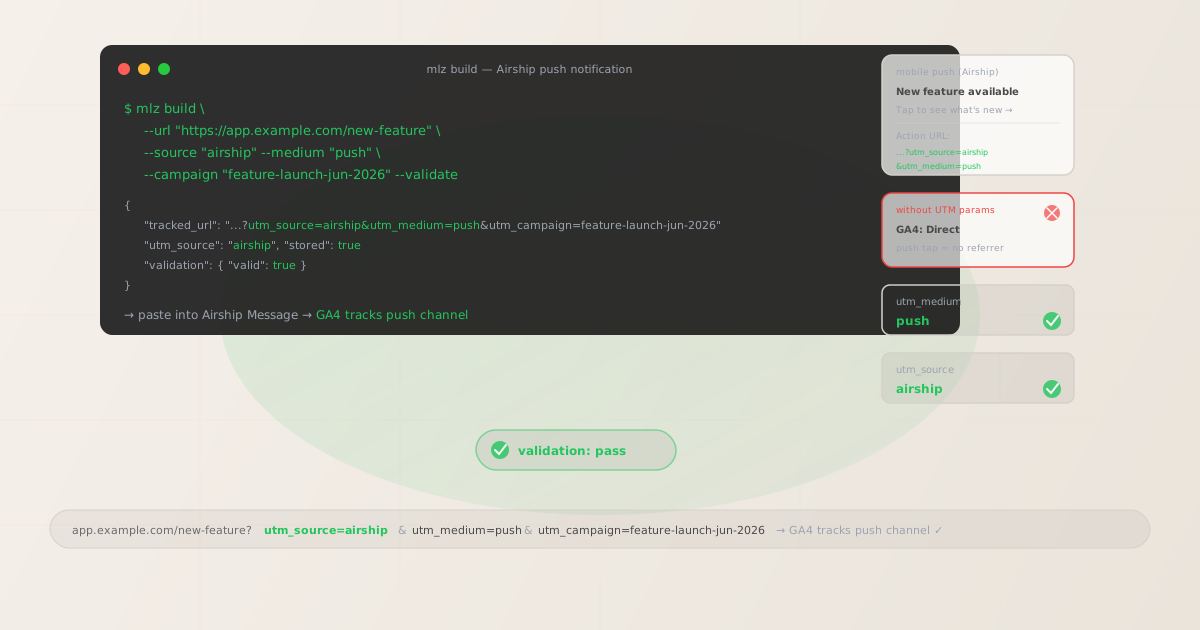
Why Airship push notifications show as Direct traffic without UTM parameters
Airship (formerly Urban Airship) is a leading mobile and web engagement platform used by enterprise consumer brands for push notifications, in-app messages, SMS, email, and content feed updates. Despite the sophistication of the platform, Airship push notifications share the same fundamental attribution limitation as every other push notification platform: push taps do not pass HTTP referrer headers.
When a subscriber taps an Airship push notification — on iOS, Android, or in a browser — the device opens the Action URL the same way a user typing a URL directly into a browser would. No referrer header is sent to the destination server. GA4's session acquisition logic classifies sessions arriving with no referrer as Direct traffic. Over time, untagged Airship push traffic accumulates in the Direct channel, inflating that baseline metric while your push channel contribution goes entirely uncounted in channel group reports and attribution models.
UTM parameters in the Action URL give GA4 the channel attribution data the missing referrer cannot provide. When GA4 sees utm_source=airship&utm_medium=push in the session URL, it correctly routes that session to the push channel — regardless of referrer status. This applies to all Airship message types: push notifications, web push, and any in-app message CTA that opens a URL in an external browser.
| Airship message type | Referrer passed? | Without UTM | With UTM params |
|---|---|---|---|
| Mobile push (iOS / Android) | No | Direct in GA4 | ✓ Push channel in GA4 |
| Web push notification | No | Direct in GA4 | ✓ Push channel in GA4 |
| In-app message (opens browser) | No | Direct in GA4 | ✓ In-app channel in GA4 |
| Airship Email | Often yes | Usually Email in GA4 | ✓ Email channel confirmed |
The correct utm_source and utm_medium for Airship
Use utm_source=airship for all messages sent via the Airship platform — mobile push, web push, in-app messages, and Airship Email. The source value identifies the sending platform. For utm_medium, use push for mobile and web push notifications. For in-app messages with CTA buttons that open external URLs, use utm_medium=in-app. For Airship Email sends, use utm_medium=email.
GA4 does not include "push" as a default channel in its channel grouping definitions. Sessions with utm_medium=push will appear under "Other channels" unless you configure a custom channel grouping rule in GA4 (Admin > Data Display > Channel Groups) that classifies utm_medium exactly matches push as a dedicated Push channel. Without this rule, push-attributed sessions are lumped into Other channels even though UTM parameters are present — the attribution is correct, but the channel grouping won't reflect it in standard reports.
- Mobile push (iOS / Android):
utm_source=airship,utm_medium=push - Web push notification:
utm_source=airship,utm_medium=push - In-app message CTA (opens external browser):
utm_source=airship,utm_medium=in-app - Airship Email:
utm_source=airship,utm_medium=email - Airship SMS:
utm_source=airship,utm_medium=sms
Building tracked Airship Action URLs with mlz build
Airship's Message Composer has an "Action URL" field (also called the "Open URL" action depending on message type) — this is the URL that opens when a subscriber taps the notification or clicks a CTA button. Build your tracked URL with mlz build before opening the Airship composer, then paste the resulting tracked_url into that field. Airship passes the Action URL directly to the device OS or browser without modification, so UTM query parameters are preserved as-is through the tap event.
# Build a tracked URL for an Airship push notification
$ mlz build \
  --url "https://app.example.com/new-feature" \
  --source "airship" \
  --medium "push" \
  --campaign "feature-launch-jun-2026" \
  --validate

{
  "tracked_url": "https://app.example.com/new-feature?utm_source=airship&utm_medium=push&utm_campaign=feature-launch-jun-2026",
  "params": {
    "utm_source": "airship",
    "utm_medium": "push",
    "utm_campaign": "feature-launch-jun-2026"
  },
  "destination_url": "https://app.example.com/new-feature",
  "created_at": "2026-06-07T09:00:00.000Z",
  "link_id": "lnk_air12345a",
  "stored": true
}

# Paste the tracked_url into Airship's "Action URL" field in the message composer
The --validate flag runs a full URL check against the destination before returning the tracked URL — confirming HTTPS, resolution (200 response), redirect chain integrity, and query string preservation through any redirects. For time-sensitive push campaigns such as flash sales, limited-time offers, or app feature launches, validating the destination URL before the notification is sent prevents sending thousands of subscribers to a broken or unavailable page.
For Airship Journeys and automated notification sequences (triggered by user events such as app installs, re-engagement windows, or purchase anniversaries), build the tracked URL at automation configuration time using a dedicated utm_campaign slug per automation: utm_campaign=onboarding-push-day1, utm_campaign=reengagement-push-30d, utm_campaign=win-back-push-60d. Configure these once in the Airship automation builder. Use utm_content to distinguish action buttons when a notification has multiple CTA buttons pointing to different destinations.
A/B testing Airship notifications with utm_content
Airship supports A/B testing (called Experiment in the Airship platform) where different notification variants — different copy, images, or action types — are sent to audience segments to measure which drives better engagement. If both variants link to the same destination URL, GA4 cannot distinguish which variant drove a given session without utm_content tagging each variant distinctly.
# Variant A: feature headline
$ mlz build \
  --url "https://app.example.com/new-feature" \
  --source "airship" \
  --medium "push" \
  --campaign "feature-launch-jun-2026" \
  --content "feature-headline" \
  --validate

{
  "tracked_url": "https://app.example.com/new-feature?utm_source=airship&utm_medium=push&utm_campaign=feature-launch-jun-2026&utm_content=feature-headline"
}

# Variant B: benefit headline
$ mlz build \
  --url "https://app.example.com/new-feature" \
  --source "airship" \
  --medium "push" \
  --campaign "feature-launch-jun-2026" \
  --content "benefit-headline" \
  --validate

{
  "tracked_url": "https://app.example.com/new-feature?utm_source=airship&utm_medium=push&utm_campaign=feature-launch-jun-2026&utm_content=benefit-headline"
}

# Assign variant-specific tracked URLs to each Airship Experiment variant
In GA4's campaign detail report, filter by utm_campaign=feature-launch-jun-2026 and pivot on the utm_content dimension to compare session counts, goal completions, and conversion rates per variant. This GA4 conversion data complements Airship's internal click-through rate metrics, giving you a complete picture of which notification variant actually drove downstream results — not just which variant was clicked more.
Airship UTM tracking gotchas
- Airship does not auto-append UTM parameters — every Action URL must be manually tagged
- Airship does not offer a platform-level setting to automatically append UTM parameters to all notification Action URLs. Every push notification, web push message, and in-app message CTA configured in Airship requires a manually tagged URL. This applies to both one-off campaign sends and automated Journey notifications. Building tracked URLs with
mlz buildbefore entering them in Airship is the reliable workflow — it standardizes source, medium, and campaign naming while validating the destination at the same time. - Airship mobile push uses "Action URL" — the field name varies by message type
- Depending on the Airship message type and the version of the Airship dashboard being used, the URL input field may be labeled "Action URL," "Open URL," "Landing Page URL," or "Button Action." All of these are the Action URL field — the URL that opens when the subscriber taps the notification or button. Regardless of the label, this is where the UTM-tagged URL must be entered. For Airship in-app message templates, CTA buttons have their own URL fields — each button destination requires its own tracked URL.
- Airship Scenes and Stories have multiple URL fields — tag each independently
- Airship's rich in-app message formats — Scenes (multi-screen in-app sequences) and Stories — have multiple screens, each with its own CTA button and URL. Each URL field must be independently tagged. Use
utm_contentto distinguish which Scene screen or Story slide drove a GA4 session:utm_content=scene-screen-1,utm_content=scene-screen-2,utm_content=story-slide-3. Without distinct content values, GA4 attributes all sessions from a multi-screen in-app message to the same bucket, making it impossible to understand which screen drove the conversion. - Mobile deep links require app-level UTM parameter handling
- For Airship push notifications using deep links (custom URL schemes or Universal Links / App Links for iOS / Android), UTM parameters work differently than for standard HTTPS URLs. The mobile app must be instrumented to read UTM parameters from the deep link URL and forward them to Firebase Analytics or GA4 via campaign measurement events. Airship passes the full Action URL to the app — including query parameters — but whether those parameters reach GA4 depends on the app's deep link handling implementation. For web URLs (standard HTTPS), UTM parameters are preserved and GA4 reads them normally without any app instrumentation needed.
- Airship Journey multi-channel flows need channel-appropriate medium values
- Airship Journeys can orchestrate multi-channel sequences combining push notifications, SMS, email, and in-app messages in a single automated flow. When tagging tracked URLs for each step, match the
utm_mediumto the delivery channel:utm_medium=pushfor push steps,utm_medium=smsfor SMS steps,utm_medium=emailfor email steps,utm_medium=in-appfor in-app message steps. Using a single medium value (likepush) for all steps in a Journey misrepresents the actual delivery channel to GA4, making it impossible to compare the effectiveness of each channel within the same Journey.
Airship UTM naming conventions
Recommended UTM parameter values for Airship, aligned with GA4 channel reporting and a lowercase-hyphenated taxonomy:
- utm_source:
airshipfor all sends from the Airship platform — mobile push, web push, in-app messages, Airship Email, and Airship SMS. Always lowercase. - utm_medium:
pushfor mobile and web push notifications;in-appfor in-app message CTAs that open external URLs;emailfor Airship Email;smsfor Airship SMS. Add a GA4 custom channel grouping rule to classifyutm_medium=pushsessions under a Push channel, as GA4 does not include Push in its default channel grouping definitions. - utm_campaign: Lowercase, hyphenated slug per notification campaign or automation. One-off campaigns:
flash-sale-jun-2026,feature-launch-jun,summer-reengagement. Automated sequences:onboarding-push-day1,reengagement-push-30d,win-back-push-60d,purchase-anniversary-push. For recurring recurring campaigns (weekly digests, daily updates), include a date suffix:weekly-digest-push-jun-7. - utm_content: CTA identifier or A/B variant label. Use when a message has multiple CTA buttons, when running Airship Experiments (A/B tests), or when a Journey step has variant messaging. Examples:
shop-now-cta,learn-more-cta,variant-a,variant-b,scene-screen-2. Omit when a notification has a single CTA and no variants. - utm_term: Rarely used for push. Consider using to segment re-engagement audiences:
utm_term=lapsed-30dvs.utm_term=lapsed-60dwhen sending the same campaign copy to different churn-risk audience segments with distinct destination experiences.
See the UTM naming conventions guide for the full cross-platform reference and the UTM tracking for developers guide for programmatic generation and validation at scale.
FAQ
- Does Airship automatically add UTM parameters to push notification URLs?
- No. Airship does not offer a platform setting to auto-append UTM parameters to all notification Action URLs. Every notification — one-off campaigns, Journey steps, and Experiment variants — requires a manually tagged URL. Airship provides its own internal analytics dashboard with delivery rates, direct opens, influenced opens, and goal completions configured within the Airship platform. But Airship's internal analytics and GA4's session attribution are separate systems that cannot share data directly — GA4 requires UTM parameters in the Action URL to correctly attribute Airship sessions.
- What utm_source should I use for Airship?
- Use
utm_source=airshipfor all messages sent from the Airship platform, regardless of channel. Some teams use the former brand name and setutm_source=urban-airshipfor legacy campaigns, but for new campaigns,utm_source=airshipmatches the current platform name and is the recommended convention. Consistency matters more than the exact value — pick one and standardize it across all Airship sends so GA4 reports all Airship traffic under a single source dimension row. - How do I validate that my Airship Action URL is correct before sending a notification?
- Run
mlz build --url "your-destination-url" --source "airship" --medium "push" --campaign "your-campaign-slug" --validatebefore creating the Airship notification. The--validateflag confirms HTTPS, resolution (200 response), redirect chain integrity, and query string preservation through any redirect hops. Copy the returnedtracked_urlinto Airship's Action URL field. For landing pages that will also be shared via social or email, runmlz inspect "your-tracked-url"to verify OG tags, Twitter Card metadata, and viewport configuration — preventing silent social preview failures on pages that may have been configured without the Airship campaign in mind. - How do I track Airship Journey multi-channel flows in GA4?
- Tag each Journey step with a medium value matching the delivery channel:
utm_medium=pushfor push steps,utm_medium=smsfor SMS steps,utm_medium=emailfor email steps. Use a consistentutm_campaignslug across all steps in the same Journey (e.g.,utm_campaign=onboarding-journey-2026) so you can filter GA4's campaign report by that slug and see each channel's contribution to Journey completions side by side. Differentiate steps within the Journey usingutm_content:utm_content=push-step-1,utm_content=email-step-2,utm_content=push-step-3. This gives you a complete picture of which Journey touchpoints drive sessions and which channels convert within the same campaign funnel. - Can I build Airship notification URLs programmatically at scale?
- Yes. If you use the Airship REST API to create notifications programmatically — common for transactional push scenarios like order confirmations, shipping updates, or personalized recommendations — build tracked URLs first with
mlz build --format json, extract thetracked_url, and pass it as the action URL in your Airship API payload. For high-volume automation pipelines, use the MissingLinkz REST API directly (POST /v1/build) to generate tracked URLs within your backend service before handing them to the Airship API. See the programmatic UTM link guide for the full API integration pattern.
Recommended posts
Build Airship notification links from the terminal
Use mlz build --source "airship" --medium "push" to generate tracked URLs for every Airship push notification before entering them in the Action URL field. Add --validate to confirm the destination resolves correctly before the notification sends. For Airship Experiment A/B variants, use --content "variant-a" and --content "variant-b" so GA4 can attribute sessions to the specific notification variant. For Airship Journey multi-channel flows, use a channel-appropriate medium value per step — push, email, sms, or in-app. Airship notifications that send without UTM parameters will appear as Direct traffic in GA4 with no retroactive fix available.
1,000 links/month free. No credit card.
Your API key
Save this now — it won't be shown again.
npm install -g missinglinkz
Free plan: 1,000 links/month. No credit card. See the UTM tracking for developers guide for the full programmatic workflow including API and MCP integration.