Connect an MCP Server to Cursor: 5-Minute Setup Guide
Once MissingLinkz is connected to Cursor as an MCP server, you can validate campaign links, build UTM-tagged URLs, and inspect landing page OG tags directly from the Cursor AI composer — without leaving your editor. Setup takes about five minutes: install the CLI, add a single JSON config file, and Cursor's agent can call the full MissingLinkz toolkit. This guide covers the exact configuration, what each MCP tool does, and three ready-to-use example prompts you can paste into the Cursor composer.
What you need before starting
- Cursor 0.42 or later
- MCP support in Cursor shipped in early 2025. Open Cursor, go to Help › About, and confirm the version. Update if needed.
- Node.js 18+
- The MissingLinkz CLI is an npm package. Check with
node --version. If you're using Cursor, Node is almost certainly already installed on your machine. - MissingLinkz CLI installed globally
- Run
npm install -g missinglinkzif you haven't already. Confirm it's available:mlz --version.
Step 1 — Install the CLI and get an API key
If you don't have MissingLinkz installed yet, install it globally and register for a free account:
npm install -g missinglinkz
mlz auth register --email [email protected]
Registration generates an API key (mlz_live_…) that you'll set as the MLZ_API_KEY environment variable. The key is required for campaign link storage and the full MCP tool set.
Step 2 — Create .cursor/mcp.json
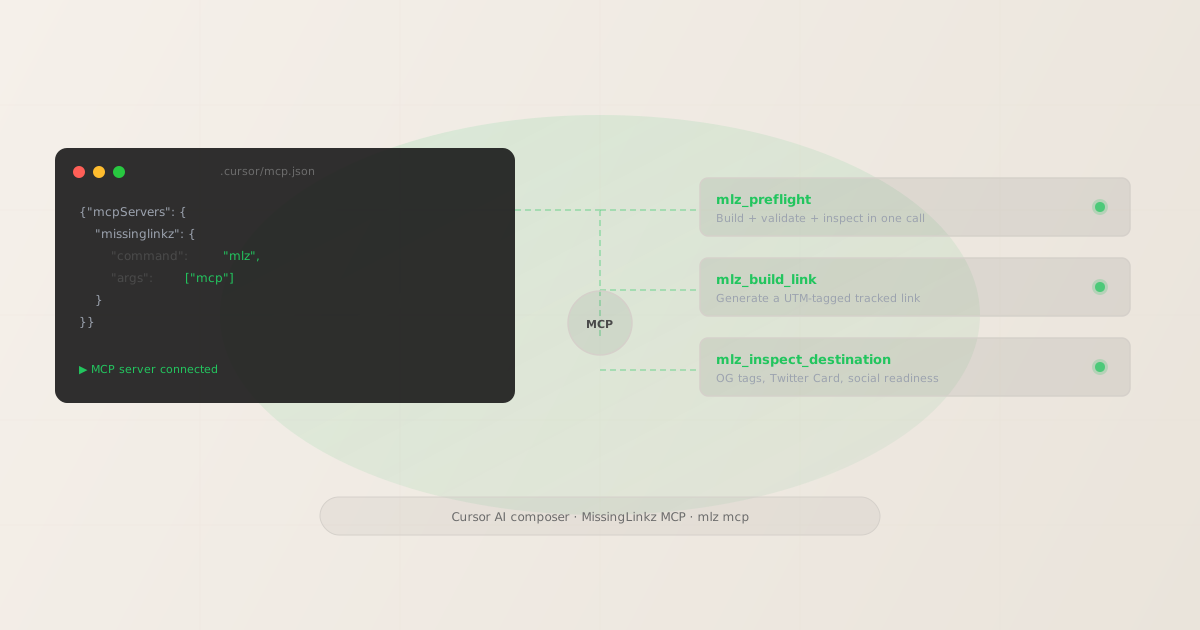
Cursor reads MCP server configuration from a file at .cursor/mcp.json in your project root (project-scoped) or at ~/.cursor/mcp.json (global, applies to all projects). Use the global location if you want MissingLinkz available everywhere.
Create or open the file and add the MissingLinkz server entry:
{
  "mcpServers": {
    "missinglinkz": {
      "command": "mlz",
      "args": ["mcp"],
      "env": {
        "MLZ_API_KEY": "mlz_live_your_key_here"
      }
    }
  }
}
Replace mlz_live_your_key_here with your actual key from mlz auth status. The env block is the recommended way to pass the API key — it keeps the key out of shell history and is visible only to the MCP server process that Cursor spawns.
If you already have other MCP servers configured, add the missinglinkz entry alongside them inside the existing mcpServers object — do not create a second mcpServers key.
Step 3 — Verify the connection in Cursor
Reload Cursor after saving the config file. To confirm the MCP server is connected:
- Open the Cursor command palette (Cmd+Shift+P on macOS, Ctrl+Shift+P on Windows/Linux)
- Search for MCP: List Servers or open Settings › Features › MCP Servers
- You should see missinglinkz listed with status connected
If the server shows as disconnected, verify that mlz is on your system PATH and that the API key is correctly pasted without extra whitespace. Run mlz auth status in your terminal to confirm the key is valid.
You can also verify by running mlz mcp directly in a terminal — the command will appear to hang, which is the server waiting for JSON-RPC input over stdin. That's the expected behavior. Press Ctrl+C to exit. If it starts without error, the binary is working correctly.
Example prompts in the Cursor AI composer
Once connected, type these prompts in the Cursor composer to trigger MissingLinkz tool calls. The agent will call the appropriate tool, show the JSON result, and interpret it for you.
Prompt 1: validate a campaign link before publishing
You: Validate this campaign link before I share it on LinkedIn:
https://example.com/landing?utm_source=linkedin&utm_medium=social&utm_campaign=q2-launch
Check SSL, OG tags, and whether the redirect preserves UTM params.

Cursor (calls mlz_preflight):
The link is ready to publish. All 12 checks passed:
- SSL: HTTPS confirmed
- Resolution: 200 OK in 241ms
- Redirects: No hops, UTM params preserved
- OG tags: title, description, og:image all present
- Twitter Card: summary_large_image configured
Prompt 2: build a tracked UTM link
You: Build a UTM-tracked link for our Q2 LinkedIn campaign.
Destination: https://example.com/product-launch
Source: linkedin, Medium: social, Campaign: q2-product-2026

Cursor (calls mlz_build_link):
Here's your tracked URL:
https://example.com/product-launch?utm_source=linkedin&utm_medium=social&utm_campaign=q2-product-2026
Link ID: lnk_9wlvd9qi · Campaign: cmp_kbcht77d
Prompt 3: inspect a landing page's social sharing readiness
You: Inspect https://example.com/new-landing for OG tags and
Twitter Card. Tell me if anything is missing before we run ads
pointing to it.

Cursor (calls mlz_inspect_destination):
Found 2 issues:
- WARN: og:image is missing. LinkedIn and X will show no preview image.
- PASS: og:title and og:description are present.
- PASS: Twitter Card (summary_large_image) is configured.
Recommendation: Add an og:image tag before running any paid campaigns
pointing to this page.
Full list of available MCP tools
When Cursor is connected to the MissingLinkz MCP server, it can call any of these tools. The agent selects the right tool based on what you ask for.
| Tool name | What it does |
|---|---|
mlz_preflight |
Pre-publish campaign link check: builds the UTM link, validates the destination URL, and inspects it for social sharing readiness — all in one call. Returns a ready boolean. |
mlz_build_link |
Generates a UTM-tagged tracked link and stores it in your campaign history. Use when you only need link building without the full pre-publish check. |
mlz_inspect_destination |
Inspects a URL for social sharing readiness: OG tags, Twitter Card, viewport, canonical, favicon, and page load time. Use when you already have a link and just need the landing page report. |
mlz_validate_url |
Validates a URL for SSL, resolution, redirect chain, and response time. Lightweight check when you don't need OG tag inspection. |
mlz_list_campaigns |
Lists all campaigns in your account. Useful when you want the agent to retrieve an existing campaign name rather than guessing. |
mlz_suggest_naming |
Suggests consistent utm_source and utm_medium values based on your existing naming conventions. |
mlz_list_links |
Lists recently generated links. Filter by campaign name and limit results. |
mlz_check_usage |
Returns your current API usage, plan tier, and remaining quota for the month. |
For the full command reference including all flags and JSON response shapes, see the MCP Marketing Tools guide and the SKILL.md.
Tips for using MissingLinkz in the Cursor agent
- Be specific about the campaign parameters
- The agent will infer parameters from context when possible, but providing explicit values (
source: linkedin,medium: social,campaign: q2-launch) avoids unnecessary clarification turns and produces more accurate UTM link outputs. - Ask for the full preflight report for new landing pages
mlz_preflightis the right tool when a landing page is new or recently updated — it checks both the URL resolution and the OG tags in one call. Usemlz_validate_urlfor a faster check on pages you've already inspected and know have working OG tags.- Use mlz_suggest_naming when you're unsure of conventions
- If your team has existing campaigns with specific naming patterns (e.g.,
utm_medium=paid-socialvspaid_socialvssocial), ask the agent to runmlz_suggest_namingbefore building a new link. It will surface your historical convention and apply it consistently. - The MCP server uses stdio transport only
- Unlike HTTP-based MCP servers,
mlz mcpcommunicates over stdin/stdout. Cursor manages the process lifecycle — you don't need to start the server manually. If you see "transport error" messages, it usually meansmlzis not on PATH. Runwhich mlzand check that the result is a valid path.
FAQ
- Does MissingLinkz work with the Cursor Agent or just the chat?
- Both. MCP tools are available in any Cursor context where the agent can make tool calls — this includes the AI Chat panel (Cmd+L), the Composer (Cmd+K), and Cursor Agent mode. The agent automatically chooses the right tool based on your prompt.
- Do I need to restart Cursor after editing .cursor/mcp.json?
- Yes. Cursor reads the MCP config at startup. After any change to the config file — including updating the API key or adding new servers — reload Cursor to pick up the changes. Use File › Quit and reopen, not just a window close/open cycle, to ensure a full process restart.
- Can I use a .env file for the API key instead of hardcoding it in mcp.json?
- The
envblock in.cursor/mcp.jsonsets environment variables for the MCP server process specifically. You can omit theenvblock entirely ifMLZ_API_KEYis already exported in your shell environment — Cursor will inherit it. The CLI also reads from a config file at~/.missinglinkz/config.jsonwritten bymlz auth login, which means you may not need to pass the key explicitly at all if you've logged in via the CLI. - What if I want the MCP connection to apply to all my Cursor projects?
- Create or edit
~/.cursor/mcp.jsonin your home directory instead of the project-scoped.cursor/mcp.json. Entries in the global file apply to every project you open in Cursor, so you only need to configure the API key once. - Using Claude Code instead of Cursor?
- The setup is nearly identical. See How to Use MissingLinkz with Claude Code — it covers the same MCP config pattern for Claude Desktop and Claude Code.
Recommended posts
Connect MissingLinkz to Cursor in 5 minutes
Install the CLI, register for a free API key, add the config block to .cursor/mcp.json, and your Cursor agent can validate, build, and inspect campaign links without leaving the editor.
1,000 links/month free. No credit card.
Your API key
Save this now — it won't be shown again.
npm install -g missinglinkz
mlz auth register --email [email protected]
Free plan: 1,000 validations/month. Full command reference in the SKILL.md.