How to Connect MissingLinkz to Cursor as an MCP Server
You can connect MissingLinkz to Cursor as an MCP server in about two minutes: install the CLI, add a four-line JSON block to .cursor/mcp.json, and Cursor's AI composer can immediately call mlz_preflight, mlz_build_link, and mlz_inspect_destination as native tools. No shell commands required from the composer — Cursor sees MissingLinkz as a structured tool it can invoke, reason about, and chain with other operations.
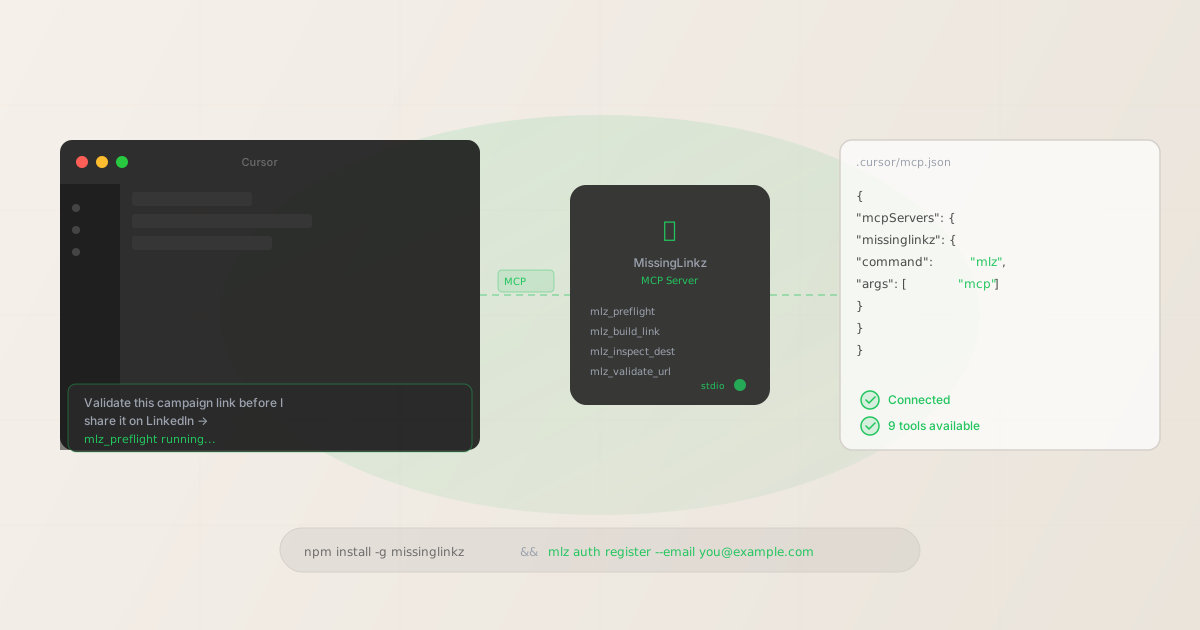
What MCP integration gives Cursor users
Cursor is an AI-powered code editor built on VS Code. Its composer can run code, edit files, and use any MCP server you configure. Without MCP, an AI in Cursor can only interact with MissingLinkz by asking the user to run a terminal command — a manual step that breaks the agentic workflow.
With MCP configured, the Cursor composer can:
- Call MissingLinkz tools directly — no terminal, no copy-pasting commands
- Receive structured JSON results and reason about them in the same turn
- Chain operations — build a UTM link, inspect the destination, and report a pass/fail verdict in one composer session
- Operate autonomously — validate campaign links as part of a larger workflow without stopping to ask the user for manual steps
This is the same MCP transport used by Claude Code, Claude Desktop, and other MCP-compatible agents. The protocol is Model Context Protocol (MCP) — a standard for structured tool access between AI agents and external services. MissingLinkz uses stdio transport, which means the server runs as a local process rather than making outbound network connections.
Prerequisites
- Cursor (v0.40 or later)
- MCP support was added to Cursor in v0.40. Open Cursor → Help → About to check your version. Update if needed.
- Node.js (v18 or later)
- MissingLinkz is a Node.js CLI. Check your version with
node --version. Install from nodejs.org if needed. - MissingLinkz CLI
- Install globally:
npm install -g missinglinkz. Verify withmlz --version. - MissingLinkz API key (optional)
- Required for link storage and campaign management, but not for the core preflight and inspect tools. For API features, get a free key at
mlz auth register --email [email protected].
Step 1: Install MissingLinkz
npm install -g missinglinkz
Verify the install and confirm mlz mcp is available:
mlz --version && mlz mcp --help
If mlz mcp --help shows the MCP server description, the install is complete.
Step 2: Configure Cursor's MCP settings
Cursor reads MCP server configuration from .cursor/mcp.json in your project directory (for project-scoped configuration) or from ~/.cursor/mcp.json (for global configuration).
Open or create .cursor/mcp.json in your project root and add the MissingLinkz server:
{
  "mcpServers": {
    "missinglinkz": {
      "command": "mlz",
      "args": ["mcp"]
    }
  }
}
If you have an API key and want link persistence, add it to the config:
{
  "mcpServers": {
    "missinglinkz": {
      "command": "mlz",
      "args": ["mcp"],
      "env": {
        "MLZ_API_KEY": "mlz_live_your_key_here"
      }
    }
  }
}
Alternatively, set the API key as an environment variable in your shell profile rather than hardcoding it in the config file. Cursor inherits your shell environment, so any variable set in ~/.zshrc or ~/.bashrc is available to the MCP server:
export MLZ_API_KEY="mlz_live_your_key_here"
Step 3: Restart Cursor and verify the connection
After saving the mcp.json file, restart Cursor completely (quit and reopen — not just reload window). Cursor initializes MCP servers on startup.
To verify the connection is active:
- Open Cursor Settings → Features → MCP (or search "MCP" in settings)
- You should see
missinglinkzlisted as a connected server with a green status indicator - The available tools should include
mlz_preflight,mlz_build_link,mlz_inspect_destination, and others
If the server shows as disconnected, check that mlz is in your PATH by running which mlz in a terminal. If it is not found, reinstall with npm install -g missinglinkz and ensure your npm global bin directory is in PATH.
Using MissingLinkz tools from the Cursor composer
Once connected, ask the Cursor composer to validate a campaign link in natural language. It will invoke the MissingLinkz MCP tools automatically:
You: Validate this campaign link before I share it:
https://acme.com/spring-sale for a LinkedIn social post,
campaign "spring-sale-2026"

Cursor: Calling mlz_preflight...
→ Building UTM link with utm_source=linkedin, utm_medium=social
→ Checking SSL, resolution, redirects
→ Inspecting OG tags, Twitter Card, favicon

All 9 checks passed. Your tracked link:
https://acme.com/spring-sale?utm_source=linkedin&utm_medium=social&utm_campaign=spring-sale-2026
Three more example prompts that trigger MissingLinkz tools:
"Build UTM links for our Q2 campaign across LinkedIn, Twitter, and email"
"Check if this landing page is ready for social sharing: https://acme.com/new"
"Validate the destination URL before we add it to the ad campaign"
The composer recognizes these as campaign link operations and calls the appropriate MissingLinkz tool directly. It does not run raw shell commands — it uses the structured MCP tool interface, which gives it full context about available parameters and what each field means.
Available MissingLinkz MCP tools
When connected via MCP, the following tools are available to Cursor's composer:
- mlz_preflight
- The all-in-one pre-publish check. Builds a UTM link, validates the destination URL (SSL, resolution, redirects), and inspects the landing page for social sharing readiness (OG tags, Twitter Card, favicon, load time). Returns a go/no-go verdict with full check details. This is the tool to call before any campaign link goes live.
- mlz_build_link
- Generates a UTM-tagged URL from the provided parameters. Enforces lowercase and hyphenated values. Stores the link if an API key is configured. Returns the tracked URL and parameter breakdown as structured JSON.
- mlz_inspect_destination
- Inspects a URL for social sharing readiness without building a UTM link. Checks Open Graph tags, Twitter Card tags, favicon, and page load time. Returns a pass/warn/fail status for each check plus the raw tag values.
- mlz_validate_url
- Validates a URL's health: format, SSL, HTTP resolution, redirect chain, and response time. Returns a structured check array and a boolean
validfield. - mlz_list_campaigns / mlz_list_links
- Lists previously generated campaigns and links (requires API key). Useful for asking the composer "show me all the links we built for the spring campaign."
- mlz_suggest_naming
- Suggests consistent UTM source or medium naming based on your existing convention. Ask the composer "what should I use for utm_source for our Substack newsletter?" and it will call this tool.
For the complete list of tools and their parameter schemas, see the AI agent marketing workflows with MCP guide.
Troubleshooting common connection issues
- Server shows as "disconnected" in Cursor settings
- Check that
mlzis accessible: runwhich mlzin a terminal. If it is not found, your npm global bin directory may not be in PATH. Find it withnpm root -gand add the parentbin/directory to your PATH in~/.zshrcor~/.bashrc. Then restart Cursor. - Cursor is not calling MissingLinkz tools
- Check that the composer is in "Agent" mode, not "Chat" mode. MCP tools are only available to the Agent composer (the one that can run commands and use tools). In Chat mode, Cursor cannot invoke MCP servers. Toggle to Agent mode with the mode selector in the composer input area.
- mlz mcp appears to hang when run directly
- This is expected behavior.
mlz mcpstarts a JSON-RPC server over stdin/stdout and waits for messages — it appears idle in a terminal because it is waiting for a client to connect. It is not hung. You do not need to run it manually: Cursor starts and stops the server process automatically via the config inmcp.json. - API key not being picked up
- If you set
MLZ_API_KEYin your shell profile but Cursor is not picking it up, add the key directly to theenvblock inmcp.jsonas shown in Step 2. GUI applications like Cursor sometimes start with a limited environment that does not include shell profile variables.
FAQ
- Does this work on Windows?
- Yes. MissingLinkz runs on Windows via Node.js. In
mcp.json, use"command": "mlz"on Windows the same as macOS and Linux — Node.js global binaries work cross-platform. If you have issues, try"command": "npx"with"args": ["-y", "missinglinkz", "mcp"]as an alternative that does not require the global binary to be in PATH. - Can I use this with Cursor's Cursor.directory integration?
- Cursor.directory is a community discovery channel for MCP servers. MissingLinkz can be added there for discoverability. The configuration block in this guide is the same one you would submit to Cursor.directory. Once you have it working locally, the
mcp.jsonsnippet is what users copy from the directory listing. - Is this different from the Claude Code integration?
- The MCP protocol and MissingLinkz tools are identical — the configuration path is different. Claude Code uses
.claude/mcp.json(or settings added via the Claude Code CLI), while Cursor uses.cursor/mcp.json. The samemlz mcpcommand, the same tools, the same JSON output. For the Claude Code setup, see how to use MissingLinkz with Claude Code. - Do I need to restart Cursor after editing mcp.json?
- Yes. Cursor reads MCP configuration on startup. Changes to
mcp.jsonrequire a full restart (quit and reopen), not just a window reload. After restarting, check Settings → Features → MCP to confirm the server is shown as connected.
Recommended posts
Connect MissingLinkz to Cursor in two minutes
Install the CLI, add the config, restart Cursor. Your AI composer can then build and validate campaign links as a native tool — no browser, no manual steps.
1,000 links/month free. No credit card.
Your API key
Save this now — it won't be shown again.
npm install -g missinglinkz
mlz auth register --email [email protected]
Free plan: 1,000 links/month. No credit card. Then add the .cursor/mcp.json config from Step 2 above.